

FlyOOBE’s latest updates — and a fast-growing family of community tools like RemoveWindowsAI and Winslop — have sharpened the Windows 11 “debloat” toolset, adding smarter detection and deeper removal options for the operating system’s expanding AI surfaces while also widening the safety, supportability, and update‑stability trade-offs users must accept.
Windows 11 has steadily evolved from a UI refresh into an “AI PC” platform: Copilot, Recall, on‑device models, and other AI‑powered features are increasingly present in the inbox experience. That shift has driven a parallel movement in the Windows community: tools that remove or disable components users consider unnecessary, noisy, or privacy‑creeping. FlyOOBE began as a compact installer bypass and has been rebuilt into an Out‑Of‑Box Experience (OOBE) toolkit; RemoveWindowsAI is an open‑source PowerShell project tailored to strip AI surfaces; smaller utilities such as Winslop and Tiny11 variants target one‑click or image‑level slimming.
This article summarizes what changed in the recent FlyOOBE updates, explains how integrated AI‑removal tooling now works in practice, critically evaluates the benefits and risks, and provides a practical, safety‑first playbook for power users and IT pros who want a leaner Windows 11 without turning a testbed into a support nightmare.
RemoveWindowsAI complements that by aggregating community techniques into a scripted workflow that removes Appx/MSIX AI packages, flips policies and registry keys, and in some cases manipulates servicing artifacts to prevent immediate reprovisioning. Winslop and similar one‑click utilities expose a short, opinionated checklist for users who want a straightforward “quiet desktop” outcome.
Similarly, while RemoveWindowsAI’s scripted removals are comprehensive, they cannot guarantee future-proof results: Microsoft’s package names, provisioning paths, and servicing behavior change across updates and Windows feature releases. Any claim of a permanent “kill switch” for AI features should be considered provisional and validated on a case‑by‑case basis.
However, with greater power comes greater responsibility. Deeper removals that touch servicing artifacts, Component‑Based Servicing, or long‑term update behavior introduce material operational and security risk. Organizations should prefer supported methods and pilot extensively; individual enthusiasts should always test in disposable environments and retain full backups. Claims that a community tool can permanently neuter Microsoft’s AI features or pause updates for years require healthy skepticism and thorough verification before use in production.
If you want a lean Windows 11 and are comfortable with the trade‑offs, the new FlyOOBE features (plus RemoveWindowsAI integrations) make that path easier and more repeatable than ever — but the safest and most sustainable approach remains careful testing, conservative profiles, and a clear rollback plan.
In short: the tools are getting smarter and more capable, but the maintenance and security implications are also growing. Use them deliberately, document changes, and never skip backups.
Source: thewincentral.com Windows 11 Debloat Tools Updated With Smarter AI Removal
 Background
Windows 11 has steadily evolved from a UI refresh into an “AI PC” platform: Copilot, Recall, on‑device models, and other AI‑powered features are increasingly present in the inbox experience. That shift has driven a parallel movement in the Windows community: tools that remove or disable components users consider unnecessary, noisy, or privacy‑creeping. FlyOOBE began as a compact installer bypass and has been rebuilt into an Out‑Of‑Box Experience (OOBE) toolkit; RemoveWindowsAI is an open‑source PowerShell project tailored to strip AI surfaces; smaller utilities such as Winslop and Tiny11 variants target one‑click or image‑level slimming.This article summarizes what changed in the recent FlyOOBE updates, explains how integrated AI‑removal tooling now works in practice, critically evaluates the benefits and risks, and provides a practical, safety‑first playbook for power users and IT pros who want a leaner Windows 11 without turning a testbed into a support nightmare.
What’s new in FlyOOBE and the wider debloat ecosystem
Smarter detection of AI surfaces
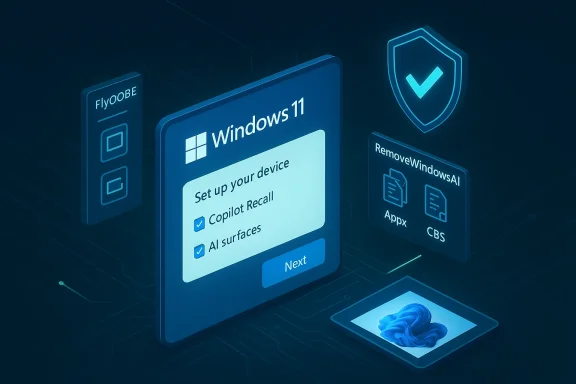
Recent FlyOOBE releases add a dedicated OOBE view that hunts for Copilot, Recall, and other AI components during first boot, exposing them as explicit checkboxes or profile options. The project’s pivot from a bypass tool to an OOBE customizer includes GitHub‑loadable debloat profiles and expanded heuristics for identifying AI‑related packages, scheduled tasks, and background services.RemoveWindowsAI complements that by aggregating community techniques into a scripted workflow that removes Appx/MSIX AI packages, flips policies and registry keys, and in some cases manipulates servicing artifacts to prevent immediate reprovisioning. Winslop and similar one‑click utilities expose a short, opinionated checklist for users who want a straightforward “quiet desktop” outcome.
Deeper removal options and integrations
The most visible change is depth: debloat tools are no longer limited to uninstalling inbox apps. Newer builds attempt to:- Remove or disable Copilot UI elements and associated packages.
- Turn off background services tied to recall, indexing, and on‑device inference.
- Remove optional Microsoft components and inbox games.
- Edit Component‑Based Servicing (CBS) artifacts to reduce re‑installation by Windows Update (an aggressive, and potentially fragile, step).
New update controls and the “Windows Update Tamer”
Some FlyOOBE builds have introduced an extension colloquially called “Windows Update Tamer,” which promises stronger pause or defer options beyond the built‑in Windows controls — reportedly even allowing very long pause periods. These claims appear in community threads and release notes, but they also raise immediate red flags for security and compatibility. Treat this capability with extreme caution: community reporting suggests the feature can disrupt normal servicing expectations.Why power users care — and why this matters
Many enthusiasts and administrators want a Windows 11 installation that is:- Leaner on disk and memory footprint.
- Free of unsolicited Microsoft apps and games.
- Less chatty in telemetry, notifications, and ads.
- Devoid of AI components they neither use nor trust.
How the new AI removal flows actually work
Detection layer
Tools scan for multiple artifact classes:- Appx/MSIX packages with known AI‑branded names (for example, packages associated with Copilot).
- Scheduled tasks, services, and driver‑level components that enumerate with known AI or recall fingerprints.
- Registry policies and user registry entries that enable/disable UI globs.
Remediation layer
Once identified, removal scripts use a combination of techniques:- Appx/MSIX removal via Add‑AppxPackage / Remove‑AppxPackage or the DISM servicing stack.
- Policy/reg key changes using Set‑ItemProperty and local Group Policy edits to stop UI surfaces.
- Deleting or quarantining servicing artifacts in the CBS store to reduce automatic re‑provisioning by future feature updates (this is the riskiest, since it touches servicing).
Integration and presets
FlyOOBE’s new approach bundles detection and remediation into preset profiles: conservative, balanced, and aggressive. Profiles let users pick the level of removal they want and can be extended via GitHub presets for very specific setups (for example, a lab image that must never include Copilot).The benefits: what you gain
- Faster, quieter installs: OOBE‑time cleanup reduces the need for post‑install scripting and cuts logon chatter on first boot.
- Reproducible images: profile‑driven removals help maintain consistent builds across multiple machines.
- Reduced attack surface: removing unused inbox apps and AI surfaces can reduce the number of processes that handle remote content or telemetry. That said, removal must be careful to not break security features.
- Better performance on legacy hardware: trimming background services, search indexing, and animation features can measurably help low‑end or aging systems.
The risks and downsides — be explicit about the trade‑offs
- Security update fragility
- Aggressive removals that touch the CBS or servicing store may prevent Windows Update from re‑provisioning removed packages correctly, and could block or complicate future feature updates. Community reports flag this as a major reliability hazard.
- Unsupported states and warranty concerns
- Tools like FlyOOBE originally skirted installer checks to run on “unsupported” hardware; doing so can place a device outside vendor or Microsoft support and might complicate EOL or ESU considerations.
- Functionality regressions
- Removing components may break user scenarios (for example, certain Search or Clipboard features tied to AI services). Some removals are reversible; others require re-installing packages or even performing an in-place repair.
- Privacy vs telemetry assumptions
- While many users remove telemetry and cloud features for privacy, some telemetry data is used by Microsoft for security and compatibility telemetry. Blanket removals could inadvertently reduce the fidelity of diagnostic data used to protect the device.
- Community‑script trust model
- Many of these projects are community authored and distributed through GitHub or forums. Trusting a script to make system‑level changes requires reviewing the code or relying on well‑established maintainers. Blindly running “one‑click” solutions without review is dangerous.
- Long‑term maintenance
- Microsoft’s product ship model updates names, package identifiers, and servicing mechanics often. A removal that works today may fail to remove new components tomorrow, requiring regular maintenance of the debloat profiles.
A safety‑first playbook: how to debloat Windows 11 without burning bridges
Follow these steps when evaluating or using FlyOOBE, RemoveWindowsAI, or similar tools. This is a practical checklist built from the community’s lessons and the behavior described in recent updates.- Back up the system image first.
- Create a full drive image or at minimum a restore point and backup of user data. If anything goes wrong, an image restore is the fastest recovery.
- Test in a disposable VM or spare machine.
- Apply the desired profile in a VM or a non‑critical test device to see what breaks. This is the single best way to learn which features are affected.
- Choose conservative profiles initially.
- Start with “conservative” or “balanced” presets. Avoid aggressive CBS manipulations until you understand update consequences.
- Read the script and changelogs.
- Inspect RemoveWindowsAI scripts and FlyOOBE integrations (or have a trusted admin do it). Look for steps that alter servicing or delete CBS artifacts; those are the most dangerous.
- Keep a rollback plan.
- Know how to reinstall removed Appx packages or roll back registry changes. Keep a list of removed package names and the PowerShell commands to re‑add them if necessary.
- Don’t block updates permanently.
- Avoid long‑term blocking or “taming” of Windows Update on production devices. If you use an update tamer for testing, schedule a plan to re‑enable updates on a maintenance window.
- Use Intune/Group Policy for managed fleets.
- For enterprise deployments, prefer controlled policies (MDM, Group Policy) where possible. Community tools are most appropriate for single‑user, lab, or enthusiast scenarios.
- Track upstream changes.
- Subscribe to release notes for FlyOOBE and RemoveWindowsAI, and test new tool versions on noncritical systems first. Community presets and GitHub issues are early indicators of breakage.
Enterprise and IT considerations
For administrators, the headline is caution. While FlyOOBE’s OOBE customization model is attractive for imaging, enterprise tooling should favor supported methods: unattend.xml answers, Windows Configuration Designer, MDT, and vendor‑certified image‑building pipelines.- Where possible, use Microsoft‑supported removal paths (for example, in‑place removal options exposed in Windows Server Update Services or via supported MDM lists) rather than community scripts that edit servicing artifacts.
- Test policies in a pilot group before wide rollouts. The failure modes of aggressive debloat commonly show up as update errors, missing drivers, or broken UWP experiences — all of which cause helpdesk churn.
- Consider user education: removing Copilot and AI features may be a policy choice, but some users will request those features later. Maintain a documented re‑enable path.
Technical deep dive: what to watch for in the scripts
Appx/MSIX removals
Scripts enumerate user and system Appx packages and call Remove‑AppxPackage or use DISM to remove system provisioned packages. When a package is provisioned in the image, Windows Update may re‑provision it during feature updates if servicing artifacts are intact. Aggressive scripts attempt to remove provisioning entries from the image or manipulate CBS to prevent that. Those manipulations are the most fragile and most likely to cause update problems.Registry and Policy flips
Many features are toggleable via Group Policy equivalents exposed in the registry. These changes are low risk if you know the keys, but policy naming changes between Windows releases can render them ineffective over time. Keep a change log.Scheduled tasks and background services
Some AI components are implemented as scheduled tasks or background services. Removing or disabling them can save CPU and I/O, but you must avoid touching services that are dependencies for other system features. The safest path is disabling (so it’s reversible) rather than deletion.Where claims are uncertain — a cautionary note
Community posts and release notes for FlyOOBE have discussed a “Windows Update Tamer” that can pause updates for extended periods, and some threads claim extremely long pause durations (even multi‑year). These are community assertions and should be treated as such: the long‑term effects on patching, driver signing, and security posture are not fully documented and will vary by Windows servicing channel and version. Avoid assuming a community tool gives you a safer outcome than the system’s supported update mechanisms.Similarly, while RemoveWindowsAI’s scripted removals are comprehensive, they cannot guarantee future-proof results: Microsoft’s package names, provisioning paths, and servicing behavior change across updates and Windows feature releases. Any claim of a permanent “kill switch” for AI features should be considered provisional and validated on a case‑by‑case basis.
Alternatives and complementary approaches
- Use Microsoft’s supported management tools (MDM, Group Policy) to limit features in managed environments.
- Build your own image with the Windows ADK and remove provisioning packages at image creation time for higher reliability.
- For individual users, use conservative community tools that focus on UI removal and policy flips rather than servicing manipulation.
Recommended workflow for power users (summary)
- Image or snapshot the machine.
- Test the desired debloat profile in a VM.
- Apply a balanced FlyOOBE/RemoveWindowsAI preset if satisfied with results.
- Avoid CBS or servicing store edits on production systems unless you have a robust rollback plan.
- Schedule re‑enablement windows and monitor update logs for errors.
- Keep a local repository of re‑install commands for removed packages.
Final assessment: smart capability, real trade‑offs
The recent updates to FlyOOBE and related debloat tools represent an evolution: the community is moving from ad‑hoc, post‑install tinkering to an integrated, OOBE‑centric model that makes it far easier to ship a Windows 11 installation tailored to privacy‑minded, performance‑sensitive, or legacy‑hardware scenarios. That is an important and valuable capability for power users, refurbishers, and labs.However, with greater power comes greater responsibility. Deeper removals that touch servicing artifacts, Component‑Based Servicing, or long‑term update behavior introduce material operational and security risk. Organizations should prefer supported methods and pilot extensively; individual enthusiasts should always test in disposable environments and retain full backups. Claims that a community tool can permanently neuter Microsoft’s AI features or pause updates for years require healthy skepticism and thorough verification before use in production.
If you want a lean Windows 11 and are comfortable with the trade‑offs, the new FlyOOBE features (plus RemoveWindowsAI integrations) make that path easier and more repeatable than ever — but the safest and most sustainable approach remains careful testing, conservative profiles, and a clear rollback plan.
In short: the tools are getting smarter and more capable, but the maintenance and security implications are also growing. Use them deliberately, document changes, and never skip backups.
Source: thewincentral.com Windows 11 Debloat Tools Updated With Smarter AI Removal
