

Windows 11 privacy controls often feel like they promise more than they deliver, and telemetry is one of the best examples. A registry-based policy edit can do more than the normal Settings toggle: it can force Windows to stay at the lowest diagnostic-data level your edition allows, gray out the UI switch, and make the restriction harder to undo. That does not make Windows silent, but it does meaningfully reduce what it sends back to Microsoft and creates a more durable privacy posture than a simple flip in Settings.
Windows diagnostic data has been a moving target for years, and Microsoft has repeatedly reframed it as a security and reliability feature rather than classic “telemetry” in the pejorative sense. The company now divides collection into Required diagnostic data and Optional diagnostic data, with the former described as the minimum needed to keep the device secure, up to date, and operating normally. Optional data adds richer context, including usage signals, website activity for some components, and enhanced crash information that can include memory state.
That distinction matters because Windows 11’s Settings app only controls the optional tier for most consumer users. Microsoft says required data still flows even when optional data is turned off, and the operating system continues to collect information about device settings, capability, reliability, and crash behavior. In other words, the familiar toggle is real, but it is not the same as disabling all diagnostics.
The policy mechanism behind the registry edit is what gives it staying power. Microsoft documents the Allow Telemetry policy under the Windows diagnostic-data policy path, and its behavior depends on the Windows edition and management state. On Windows 11 Home and Pro, the setting can only enforce the lowest allowed diagnostic level, while Enterprise, Education, and Server editions can go further and truly disable diagnostic data. That is a crucial detail, because many online privacy guides blur the difference between “reducing telemetry” and “turning it off.”
The other half of the story is service-level reporting. Windows uses the Connected User Experiences and Telemetry service, commonly called DiagTrack, as part of the machinery that gathers and transmits data. Microsoft’s own troubleshooting guidance treats diagnostic data collection as a broader stack of policies and services, not a single switch, which is why hardening Windows privacy often requires both a policy change and a service change.
For consumers, this creates a tension that is easy to overlook. Microsoft argues that diagnostic data keeps the system secure and helps identify failures, while privacy-focused users see it as another example of Windows being chatty by default. The registry edit sits directly in that tension: it is not a magical off switch, but it is a meaningful assertion of user control.
On Windows 11 Home and Pro, setting the registry value to 0 does not create a truly telemetry-free machine. Microsoft’s own documentation indicates that the value is effectively treated as the required-data floor on those editions, meaning essential diagnostics still go out. On Enterprise, Education, and Server, the policy can go further, which is why enterprise administrators often have more leverage over data collection than home users.
This also explains why privacy-minded users often report that the Settings page looks locked after the registry edit. The grayed-out control is not a bug; it is the policy presenting itself through the UI. That visual cue is useful because it tells you Windows has stopped treating the toggle as a normal end-user preference.
The registry path commonly used for this policy is
That said, confirmation by UI alone is not the same as a packet capture or forensic audit. The Settings page tells you the policy took effect, but it does not prove every background subsystem stopped sending any diagnostic signal. It proves the operating system accepted the new policy ceiling, which is the important first step.
However, the service is not the whole telemetry story. Windows Error Reporting and crash-dump pathways are not identical to DiagTrack, and Microsoft notes that diagnostic data and feedback are part of a larger ecosystem of reporting. So disabling the service can reduce one channel without fully eliminating all diagnostic activity.
There is also a support tradeoff that should not be ignored. Microsoft and administrators rely on diagnostics to troubleshoot update failures, application instability, and device-health issues. Turning off the service can make some problems harder to diagnose, which is why this is best framed as a deliberate privacy choice rather than a universally “better” configuration.
Required diagnostic data is about the machine itself: version, configuration, capability, and whether components are functioning correctly. Optional diagnostic data can widen the lens to include usage patterns, website-related information for certain Microsoft components, and more detailed crash artifacts. The latter can include portions of memory, which is why optional telemetry attracts greater privacy scrutiny.
That is why privacy advocates often care more about what kinds of data are in the stream than about how large the stream is. A few megabytes of hardware and crash data are one thing; a few megabytes containing memory-state fragments, site visits for Microsoft components, or broader usage patterns are another. The policy edit targets the latter class most directly.
There is also a platform-governance reason to keep some data flowing. Modern Windows is a service platform, not a one-time installation, and Microsoft uses diagnostic signals to understand crashes, driver issues, rollout problems, and update health across a wildly diverse hardware ecosystem. Without some baseline reporting, supportability gets much harder at scale.
That is why the registry policy is a compromise rather than a revolution. It lets users push back against richer telemetry while preserving enough data for the platform to remain functional and supportable. For many readers, that will be the ideal balance; for others, it will still feel like too much.
For Home users, the edit mostly means “lower, not off.” For Pro users, it still means “lower, not off,” unless the device is managed under policies that further constrain collection. For Enterprise, Education, and Server, the policy can be much more absolute, which makes the same tutorial far more powerful in corporate environments than in a living room or home office.
It also explains why some users are surprised when Windows seems to “ignore” their preferences. In many cases the system is not ignoring them at all; it is enforcing a platform minimum. The resulting frustration is real, but it is also built into the way Microsoft has chosen to architect telemetry around editions and policy layers.
For users who want the strongest possible consumer setup, the best path is likely a combination of policy-level diagnostic reduction, service hardening, and careful review of adjacent features like tailored experiences and app-specific diagnostics. That combination will not eliminate reporting entirely, but it can significantly narrow the aperture. The key is to think in terms of shrinking the data stream, not pretending it disappears.
Source: MakeUseOf This registry edit actually reduces what Windows 11 sends back to Microsoft
 Background
Windows diagnostic data has been a moving target for years, and Microsoft has repeatedly reframed it as a security and reliability feature rather than classic “telemetry” in the pejorative sense. The company now divides collection into Required diagnostic data and Optional diagnostic data, with the former described as the minimum needed to keep the device secure, up to date, and operating normally. Optional data adds richer context, including usage signals, website activity for some components, and enhanced crash information that can include memory state.That distinction matters because Windows 11’s Settings app only controls the optional tier for most consumer users. Microsoft says required data still flows even when optional data is turned off, and the operating system continues to collect information about device settings, capability, reliability, and crash behavior. In other words, the familiar toggle is real, but it is not the same as disabling all diagnostics.
The policy mechanism behind the registry edit is what gives it staying power. Microsoft documents the Allow Telemetry policy under the Windows diagnostic-data policy path, and its behavior depends on the Windows edition and management state. On Windows 11 Home and Pro, the setting can only enforce the lowest allowed diagnostic level, while Enterprise, Education, and Server editions can go further and truly disable diagnostic data. That is a crucial detail, because many online privacy guides blur the difference between “reducing telemetry” and “turning it off.”
The other half of the story is service-level reporting. Windows uses the Connected User Experiences and Telemetry service, commonly called DiagTrack, as part of the machinery that gathers and transmits data. Microsoft’s own troubleshooting guidance treats diagnostic data collection as a broader stack of policies and services, not a single switch, which is why hardening Windows privacy often requires both a policy change and a service change.
For consumers, this creates a tension that is easy to overlook. Microsoft argues that diagnostic data keeps the system secure and helps identify failures, while privacy-focused users see it as another example of Windows being chatty by default. The registry edit sits directly in that tension: it is not a magical off switch, but it is a meaningful assertion of user control.
What the registry edit actually changes
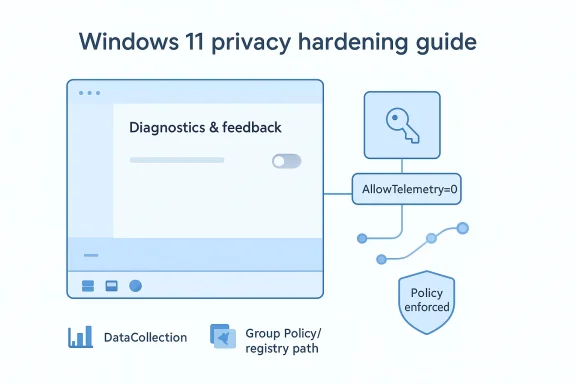
The most important thing to understand is that AllowTelemetry is a policy control, not just a preference. When set through the registry under the policy path, it can override the Settings app behavior and force the system to honor the lowest available diagnostic level. That is why the toggle may become gray or unavailable afterward; Windows is recognizing that a policy has taken precedence.On Windows 11 Home and Pro, setting the registry value to 0 does not create a truly telemetry-free machine. Microsoft’s own documentation indicates that the value is effectively treated as the required-data floor on those editions, meaning essential diagnostics still go out. On Enterprise, Education, and Server, the policy can go further, which is why enterprise administrators often have more leverage over data collection than home users.
Why policy beats a toggle
A Settings toggle reflects what the user selected, but a policy reflects what Windows must obey. That distinction is why the registry route is more durable: it is less likely to be reset by casual changes in the UI and is often respected even after updates or reconfiguration events. Microsoft’s own documentation about diagnostic-data settings and policy enforcement makes it clear that administrative policy is a separate layer from the consumer-facing choice.This also explains why privacy-minded users often report that the Settings page looks locked after the registry edit. The grayed-out control is not a bug; it is the policy presenting itself through the UI. That visual cue is useful because it tells you Windows has stopped treating the toggle as a normal end-user preference.
What Microsoft still collects
Even with the registry policy applied, you should expect some required diagnostic data to remain. Microsoft describes this as device settings, capabilities, and performance information needed to keep the OS secure and operational, including crash and reliability signals. So the edit reduces the volume and richness of the data stream, but it does not create a data vacuum.- Required data remains on supported consumer editions.
- Optional data is the part most users are actually suppressing.
- Policy enforcement is more durable than a normal toggle.
- Gray UI controls usually indicate the registry policy is active.
- Enterprise editions have the strongest privacy ceiling.
How to apply the registry change safely
Before touching the registry, the cautious move is to export a backup. That advice is not a formality; policy keys can have system-wide effects, and a bad edit can be harder to unwind than a regular Settings change. Microsoft consistently warns that policy changes should be made carefully because they can affect diagnostics, support, and update behavior.The registry path commonly used for this policy is
HKEY_LOCAL_MACHINE\SOFTWARE\Policies\Microsoft\Windows\DataCollection. If the DataCollection key does not exist, it can be created, and then a DWORD (32-bit) value named AllowTelemetry is added. Setting that value to 0 is the key move often described in privacy guides, though on consumer editions the system may interpret it as the lowest allowed floor rather than a complete shutdown.The practical sequence
A sensible workflow is straightforward and low-risk if done carefully. First, export the registry branch or the full registry as a backup, then add or modify the policy value, and finally restart so the system reads the new policy at boot. Because the key sits underHKEY_LOCAL_MACHINE, the change is machine-wide rather than per-user, so a restart is the correct way to ensure Windows applies it consistently.- Open Registry Editor with administrative rights.
- Back up the registry or the relevant branch.
- Navigate to the policy path for DataCollection.
- Create or edit AllowTelemetry as a DWORD (32-bit).
- Set the value to 0 and restart the PC.
How to verify it worked
The easiest confirmation is visual. After the reboot, open Settings > Privacy & security > Diagnostics & feedback and look at the toggle for optional diagnostic data. If the policy is active, the control should be grayed out or otherwise unavailable, indicating Windows is no longer treating the setting as fully user-editable.That said, confirmation by UI alone is not the same as a packet capture or forensic audit. The Settings page tells you the policy took effect, but it does not prove every background subsystem stopped sending any diagnostic signal. It proves the operating system accepted the new policy ceiling, which is the important first step.
Why DiagTrack matters, and what disabling it changes
The Connected User Experiences and Telemetry service, or DiagTrack, is the transport and collection layer many privacy guides focus on after the registry edit. Microsoft’s own documentation and support material show that Windows diagnostics are not controlled by one setting alone, which means the service remains relevant even when policy has reduced collection. Disabling it can reduce the amount of background reporting still occurring from the OS.However, the service is not the whole telemetry story. Windows Error Reporting and crash-dump pathways are not identical to DiagTrack, and Microsoft notes that diagnostic data and feedback are part of a larger ecosystem of reporting. So disabling the service can reduce one channel without fully eliminating all diagnostic activity.
Where the service helps, and where it does not
DiagTrack is useful to Microsoft because it supports performance, reliability, and issue analysis at scale. From a user’s perspective, that same scale can feel invasive, especially if you are trying to keep a private machine from sharing richer usage patterns or enhanced reports. Disabling the service is therefore a rational privacy step, but it is not a technical guarantee of silence.There is also a support tradeoff that should not be ignored. Microsoft and administrators rely on diagnostics to troubleshoot update failures, application instability, and device-health issues. Turning off the service can make some problems harder to diagnose, which is why this is best framed as a deliberate privacy choice rather than a universally “better” configuration.
Consumer reality versus enterprise reality
The consumer story is simple: you can reduce telemetry, but you cannot fully extinguish it on Home or Pro. The enterprise story is more nuanced because Windows editions designed for managed environments have stronger policy controls and can truly enforce the off state for diagnostic data. That split reveals Microsoft’s broader strategy: personal devices get guardrails, while managed fleets get real administrative compliance tools.- DiagTrack is best understood as one piece of a larger diagnostics stack.
- Disabling it can reduce reporting, but it does not erase every diagnostic path.
- Microsoft still separates diagnostics from other reporting systems.
- Enterprise management has more complete control than consumer editions.
- Troubleshooting can become harder when diagnostics are reduced too far.
What Windows 11 is really sending: the data model
A lot of privacy debate goes wrong because it treats all Windows data collection as one undifferentiated blob. Microsoft’s own documentation shows a layered model with device information, reliability signals, performance data, and optional enrichment. That matters because the significance of telemetry is not just volume; it is also sensitivity and context.Required diagnostic data is about the machine itself: version, configuration, capability, and whether components are functioning correctly. Optional diagnostic data can widen the lens to include usage patterns, website-related information for certain Microsoft components, and more detailed crash artifacts. The latter can include portions of memory, which is why optional telemetry attracts greater privacy scrutiny.
The “6 MB a day” claim in context
Microsoft has stated that an average PC generates about 6 MB of diagnostic data per day, a figure often cited to reassure users that the stream is not enormous. But raw megabytes are a blunt measure of privacy impact. A small data stream can still contain rich behavioral or device-state detail, especially when it is tied to identifiers or enriched reports.That is why privacy advocates often care more about what kinds of data are in the stream than about how large the stream is. A few megabytes of hardware and crash data are one thing; a few megabytes containing memory-state fragments, site visits for Microsoft components, or broader usage patterns are another. The policy edit targets the latter class most directly.
Tailored experiences complicate the picture
Microsoft also ties some diagnostic information to personalized experiences, tips, ads, and recommendations when Tailored experiences are enabled. That means diagnostic settings can influence more than just engineering telemetry; they can shape what the user sees in the product. For privacy-conscious users, this is one more reason the policy layer matters.- Required data is mostly about reliability and device health.
- Optional data can include richer usage and crash information.
- Tailored experiences make diagnostics more user-facing than many realize.
- Data size alone is not a good proxy for privacy risk.
- Memory-state crash reporting deserves extra caution.
Why Microsoft keeps the minimum on
Microsoft’s position is consistent across its documentation: diagnostics are tied to product security, updates, and supportability. The company explicitly says Windows remains secure and operational even when only required diagnostic data is sent, but it also stresses that optional data makes it easier to identify and fix issues. That framing explains why Microsoft preserves a floor even when users want maximum privacy.There is also a platform-governance reason to keep some data flowing. Modern Windows is a service platform, not a one-time installation, and Microsoft uses diagnostic signals to understand crashes, driver issues, rollout problems, and update health across a wildly diverse hardware ecosystem. Without some baseline reporting, supportability gets much harder at scale.
The support-and-update argument
From Microsoft’s perspective, telemetry is not just about product improvement in the abstract. It is part of how Windows manages quality assurance after deployment, especially when a single cumulative update must work across thousands of hardware configurations. The company’s own support pages and troubleshooting guidance reflect this operational reality.That is why the registry policy is a compromise rather than a revolution. It lets users push back against richer telemetry while preserving enough data for the platform to remain functional and supportable. For many readers, that will be the ideal balance; for others, it will still feel like too much.
The edition divide is deliberate
The fact that Enterprise, Education, and Server can truly disable diagnostic data is not an accident. Those editions are meant for managed environments where administrators can accept more responsibility for troubleshooting and policy enforcement. Home and Pro, by contrast, are designed to keep a baseline stream in place because Microsoft wants consistent product-health signals from the consumer ecosystem.- Microsoft’s argument is about reliability as much as analytics.
- Consumer editions preserve a mandatory floor.
- Managed editions can enforce stricter limits.
- The platform model favors baseline observability.
- The user tradeoff is privacy versus easier support.
Enterprise, Pro, and Home: the privacy gap is real
The single biggest misconception in consumer privacy advice is that all Windows 11 editions behave the same. They do not. Microsoft’s documentation makes it clear that AllowTelemetry=0 is interpreted differently depending on edition, and only some editions can enforce a true off state. That means the same registry edit has different consequences on different machines.For Home users, the edit mostly means “lower, not off.” For Pro users, it still means “lower, not off,” unless the device is managed under policies that further constrain collection. For Enterprise, Education, and Server, the policy can be much more absolute, which makes the same tutorial far more powerful in corporate environments than in a living room or home office.
Why this matters for real-world privacy
This edition split changes how privacy guides should be read. A consumer who follows the instructions may get a legitimate improvement, but they should not assume they have achieved the same outcome that an enterprise administrator can enforce. That nuance is essential for honest advice, because it prevents false confidence.It also explains why some users are surprised when Windows seems to “ignore” their preferences. In many cases the system is not ignoring them at all; it is enforcing a platform minimum. The resulting frustration is real, but it is also built into the way Microsoft has chosen to architect telemetry around editions and policy layers.
The Insider Program wrinkle
Microsoft’s own community guidance shows that optional diagnostic data can be required for some features, including Insider enrollment. If a policy or organization locks the machine to required-only diagnostics, the optional toggle can refuse to stay on. That is a useful reminder that telemetry settings can affect not just privacy but also participation in certain Windows programs.- Home and Pro are policy-limited.
- Enterprise and Education have stronger control.
- Server editions can go further still.
- Some Windows features may require optional diagnostics.
- “Off” in settings is not always a literal off state.
Strengths and Opportunities
The registry approach is attractive because it avoids third-party privacy tools, relies on a native Windows control plane, and gives you a policy that is more durable than a normal settings switch. For many users, that is the sweet spot: reduce telemetry with the tools Microsoft already ships, keep the system manageable, and avoid app-level guesswork that can break after updates. The setup is also simple enough for confident home users to execute safely with a backup.- Native control instead of a separate privacy app.
- Policy enforcement that outlasts casual UI changes.
- Clear visual confirmation when the toggle is grayed out.
- Reduced optional telemetry without fully breaking Windows.
- Useful for power users who want more control but not a full customization stack.
- Scales well for administrators managing multiple PCs.
- Pairs naturally with service-level hardening like DiagTrack.
Risks and Concerns
The biggest risk is overpromising. A registry policy that lowers telemetry is useful, but it is not a total blackout, and on consumer editions it cannot be made into one. If users assume they have disabled all Microsoft reporting, they may misunderstand the remaining diagnostic flow and make decisions based on a false sense of privacy.- Not a full off switch on Home and Pro.
- Supportability tradeoffs if troubleshooting data is reduced.
- Potential confusion if Settings changes are grayed out.
- Updates or management tools may alter related behavior over time.
- Service disabling can complicate diagnostics and health checks.
- Crash reporting may continue through separate Windows components.
- User expectations can outrun what the policy actually delivers.
Looking Ahead
The broader trend is not that telemetry is disappearing; it is that Microsoft is making it more explicit, more segmented, and more tied to policy. That gives users and administrators better tools, but it also makes the system more complex. In practical terms, the future of Windows privacy looks less like a single switch and more like a control panel with multiple layers of enforcement.For users who want the strongest possible consumer setup, the best path is likely a combination of policy-level diagnostic reduction, service hardening, and careful review of adjacent features like tailored experiences and app-specific diagnostics. That combination will not eliminate reporting entirely, but it can significantly narrow the aperture. The key is to think in terms of shrinking the data stream, not pretending it disappears.
What to watch next
- Whether Microsoft further clarifies consumer vs. enterprise diagnostic limits.
- Whether future Windows 11 updates change the behavior of the AllowTelemetry policy.
- Whether adjacent components like Edge continue separating diagnostics more distinctly by region and edition.
- Whether Microsoft offers more visible controls for baseline required data.
- Whether more users adopt policy-based privacy hardening instead of third-party tools.
Source: MakeUseOf This registry edit actually reduces what Windows 11 sends back to Microsoft
Last edited:
