

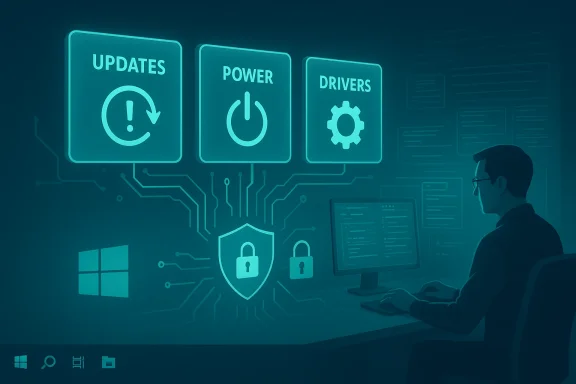
Windows has not become irrevocably broken, but for many longtime users it feels noisier, less predictable, and habitually hostile to the way professionals and power users work — and in most cases the daily headaches boil down to a handful of defaults you can change in minutes. The recent How‑To Geek piece that popularized the “Microslop” grumble distilled the author’s experience into four practical settings — update handling, power management, driver visibility, and core isolation — and those four are responsible for a disproportionate share of real‑world Windows problems. through each of those four settings in detail: why they matter, how they break things, how to change them safely, and the trade‑offs every Windows user should accept (or refuse) before flipping switches. Where possible, recommendations are verified against Microsoft documentation and community evidence so you can make changes with confidence. Key defensive advice up front: create a full image or at least a System Restore point before making advanced changes, test one change at a time, and keep a simple rollback plan (driver installers, restore point, or a recovery USB).
Windows ships with defaults oriented to the mainstream buyer: instant setup, cloud hookups, background personalization, and aggressive patch currency. That approach reduces friction for new users but also creates more background activity, more automatic changes, and a higherr chance that an update or driver will break a workflow.
For people who live inside the OS — developers, content creators, audio pros, gamers, and sysadmins — the default posture often feels disrespectful: frequent nudges, automatic updates, and power‑saving policies that trade determinism for battery life. Those are design choices, not laws of nature. You can reclaim control by adjusting a small number of settings that disproportionately affect reliability and performance. The How‑To Geek summary of four problem areas provides a practical starting point; the sections below expand, verify, and harden those suggestions into a repeatable, safe process.
For power users: implement the changes, keep a driver vault and imaging routine, and pilot feature updates before broad installation. For casual users: adopt the “pause updates” habit when you need uninterrupted work, and ask for help before changing advanced settings. For IT teams: codify the desired defaults in Group Policy or Intune, and document the reasons so support desks can respond quickly to post‑update drift. The end result is not a return to some mythical pre‑cloud Windows, but a calmer, more trustworthy desktop that respects the user’s time and expertise.
If the OS still surprises you after these four steps, the next layer of troubleshooting is usually specific drivers or firmware — the enemy behind the curtain. But in most cases, the changes above are the fastest way to move Windows from “annoying” back to “workhorse.”
Key references used in this analysis include Microsoft’s documentation on Device Manager’s hidden devices and USB selective suspend, Microsoft guidance on Core Isolation and Memory Integrity, technical power‑management references for PCIe Link State, and contemporary reports of January 2026 cumulative‑update regressions and Microsoft’s emergency fixes; those sources were consulted to verify settings, defaults, and the real‑world impacts of changing them.
Source: How-To Geek I’m tired of "Microslop": The 4 settings I change to make Windows usable again
 Background / Overview
Windows ships with defaults oriented to the mainstream buyer: instant setup, cloud hookups, background personalization, and aggressive patch currency. That approach reduces friction for new users but also creates more background activity, more automatic changes, and a higherr chance that an update or driver will break a workflow.For people who live inside the OS — developers, content creators, audio pros, gamers, and sysadmins — the default posture often feels disrespectful: frequent nudges, automatic updates, and power‑saving policies that trade determinism for battery life. Those are design choices, not laws of nature. You can reclaim control by adjusting a small number of settings that disproportionately affect reliability and performance. The How‑To Geek summary of four problem areas provides a practical starting point; the sections below expand, verify, and harden those suggestions into a repeatable, safe process.
1. Update msurprised by Windows Update
Why this matters- Windows updates are essential for security, but the cadence and breadth of changes mean a single update can break a specific driver, a third‑party tool, or a deployment script.
- Real incidents in 2026 showed that even Microsoft’s security rollouts can introduce regressions that require emergency out‑of‑band fixes; administrators and power users must treat updates as maintenance windows, not automatic events. Recent January 2026 cumulative updates produced shutdown/hibernation regressions for certain configurations and credential failures in remote desktop scenarios — problems Microsoft had to patch with emergency updates.
- Pause feature updates and stage them for a short holding period. For home users, a week or two of delay often catches early regressions reported by the community; corporate users should pilot with a small group before broad rollout.
- Keep security updates current but defer non‑critical feature updates until the first wave of reports clears. Use Settings → Windows Update → Advanced Options to control feature update deferral windows or Windows Update for Business policies for managed devices.
- Control driver updates: let the OS install critical drivers, but maintain a vendor driver vault (local copies of stable GPU/chipset/audio drivers) so you can roll back quickly if a new driver creates issues.
- If you need immediate control, use the built‑in Pause updates option for short pauses and Group Policy/Intune for durable controls in managed environments.
- Create a System Restore point and export your current driver installers.
- In Settings → Windows Update, choose Pause updates (short period) when you need uninterrupted work.
- If you're an advanced user, set “Defer feature updates” or use Windows Update for Business policies (enterprise/Pro). Test feature updates on a non‑critical machine first.
- Maintain a “known good” driver folder and instructions to reapply old drivers via Device Manager → Roll Back Driver or manual installer.
- Deferring updates increases exposure to newly discovered vulnerabilities; balance matters. Keep cumulative security updates applied promptly while staging optional feature updates.
- Microsoft sometimes re‑enables certain exposures (e.g., app provisioning or Store behaviors) during feature updates; recheck your desired configuration after each feature release. Microsoft advisories document the most common post‑update resets.
2. Power and startup settings that destabilize hardware
Why power settings matter- Modern power management includes aggressive throttling and link‑state power savings to maximize battery life. Unfortunately, those same mechanisms introduce latency, dropouts, and device misbehavior when drivers or firmware interact poorly with power transitions.
- Problems show up as audio glitches, Bluetooth dropouts, USB peripherals disconnecting, or even stuttering in games — often after an update or a driver change. Many of those symptoms trace back to three advanced power options: USB selective suspend, PCIe Link State Power Management (ASPM), and Minimum Processor State.
- USB selective suspend is enabled by default and is part of how Windows saves power on USB devices; Microsoft’s driver docs explicitly recommend device drivers handle idle notifications rather than depending on user changes, and they caution developers about disabling the feature indiscriminately. Turning it off can help stability at the cost of higher power consumption.
- Link State Power Management (PCIe ASPM) has three modes (Off, Moderate, Maximum); higher savings increase latency because the link must wake before communications resume. The setting is documented in Microsoft’s power policy guidance and has known trade‑offs between latency and power.
- Minimum Processor State is commonly set to 5% by default. That low floor can cause modern USB controllers and peripherals to misbehave in edge cases; raising it to 10% (on AC power) is a cheap, effective fix reported by many users and echoed in community troubleshooting threads.
- Open Control Panel → Hardware and Sound → Power Options → Change plan settings → Change advanced power settings.
- Under USB settings: set USB selective suspend setting to Disabled (Plugged in profile).
- Under PCI Express: set Link State Power Management to Off or Moderate Power Savings (choose Off for minimal latency).
- Under Processor power management: set Minimum processor state to 10% for Plugged in (leave battery profile lower to preserve runtime).
- For laptops, apply these changes only to the plugged‑in profile unless you explicitly want higher performance on battery.
- Open Power Options (Win + R → powercfg.cpl).
- Click Change plan settings next to your active plan.
- Choose Change advanced power settings.
- Expand USB settings → USB selective suspend setting → set to Disabled (Plugged in).
- Expand PCI Express → Link State Power Management → set to Off (Plugged in).
- Expand Processor power management → Minimum processor state → set Plugged in to 10%.
- Click Apply and OK; reboot and test.
- Disabling selective suspend and ASPM reduces the number of times hardware moves between active and low‑power states, reducing the likelihood a buggy driver fails to wake a device correctly.
- Raising the minimum processor state prevents the CPU from dropping into micro‑P‑states that can leave I/O latency spikes — a frequent cause of USB keyboard/mouse lag and audio glitches.
- Expect modestly higher power draw and slightly warmer components, particularly on laptops.
- For battery‑first users, keep battery profiles conservative: only change the plugged‑in profile for performance fixes.
- These settings address symptoms; if the underlying driver or firmware is at fault, vendor updates are the long‑term fix.
- Microsoft’s power setting documentation and GUID references explain the available PCIe ASPM values and how to change them programmatically. Community posts and troubleshooting threads document repeated success using the exact recipe above.
3. Driver management: reveal the ghosts in Device Manager
Why Device Manager’s hidden devices matter- Device Manager shows current hardware, but it hides non‑present and phantom devices unless you explicitly reveal them. Those ghost entries — leftover device nodes tied to previous USB adapters or Bluetooth dongles — can confuse Windows when a new device attempts to pair or when the stack searches for the “wrong” driver. Removing stale devices often fixes pairing and driver‑binding problems in seconds.
- Open Device Manager (Win + X → Device Manager).
- From the View menu, select Show hidden devices. If you don’t see the devices you expect, set the environment variable DEVMGR_SHOW_NONPRESENT_DEVICES=1 before launching Device Manager (temporary method), or create a shortcut that runs with that variable for convenience. Microsoft documents the exact procedure and the reasoning behind hidden devices.
- Close Device Manager.
- Open a Command Prompt and run: set DEVMGR_SHOW_NONPRESENT_DEVICES=1
- Launch Device Manager (devmgmt.msc) from the same prompt.
- In Device Manager, View → Show hidden devices.
- Expand relevant device categories (Bluetooth, Keyboards, Network adapters).
- Right‑click and Uninstall greyed‑out, non‑present entries that clearly correspond to old adapters or dongles. Be conservative: do not remove devices you still use.
- Reboot and retest pairing or peripheral behavior.
- A driver stack may attempt to satisfy a device using legacy bindings or leftover device instance IDs. Removing stale entries forces Windows to rebuild the association against the current hardware, eliminating confusion and spurious errors.
- Don’t uninstall devices at random. Only remove ghosted, greyed‑out entries that you recognize as old hardware.
- If you manage fleet machines, script the cleanup carefully or use the device installation policies provided by Microsoft.
- Microsoft explicitly describes the behavior of hidden and non‑present devices and offers a sanctioned method to reveal them for troubleshooting; the vendor recommends this primarily for developers and advanced troubleshooting, not routine housekeeping.
4. Core isolation and Memory Integrity: balance security and compatibility
What Core isolation (Memory Integrity) is- Core isolation uses virtualization to protect critical OS components by running code integrity checks inside an isolated environment. Memory integrity, also called Hypervisor‑protected Code Integrity (HVCI), hardens kernel‑mode drivers against tampering. It’s an effective, modern defense layer and is enabled by default on new compatible PCs.
- Memory integrity imposes stricter requirements on kernel drivers. Older or poorly authored drivers — especially third‑party security tools, anti‑cheat components, or legacy input drivers — can be incompatible. When incompatibilities occur, devices may fail to work or drivers may refuse to load; in rare cases a boot‑critical driver can trigger a blue screen. Microsoft documents these compatibility cases and advises testing and driver updates before enabling the feature wide.
- If you run mission‑critical workloads (virtualization, legacy capture devices, certain games), consider a conservative posture:
- Turn on memory integrity on a non‑critical test machine first.
- Use Device Security → Core isolation details to enable/disable Memory integrity.
- If toggling Memory integrity causes problems, identify incompatible drivers using Event Viewer or tools like Autoruns; check for vendor driver updates that are memory‑integrity aware before disabling the feature permanently.
- For gaming rigs where latency and driver compatibility matter more than the incremental security gain, you may choose to disable Memory integrity — but do so intentionally and track the decision.
- Microsoft provides HLK tests and guidance for driver authors to validate compatibility; if a driver is business‑critical, push vendors for a memory‑integrity‑aware release.
- Pros: substantial additional protection against kernel‑level tampering and driver‑based attacks; recommended for most modern hardware.
- Cons: compatibility problems with older or niche drivers; potential performance overhead on older processors; may conflict with virtualization tools that also need exclusive access to VM extensions.
Putting it together: a short checklist to make Windows usable again
Create a pre‑flight safety net- Image the system or create a System Restore point.
- Export or copy working driver installers to a safe folder.
- Update management
- Pause feature updates for 7–14 days; keep security updates current.
- Maintain a driver vault and only install vendor drivers you have tested.
- Power settings
- Disable USB selective suspend (Plugged in).
- Set PCI Express Link State to Off or Moderate (Plugged in).
- Increase Minimum Processor State to 10% (Plugged in).
- Driver cleanup
- Reveal hidden devices in Device Manager and uninstall stale, greyed‑out entries you recognize.
- Core isolation
- Keep Memory integrity on for secure desktops; test compatibility first for gaming or virtualization rigs and consult vendor driver updates if problems appear.
- Reboot and test the workflows that previously failed (Bluetooth pairing, audio, gaming machines).
- If a regression occurs after an update, use System → Recovery → Uninstall updates or restore your image; for enterprise devices, follow Known Issue Rollback (KIR) guidance or apply vendor Group Policy mitigations when Microsoft releases them. Recent Windows 2026 incidents showed Microsoft using KIRs and out‑of‑band updates to remediate serious regressions — a reminder that staged rollout and monitoring are essential.
Critical analysis: benefits, limits, and risks
What these four changes deliver- Lower noise and fewer interruptions: fewer background processes, less aggressive UI nudging, and fewer surprise reboots.
- More predictable hardware behavior: fewer USB dropouts, fewer wake‑latency incidents, and fewer driver binding problems due to ghost devices.
- Meaningful security gains when used carefully: Core isolation gives a high return on security investment when drivers are compatible.
- Bad drivers and firmware: if the vendor driver is fundamentally broken, a settings tweak is a bandage; the long‑term fix is vendor updates.
- Feature update re‑provisioning: Windows feature upgrades can reapply some defaults or reprovision inbox apps. Expect periodic re‑checks after every major feature update.
- App provisioning and Microsoft Store policies: Microsoft has tightened control over some update behaviors (for example, Microsoft Store auto‑update policies), which limits how long you can freeze certain app updates. Those are platform‑level choices beyond the scope of local settings.
- Turning off selective suspend and ASPM increases power draw and heat on laptops; if you rely on battery runtime, apply changes only on AC power.
- Editing the Registry or disabling services is harmless when documented, but risky if done at scale without testing.
- Disabling Memory integrity lowers kernel protection; only do so after confirming no compatible driver alternatives exist.
- Use sanctioned Group Policy, MDM (Intune), and Windows Update for Business to apply consistent settings across fleets. Don’t rely on undocumented registry hacks for fleet management.
- Test any change against your standard image and ions and drivers with pilot groups. Microsoft’s release notes and Known Issue Rollbacks give administrators specific mitigations during problematic updates; watch them closely.
Final verdict: practical realism beats nostalgia
It’s easy to join the “Microslop” chorus and declare Windows irredeemable. The more useful posture is to accept that modern Windows is a complex, evolving system and then apply focused, reversible changes to make it behave the way you want. The four areas discussed here — update management, power options, driver visibility, and core isolation — are lean, high‑leverage targets that solve the most persistent, day‑to‑day reliability problems without sacrificing core security or functionality when applied thoughtfully.For power users: implement the changes, keep a driver vault and imaging routine, and pilot feature updates before broad installation. For casual users: adopt the “pause updates” habit when you need uninterrupted work, and ask for help before changing advanced settings. For IT teams: codify the desired defaults in Group Policy or Intune, and document the reasons so support desks can respond quickly to post‑update drift. The end result is not a return to some mythical pre‑cloud Windows, but a calmer, more trustworthy desktop that respects the user’s time and expertise.
If the OS still surprises you after these four steps, the next layer of troubleshooting is usually specific drivers or firmware — the enemy behind the curtain. But in most cases, the changes above are the fastest way to move Windows from “annoying” back to “workhorse.”
Key references used in this analysis include Microsoft’s documentation on Device Manager’s hidden devices and USB selective suspend, Microsoft guidance on Core Isolation and Memory Integrity, technical power‑management references for PCIe Link State, and contemporary reports of January 2026 cumulative‑update regressions and Microsoft’s emergency fixes; those sources were consulted to verify settings, defaults, and the real‑world impacts of changing them.
Source: How-To Geek I’m tired of "Microslop": The 4 settings I change to make Windows usable again
