

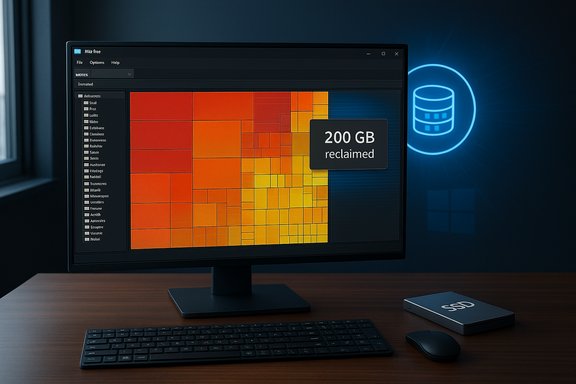
I didn't realize how much of a problem hidden junk could be until a single pass with a free utility reclaimed hundreds of gigabytes on a drive I thought was mostly-empty — the kind of space loss that Windows' own cleanup utilities quietly let slip through. The MakeUseOf account of a focused WizTree scan that freed roughly 200 GB of previously hidden files is a reminder that a fast disk space analyzer can be one of the simplest, highest‑impact tools for anyone who wants to free up disk space on Windows without reinstalling the OS.
Windows ships with several built‑in options to manage storage — Disk Cleanup (cleanmgr.exe) and Storage Sense in Settings are the two most familiar — but these tools are intentionally conservative. They target system caches, Windows Update leftovers, and folders Windows deems safe to purge. That conservatism makes them safe, but it also means they often miss the real culprits: deeply nested app folders, abandoned server installs, large media project caches, and duplicated user files. Community reporting and practical walkthroughs consistently recommend pairing Windows' built‑ins with a treemap‑style visualizer for a fast, surgical cleanup.
WizTree — the free disk space analyzer highlighted in the MakeUseOf piece — excels in that role: it's fast, shows you exactly where the bytes are sitting, and points straight at folders and single files that other utilities can miss. The practical result is the kind of space recovery that feels dramatic: tens or even hundreds of gigabytes reclaimed in a single session. The MakeUseOf author reports a 200 GB recovery after an hour of focused cleanup using WizTree. That anecdote maps directly to common WindowsForum workflows: analyze visually, inspect large directories, copy or back up anything important, then delete the real junk.
MakeUseOf’s story highlighted a common pattern: an application (in their case, an old Plex server instance left behind) and accidental duplicates were the main offenders, not Windows system caches. Built‑in tools wouldn’t mark those files as "safe junk," but WizTree made them obvious.
Key risks to manage:
If you want a concise checklist to follow the next time you need to reclaim space quickly, use this three‑step rule: (1) back up, (2) run WizTree as Administrator and inspect the top offenders, (3) move or delete only after you’ve verified file contents. Repeat quarterly and you’ll keep the “mystery disk‑space drain” from ever becoming a crisis.
Source: MakeUseOf I cleaned 200GB of hidden junk using a Windows tool no one talks about
 Background / Overview
Windows ships with several built‑in options to manage storage — Disk Cleanup (cleanmgr.exe) and Storage Sense in Settings are the two most familiar — but these tools are intentionally conservative. They target system caches, Windows Update leftovers, and folders Windows deems safe to purge. That conservatism makes them safe, but it also means they often miss the real culprits: deeply nested app folders, abandoned server installs, large media project caches, and duplicated user files. Community reporting and practical walkthroughs consistently recommend pairing Windows' built‑ins with a treemap‑style visualizer for a fast, surgical cleanup.WizTree — the free disk space analyzer highlighted in the MakeUseOf piece — excels in that role: it's fast, shows you exactly where the bytes are sitting, and points straight at folders and single files that other utilities can miss. The practical result is the kind of space recovery that feels dramatic: tens or even hundreds of gigabytes reclaimed in a single session. The MakeUseOf author reports a 200 GB recovery after an hour of focused cleanup using WizTree. That anecdote maps directly to common WindowsForum workflows: analyze visually, inspect large directories, copy or back up anything important, then delete the real junk.
Why WizTree finds what Windows misses
The Master File Table trick (and why it matters)
The single technical trick behind WizTree’s speed is that, on NTFS volumes, it reads the Master File Table (MFT) directly rather than walking every folder with the slower Windows file APIs. The MFT is the NTFS metadata index that lists every file's name, size, and disk location. By parsing that index, WizTree can compile a complete size map of a drive orders of magnitude faster than recursive enumeration. This is a well‑documented approach and the primary reason WizTree scans entire SSDs in seconds while other programs take minutes. That speed difference is not theoretical. multiple independent tests and hands‑on reviews show WizTree completing scans in just a few seconds on modern SSDs while WinDirStat and similar tools often take tens of seconds to minutes for the same volume. The effect is practical: a tool you can run frequently and get immediate insight, not a long chore you avoid because it takes too long.Limitations of the MFT approach
- The MFT trick only applies to NTFS volumes. When you scan FAT, exFAT, or certain network shares, WizTree falls back to slower methods.
- Reading the MFT requires elevated privileges. WizTree prompts for Administrator permissions so it can access low‑level metadata; if you decline the UAC prompt, scanning will still work but not at the same speed.
- The MFT stores metadata, not file contents. WizTree shows file sizes and locations from MFT entries, which is precisely what the user needs to identify space hogs — but any claim about why a file exists (cache vs. permanent file) still needs user inspection.
What the MakeUseOf workflow actually did (practical breakdown)
The MakeUseOf author demonstrated a standard, low‑risk workflow for cleaning up Windows that balances speed with safety. The steps are straightforward and repeatable:- Run WizTree as Administrator and scan the target drive. The fast MFT parse yields a complete treemap and sorted file list in seconds.
- Use the Tree View to identify the largest folders; switch to File View to see top individual files by size.
- Right‑click any entry to open it in File Explorer or copy the path for careful inspection before deletion.
- Identify obvious remnants (old Plex installs, duplicated video projects, huge ISO files) and move or delete them after verifying their contents.
- Repeat scanning to confirm reclaimed space and ensure no critical data was removed.
MakeUseOf’s story highlighted a common pattern: an application (in their case, an old Plex server instance left behind) and accidental duplicates were the main offenders, not Windows system caches. Built‑in tools wouldn’t mark those files as "safe junk," but WizTree made them obvious.
How WizTree compares to built‑in Windows tools and alternatives
Windows built‑in tools: safe but shallow
- Disk Cleanup (cleanmgr.exe): Good for Windows Update remnants, thumbnails, and the Recycle Bin. It’s intentionally risk‑averse: it cleans categories Microsoft defines as safe. That’s great for general maintenance but not for deep inspection.
- Storage Sense: Automates routine cleanup and integrates with OneDrive to make files online‑only. It rescans slowly and is not designed for the kind of deep, nested inspection WizTree provides. Many users find Storage Sense's per‑folder scan performance frustrating when drilling into user directories.
Third‑party visualizers: why WizTree stands out
- WinDirStat: The long‑standing classic. Reliable and free, but slower because it performs recursive enumeration using standard APIs. On large NTFS volumes, WinDirStat can take minutes where WizTree takes seconds. Many reviewers recommend WizTree for speed, with WinDirStat still useful for cross‑platform or familiarity reasons.
- TreeSize Free / Professional: A polished alternative with more enterprise features in the paid tier. TreeSize is faster than WinDirStat in many cases but still generally slower than WizTree’s MFT approach on NTFS.
Features worth calling out
WizTree is deceptively simple but packs a handful of useful options for power users:- Tree View and File View: Two complementary ways to locate large folders and the single largest files.
- Treemap visualization: A graphical block map that makes spotting huge files immediate.
- Open in Explorer / Copy Path: Right‑click integration that moves you from discovery to verification fast.
- Export to CSV: Helpful for documenting storage usage or keeping a historical log of what you cleaned.
- Scan multiple drives simultaneously: Good for systems with NVMe + SATA arrays or external drives.
- Exclusions and colors: Fine‑tune scans and visuals for repeated audits.
- Portable option: You can run WizTree without a full install if you prefer a single‑exe maintenance toolkit.
Risks, caveats, and verification
No cleanup method is risk‑free. The MakeUseOf author’s 200 GB recovery is impressive, but that number is anecdotal: it reflects one configuration and one set of choices during an hour of cleanup. Unless a user preserves logs or snapshots, exact recovery numbers can't be independently verified. Treat such amounts as illustrative of what's possible, not guaranteed. Cautionary note: any claim about a single run reclaiming a specific amount of space should be verified with system backups or drive images if the data is critical.Key risks to manage:
- Deleting files used by migrated apps (e.g., server instances you moved but didn't fully remove) can break your local workflows if you remove something important by mistake.
- Some directories that look like cache folders may hold staged project files or partial downloads you intend to resume later.
- System files should be treated with care. Avoid deleting files inside Program Files, System32, or the Windows folder unless you're certain they are safe to remove.
- Removing Windows.old, driver store entries, or restore points is permanent; only do these with a confirmed backup.
- Back up critical data before any aggressive cleanup.
- Create a System Restore point or a drive image when working on a system drive.
- Use WizTree to locate candidate files, then inspect them in File Explorer before deleting.
- If uncertain, move large suspect folders to an external drive for a week to ensure nothing breaks, then delete them.
A recommended cleanup workflow for power users
- Make a quick image or backup of irreplaceable user data.
- Run Disk Cleanup (system files) to remove Microsoft‑approved debris.
- Run WizTree as Administrator and let it scan the target drive.
- Sort File View by size and check the top 100 items.
- For each large folder/file:
- Open in Explorer.
- Verify contents (look for duplicates, archives, installers, or migrated server directories).
- Archive or move to external storage if unsure.
- Delete confirmed junk (empty Recycle Bin afterwards).
- Re‑scan to confirm reclaimed space and repeat until satisfied.
- Optionally export the CSV report to document what you removed.
Alternatives and when you might prefer them
- Use Storage Sense if you prefer automated, hands‑off maintenance for everyday cleanup of temp files and OneDrive content. It’s safer but slower and less granular.
- Pick TreeSize Professional if you need scheduled reports, exportable audits for compliance, or network share scanning in an enterprise setting.
- Keep WinDirStat around if you need a free, cross‑user‑familiar interface or if you prefer a non‑MFT approach (useful for non‑NTFS volumes).
Final analysis: strengths, weaknesses, and who should use WizTree
Strengths- Ultra‑fast discovery of large files and folders on NTFS volumes.
- Low friction: scans complete in seconds so it becomes a regular maintenance tool, not an occasional chore.
- Clear visual output that puts the user in control of deletions.
- Free for personal use, making it accessible to a wide audience.
- NTFS‑only speed advantage; other filesystems are slower.
- Requires Administrator privileges to reach maximum speed, which some enterprise policies restrict.
- Users must validate findings manually; the tool is a discovery instrument, not an automated cleaner.
- The exact space gains one user reports (200 GB) are situational and should be treated as an anecdote unless reproducible with logs or backups.
- Creative professionals with large media projects, editors, and photographers who want to locate forgotten project folders.
- Home server administrators who migrate services (Plex, Nextcloud) and want to find abandoned server data.
- Power users who prefer manual control and fast iteration over automated cleans.
- Anyone who needs to free up disk space on Windows quickly and prefers to verify deletions before they happen.
Conclusion
WizTree is a pragmatic, high‑value addition to the Windows maintenance toolkit. It fills a practical gap between conservative built‑in cleaners and more intrusive, automated third‑party utilities by giving users visibility and speed. The MakeUseOf account of reclaiming roughly 200 GB is a powerful illustration of the payoff: often the biggest space offenders are not OS caches but userland artifacts — orphaned server installs, duplicated project folders, or forgotten ISOs — and the fastest way to spot them is with a treemap that reads the filesystem index directly. For anyone serious about reclaiming disk space on Windows without risking critical system files, WizTree should be in the toolkit — used with backups, common sense, and a habit of verifying before deleting.If you want a concise checklist to follow the next time you need to reclaim space quickly, use this three‑step rule: (1) back up, (2) run WizTree as Administrator and inspect the top offenders, (3) move or delete only after you’ve verified file contents. Repeat quarterly and you’ll keep the “mystery disk‑space drain” from ever becoming a crisis.
Source: MakeUseOf I cleaned 200GB of hidden junk using a Windows tool no one talks about
