

It’s a little shocking to watch a longtime Windows user delete their install, press “Install Ubuntu,” and then admit — a year later — that they “forgot to miss Windows.” That’s the blunt confession near the heart of the personal account we’ve been given: a writer wiped a years‑old Windows 10 drive, learned the command line the hard way, fixed a mis‑mounted SSD by editing /etc/fstab, moved from Ubuntu to Fedora, fell in love with KDE and Hyprland, and now uses Linux daily for work, gaming, photo editing and video — even resurrecting an old Windows laptop with a fresh Linux install. That story is a useful case study in why mainstream desktop Linux finally feels practical to more people, what the real trade‑offs are, and the exact technical realities any Windows migrant should plan for. The following is a verified, evidence‑backed feature that summarizes the lived experience, checks the key technical claims against public documentation and independent reporting, and offers a pragmatic guide for readers who might be tempted to try the same path.
The narrative begins with a simple decision: delete Windows, install Linux, and commit. The author’s motivation was less ideological than practical — a growing discomfort with modern Windows, its telemetry and feature bloat, and the sense that Linux offered greater control and customization. Over the next 12 months they learned the shell, recovered from one badly mounted SSD by editing /etc/fstab, moved from Ubuntu to Fedora, experimented with multiple desktop environments (Hyprland, Cinnamon, KDE Plasma), replaced many Windows apps with open alternatives, and found gaming on Linux largely painless thanks to Valve’s Proton. The piece is an experiential report with two complementary parts: the day‑to‑day pleasures (customized desktops, faster, quieter systems, tooling like Flatpak/Snap/AppImage) and the recurring reality checks (anti‑cheat limits, a learning curve for hardware edge cases, and occasional package dependency headaches). Those practical lessons and trade‑offs are central to any responsible account of switching OSes.
Microsoft has iterated on Copilot and how removable it is. Recent Microsoft Insider builds and group‑policy options allow administrators on managed devices to remove the Copilot app under constrained conditions; there have also been bugs and updates that, for some users and builds, caused Copilot to be removed unintentionally. The public record shows a shifting situation: Microsoft introduced policies and options, but the uninstall path is not a simple, universal “one‑click” action for every consumer. In short: the claim that Copilot was hard to remove is accurate as a lived user experience, but the technical facts evolved over time and vary by Windows version and management context. If Copilot removal is a hard requirement, verify the current uninstall options for your specific Windows build and channel.
If your priorities are:
Conclusion
The writer’s year on Linux is not a magical conversion story; it’s a carefully staged experiment that produced a highly usable daily driver for a power user who accepted trade‑offs. The technical claims in the account — the fstab fix, Proton gaming compatibility, the need to learn the terminal, and the advantages of package formats and desktop customization — are verifiable against official documentation and independent reporting. At the same time, the obvious limits (anti‑cheat, vendor drivers, some pro software) remain real and worth planning around. For anyone considering the same jump: back up, test, and treat the migration like any major systems change — instrument it, validate it, and keep a reliable fallback until you’re confident the new stack meets your needs. The payoff is tangible: control, speed, and the pleasure of a desktop that behaves the way you want.
Source: The Verge I spent a year on Linux and forgot to miss Windows
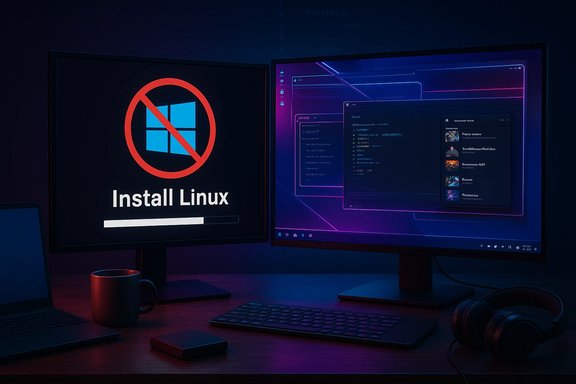 Background / Overview
The narrative begins with a simple decision: delete Windows, install Linux, and commit. The author’s motivation was less ideological than practical — a growing discomfort with modern Windows, its telemetry and feature bloat, and the sense that Linux offered greater control and customization. Over the next 12 months they learned the shell, recovered from one badly mounted SSD by editing /etc/fstab, moved from Ubuntu to Fedora, experimented with multiple desktop environments (Hyprland, Cinnamon, KDE Plasma), replaced many Windows apps with open alternatives, and found gaming on Linux largely painless thanks to Valve’s Proton. The piece is an experiential report with two complementary parts: the day‑to‑day pleasures (customized desktops, faster, quieter systems, tooling like Flatpak/Snap/AppImage) and the recurring reality checks (anti‑cheat limits, a learning curve for hardware edge cases, and occasional package dependency headaches). Those practical lessons and trade‑offs are central to any responsible account of switching OSes.The first nights: learning the hard way
The visceral memory recalled in the account is familiar to many migrants: a late‑night install, struggling to mount a second SSD, rage quitting, then a morning epiphany — the disk simply had no fstab entry. The fstab (/etc/fstab) file is exactly what the author says it is: the static filesystem table that tells the OS which partitions to mount and where. It’s not magical — it’s basic system configuration — but if you’ve never edited it, small mistakes can stop a disk from auto‑mounting or, in the worst case, break boot behavior. The fstab format and semantics are documented in the Linux manual pages and distribution wikis; it’s a core Unix building block. That initial shock also highlights a common truth: Linux is not inherently harder than Windows for daily tasks, but it does demand a willingness to troubleshoot. In practice those troubleshooting episodes become learning opportunities. The author turned a panicked night into an instructive fix and — importantly — built confidence that made subsequent fixes routine. Community resources, Stack Exchange threads and the distribution documentation are the remediation path; being comfortable with the shell reduces the time those fixes take. The writer’s arc — from “terrified of the terminal” to comfortable with fstab and emergency repair — is exact, repeatable, and why many who learn a few CLI commands never go back.Everything I want and nothing I don’t: packages, permissions and the new toolbox
App packaging today: snaps, Flatpaks and AppImages
Linux today offers multiple cross‑distribution packaging models that reduce the “dependency hell” that once scared newcomers. The three formats most users see are:- Snap (Canonical’s Snap Store): sandboxed packages updated via snapd; well integrated on Ubuntu and supported by Canonical’s store infrastructure. Snaps bundle dependencies and auto‑update, but the ecosystem and governance have been debated publicly.
- Flatpak / Flathub: a distribution‑agnostic sandboxing system whose central repository (Flathub) is a de‑facto app store; Flatpak emphasizes runtime isolation and cross‑distro availability. Many desktop apps are distributed on Flathub for convenience.
- AppImage: a single‑file portable app format that you download, mark executable and run; useful for testing or shipping isolated binaries without system installs. AppImage is ideal when you want a “download-and-run” app without modifying system libraries.
Windows apps, Wine and compatibility layers
Some Windows‑only programs still matter. The writer replaced many Adobe and Microsoft apps with open alternatives, but occasionally used Wine to run legacy Windows apps (for example, iTunes to revive an iPod). Wine is a mature compatibility layer that translates Windows API calls to POSIX calls so many Windows EXE installers run without a full VM. Wine and CrossOver (CodeWeavers’ commercial Wine fork) remain useful fallbacks when a native Linux alternative is unavailable. The Wine project’s documentation and release notes make clear: Wine is not perfect, but it’s a real compatibility option rather than a last‑resort guerilla hack.Gaming on Linux: Proton, compatibility telemetry, and the anti‑cheat trap
One of the most consequential parts of the author’s year is gaming: nearly all their Steam library worked via Valve’s Proton compatibility layer, and only some games required per‑title launch tweaks. That aligns with how the Linux gaming story has matured: Proton automates Wine, DXVK and other translation layers so many Windows games launch with little friction. Valve’s Proton changelog documents ongoing enhancements (including support for EasyAntiCheat under specific conditions), and reporting from major outlets confirms the practical benefits for many players. Important nuance — the single biggest caveat for competitive gamers is anti‑cheat. Proton added support for Epic’s EasyAntiCheat (EAC) when a game ships a Linux‑targeted EAC module, but the game developer still has to enable and test that configuration. In short: Proton can run games that use EAC only if the developer or publisher also supports a Linux/EAC configuration. Several publishers remain reluctant or choose not to support Linux because kernel‑level anti‑cheat and platform differences create perceived risk and maintenance costs. Recent high‑profile examples and developer statements make that reality clear: some studios explicitly exclude Linux/Proton for anti‑cheat reasons. If you play competitive titles (Fortnite, Valorant, some Activision/EA shooters), verify those titles before committing to Linux as your primary gaming platform. A second practical data point: community compatibility trackers like ProtonDB and curated data aggregators show a steady, community‑driven rise in playable titles; some analyses show that a large portion of Windows titles now launch on Linux with varying degrees of tweaks. That’s industry‑level progress — but it is not universal, and the anti‑cheat subset remains the single largest blocker. Use ProtonDB and the developer’s own statements when planning a switch.The joy of customization — KDE, Hyprland and the art of the desktop
One deeply human part of the account is desktop customization: the writer spent whole afternoons changing themes, swapping icon packs and designing a personalized KDE experience with a custom terminal (Kitty + Zsh + Powerlevel10k). This is not incidental: Linux desktop environments — especially KDE Plasma — prioritize flexibility and user control. Plasma 6 and its follow‑on releases have added features for visual polish and session persistence while keeping the same customizable core that attracts users migrating from Windows. KDE’s release notes and community documentation show a continued emphasis on visual refinement and power‑user features. For users seeking a different windowing model, Hyprland (a Wayland compositor with dynamic tiling and eye‑candy) is an example of what the Wayland ecosystem now offers: tiling + animation + modern Wayland feature set for people who want to reimagine window workflows. Hyprland’s design emphasizes configurability and plugins, which attracts users who enjoy tailoring their daily environment. The ecosystem now supports both visually polished desktops (Plasma, GNOME) and keyboard‑first tilers (Hyprland, Sway).Where Linux still makes you work for it: risk, support and professional workflows
The author is candid about deal‑breakers: kernel‑level anti‑cheat, specialized vendor drivers, and some professional software that doesn’t have feature‑complete Linux equivalents. Those are not theoretical concerns — they are practical, repeatable limits.- Anti‑cheat: as stressed above, some competitive multiplayer titles remain unavailable because their anti‑cheat systems either do not support Linux or are distributed as Windows‑only kernel drivers. This is a developer/publisher and anti‑cheat vendor decision, not a technical impossibility in every case, but it is a real gating factor for many gamers.
- Specialized hardware and vendor drivers: fingerprint readers, certain printers, and some graphics tablet control panels can be poorly supported on Linux, especially on very new or proprietary hardware. The community often writes drivers or reverse‑engineers support, but that can require patience and kernel updates. Practical testing via a Live USB is the safest first step.
- Support model: Linux support is largely community‑driven. That gives rapid, high‑quality answers in many cases, but it is a different model than commercial phone‑based vendor support. For organizations or users who require a vendor contract and phone support, the Linux model may feel like a downgrade.
A concrete migration checklist (tested by the author, validated by docs)
- Back up and image your Windows drive (use Clonezilla or Rescuezilla). Verify the image restore on a spare drive before you delete anything.
- Test hardware with a Live USB (Ubuntu, Fedora, or Mint). Confirm Wi‑Fi, GPU, audio and peripherals before installing. Live images let you test without changing disks.
- If gaming matters: check ProtonDB and the developer’s statements for titles that require anti‑cheat. For titles using EAC/BattlEye/Vanguard, verify Linux support specifically.
- Choose a distribution that matches your goals: Ubuntu for widest beginner support, Fedora for upstream freshness, or a rolling‑release (Arch‑based) distro for control. The writer tried Ubuntu then moved to Fedora KDE and kept Fedora as a daily driver.
- Embrace package isolation when needed: use Flatpak/Flathub for desktop apps, Snap where it's supported, and AppImage for portable binaries. Understand sandbox permissions and where to change them.
- Practice basic recovery and boot repair: learn to inspect and regenerate GRUB, use efibootmgr, and consider putting the OSes on separate disks when dual‑booting to reduce installer hazards.
On Copilot, telemetry and why some users walk away
A recurrent emotional reason for the author’s migration is escape from modern Windows’ direction: deeper AI integration, telemetry and bundled apps like Copilot. The account’s claim — that at times Windows didn’t let users fully uninstall Copilot — is largely accurate as a description of frustration, but it needs context and verification.Microsoft has iterated on Copilot and how removable it is. Recent Microsoft Insider builds and group‑policy options allow administrators on managed devices to remove the Copilot app under constrained conditions; there have also been bugs and updates that, for some users and builds, caused Copilot to be removed unintentionally. The public record shows a shifting situation: Microsoft introduced policies and options, but the uninstall path is not a simple, universal “one‑click” action for every consumer. In short: the claim that Copilot was hard to remove is accurate as a lived user experience, but the technical facts evolved over time and vary by Windows version and management context. If Copilot removal is a hard requirement, verify the current uninstall options for your specific Windows build and channel.
Strengths — why the author stayed
- Control and customization: Full control over what runs on the system, plus the joy of crafting a personal desktop, which provides psychological ownership as well as practical efficiency.
- Performance and revival of old hardware: Many older machines become usable again under Linux distros that are kinder to limited resources. The author revived an old laptop by installing Linux and reports it running well. That outcome is typical for many hardware classes.
- A mature gaming stack for many titles: Proton and community tooling make hundreds — and by some measures, the majority — of Windows games playable on Linux, especially single‑player and many multiplayer games that do not rely on Windows‑only anti‑cheat modules. The reality: gaming on Linux has moved from “possible with hacks” to “practical for many players.”
Risks and what could still make you return to Windows
- Competitive multiplayer titles relying on kernel‑mode anti‑cheat remain the single largest category likely to force a Windows reinstall for dedicated players. That’s a non‑trivial blocker for esports gamers.
- Some professional creative suites and proprietary studio tools still only ship full‑featured Windows versions (some Adobe features, certain niche audio/video or CAD integrations). Running them via Wine or a VM may be possible, but it’s not always a drop‑in replacement.
- Commercial phone support expectations: businesses that require vendor SLAs and central phone support may find Linux’s community model insufficient. Consider management tools and enterprise Linux vendors (RHEL, SUSE, Canonical) if corporate support matters.
Final verdict — who should try this and how to make it safe
This is a story of a deliberate, well‑backed migration: image Windows, test a Live USB, dual‑boot while you validate workflows, and only delete Windows after you’ve confirmed everything that matters works. For the right person — a control‑oriented user who enjoys customizing, who isn’t locked to Windows‑only professional software or anti‑cheat‑protected multiplayer, and who’s willing to spend a few evenings troubleshooting — Linux in 2026 is not a stunt; it’s a pragmatic, productive platform.If your priorities are:
- Freedom, privacy and customization — Linux rewards you.
- Resurrecting old hardware — Linux can give years of life back.
- Gaming (singleplayer and many multiplayer titles) — Proton and community tooling make Linux a viable daily driver.
- Enterprise or competitive gaming with strict support/compatibility needs — stay cautious and plan for a fallback Windows option.
Appendix: Verified technical references that support this feature
- fstab and how it controls automatic disk mounting: Linux man pages and distribution wikis.
- Proton release notes and EAC support: Valve’s Proton changelog and contemporary reporting confirming Proton’s EAC compatibility caveats.
- The practical limits of anti‑cheat and publisher stances (examples from industry reporting).
- Packaging ecosystems: Snap (Snapcraft / Snap Store), Flatpak/Flathub and AppImage fundamentals.
- Wine as a Windows compatibility layer for Linux.
- Hyprland and KDE Plasma characteristics and recent Plasma improvements.
- Evolving Copilot uninstall/management behavior and administrative options (Insider builds, Group Policy caveats and recent reporting). This area has changed over time and remains dependent on build/channel/admin status; verify against your Windows build before making firm decisions.
Conclusion
The writer’s year on Linux is not a magical conversion story; it’s a carefully staged experiment that produced a highly usable daily driver for a power user who accepted trade‑offs. The technical claims in the account — the fstab fix, Proton gaming compatibility, the need to learn the terminal, and the advantages of package formats and desktop customization — are verifiable against official documentation and independent reporting. At the same time, the obvious limits (anti‑cheat, vendor drivers, some pro software) remain real and worth planning around. For anyone considering the same jump: back up, test, and treat the migration like any major systems change — instrument it, validate it, and keep a reliable fallback until you’re confident the new stack meets your needs. The payoff is tangible: control, speed, and the pleasure of a desktop that behaves the way you want.
Source: The Verge I spent a year on Linux and forgot to miss Windows
