

If you’ve ever searched for a “cheap” download of an NVIDIA GeForce driver — specifically something marketed as a universal GeForce 342.xx or the obscure “342.01” package for Windows 10 64‑bit — this guide will save you time and protect your system. Claims that legacy drivers like GeForce 342.01 are freely and safely available on discount pages are common, but the reality is nuanced: 342.01 is a genuine, WHQL‑signed legacy release from late 2016, intended for a narrow set of older GPUs and notebook variants, and it must be treated as archival software rather than a drop‑in replacement for modern drivers.
Legacy driver families — such as NVIDIA’s 340/342 series — were produced to sustain compatibility for older GPUs long after feature development moved to newer branches. These drivers often remain available in archives because some systems or applications depend on them. However, vendors largely shifted active development and feature delivery to modern driver branches and 64‑bit Windows builds years ago, and 32‑bit support was wound down after later releases. That lifecycle reality means legacy drivers carry special risks and obligations: they are archival, not actively hardened or feature‑rich, and you must verify provenance before trusting any binary.
The particular driver often advertised in bargain listings — whether labeled “342.00,” “342.01,” or similarly — is recorded in archival records as a WHQL‑signed release with a publication window in mid‑December 2016. Package sizes and language variants vary; the Windows 10 (64‑bit) desktop package for the family typically falls near the ~290–300 MB range depending on locale and bundle options. But file name alone doesn’t prove suitability: the authoritative compatibility indicator is the vendor’s release notes and the “Supported Products” table inside the official archive or OEM support page.
Source: Born2Invest https://born2invest.com/?b=style-230883512/
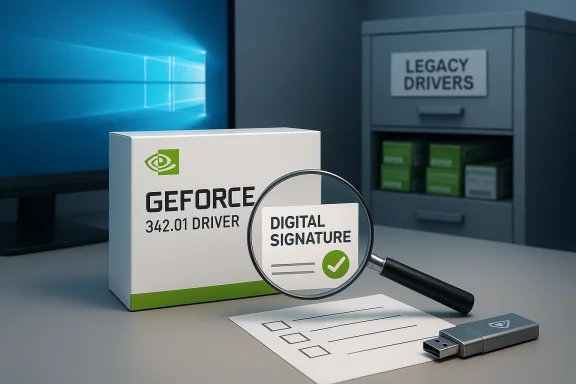 Background / Overview
Legacy driver families — such as NVIDIA’s 340/342 series — were produced to sustain compatibility for older GPUs long after feature development moved to newer branches. These drivers often remain available in archives because some systems or applications depend on them. However, vendors largely shifted active development and feature delivery to modern driver branches and 64‑bit Windows builds years ago, and 32‑bit support was wound down after later releases. That lifecycle reality means legacy drivers carry special risks and obligations: they are archival, not actively hardened or feature‑rich, and you must verify provenance before trusting any binary.The particular driver often advertised in bargain listings — whether labeled “342.00,” “342.01,” or similarly — is recorded in archival records as a WHQL‑signed release with a publication window in mid‑December 2016. Package sizes and language variants vary; the Windows 10 (64‑bit) desktop package for the family typically falls near the ~290–300 MB range depending on locale and bundle options. But file name alone doesn’t prove suitability: the authoritative compatibility indicator is the vendor’s release notes and the “Supported Products” table inside the official archive or OEM support page.
What GeForce 342.01 actually is
The technical identity
- Family: Legacy 340/342 driver family (archival branch).
- WHQL status: Reported as WHQL‑signed for the release family (signature and certificate must still be verified on any downloaded file).
- Released: Documented in archival logs as published around December 14, 2016 (various language variants and notebook/desktop builds exist).
- Typical package size: Roughly 290–300 MB for the Windows 10 64‑bit desktop package (may vary by language and OEM bundling).
Who this driver targets
- Owners of legacy desktop GPUs or notebooks explicitly listed in the 340/342 Supported Products table.
- Administrators maintaining air‑gapped or single‑purpose legacy systems that require a specific driver version for application compatibility.
- OEM systems where the vendor support page cites this specific family as the recommended baseline.
Who should not use 342.01
- Users with modern NVIDIA architectures (Maxwell, Pascal, Turing, Ampere, Ada Lovelace, and later) — these need current Game Ready or Studio drivers.
- Anyone who cannot verify the installer’s provenance or restore their system if a kernel driver causes instability or a boot failure.
Why “cheap driver” pages are dangerous
Graphics drivers operate at kernel level and run with elevated privileges. That makes altered, repackaged, or malicious drivers particularly hazardous.- Kernel‑level trust: A driver has deep system privileges. A tampered driver can hide, persist, or escalate privileges and survive many consumer‑level cleanups.
- Repackaging & bundling risks: Low‑trust sites often rehost installers, bundle adware/PUAs, alter INF files, or strip digital signatures — any of which can break boot integrity or introduce persistent malware.
- Signature spoofing & broken checksums: Even if an installer appears signed, modified installers can have broken certificate chains or mismatched checksums; always verify the signature and cryptographic hash.
- OEM mismatch hazards: Notebook vendors frequently ship drivers with vendor‑specific INF entries and thermal/power tuning. Replacing those with a generic package can degrade battery life, change thermal behavior, or disable vendor features.
How to validate a legacy NVIDIA driver safely (step‑by‑step)
Below is a careful workflow tailored for anyone who needs to obtain and install a legacy driver like 342.01 with minimal risk.1. Identify the hardware and OS precisely
- Open Settings → System → About and confirm whether Windows is 64‑bit or 32‑bit.
- Open Device Manager → Display adapters and note the adapter string. If it appears as “Microsoft Basic Display Adapter,” view Properties → Details → Hardware Ids and copy the VEN and DEV identifiers.
- Record the exact Windows build (e.g., Windows 10 Pro, build number) if possible — some legacy installers check OS build strings.
2. Prefer authoritative download sources (in order)
- Manufacturer/OEM support page for branded systems (Dell, HP, Lenovo, ASUS, Acer, etc.): best for laptops with vendor‑tuned INFs.
- NVIDIA’s official driver archive / download center: canonical source for legacy drivers and release notes.
- Microsoft Update Catalog for signed WHQL packages if neither of the above provides the desired build.
3. Download but do not run yet — verify first
- Check the file size: compare it to the official record (typical 342.x Windows 10 64‑bit ~290–300 MB, but verify language variant differences).
- Verify the digital signature: Right‑click the EXE → Properties → Digital Signatures. Confirm the signer, the certificate chain, and that Windows reports the signature as valid.
- Compute and compare checksums (SHA‑256 recommended): use certutil or your preferred hashing tool and compare against the vendor‑published checksum (if available).
4. Create a restore point and full backup
- Create a Windows System Restore point.
- Export important drivers or create a full system image (recommended for air‑gapped or production systems).
- Make sure you have a recovery USB or access to Windows Recovery Environment in case kernel changes prevent boot.
5. Uninstall old drivers (clean install recommended)
- Use Programs and Features to remove NVIDIA software (GeForce Experience, etc.).
- Open Device Manager → Display adapters → Uninstall device and check “Delete the driver software for this device” if present.
- Use a reputable tool such as Display Driver Uninstaller (DDU) from Safe Mode to clean leftover driver files and registry entries (only use DDU from its official source; avoid repackaged versions). This reduces the risk of driver conflicts.
6. Install the vetted driver
- Run the verified installer in a normal session; choose the Custom (Advanced) option and select Perform a clean install to reset driver settings and INFs.
- Reboot after installation and verify Device Manager shows the correct NVIDIA adapter with the expected driver version.
7. Post‑install verification
- Re‑check the driver digital signature and file checksums on installed components in C:\Windows\System32\DriverStore\FileRepository.
- Observe system stability, thermal behavior, battery life (on laptops), and any application compatibility issues for at least 24–48 hours.
- If problems occur, use System Restore or the backup image to revert, or boot to Safe Mode and install a different driver.
Troubleshooting common failure modes
Black screen / no boot after installing a driver
- Force a reboot into Safe Mode via Windows Recovery (hold Shift while selecting Restart).
- Use Device Manager in Safe Mode to uninstall the NVIDIA driver, or run your backup/system image to restore.
- If System Restore points were created, revert to the pre‑install point.
Driver installation fails or crashes installer
- Confirm the downloaded package matches the required OS architecture and GPU family.
- Run the installer as Administrator and disable antivirus temporarily (some AVs block driver installers).
- Use Display Driver Uninstaller (DDU) in Safe Mode to remove remnants and retry.
Signature or checksum mismatch
- Delete the suspicious downloaded file completely.
- Re‑download only from NVIDIA or OEM and repeat signature/checksum verification.
- If you obtained the file via third‑party mirror and cannot verify a match with the vendor’s checksum, treat it as compromised.
Notebook‑specific quirks
- Some OEMs require vendor‑specific INF lines. If the generic NVIDIA package causes unexpected battery drain or thermal profiles, reinstall the OEM driver from the laptop vendor’s support site rather than forcing the generic archive package.
Special notes on 32‑bit vs 64‑bit drivers and Windows versions
- 32‑bit Windows drivers for recent Windows 10 versions were curtailed over time; claims of universal 32‑bit Windows 10 packages must be verified against official release notes. Some archived releases did include 32‑bit builds historically, but 32‑bit driver development was deprioritized in later years. If your system is 64‑bit, do not attempt to install a 32‑bit driver package — it will not function correctly.
- Many cheap aggregator pages advertise “32‑bit Windows 7/8.1” drivers without clear provenance. Always map the driver family to the exact Supported Products table on the vendor or OEM page before proceeding.
Risks vs benefits — a critical appraisal
Notable strengths of archival legacy drivers
- Compatibility for legacy hardware: Some older applications and GPUs depend on a specific legacy driver to function correctly.
- Stable historical behavior: For systems locked to older app stacks, a tested legacy driver can be the least disruptive option.
- WHQL certification (when present): WHQL signing provides an additional trust anchor compared to unsigned third‑party repacks.
Significant risks and limitations
- Security maintenance: Legacy branches do not receive routine security hardening or feature updates. Relying on them long‑term increases exposure to newly discovered kernel vulnerabilities.
- Provenance sensitivity: Because these files are attractive to repackagers, the primary hazard is where you download them from. Cheap or SEO‑driven reposts often lack verifiable signatures or have been altered.
- OEM-specific behavior: Generic drivers may not respect vendor firmware/hardware nuances in laptops (power, thermal, hotkeys), leading to degraded UX or battery life.
Practical recommendations (short checklist)
- Confirm your GPU and Windows architecture before searching for a driver.
- Always prefer your OEM support page (laptops) or NVIDIA’s official archive. Treat bargain pages as unverified.
- Verify digital signatures and checksums before running an installer. If the signature is invalid or the hash differs, discard the file.
- Make a full backup and create a restore point. Have Windows Recovery or install media ready.
- If you must use an archived driver, monitor system behavior closely and be ready to revert.
Conclusion
Cheap download pages and SEO‑driven posts that shout “GeForce 342.00 for Windows 10 64‑bit” are tempting, but they obscure the central truth: kernel‑level software must be trusted, and trust is earned through provenance, signatures, and careful validation. The GeForce 342.01 family is a legitimate, WHQL‑signed legacy release documented in archives (published around December 14, 2016) and useful only for specific legacy GPUs or OEM scenarios. For most users on modern hardware, current Game Ready or Studio branches remain the right choice. When you do need a legacy package, follow the verification and install workflow above, prioritize OEM/NVIDIA archives, and treat third‑party “cheap” downloads as suspect until you can cryptographically prove they are authentic. Your GPU driver is not just software — it’s a kernel component that merits the same security hygiene you’d apply to firmware or system software.Source: Born2Invest https://born2invest.com/?b=style-230883512/
