

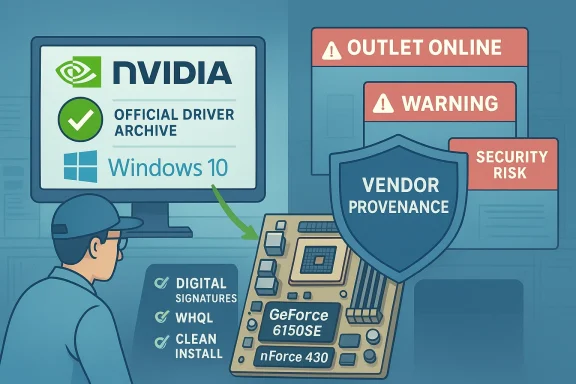
If you’re hunting for drivers for an aging GeForce 6150SE with the nForce 430 chipset — especially the Windows 10 64‑bit package — pause before you click any “outlet” or SEO‑packed download page. That combination of very old GPU/chipset hardware and aggressive third‑party marketing is a classic recipe for risk: kernel‑level drivers from unverified sources can break boot, introduce malware, or silently alter system behavior. The short version: treat vendor and OEM pages as the only trustworthy places to get installers, verify signatures and hashes, prepare a rollback, and be ready to choose a pragmatic fallback (Windows’ basic display driver or a hardware refresh) when vendor support simply doesn’t exist.
The GeForce 6150SE and the nForce 430 chipset belong to an older generation that predates the Windows 10 era. These parts were mainstream in the mid‑2000s and were often shipped integrated on motherboards rather than as discrete, contemporary GPUs. Over time, NVIDIA consolidated driver families and moved legacy branches into archival status; many of the drivers that originally supported GeForce 6‑series silicon are now in legacy archives or have been absorbed into OEM vendor packages. That lineage means you cannot assume a modern, official Windows 10 64‑bit installer exists for every specific 6150SE model and every OEM variant.
Complicating the search is marketing copy and low‑quality aggregator pages that advertise “clearance” or “outlet” downloads (for example, mentions of GeForce driver builds such as 309.08 or other old release numbers). Community audits and archival checks repeatedly flag these pages as unverified or unstable; the Born2Invest link provided in your prompt was specifically noted by archivists as unavailable for verification and should be treated as untrusted until you can provide a working, authoritative page or direct vendor documentation.
Why that matters: display drivers run at kernel privilege and can affect boot integrity, security, and system stability. A tampered or repackaged driver EXE can strip digital signatures, alter INF tables, or bundle unwanted binaries. For legacy hardware, where official vendor attention is sparse, provenance is everything.
How to get the hardware id (quick):
Keeping an older GeForce 6150SE with an nForce 430 chipset working on modern Windows is possible — but it requires patience, discipline, and an insistence on vendor provenance. If you’re comfortable with conservative workflows (backup, verify, DDU clean install) and accept that feature limitations are inevitable on this silicon, proceed with OEM or NVIDIA‑archived packages. If you’re being pushed toward an ad‑driven “Outlet Online” installer or a lone mirrored EXE with no signature, treat that as the moment to walk away and choose a safer path — either the Microsoft basic driver for display or a modest hardware upgrade. Community and archival guidance back this conservative path: when drivers run in kernel mode, provenance and verification are not optional.
Conclude by preserving any successful installer you obtain (store it offline with its checksum), document the Hardware Ids and the exact driver build number you installed, and label the backup image with a clear restore plan. That small amount of discipline can save hours of troubleshooting and protect your system from the larger risk of running unverified kernel software.
Source: Born2Invest https://born2invest.com/?b=style-229955812/
 Background / Overview
The GeForce 6150SE and the nForce 430 chipset belong to an older generation that predates the Windows 10 era. These parts were mainstream in the mid‑2000s and were often shipped integrated on motherboards rather than as discrete, contemporary GPUs. Over time, NVIDIA consolidated driver families and moved legacy branches into archival status; many of the drivers that originally supported GeForce 6‑series silicon are now in legacy archives or have been absorbed into OEM vendor packages. That lineage means you cannot assume a modern, official Windows 10 64‑bit installer exists for every specific 6150SE model and every OEM variant.Complicating the search is marketing copy and low‑quality aggregator pages that advertise “clearance” or “outlet” downloads (for example, mentions of GeForce driver builds such as 309.08 or other old release numbers). Community audits and archival checks repeatedly flag these pages as unverified or unstable; the Born2Invest link provided in your prompt was specifically noted by archivists as unavailable for verification and should be treated as untrusted until you can provide a working, authoritative page or direct vendor documentation.
Why that matters: display drivers run at kernel privilege and can affect boot integrity, security, and system stability. A tampered or repackaged driver EXE can strip digital signatures, alter INF tables, or bundle unwanted binaries. For legacy hardware, where official vendor attention is sparse, provenance is everything.
What “official” sources mean (and why to prefer them)
- NVIDIA official driver archive — the canonical place for vendor‑published installers, release notes, and supported‑products tables. If a driver is hosted and signed by NVIDIA, you can verify release date, file size, and digital signature metadata.
- Your OEM or system vendor support page (ASUS, MSI, Dell, HP, Lenovo, etc.) — especially important for laptops and prebuilt desktops. OEM drivers often include vendor‑specific INF entries, power and thermal tuning, and signed installers tailored to that system. For notebook and integrated GPU vendors this is usually the safest source.
- Microsoft Update Catalog — when vendor pages are unavailable, the Catalog sometimes holds WHQL‑signed legacy packages and is more authoritative than anonymous mirrors. Use it as a fallback for signed INF packages.
Identifying exactly what you need
Before you search for a driver, gather three critical facts from the machine:- Exact GPU/adapter string shown in Device Manager → Display adapters.
- Hardware Ids (Properties → Details → Hardware Ids) — the VEN_xxxx and DEV_xxxx strings are authoritative and let you check the INF.
- Whether the system is a laptop/desktop and whether Windows has DCH or Standard driver packaging in use.
How to get the hardware id (quick):
- Device Manager → Display adapters → right‑click your adapter → Properties → Details → Hardware Ids.
- Copy the line(s) that show VEN and DEV values into a text file for later INF matching.
Specific reality for GeForce 6150SE / nForce 430
- The GeForce 6150SE is part of the GeForce 6‑series-era silicon and was commonly integrated on motherboards using the nForce 430 chipset. As a legacy integrated solution, it is unlikely to have a modern Windows 10 64‑bit Game Ready driver like current discrete GeForce families. Instead, driver support historically came from:
- OEM motherboard vendors (who packaged chipset + graphics drivers in their support downloads),
- Legacy NVIDIA driver branches archived for older Windows releases, or
- Windows’ built‑in basic display driver for minimal output when no compatible vendor drivers are available.
- Practical implication: don’t expect a modern, optimized Windows 10 installer that provides advanced DX features or modern video decode on this silicon. Your goal should be stable display output and compositor support rather than feature parity with modern GPUs.
Red flags: “Outlet Online,” driver 309.08 and similar SEO copy
When you see ad copy like “Shop nvidia geforce 6150se nforce 430 driver windows 10 64 bit Outlet Online GeForce 309.08 Driver 309.08 Windows 7 64 bit Windows 8 64” you should look for specific warning signs:- No vendor signature or missing digital signature details on the download page.
- No published file size, checksum, or release notes.
- Hosted on an advertising‑heavy landing page with multiple unrelated “clearance” offers and no clear vendor metadata.
- Claims that a driver is “universal” or “optimized” without listing supported hardware IDs or an original release date.
Safe, technician‑grade installation workflow (step‑by‑step)
Follow this exact sequence to minimize risk and maximize the chance of a successful install:- Back up first.
- Create a full disk image if the machine is production‑critical; otherwise make at least a System Restore point. Kernel driver installs can leave a machine unbootable, and an image speeds recovery.
- Inventory the hardware.
- Copy Device Manager → Display adapters → Hardware Ids (VEN & DEV) into a text file. This is how you will confirm the INF lists your card.
- Prefer OEM drivers for branded systems.
- For laptops or prebuilt desktops, search the manufacturer support page for your exact model first. OEM drivers often incorporate necessary INF patches and power/thermal tuning.
- Locate an authoritative installer.
- Primary: NVIDIA official driver archive (search by Product Type → GeForce; cross‑check the Supported Products table). Secondary: Microsoft Update Catalog for WHQL packages. Only consider third‑party archives (TechPowerUp, Softpedia) to locate a filename you can then verify against vendor metadata.
- Verify file provenance before running.
- Check the file size on the vendor page and the digital signature (Right‑click EXE → Properties → Digital Signatures). If a checksum is published, compute it locally (PowerShell Get‑FileHash) and compare. If anything looks off, do not run the installer.
- Clean existing drivers if switching packaging types.
- If changing between DCH and Standard or if you’ve had driver corruption, boot to Safe Mode and run Display Driver Uninstaller (DDU) to remove residues. DDU is the community standard for a surgical, reliable removal.
- Install as Administrator with a clean/custom install.
- Run EXE → choose Custom (Advanced) → check Perform a clean installation and deselect optional telemetry components like GeForce Experience if you don’t want them. Reboot. Confirm the driver version via NVIDIA Control Panel → System Information (or Device Manager → Driver tab).
- Validate behavior and keep a rollback plan.
- Test representative workloads (multi‑monitor, video playback, apps you rely on). If you see TDRs, collect minidumps and logs. If problems persist, roll back using Device Manager → Driver tab → Roll Back Driver or reinstall the image you made earlier.
Advanced recovery and INF techniques (only for experienced users)
- If the NVIDIA installer refuses to run because your hardware ID isn’t listed, you can extract the package and inspect the .INF to confirm support. That can help you determine whether the device is supported by a nearby family build (for example a 341.x or 342.x legacy family).
- Manual INF edits or forcing an unsigned driver install is risky, can break driver signing policies, and should be avoided unless you fully understand the signature implications and have recovery images. Community guidance strongly discourages unsigned INF hacks for production machines.
- Use Windows’ built‑in Microsoft Basic Display Adapter for desktop usability.
- Source an OEM legacy package for your motherboard model (the chipset vendor often bundled the correct combination of graphics + audio drivers).
- Consider inexpensive modern entry‑level hardware — it’s often cheaper and far safer than trusting repackaged legacy drivers.
Troubleshooting: common failure modes and fixes
- Installer says “No compatible hardware found.”
- Confirm Hardware Ids vs INF supported list; extract installer to a temp folder and open the .INF to search for your VEN/DEV strings.
- Black screen or boot hang after install.
- Boot to Safe Mode, run DDU to remove the driver, then reinstall a verified vendor package or the Microsoft basic driver. Always have a recovery image.
- Frequent VIDEO_TDR_FAILURE (bugcheck 0x116) after driver update.
- Revert to the previous driver via Device Manager or reinstall a previously archived driver binary; collect minidumps and event logs for deeper diagnosis. Persistent TDRs on legacy hardware often point to failing silicon or power delivery problems, not just driver mismatches.
- Installer refuses to run because system expects DCH vs Standard.
- Use DDU to perform a clean uninstall and then install the correct packaging type. Always confirm the current driver type before swapping families.
When to stop chasing an obscure installer
If the only available installer you can find for the 6150SE/nForce 430 is hosted on an advertising‑heavy “outlet” page with no digital signature, checksum, or vendor metadata — stop. The risks of running an unverified kernel driver outweigh the benefits of marginal feature gains on decade‑old silicon. Community archives repeatedly recommend preserving working installers and choosing stable, vendor‑signed packages rather than chasing last‑known variants from unknown hosts. If your use case requires ongoing security or media capability, the prudent choice is hardware refresh or migration to a platform that continues to receive active driver and OS security updates.Final checklist — safe driver acquisition and install (quick reference)
- Confirm exact GPU and Hardware Ids in Device Manager.
- Search OEM support page first (laptop/prebuilt systems).
- Use NVIDIA official archive for vendor packages; confirm release notes and supported product list.
- If vendor page is unavailable, check Microsoft Update Catalog for WHQL packages.
- Verify digital signature and, if available, checksums before running.
- Back up (image) and be ready to DDU uninstall if switching driver families.
- Avoid “outlet” or ad‑heavy mirrors unless you can prove binary provenance against vendor metadata.
Keeping an older GeForce 6150SE with an nForce 430 chipset working on modern Windows is possible — but it requires patience, discipline, and an insistence on vendor provenance. If you’re comfortable with conservative workflows (backup, verify, DDU clean install) and accept that feature limitations are inevitable on this silicon, proceed with OEM or NVIDIA‑archived packages. If you’re being pushed toward an ad‑driven “Outlet Online” installer or a lone mirrored EXE with no signature, treat that as the moment to walk away and choose a safer path — either the Microsoft basic driver for display or a modest hardware upgrade. Community and archival guidance back this conservative path: when drivers run in kernel mode, provenance and verification are not optional.
Conclude by preserving any successful installer you obtain (store it offline with its checksum), document the Hardware Ids and the exact driver build number you installed, and label the backup image with a clear restore plan. That small amount of discipline can save hours of troubleshooting and protect your system from the larger risk of running unverified kernel software.
Source: Born2Invest https://born2invest.com/?b=style-229955812/
