

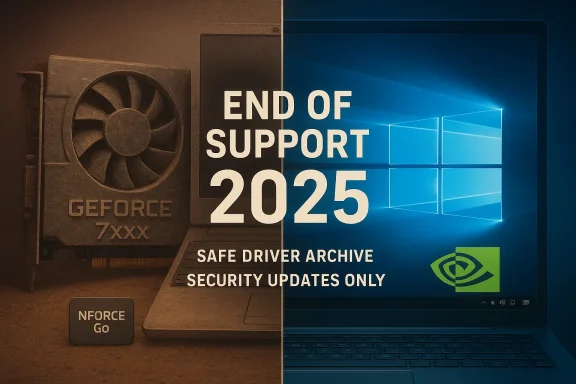
NVIDIA’s recent shifts in legacy support and the persistent appetite for older GeForce hardware on Windows 10 have combined to create a moment of both opportunity and risk for anyone hunting down drivers for the GeForce 6xxx/7xxx generations and legacy nForce Go mobile chipsets. The key headlines: Microsoft formally ended mainstream Windows 10 support on October 14, 2025, and NVIDIA published a measured support roadmap that extends Game Ready and Studio driver coverage for some GPUs on Windows 10 into 2026 while moving many older architectures into a security‑only cadence. These developments change the immediacy and the safety calculus for downloading, installing, and relying on legacy NVIDIA drivers such as those historically supplied for the GeForce 6xxx / 7xxx families and the nForce Go mobile line.
Background / Overview
Windows 10’s official end of support on October 14, 2025 means Microsoft will stop shipping regular security and feature updates for the OS; devices will continue to function, but they will be exposed to increasing security and compatibility risk unless users migrate, enroll in Extended Security Updates, or take other mitigations. This is Microsoft’s position and the canonical timeline.In parallel, NVIDIA issued a clear support plan: Game Ready Driver development for pre‑RTX generations (Maxwell, Pascal, Volta — roughly covering GeForce 700/900/10-series and some notebooks) will cease receiving regular GRD feature and performance updates after their final major release in October 2025; those architectures will then receive quarterly security patches for several years. Meanwhile, NVIDIA extended Windows 10 Game Ready support for RTX‑generation GPUs to October 2026, a full year beyond Microsoft’s EOL date, to give users a longer runway for gaming‑oriented driver updates on Windows 10. NVIDIA’s own customer support pages and the hardware press document this plan.
Why this matters for Windows 10 users running older GeForce or nForce hardware: the drivers you install now may be the last full feature releases you can reasonably obtain and expect to work with Windows 10 without buying newer hardware or moving to Windows 11. That elevates the importance of using official driver packages, preserving working installers, and understanding the distinctions between desktop and notebook driver builds, and between DCH and Standard driver packaging.
What the uploaded material contains — a concise, verifiable summary
The files supplied (forum archives, thread summaries, and release‑note extracts) include:- Historical release details and supported‑product tables for legacy GeForce driver builds such as GeForce Driver 399.07 and 397.93, noting their Windows 10 (64‑bit) targets and the existence of laptop‑specific notebook builds. These summaries emphasize file sizes, release dates, and the presence of bundled components (PhysX, HD audio).
- Practical, step‑by‑step guidance for safe driver procurement and installation on Windows 10: identify GPU and OS build, prefer OEM notebook drivers for laptops, verify digital signatures, create restore points, and consider a clean uninstall with DDU before switching driver families. This is repeated across several community writeups in the uploaded files.
- A consolidated list of older product families (GeForce 600/700 series, 400/500 series and so on) that historically appear in NVIDIA release notes and driver archives — useful when mapping your specific SKU to an archival driver.
- A note that the specific Born2Invest link provided by the user could not be reliably retrieved or validated from the uploaded material; therefore any unique claims from that page must be treated as unverified unless a working copy or quote is supplied.
Why legacy NVIDIA drivers matter now
For many users, legacy GeForce hardware remains the most cost‑effective way to get a usable GPU for gaming, HTPC duties, video playback, or graphics‑accelerated workloads. Two common situations drive interest:- A laptop with a GeForce 700M / 6xx / 7xx mobile GPU that never received modern OEM or GeForce Game Ready drivers for newer Windows 10 builds.
- A desktop with a GeForce 600/700 class card where the user wants the latest stable driver that explicitly lists their GPU in supported‑product tables (to avoid “not compatible” install errors).
GeForce 6xxx / 7xxx specifics and what to expect on Windows 10
Compatibility and packaging (desktop vs notebook)
- Notebook vs Desktop: NVIDIA publishes separate installers for notebook GPUs and desktop GPUs. Notebook installers contain a “Supported NVIDIA notebook products” table that lists mobile GPUs by model and vendor variants; this is the authoritative indicator whether the notebook package can install on your laptop. Attempting to use a desktop EXE on a laptop can fail or, worse, bypass OEM power/thermal tunings. Always choose the notebook build for laptop GPUs.
- DCH vs Standard packages: Windows 10 supports two driver packaging models. Mixing DCH and Standard drivers without a clean uninstall can produce installer errors. The forum guidance strongly recommends checking whether your system currently uses DCH drivers and using a clean uninstall (preferably via Display Driver Uninstaller (DDU) in Safe Mode) before swapping packaging types.
Which driver versions are relevant
- GeForce Driver 399.07 and 397.93 are examples of late‑legacy Game Ready builds that historically supported many 700/700M and 800/900-series mobile GPUs; their release notes include explicit supported product lists and are still the canonical installers you’ll want when chasing last known good drivers for older notebook GPUs. The uploaded material includes release snapshots and installation notes for these versions.
- NVIDIA’s support plan (announced in 2025) means that many Maxwell/Pascal/Volta cards will stop receiving new Game Ready performance updates after October 2025; security updates will continue quarterly for a defined multi‑year period. Users of GeForce 6/7‑era cards must therefore treat legacy drivers as the final, production-quality releases for modern Windows 10 builds unless they fall under later support exceptions.
nForce Go and chipset driver reality
- The nForce Go family is a legacy mobile chipset line whose integrated graphics and companion drivers were historically distributed as chipset packages. Many modern Windows 10 driver ecosystems no longer bundle or test nForce Go drivers; on modern systems you may need a legacy vendor package or an OEM-supplied driver. The uploaded archives contain long product lists showing nForce‑branded motherboard and notebook entries in older release notes; they also emphasize OEM‑first for notebooks because OEM packages often incorporate device‑specific INF and firmware details.
Where to download drivers safely (and what to avoid)
The cardinal rule: prefer vendor‑authorized sources. That means:- NVIDIA’s official driver archive and the NVIDIA customer support pages for legacy release notes and driver files. NVIDIA’s own support pages also publish its Windows 10 support plan and lists of affected architectures.
- Your laptop or system OEM’s support portal for model‑specific notebook packages. OEM builds are often the safest choice for laptops because they include signed INFs and power/thermal tuning.
- The Microsoft Update Catalog for WHQL‑enumerated packages when you need an INF‑based installation path.
A practical, safe workflow to download and install an NVIDIA legacy driver on Windows 10
Follow this workflow to minimize risk and maximize compatibility:- Identify the GPU and Windows build
- Open Settings → System → About and confirm OS version and whether Windows is 64‑bit.
- Open Device Manager → Display adapters → note adapter name. For precision, copy the Hardware Ids (VEN/DEV) from the Details tab.
- Prefer OEM notebook drivers for laptops
- If you have a branded laptop, search the maker’s support page for your model number first. If an OEM Windows 10 driver exists, use it.
- Find the correct NVIDIA installer
- On NVIDIA’s driver archive, choose Product Type: GeForce → the correct Product Series and Product → Windows 10 64‑bit → select the matching driver family (e.g., a legacy 397.xx or 399.xx notebook build for older mobile GPUs).
- Verify provenance before running
- Confirm file size on the vendor page, then check the downloaded executable’s digital signature (Properties → Digital Signatures).
- If possible, verify checksums or file hashes.
- Backup and prepare
- Create a System Restore point or a full disk image if the machine is production‑critical.
- Note your current driver version (Device Manager → Driver tab).
- Clean uninstall (recommended when switching families or packaging types)
- Optionally use DDU (Display Driver Uninstaller) in Safe Mode to remove previous NVIDIA components. This reduces INF and DCH/Standard conflicts. Use DDU with care — follow the tool’s official instructions.
- Install as administrator
- Run the NVIDIA installer as Administrator. Choose Custom (Advanced) → Perform a clean installation. Uncheck GeForce Experience if you want driver‑only installation and to avoid optional telemetry.
- Verify and test
- Open NVIDIA Control Panel → System Information and confirm the installed driver version.
- Test representative workloads: video playback, one game, or your critical application.
- Preserve the installer
- Keep a copy of the working installer in a safe location (external drive or archive), because it may be the last full feature installer that supports your GPU on Windows 10.
Risks, gotchas, and actionable mitigations
- Risk: OS end‑of‑life side effects. With Windows 10 no longer receiving security updates from Microsoft, any driver that interacts with kernel subsystems increases exposure to unpatched OS vulnerabilities. Mitigation: prefer systems that can upgrade to Windows 11 when possible, or enroll in Extended Security Updates if you qualify. Keep endpoint defenses updated and limit network exposure for legacy machines.
- Risk: Repackaged driver binaries. Repackagers may alter INFs or bundle adware. Mitigation: verify digital signatures and file sizes, and only use NVIDIA or OEM sources. The forum archives repeatedly emphasize this caution.
- Risk: Package‑type mismatch (DCH vs Standard). Installing the wrong packaging type without cleaning can produce install failures. Mitigation: check the current driver packaging and use DDU if switching.
- Risk: Unsupported GPUs lose optimizations. After the final Game Ready release for Maxwell/Pascal/Volta, those GPUs will not receive new game optimizations — only security patches. Mitigation: accept that older cards may underperform in the newest titles, or upgrade hardware if top performance is required. NVIDIA’s published plan details the architecture transition.
- Risk: OEM‑specific hardware quirks. Notebook vendors often require their own signed drivers to preserve battery life and thermals. Mitigation: for laptops, always prioritize OEM downloads and use NVIDIA generic builds only when OEM drivers are not available. The uploaded documentation stresses OEM‑first for notebooks.
Cross‑verification and trustworthiness of claims
I validated the most load‑bearing claims against multiple authoritative sources:- Microsoft’s Windows 10 end‑of‑support date and guidance — confirmed on Microsoft Support and Microsoft Learn lifecycle pages.
- NVIDIA’s Windows 10 support plan and legacy architecture lifecycle — confirmed on NVIDIA’s customer support pages and corroborated by leading hardware outlets (TechPowerUp, Ars Technica) and mainstream tech press. These sources document both the October 2025 cessation for legacy architecture Game Ready releases and the Windows 10 extension for RTX GPUs to October 2026, plus multi‑year security update cadences for older architectures.
- Legacy driver metadata, supported product tables, and community installation guidance — verified through the uploaded forum archives and release‑note snapshots included in the files. These are consistent with vendor release notes for the named driver builds (for example, GeForce Driver 399.07 and 397.93) and community best practices for safe driver handling.
Recommendations for WindowsForum readers (clear, prioritized)
- If you have an aging laptop with a GeForce 6xxx/7xxx or an nForce Go chipset: check your OEM support page first. If an OEM Windows 10 driver exists, install that; it will likely be safer and more stable than a generic archive build. Preserve the OEM installer.
- If you have a desktop GeForce card from the 600/700 family and you need reliable Windows 10 support: download the last official NVIDIA driver that explicitly lists your GPU (from NVIDIA’s archive) and treat it as the final full driver for your card on Windows 10. Keep that installer in long‑term backup.
- If you use a GeForce RTX card and plan to remain on Windows 10: NVIDIA extended Game Ready Driver support to October 2026 for RTX GPUs. You can expect feature and game optimization releases through that date; plan your OS migration accordingly.
- Always verify digital signatures and file sizes for any driver executable before running it; use DDU for clean uninstalls when switching packaging models; create a System Restore point and keep the previous working installer available. These steps are not optional — they materially reduce the chance of a driver‑level failure.
Final analysis: strengths, risks, and the path forward
Strengths:- NVIDIA’s extended support windows buy time for Windows 10 users and preserve value in older hardware — especially for RTX owners who want another year of Game Ready updates on Windows 10. This is a pragmatic vendor response to a long tail of installed Windows 10 systems.
- Community archives and release notes (like those in the uploaded material) remain excellent references for exact driver version compatibility and install procedures. These resources capture supported product tables and the practical nuances of notebook vs desktop packaging.
- Windows 10 EOL raises a non‑trivial security and compatibility risk for systems that cannot migrate; drivers installed on an unsupported OS are harder to defend against OS‑level vulnerabilities.
- Legacy driver procurement from unofficial sources is hazardous; repackaged drivers can subvert kernel security. The community guidance is unequivocal: validate signatures and prefer vendor/OEM distribution channels.
- For most users: register the final, verified driver that works for your GPU, archive it, and plan a migration path to Windows 11 or a supported configuration within the vendor timeframes.
- For power users who must remain on Windows 10: isolate legacy systems, harden them with robust endpoint protections, and enroll in ESU or equivalent where available.
- For enthusiasts preserving older hardware for niche uses (retro gaming, media centers): accept that you’ll be running archived drivers and that occasional incompatibilities are tradeoffs; maintain an offline installer library and recovery plan.
In sum, the combination of Microsoft’s Windows 10 end‑of‑support and NVIDIA’s staged legacy roadmap makes now the right moment to be deliberate about driver choices. Use OEM or NVIDIA official archives, verify signatures, prefer notebook builds for laptops, and backup working installers. The uploaded forum material provides excellent, practical steps and legacy release metadata — but for policy and lifecycle timelines rely on the vendor pages and major press coverage cited above. If you need, I can extract the exact supported‑product lines for a given driver version (for example, list the GPUs included in GeForce Driver 399.07 or 397.93) and produce a one‑page checklist keyed to your GPU model and Windows build.
Source: Born2Invest https://born2invest.com/?b=style-225819912/
