

 Understanding the hardware & the driver version numbers you mentioned
- GeForce 525M — what it is
- The GeForce 525M is a mobile (notebook) GPU from NVIDIA’s earlier product families. Many of those notebook GPUs were supported in the Verde/R295 and later driver families; OEM notebook vendors also often published tailored drivers for their models. Because this is a mobile GPU, the safest source for a driver is the laptop manufacturer’s downloads page (OEM package) or NVIDIA’s “notebook” driver archive that lists supported notebook SKUs.
- Driver 353.30 — facts and limits
- NVIDIA’s GeForce Game Ready Driver 353.30 was published on June 22, 2015. Its release notes and driver entry show what OS families it targets and what GPUs it supports (desktop and some notebook branches had separate entries). The official NVIDIA page for 353.30 lists Windows 7 / Windows 8 / Windows 8.1 / Windows Vista variants (desktop). That means: don’t assume 353.30 is automatically a Windows 10 64‑bit package for your notebook — NVIDIA published separate Windows 10‑targeted entries in that time frame (for example, 353.62 for Windows 10). Before downloading, check NVIDIA’s “Operating System” and “Supported Products” tabs on the driver page.
- Why the distinction matters
- NVIDIA historically separated desktop and notebook branches and sometimes published broad desktop releases that were NOT the right installer for your laptop. OEMs sometimes add their own INFs (device IDs) and signatures so their driver package is the only one that will install cleanly on that laptop model. Community guidance strongly recommends checking the OEM first and preferring OEM drivers for notebooks.
Is the GeForce 525M supported on Windows 10 (64‑bit) in 2026?
Short answer: probably yes in the sense that Windows 10 will accept a driver, but with practical caveats:- Official drivers for older mobile GPUs were published in the 300–400 series era (2014–2016). Some of those were later republished/updated with Windows 10‑targeted builds (for example the 352.x / 353.x family included Windows 10 notebook builds). Check the NVIDIA driver archive entry for your GPU and your OS.
- Laptop OEMs may have the only validated Windows 10 package for your model. If you have a branded laptop (Dell/HP/Lenovo/etc., visit their support page and search by your exact model number for a tested Windows 10 driver.
- Security & long‑term support: older drivers may not include recent security fixes. NVIDIA’s overall Windows 10 driver support policies have changed over time; in 2025–2026 NVIDIA extended some Windows 10 support windows, but this does not guarantee feature parity or ongoing bug fixes for every legacy GPU forever. If you need a secure, supported system for critical use, consider hardware refresh. For the general policy context (example reporting), see recent coverage of NVIDIA’s Windows 10 support timeline.
Where to get drivers — safe sources and what to avoid
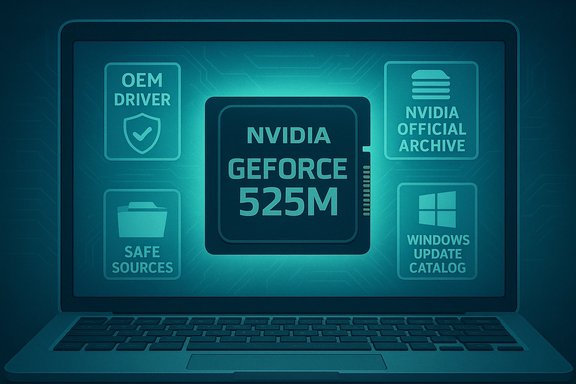
- Safe (recommended) sources:
- Your laptop OEM support page — first choice for notebooks (validated for your model).
- NVIDIA official driver archive (searchable by product/OS) — use the driver page that explicitly lists “GeForce 525M” or the relevant notebook family in Supported Products. The NVIDIA driver pages include release notes and supported product tabs.
- Microsoft Update Catalog — for some older WHQL packages. This is Microsoft’s repository for signed drivers; it can be used for manual INF installs if necessary.
- Sources to avoid (common pitfalls):
- “Discount” driver packs, random file‑sharing mirrors, repackaged all‑in‑one driver installers, or one‑click updater tools from unknown vendors. Community troubleshooting history shows these are a frequent cause of installer rejections, system instability, or bundled unwanted software.
How to check which driver you need (step by step)
- Identify the GPU name and hardware ID:
- Open Device Manager → Display adapters → right‑click your adapter → Properties → Details tab → choose “Hardware Ids”. Note the VEN_XXXX&DEV_YYYY identifiers and the exact OEM model string.
- Check OEM support:
- Search the laptop maker’s support page for your exact model (example: “Dell XPS 15 2012 drivers Windows 10”).
- Check NVIDIA driver archive:
- Use NVIDIA’s driver search: choose “Product Type: GeForce”, “Product Series: (find nearest family)”, then look for entries that list your device or the “Notebook” supported products list. Confirm the OS (Windows 10 64‑bit) on the page.
- If NVIDIA’s package is generic and lists your device ID in the INF, OEM packages may still be preferable for notebook power/thermal tuning.
If you decide to install an older driver (353.30 or similar) — safe workflow
Note: the following is a conservative process used by many experienced users and community forums. It minimizes risk and preserves rollback paths.- Prepare BEFORE you touch drivers
- Create a full system backup or at least a Windows System Restore point and an image backup if the machine is important. Record the current driver version (Device Manager → Driver tab → Driver Version).
- Download the driver installer you intend to use and keep it in a safe folder. Also download the OEM package if available.
- Recommended clean‑install process
- Option A (usual safe way): Run the NVIDIA installer as Administrator → choose Custom → check “Perform a clean installation” → proceed. Reboot when prompted. This resets NVIDIA settings and removes many artifacts.
- Option B (if installer fails or refuses to proceed): Use DDU (Display Driver Uninstaller) in Safe Mode, then reinstall. DDU is a community‑recommended tool for a full driver cleanup (run in Safe Mode and then reboot to normal and install the desired driver). Community posts repeatedly recommend DDU for stubborn leftovers.
- If the NVIDIA installer says “no compatible hardware” or refuses:
- Extract the NVIDIA package (it self‑extracts to a temporary folder) and inspect the .INF for your Hardware Id string. If the INF contains your device ID you can try a manual install:
- Device Manager → Update driver → Browse my computer → Let me pick → Have Disk… → point to the extracted INF.
- This bypasses some installer metadata checks but requires the INF to exactly match your device ID. Manual INF install is a fallback; it can succeed when the packaged installer refuses to run. Community guidance warns INF editing is risky and should be avoided for general users.
- If the package is unsigned or Windows blocks it:
- On modern Windows 10 builds, driver signature enforcement is normally required. Temporarily disabling signature enforcement to test an unsigned driver is possible but high‑risk; prefer signed packages from NVIDIA or OEMs.
- After install
- Reboot. Verify in Device Manager the driver version and test representative workloads (play a video, run your application/game). If you see hangs, artifacts, or black screens: boot Safe Mode, run DDU, and reinstall a different candidate. Keep your rollback plan ready.
Troubleshooting common errors
- “Installer cannot find compatible hardware” (Error 182 or similar)
- Cause: INF/device‑ID mismatch or OEM‑signed INF blocks. Fix: check the INF for your hardware ID or use OEM package; manual INF install may work.
- Windows Update keeps reinstalling another driver
- Use Microsoft’s “Show or hide updates” troubleshooter (wushowhide.diagcab) to hide the driver while you test a candidate, or pause Windows Update temporarily.
- Black screen or boot hang after install
- Boot to Safe Mode, run DDU to remove drivers completely, then reinstall. If recovery fails, use System Restore or your image backup.
Security and long‑term considerations
- Old drivers can have unpatched CVEs. Running an ancient graphics driver is a security and stability tradeoff. NVIDIA’s policy and public messaging in 2025–2026 altered support windows for Windows 10 where applicable — but legacy GPUs do not get the same cadence of fixes as current products. If security and long‑term reliability matter, plan for hardware upgrade rather than relying on heavily modified legacy drivers.
What about the “discount” packages you referenced?
- If “discount” means a third‑party site or bundled “driver pack” offering easy downloads for many cards:
- Do not use these unless you can verify the package is an exact mirror of NVIDIA’s official installer or the OEM package. Community and forum records show repackaged installers sometimes change INFs, bundle extras, or break signature verification. Prefer NVIDIA archive or OEM.
Quick checklist you can follow right now (practical)
- On the laptop, open Device Manager → confirm “GeForce 525M” and copy the exact Hardware Id string.
- Visit your laptop OEM’s drivers/support page and search by model. If a Windows 10 64‑bit driver is listed there, download and install that first.
- If OEM has no suitable driver, go to NVIDIA’s driver search page and pick the notebook driver family that lists your device (confirm “Windows 10 64‑bit” in the OS selector). Prefer the most recent WHQL build that lists your card.
- Create a restore point and a backup before changing drivers.
- If you must use an older package (e.g., 353.x family), prefer the NVIDIA archived package that explicitly lists Windows 10 notebook support (for example, 353.62 was published for Windows 10). Confirm OS and supported products on the driver page before running the installer.
Example references I used while writing this guide
- NVIDIA driver entry for GeForce Game Ready Driver 353.30 (release date June 22, 2015). This page shows the release highlights and OS support for that release.
- NVIDIA driver entry for GeForce Windows 10 Driver 353.62 (release date July 29, 2015) — shows a Windows 10 notebook build in the 353 family. Use pages like this to find a Windows 10‑targeted package.
- TechSpot’s download details for 353.30 (mirror/archive listing and notes). Useful as a secondary archive reference but not a substitute for NVIDIA/OEM pages.
- Community & forum guidance (installation workflows, DDU, manual INF install cautions). I used archived community notes that emphasize OEM drivers & avoiding third‑party repackagers.
- Reporting on NVIDIA’s Windows 10 support extensions (policy context as of 2025–2026). This illustrates how vendor support windows can shift; check NVIDIA’s official communications for final policy.
If you want, I can:
- Find the best exact NVIDIA / OEM driver page for your specific laptop model (I’ll need the laptop brand & model or the exact Hardware Id from Device Manager). I’ll fetch the NVIDIA/OEM page and confirm whether 353.30 / 353.62 / another driver is the correct choice (I’ll include direct citations and exact release dates).
- Walk you step‑by‑step through a safe clean install (I can prepare a checklist and exact commands/menus to click).
- Help find a secure hardware upgrade path if the 525M’s driver situation is too risky for your use case.
Source: Born2Invest https://born2invest.com/?b=style-230620212/
Last edited by a moderator:
