

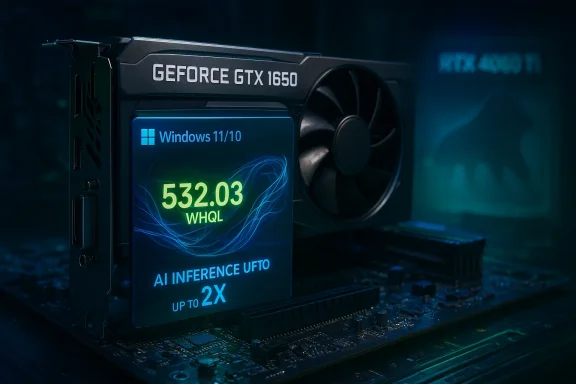
NVIDIA’s GeForce Game Ready Driver 532.03 is a WHQL‑signed release that supports Windows 10 (64‑bit) and Windows 11, and — crucial to owners of mainstream cards like the GeForce GTX 1650 — contains the INF and kernel entries needed for the installer to recognize and install for that GPU. This build, published in late May 2023, also introduced support for the GeForce RTX 4060 Ti and a major set of AI inference optimizations that NVIDIA says can deliver up to 2× inference throughput on common models such as Stable Diffusion. (nvidia.com)
NVIDIA publishes two primary consumer driver branches: GeForce Game Ready Drivers (GRD) for frequent game optimizations, and Studio Drivers (SD) for content‑creation stability. Game Ready Driver 532.03 is part of the GRD stream and was distributed as a WHQL (Microsoft‑certified) DCH package aimed at improving gaming compatibility and performance while adding support for new hardware and AI‑accelerated features. Independent hardware outlets documented the same highlights and fixes that NVIDIA lists in its release notes, confirming the public release metadata. (nvidia.com)
This driver is explicitly presented on NVIDIA’s download page as compatible with Windows 10 (64‑bit) and Windows 11, and the supported‑product table included the GeForce GTX 1650 under the GeForce 16 Series. That means, from a vendor‑packaging standpoint, GTX 1650 owners can use 532.03 to install updated driver components on supported Windows installations. (nvidia.com)
Community and archival notes also remind users to be cautious about telemetry and third‑party repackagers — driver installers are kernel‑level software and should be treated with the same caution you’d apply to any critical system component.
By following the step‑by‑step safety checklist in this article, and by preferring vendor and OEM sources for downloads and verification, GTX 1650 users can update to 532.03 with a controlled risk profile: potential performance and compatibility benefits, counterbalanced by the need for testing and a rollback plan in case of regressions.
Source: Born2Invest https://born2invest.com/?b=style-231188812/
 Background and context
NVIDIA publishes two primary consumer driver branches: GeForce Game Ready Drivers (GRD) for frequent game optimizations, and Studio Drivers (SD) for content‑creation stability. Game Ready Driver 532.03 is part of the GRD stream and was distributed as a WHQL (Microsoft‑certified) DCH package aimed at improving gaming compatibility and performance while adding support for new hardware and AI‑accelerated features. Independent hardware outlets documented the same highlights and fixes that NVIDIA lists in its release notes, confirming the public release metadata. (nvidia.com)This driver is explicitly presented on NVIDIA’s download page as compatible with Windows 10 (64‑bit) and Windows 11, and the supported‑product table included the GeForce GTX 1650 under the GeForce 16 Series. That means, from a vendor‑packaging standpoint, GTX 1650 owners can use 532.03 to install updated driver components on supported Windows installations. (nvidia.com)
What 532.03 actually contains — the load‑bearing facts
- Version and certification: GeForce Game Ready Driver 532.03 — WHQL. (nvidia.com)
- Release date: May 24, 2023 (listed on NVIDIA’s driver page). (nvidia.com)
- Supported operating systems: Windows 10 (64‑bit) and Windows 11. (nvidia.com)
- File size (NVIDIA listing): ~855.18 MB for the Web/DCH bundle — driver package sizes vary by language and bundle options. (nvidia.com)
- Major additions:
- Support for GeForce RTX 4060 Ti (8 GB).
- Game Ready optimizations for titles of that period (for example, The Lord of the Rings: Gollum).
- AI inference performance improvements (NVIDIA reported up to 2× inference performance on popular models/applications). (nvidia.com)
- Notable fixes and known issues are listed in the release notes (stability fixes for specific titles, Ansel/Freestyle compatibility fixes, and a handful of hardware/display edge cases). The driver also carried some known issues (HDR toggling with non‑native resolutions, brief monitor flicker in certain DSR/DLDSR states, DPC latency observations in Latencymon, etc.) that are important to be aware of prior to upgrading.
Why GTX 1650 owners should care
The GeForce GTX 1650 is part of NVIDIA’s GeForce 16 Series; the vendor‑packaged supported‑product table for 532.03 explicitly lists the GTX 1650. That means:- The installer carries the appropriate INF entries to enumerate and configure GTX 1650 hardware on supported Windows versions.
- If you use the generic NVIDIA DCH/WHQL package, the driver installer can replace an older NVIDIA driver already on the system and apply updated kernel and userland components.
- However, just because the package supports a GPU does not mean it is the best choice for all systems — OEM‑branded desktops and laptops often ship with vendor‑specific drivers that include custom INF entries, thermal/power tuning, or OEM control panel features. When you use the generic NVIDIA driver on OEM systems you can expect differences in fan curves, battery behaviour (for laptops), and in rare cases issues around vendor‑signed INF enforcement. (nvidia.com)
How to safely download GeForce Game Ready Driver 532.03 for a GTX 1650 (step‑by‑step)
Below is a conservative, practical workflow that balances safety and convenience. The numbered steps assume you are installing on Windows 10 (64‑bit) or Windows 11.- Identify your GPU and Windows bitness:
- Open Device Manager → Display adapters and confirm you have NVIDIA GeForce GTX 1650.
- Check Settings → System → About to confirm OS: Windows 10 (64‑bit) or Windows 11.
- Prefer OEM drivers first (if you have an OEM laptop or prebuilt desktop):
- Visit your laptop/desktop vendor’s support page and search for drivers for your exact model and Windows version. OEM drivers are tuned for power/thermals and may include necessary platform-specific files.
- If no OEM‑specific driver is available or you prefer the vendor package:
- Go to the NVIDIA Drivers page and select:
- Product Type: GeForce
- Product Series: GeForce 16 Series
- Product: GeForce GTX 1650
- OS: Windows 10 64‑bit or Windows 11
- Download Type: Game Ready Driver (GRD)
- Language: English (or your preferred language)
- Confirm the driver version listed: 532.03 (release date May 24, 2023) — or choose a newer driver if one exists. (nvidia.com)
- Validate the download source:
- Download only from NVIDIA's official download page or your OEM. Avoid mirror sites unless you can independently verify a cryptographic hash and the file’s origin.
- Verify the digital signature after download:
- Right‑click the downloaded EXE → Properties → Digital Signatures. Confirm signer is NVIDIA Corporation and the signature is valid.
- Optional: run a hash check if NVIDIA (or a trusted mirror) publishes SHA256/MD5 for the build. If the vendor provides it, compare the hash to ensure the file wasn’t tampered with.
- Perform a clean install (recommended if you’re troubleshooting or upgrading across major branches):
- During the NVIDIA installer, choose Custom (Advanced) → check Perform a clean installation. This removes previous user settings and reinstalls driver components.
- If you’re worried about GeForce Experience and telemetry, uncheck GeForce Experience or use the Custom install to install only the driver and Control Panel components.
- Reboot and test:
- After installation, reboot and run a few games or GPU stress tests to verify stability. Monitor for any display flicker, DPC latency anomalies, or thermal/power deviations.
- If things go wrong, roll back:
- Device Manager → Display adapters → Properties → Driver → Roll Back Driver (if available), or use System Restore to revert to a pre‑installation point.
- For stubborn problems: use DDU (Display Driver Uninstaller) in safe mode, then reinstall the driver. DDU is a last‑resort troubleshooting tool widely used by enthusiasts to remove lingering driver artifacts; follow published DDU instructions carefully.
Clean install vs. express install: what to choose and why
- Clean install (Custom → Perform a clean installation):
- Pros: Removes legacy driver components and registry entries; often fixes corrupted installs or driver conflicts.
- Cons: Removes user profiles and custom settings; may require reconfiguration of display settings and multi‑monitor setups.
- Express install:
- Pros: Faster and preserves user settings.
- Cons: May leave behind obsolete components that can cause driver conflicts in edge cases.
Common pitfalls & known issues to watch for with 532.03
- HDR toggling and non‑native resolutions: Users reported instability when toggling HDR in certain games using non‑native resolutions — a vendor‑noted known issue at release.
- Monitor flicker with DSR/DLDSR enabled: Some users saw brief flicker on waking from display sleep. Test your display scenarios after installing.
- DPC latency observations: Latencymon users reported increased DPC latency in some configurations; if you rely on ultra‑low latency audio or DAW workflows, validate driver behavior before committing.
- OEM INF enforcement: Some OEM systems enforce vendor‑signed INF policies that can make generic NVIDIA drivers fail to install properly or partially install. For laptops and vendor‑branded PCs, prefer OEM packages where available. (nvidia.com)
Telemetry, GeForce Experience, and privacy notes
NVIDIA’s installer often bundles optional components such as GeForce Experience, which provides driver auto‑updates, game‑specific optimizations, and recording overlays, but also collects optional telemetry for game optimization and feature usage. If you prefer a minimal footprint:- Use the Custom installer and uncheck GeForce Experience.
- After installation, audit running services and background tasks if you want to limit telemetry. Community guides document how to disable certain NVIDIA telemetry services, but those steps are advanced and can impact features such as automatic driver updates and in‑game overlays.
Third‑party mirrors, “discount” downloads, and integrity risks
A recurring community issue is the temptation to download archived driver installers from third‑party blogs or mirrors offering “discount” or repackaged drivers. This is risky:- Repackaged installers can bundle adware or unwanted utilities.
- Modified INF files in third‑party packages can break driver signing or inject maladaptive configuration entries.
- Mirror sites may host files that lack published vendor hashes, making integrity verification impossible.
Advanced considerations for content creators and AI users
One of 532.03’s headline items was an AI inference performance uplift (up to 2× for certain models). If you use GPU‑accelerated AI tools (Stable Diffusion, AI upscalers, or Tensor core workflows), this driver may deliver meaningful throughput improvements — especially on RTX cards with Tensor cores. However:- GTX 1650 lacks the same level of Tensor performance found on RTX hardware. While GTX 1650 owners may see driver‑level stability and general optimizations, the large AI inference gains primarily benefit RTX cards with dedicated Tensor cores.
- For reliable, production‑grade AI/ML workloads, validate throughput changes with your specific models and pipelines before assuming a generic 2× speedup. Benchmarks reported by independent outlets focused on RTX series performance. (nvidia.com)
Troubleshooting checklist (quick reference)
- Display blank/black after install: boot into Safe Mode, run DDU, and reinstall the driver.
- Reduced performance or stuttering: verify power profile, check that the GPU runs at expected clocks, and test with a previous driver to compare.
- Multi‑monitor issues: test with a single display first; check display cable types (HDMI vs. DP) and update monitor firmware when applicable.
- Game‑specific visual artifacts: check game developer/patch notes — sometimes an engine update interacts with drivers in unexpected ways.
- If in doubt, revert to your OEM driver for laptops or factory systems.
Critical analysis: strengths, trade‑offs, and where caution is warranted
Strengths- 532.03 was a legitimate, WHQL‑certified Game Ready driver that brought support for new RTX hardware and AI improvements for compatible GPUs, backed by vendor release notes and independent press coverage. The build’s WHQL certification improves its standing for users who prefer Microsoft‑certified drivers. (nvidia.com)
- The installer’s supported‑product table explicitly included the GTX 1650, making it a valid vendor‑supplied option for that card on Windows 10/11. (nvidia.com)
- Kernel‑level code is inherently risky to alter — drivers touch the OS at a deep level. While NVIDIA tests widely, the broad hardware/OS permutations mean regressions and rare instability are always possible. Independent reporting documented known issues at release time, which reinforces why testing and rollback plans are important.
- OEM platforms are a grey area: vendor‑signed INF enforcement, thermal/power tuning, and OEM‑specific features mean that generic NVIDIA drivers can produce different results on vendor hardware. Prefer OEM packages where available. (nvidia.com)
- Third‑party download sources can be dangerous. Community guidance and archived notes emphasize verifying signatures and hashes; prefer NVIDIA.com or the OEM.
- The “up to 2× AI inference” figure is vendor‑presented and is strongest on hardware with Tensor cores (RTX series). Do not assume identical doubling of throughput on GTX 1650; that card’s architecture does not provide the same Tensor throughput as RTX models. Independent benchmarks should be consulted for mission‑critical AI pipelines. (nvidia.com)
Practical recommendations (short list)
- For laptops and OEM systems, check your vendor’s support page first. OEM drivers are often safer for long‑term stability.
- For desktop GTX 1650 users who want the latest Game Ready features or targeted fixes, 532.03 is a vendor‑supported option; download it from NVIDIA and verify the digital signature. (nvidia.com)
- If you value minimal telemetry or only want the core driver, use Custom install and uncheck GeForce Experience.
- Maintain a rollback plan: create a System Restore point before major driver upgrades, and note the previous driver version so you can revert if needed.
- Avoid third‑party “discount” driver sites; prefer vendor downloads and mirrors that publish cryptographic checksums.
Final take: is 532.03 the right download for your GTX 1650?
If you own a GeForce GTX 1650 on a standard desktop or an OEM‑neutral system, GeForce Game Ready Driver 532.03 is a legitimate, WHQL‑certified vendor package that will install and update your driver stack for Windows 10 (64‑bit) and Windows 11. It includes fixes, game optimizations for titles released at the time, and vendor‑advertised AI improvements that primarily benefit RTX hardware. Always prefer NVIDIA’s official page or your OEM’s support page, validate the digital signature, and choose a clean install if you are migrating across generations or troubleshooting persistent issues. (nvidia.com)Community and archival notes also remind users to be cautious about telemetry and third‑party repackagers — driver installers are kernel‑level software and should be treated with the same caution you’d apply to any critical system component.
By following the step‑by‑step safety checklist in this article, and by preferring vendor and OEM sources for downloads and verification, GTX 1650 users can update to 532.03 with a controlled risk profile: potential performance and compatibility benefits, counterbalanced by the need for testing and a rollback plan in case of regressions.
Source: Born2Invest https://born2invest.com/?b=style-231188812/
