

Google Play Protect is not the kind of Android feature most people notice until it interrupts an installation, displays a warning, or blocks an app they deliberately tried to sideload. That friction can feel unnecessary to experienced users, particularly those who download apps from reputable developers outside the Play Store. But disabling it removes a meaningful security layer at precisely the point where Android devices are most exposed to fraud, spyware, banking malware, and deceptive app behavior.
For Android users accustomed to Windows-style software freedom, the debate is familiar: security controls are valuable until they stand between the user and a program they want to run. The difference is that a modern Android app can request access to messages, notifications, storage, accessibility services, screen content, microphones, cameras, contacts, and payment-related data. A bad decision at install time can therefore become far more consequential than installing a questionable desktop utility.
Google Play Protect is not perfect, and it should not be treated as proof that every installed app is safe. It can produce false positives, miss new threats, and frustrate enthusiasts who understand the risks of sideloading. Yet the case for leaving it enabled is stronger than ever, especially as Android scams increasingly rely on social engineering rather than overtly suspicious malware.
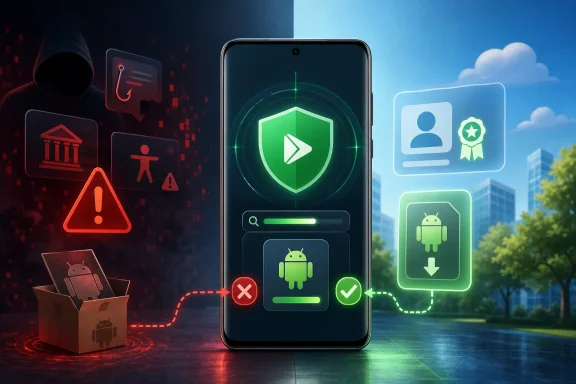
Google Play Protect is Android’s built-in malware and potentially harmful app detection service. First introduced in 2017, it operates through Google Play services and the Play Store rather than as a traditional standalone antivirus app with a permanent home-screen icon.
Its role extends beyond scanning apps downloaded from Google Play. Play Protect can assess apps installed from browsers, third-party app stores, messaging apps, file managers, direct APK downloads, and other external sources. That broad reach matters because the highest-risk Android installs often happen outside Google’s official storefront.
At a basic level, Play Protect is designed to do several jobs:
During 2025, Google said its real-time protections identified more than 27 million newly observed malicious apps from outside Google Play, warning users or blocking the apps before they could do harm. It also said enhanced fraud defenses blocked 266 million risky sideloading installation attempts involving hundreds of thousands of high-risk applications.
Those figures are company-reported measurements rather than an independently audited count of every threat. Nevertheless, the underlying conclusion is difficult to dispute: malicious Android software is not a theoretical problem, and sideloading is a frequent delivery channel.
That flexibility is valuable. It also gives attackers a route around many of the policy checks and developer-account controls used by Google Play.
A safe sideloading scenario might include downloading an app directly from an established developer’s official site, verifying its signing certificate or checksum where possible, and keeping the app updated through a trusted mechanism. A dangerous scenario is much more common: an unsolicited message, a pop-up warning, a fake package-delivery alert, or a caller claiming to represent a bank directs the victim to install a “security,” “support,” “verification,” or “refund” app.
The latter is where Play Protect can make the difference between an annoying warning and a compromised device.
Play Protect cannot solve every stage of this problem. It cannot reliably determine whether a user is being manipulated by a convincing criminal. What it can do is introduce a second line of judgment when the application itself matches known harmful patterns or requests combinations of permissions associated with fraud.
That distinction is important. App safety is not fixed at the moment of installation. A program that initially appears harmless may receive a malicious update, activate delayed functionality, download additional components, or change its behavior after gathering enough trust from users.
This is a familiar pattern in the wider software world. Threat actors frequently avoid obvious malware behavior during early distribution, then alter the software after it has reached a meaningful number of devices.
Disable Play Protect, and that safety net becomes weaker or disappears. The result is not merely fewer notifications. It can mean fewer opportunities for Android to stop an installation before the dangerous app gains a foothold.
For users who sideload frequently, this is the most significant trade-off. The more often software comes from outside the Play Store, the more valuable independent scanning and warning mechanisms become.
A convincing fake app does not need a sophisticated exploit if it can persuade the user to hand over access voluntarily. An icon, a plausible name, and a series of permission prompts may be enough.
Play Protect is intended to detect patterns associated with potentially harmful applications, including apps that are deceptive or tied to known malware families. Turning it off gives misleading software fewer obstacles.
In practical terms, a bank, payments platform, corporate app, game, or identity service may decide that a device with Play Protect disabled deserves additional verification, restricted features, or more careful scrutiny. Not every application will react this way, and an app cannot necessarily identify every reason a device is considered risky. Still, the direction is clear: Android security posture increasingly affects how high-value services treat a device.
For users of mobile banking, password managers, two-factor authentication tools, workplace apps, and cryptocurrency services, disabling Play Protect may create risk that extends beyond the app being sideloaded.
Similarly, enterprise environments can distribute internal applications through mobile device management systems or controlled installation channels. In those cases, administrators may have separate security controls, code-signing requirements, and endpoint-management tools.
However, a false positive on one app does not establish that Play Protect is broadly useless. The appropriate reaction is usually to assess that app’s provenance and to use the least disruptive exception possible—not to permanently disable the platform’s malware protection for every future installation.
These uses can be legitimate. The key distinction is between intentional, informed sideloading and installation prompted by an unexpected message, advertisement, pop-up, or caller. The first can be managed with careful verification. The second should be treated as a major warning sign.
But privacy and security are not opposites by default. The better question is what specific data the service processes, what protections it provides, and whether the alternative security strategy is genuinely equivalent.
If the replacement plan is simply “I will be careful,” it is not an equivalent control. If the replacement is a combination of trusted repositories, verified signatures, a reputable mobile security product, strict permission discipline, regular updates, and a well-understood threat model, the decision is more defensible—but still carries risk.
It is worth pausing at the confirmation screen. Android is not asking because the setting is cosmetic. It is warning that the device will no longer receive the same level of app scanning and potentially harmful app detection.
Trying to work around those safeguards simply to install an unverified APK defeats the purpose of enrolling in stronger device protection.
Before installing an APK, check:
A malicious app with accessibility access may be able to read visible content, click buttons, approve prompts, and interfere with financial applications. That is why an unfamiliar app requesting this permission should trigger immediate caution.
Never grant accessibility access simply because a caller, message, or app says it is needed for verification, a refund, a security scan, or “technical support.”
Even apps from Google Play can be problematic. Some may be overly aggressive with data collection, deceptive in their subscriptions, poor at protecting information, or later found to contain malicious functionality. Store screening reduces risk; it does not erase it.
A strong Android security baseline includes:
Even so, the threat landscape makes the trade-off clear. Android fraud increasingly depends on persuading users to sideload software, grant powerful permissions, and ignore warnings while under pressure. Play Protect is specifically positioned to interrupt that sequence.
For most people, leaving Google Play Protect on is the sensible choice. For enthusiasts who need to sideload, the safer approach is to preserve the protection layer, verify each download carefully, and treat any warning as a reason to investigate—not merely an obstacle to dismiss.
For Android users accustomed to Windows-style software freedom, the debate is familiar: security controls are valuable until they stand between the user and a program they want to run. The difference is that a modern Android app can request access to messages, notifications, storage, accessibility services, screen content, microphones, cameras, contacts, and payment-related data. A bad decision at install time can therefore become far more consequential than installing a questionable desktop utility.
Google Play Protect is not perfect, and it should not be treated as proof that every installed app is safe. It can produce false positives, miss new threats, and frustrate enthusiasts who understand the risks of sideloading. Yet the case for leaving it enabled is stronger than ever, especially as Android scams increasingly rely on social engineering rather than overtly suspicious malware.
 Background: What Google Play Protect Actually Does
Google Play Protect is Android’s built-in malware and potentially harmful app detection service. First introduced in 2017, it operates through Google Play services and the Play Store rather than as a traditional standalone antivirus app with a permanent home-screen icon.Its role extends beyond scanning apps downloaded from Google Play. Play Protect can assess apps installed from browsers, third-party app stores, messaging apps, file managers, direct APK downloads, and other external sources. That broad reach matters because the highest-risk Android installs often happen outside Google’s official storefront.
At a basic level, Play Protect is designed to do several jobs:
- Scan apps before and after installation for known malware and suspicious behavior.
- Monitor applications installed from sources outside Google Play.
- Warn users when an app appears deceptive, dangerous, or unusually risky.
- Recommend removing apps identified as potentially harmful.
- Block certain risky sideloading attempts, especially when an app requests permissions commonly abused in financial fraud.
- Detect emerging malware through cloud analysis and increasingly through on-device rules and machine learning.
- Help protect sensitive apps, including banking and payment services, from compromised environments.
During 2025, Google said its real-time protections identified more than 27 million newly observed malicious apps from outside Google Play, warning users or blocking the apps before they could do harm. It also said enhanced fraud defenses blocked 266 million risky sideloading installation attempts involving hundreds of thousands of high-risk applications.
Those figures are company-reported measurements rather than an independently audited count of every threat. Nevertheless, the underlying conclusion is difficult to dispute: malicious Android software is not a theoretical problem, and sideloading is a frequent delivery channel.
Why Sideloading Has Become a Prime Target
Android’s ability to install software from outside a central app store remains one of its defining advantages. It supports open distribution, developer testing, regional app stores, enterprise deployment, privacy-focused software, emulators, open-source projects, and apps that simply are not available through Google Play.That flexibility is valuable. It also gives attackers a route around many of the policy checks and developer-account controls used by Google Play.
The difference between an APK and a trusted app
An APK is simply an Android application package. It is not inherently suspicious, just as a.exe or .msi file on Windows is not inherently malicious. The issue is not the file format; it is the origin, authenticity, integrity, and behavior of the application inside it.A safe sideloading scenario might include downloading an app directly from an established developer’s official site, verifying its signing certificate or checksum where possible, and keeping the app updated through a trusted mechanism. A dangerous scenario is much more common: an unsolicited message, a pop-up warning, a fake package-delivery alert, or a caller claiming to represent a bank directs the victim to install a “security,” “support,” “verification,” or “refund” app.
The latter is where Play Protect can make the difference between an annoying warning and a compromised device.
Social engineering is often the real attack
The modern Android scam is rarely presented as “please install this virus.” Instead, the attacker builds urgency and trust. The target may be told that:- Their bank account has been locked.
- A fraudulent transaction requires immediate verification.
- Their phone contains a dangerous virus.
- A package cannot be delivered without installing a tracking tool.
- A government benefit, tax refund, or insurance payment is waiting.
- A remote-support session is necessary to fix a problem.
- A job application, payroll portal, or work document requires an app.
Play Protect cannot solve every stage of this problem. It cannot reliably determine whether a user is being manipulated by a convincing criminal. What it can do is introduce a second line of judgment when the application itself matches known harmful patterns or requests combinations of permissions associated with fraud.
What You Lose When You Turn Play Protect Off
Disabling Play Protect does not instantly make an Android phone unsafe. A well-maintained device still benefits from Android’s application sandboxing, permission model, verified boot, security updates, and other platform safeguards. But turning the service off removes a practical detection and warning layer that is especially valuable once an app is already on the device.Reduced scanning for harmful apps
The most obvious consequence is that Android will no longer use Play Protect in the same way to scan installed apps for known harmful behavior. If a sideloaded app is later identified as malware, you may not receive the same warning or removal recommendation.That distinction is important. App safety is not fixed at the moment of installation. A program that initially appears harmless may receive a malicious update, activate delayed functionality, download additional components, or change its behavior after gathering enough trust from users.
This is a familiar pattern in the wider software world. Threat actors frequently avoid obvious malware behavior during early distribution, then alter the software after it has reached a meaningful number of devices.
Less protection from risky sideloads
When users attempt to install previously unseen apps from browsers, messaging platforms, or other internet-based sources, Play Protect can conduct additional real-time checks. It can also focus on applications that request sensitive permissions often abused in financial fraud.Disable Play Protect, and that safety net becomes weaker or disappears. The result is not merely fewer notifications. It can mean fewer opportunities for Android to stop an installation before the dangerous app gains a foothold.
For users who sideload frequently, this is the most significant trade-off. The more often software comes from outside the Play Store, the more valuable independent scanning and warning mechanisms become.
Greater exposure to deceptive apps
Not all malicious apps advertise their harmful purpose. Some masquerade as utilities, Wi-Fi optimizers, games, package trackers, productivity tools, or security scanners. Others hide their icons after installation, change visual branding, or attempt to blend into the device’s normal software environment.A convincing fake app does not need a sophisticated exploit if it can persuade the user to hand over access voluntarily. An icon, a plausible name, and a series of permission prompts may be enough.
Play Protect is intended to detect patterns associated with potentially harmful applications, including apps that are deceptive or tied to known malware families. Turning it off gives misleading software fewer obstacles.
Possible compatibility consequences for sensitive services
Play Protect’s status is no longer only a background security preference. Android’s wider integrity ecosystem can expose whether Play Protect is enabled and whether known risky apps have been detected. Developers of security-sensitive services can use those signals when assessing risk.In practical terms, a bank, payments platform, corporate app, game, or identity service may decide that a device with Play Protect disabled deserves additional verification, restricted features, or more careful scrutiny. Not every application will react this way, and an app cannot necessarily identify every reason a device is considered risky. Still, the direction is clear: Android security posture increasingly affects how high-value services treat a device.
For users of mobile banking, password managers, two-factor authentication tools, workplace apps, and cryptocurrency services, disabling Play Protect may create risk that extends beyond the app being sideloaded.
The Case for Disabling It — and Its Limits
There are legitimate reasons why advanced users might consider disabling Play Protect, at least temporarily. Treating every user who does so as reckless would ignore the flexibility that makes Android attractive.False positives and development workflows
A developer testing an unsigned build, a beta release, a forked open-source app, or a niche utility may encounter warnings that are inappropriate for their specific use case. A power user who verifies a download’s source and cryptographic signature may reasonably decide that a particular warning is not persuasive.Similarly, enterprise environments can distribute internal applications through mobile device management systems or controlled installation channels. In those cases, administrators may have separate security controls, code-signing requirements, and endpoint-management tools.
However, a false positive on one app does not establish that Play Protect is broadly useless. The appropriate reaction is usually to assess that app’s provenance and to use the least disruptive exception possible—not to permanently disable the platform’s malware protection for every future installation.
App availability and regional restrictions
Some apps are unavailable in specific regions, removed from Google Play for policy reasons, or distributed directly by organizations. Enthusiasts may use alternative app repositories, game emulators, home automation utilities, open-source clients, or specialized networking tools unavailable through the Play Store.These uses can be legitimate. The key distinction is between intentional, informed sideloading and installation prompted by an unexpected message, advertisement, pop-up, or caller. The first can be managed with careful verification. The second should be treated as a major warning sign.
Privacy concerns deserve a more precise discussion
Some people disable Play Protect because they are uncomfortable with Google’s security scanning and ecosystem control. That concern is understandable, particularly for users who prefer de-Googled Android builds or minimize data sharing with large platform providers.But privacy and security are not opposites by default. The better question is what specific data the service processes, what protections it provides, and whether the alternative security strategy is genuinely equivalent.
If the replacement plan is simply “I will be careful,” it is not an equivalent control. If the replacement is a combination of trusted repositories, verified signatures, a reputable mobile security product, strict permission discipline, regular updates, and a well-understood threat model, the decision is more defensible—but still carries risk.
How to Disable Google Play Protect
On many Android devices with the Google Play Store installed, the basic path is straightforward:- Open the Google Play Store.
- Tap the account profile icon in the upper-right corner.
- Select Play Protect.
- Tap the Settings gear icon.
- Turn off Scan apps with Play Protect.
- Confirm the warning when prompted.
It is worth pausing at the confirmation screen. Android is not asking because the setting is cosmetic. It is warning that the device will no longer receive the same level of app scanning and potentially harmful app detection.
Why the toggle may not be available
Not every Android device will let every user turn Play Protect off. The setting can be restricted or overridden in several circumstances:- A work profile or employer-owned device is managed through enterprise policy.
- Parental-control or family-safety restrictions are active.
- A device is enrolled in a stronger Android protection mode.
- A Google account has higher-security protections enabled.
- A manufacturer, carrier, or organization applies additional device-management rules.
Trying to work around those safeguards simply to install an unverified APK defeats the purpose of enrolling in stronger device protection.
A Safer Alternative: Keep Play Protect On and Sideload Carefully
For most Android enthusiasts, the best compromise is not disabling Play Protect. It is keeping it enabled while becoming more selective about where apps come from and what they are allowed to do.Use a source hierarchy
Not every download location deserves equal trust. A practical hierarchy looks like this:- Google Play for mainstream apps and services.
- An established developer’s official website for direct downloads.
- Recognized open-source repositories with transparent maintenance and verifiable releases.
- Known alternative app stores with a documented security model.
- Everything else, including links in messages, ads, pop-ups, forums, file-hosting pages, and short-lived download sites.
Verify the app, not just the website
A polished website does not prove that an APK is safe. Attackers copy branding, use lookalike domains, buy ads, compromise legitimate sites, and distribute altered versions of popular apps.Before installing an APK, check:
- The exact domain name and developer identity.
- Whether the developer publicly documents direct Android downloads.
- Whether a checksum, cryptographic signature, or release verification method is available.
- Whether the version number aligns with the developer’s official release notes.
- Whether the app asks for permissions appropriate to its stated purpose.
- Whether the download was prompted by an unsolicited message or phone call.
Treat accessibility permissions as high-risk
Accessibility services are essential for many users and legitimate tools. They can assist with screen reading, automation, interaction control, and accessibility navigation. They are also highly attractive to fraudsters because they can enable broad control over user interface interactions.A malicious app with accessibility access may be able to read visible content, click buttons, approve prompts, and interfere with financial applications. That is why an unfamiliar app requesting this permission should trigger immediate caution.
Never grant accessibility access simply because a caller, message, or app says it is needed for verification, a refund, a security scan, or “technical support.”
Play Protect Is Important, but It Is Not a Complete Security Strategy
The strongest argument for keeping Play Protect enabled should not become an argument for blind trust. Built-in malware scanning is one layer of defense, not a replacement for sensible Android security practices.Even apps from Google Play can be problematic. Some may be overly aggressive with data collection, deceptive in their subscriptions, poor at protecting information, or later found to contain malicious functionality. Store screening reduces risk; it does not erase it.
A strong Android security baseline includes:
- Keeping Android, Google Play services, and apps updated.
- Installing apps only when there is a clear need.
- Reviewing permissions regularly.
- Removing unused software.
- Using a strong screen lock and biometric protection where appropriate.
- Enabling account-level two-factor authentication.
- Avoiding app installs prompted by calls, texts, social-media messages, or browser alerts.
- Using unique passwords stored in a trusted password manager.
- Backing up important data.
- Keeping Play Protect enabled.
The Bottom Line
Disabling Google Play Protect is possible on many Android devices, but it should be a deliberate exception rather than a default configuration. The service has real limitations: it can be inconvenient, it is not infallible, and advanced users may occasionally have sound reasons to override a warning for a trusted application.Even so, the threat landscape makes the trade-off clear. Android fraud increasingly depends on persuading users to sideload software, grant powerful permissions, and ignore warnings while under pressure. Play Protect is specifically positioned to interrupt that sequence.
For most people, leaving Google Play Protect on is the sensible choice. For enthusiasts who need to sideload, the safer approach is to preserve the protection layer, verify each download carefully, and treat any warning as a reason to investigate—not merely an obstacle to dismiss.
References
- Primary source: Engadget
Published: 2026-07-22T18:30:00+00:00
Before You Disable Google Play Protect, Here's What You Need To Know
Play Protect on Android phones warns of and blocks malicious apps. Disabling it means your phone is no longer protected, but you might still want to.www.engadget.com - Related coverage: developer.android.com
- Related coverage: blog.google
How Google Play and Android app ecosystems stayed safe in 2025
In 2025, we significantly enhanced the Google Play and Android app ecosystems.blog.google - Official source: support.google.com

Play protect not turning off - Android Community
support.google.com
- Related coverage: techradar.com
Google rejected nearly two million Android apps and blocked more than 80,000 developer accounts from Google Play in 2025 | TechRadar
That's less than previous years, but still a worryingly high numberwww.techradar.com - Related coverage: adwaitx.com
Google Play Blocked 1.75 Million Harmful Apps in 2025: The Full Security Breakdown
Google Play stopped more harmful apps in 2025 than most users ever realized were attempted. Using AI integrated directly into its review pipeline, Google’s systems…www.adwaitx.com