

The Group Policy Management Console, or GPMC, remains one of the most important tools in the Windows administrator’s toolkit because it centralizes how policies are created, linked, delegated, and troubleshot across an Active Directory environment. For organizations running Windows Server alongside Windows 11, it is still the practical control plane for enforcing security baselines, user experience settings, and device behavior at scale. The appeal is simple: instead of configuring machines one by one, admins define policy once and apply it consistently where it matters, while retaining the flexibility to scope and test changes before they affect production systems. Petri’s walkthrough highlights the basics of access, delegation, policy creation, and troubleshooting, and those same fundamentals remain central to modern Windows administration.
Group Policy is the mechanism Windows uses to centrally apply settings to computers and users, especially in Active Directory environments. Those settings can affect core operating system behavior, security posture, desktop restrictions, update controls, authentication rules, and much more. Petri’s article correctly frames GPMC as the administrative console that makes those policies manageable in a domain, while also noting that Windows systems include a separate local security policy for machines not joined to AD.
That distinction matters more than many newcomers realize. Domain policy is about scale and consistency; local policy is about single-machine control. In practice, the two often coexist, and administrators need to understand which layer is responsible when a setting does not behave the way they expect. The article’s emphasis on that separation is one of its most useful takeaways.
The article also explains how to reach the Group Policy Editor with
That said, MMC-based management can feel dated compared with the more direct GPMC workflow. For most administrators, it is better viewed as a flexible option rather than the preferred one. The strength of the article is that it shows the toolchain rather than pretending there is only one right way to get there.
This is also where operational discipline matters. Installing RSAT on a Windows 11 admin workstation makes life easier, but it also increases the importance of proper endpoint protection, admin separation, and least-privilege practices. GPMC is powerful, and on a privileged workstation it becomes even more important to control who can use it. Petri’s guide implicitly supports that model by focusing on the tool’s administrative role rather than treating it as a casual settings app.
That matters in organizations that need separation of duties. Helpdesk teams might need to manage a subset of policies, workstation support teams might need rights over a specific OU, and security teams might need read or edit access without being able to restructure the entire policy environment. Delegation reduces risk, improves accountability, and avoids the dangerous habit of making too many people full administrators just to keep operations moving.
A mature GPMC deployment should therefore be paired with documentation, change control, and a review process. Petri’s walkthrough stops short of a full governance framework, but the delegation section points clearly in that direction. That is a strength, because it gives readers enough to start without pretending the tool alone solves the organizational problem.
This separation between object creation and object application is fundamental to Group Policy design. It allows administrators to build policy libraries without immediately deploying them, which is invaluable for testing and staged rollout. It also helps reduce mistakes, because an unlinked GPO is harmless until it is attached to a real scope.
From an editorial perspective, this is one of the most valuable concepts in the piece. Many admins understand that policies “apply somewhere,” but the real operational challenge is understanding where they apply and how inheritance behaves. Without that mental model, GPMC can feel opaque. With it, the console becomes a structured way to organize policy intent.
That broad reach is the reason GPMC remains indispensable. In modern Windows environments, policy is not just a security function. It is also an endpoint standardization tool, a compliance tool, and often a replacement for manual configuration. The more dispersed an organization becomes, the more valuable centralized policy control becomes.
For that reason, experienced administrators often prefer smaller, purpose-built GPOs over giant multi-purpose ones. That practice makes reports easier to read, inheritance easier to reason about, and rollback far less painful. It is one of the best implicit lessons in the article, even though it is not presented as a formal rule.
The practical value is obvious. If a policy is likely to conflict with another policy or fall outside a scope, modeling can catch the problem before users are affected. That helps administrators avoid trial-and-error changes in production, which is a major benefit in large or sensitive environments.
This is one of the article’s most technically useful points, because it avoids a common source of confusion. Many admins use the words interchangeably, but they solve different problems. Modeling is for planning. RSOP is for verification. Together, they form a strong diagnostic pair.
For Windows 11 admins, this distinction is especially useful on devices that are not domain joined, hybrid joined, or only partially managed. A laptop outside the office may still need a baseline configuration, and local policy can help close that gap. But once the device is managed centrally, GPMC becomes the more strategic tool.
Other strengths include:
Another limitation is that some screenshots and visual references are tied to the original Petri post and are not reproduced here. The text is still understandable, but users who are unfamiliar with the GPMC interface may benefit from more visual navigation cues. The article’s step structure helps, but it leaves some UI-specific guidance implicit rather than explicit.
In that sense, GPMC is both a productivity tool and a high-impact risk surface. The same console that simplifies management can also amplify mistakes if admins rush deployments or skip validation. That is not a flaw in the tool so much as a reminder of how powerful centralized policy really is.
Petri’s article succeeds because it treats GPMC as a living tool with real administrative consequences, not as a museum piece. It covers access, creation, delegation, and troubleshooting in a way that mirrors the actual work IT teams still do every day. For Windows Server and Windows 11 administrators alike, that is exactly the kind of practical, durable guidance that continues to pay off.
In the end, the central lesson is straightforward: GPMC is only as effective as the policy design behind it. Used well, it gives administrators precision, consistency, and control. Used carelessly, it can create confusion, conflicts, and outages. That balance is what makes it one of the most important tools in Windows administration, and it is why guides like Petri’s remain worth reading.
Source: Petri IT Knowledgebase How To Use the Group Policy Management Console in Windows
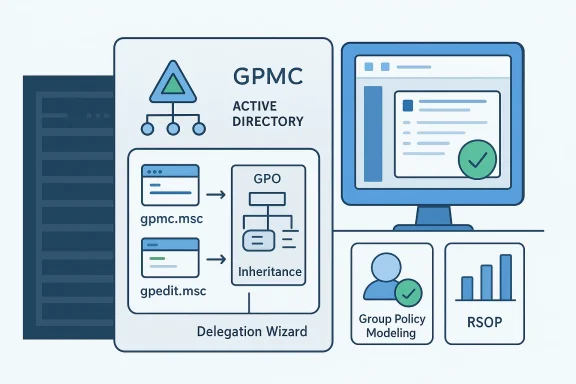 Background: why GPMC still matters
Group Policy is the mechanism Windows uses to centrally apply settings to computers and users, especially in Active Directory environments. Those settings can affect core operating system behavior, security posture, desktop restrictions, update controls, authentication rules, and much more. Petri’s article correctly frames GPMC as the administrative console that makes those policies manageable in a domain, while also noting that Windows systems include a separate local security policy for machines not joined to AD.That distinction matters more than many newcomers realize. Domain policy is about scale and consistency; local policy is about single-machine control. In practice, the two often coexist, and administrators need to understand which layer is responsible when a setting does not behave the way they expect. The article’s emphasis on that separation is one of its most useful takeaways.
Accessing GPMC on Windows Server and Windows 11
Petri outlines several ways to open the management tools, and this is where the article becomes particularly useful for day-to-day administration. On Windows Server, the simplest path is through Server Manager: open the Tools menu and launch Group Policy Management. That route is still the most familiar for domain admins working directly on servers. The article also notes that the same tool can be opened through Run or PowerShell usinggpmc.msc, which is valuable for faster workflows and remote administration.The article also explains how to reach the Group Policy Editor with
gpedit.msc, which opens the local policy editor rather than the domain management console. That distinction is essential on Windows 11, where many users mistakenly assume the editor is a replacement for GPMC. It is not. gpedit.msc is for local machine policy, while gpmc.msc is for domain-level Group Policy Objects.Using Microsoft Management Console directly
Another path Petri describes is through the Microsoft Management Console (MMC). By launching MMC and adding the appropriate snap-in, admins can assemble a customized management console that includes Group Policy tools. This method is older, but it remains useful in environments where admins prefer a unified console layout or need to combine multiple snap-ins for a specific operational role.That said, MMC-based management can feel dated compared with the more direct GPMC workflow. For most administrators, it is better viewed as a flexible option rather than the preferred one. The strength of the article is that it shows the toolchain rather than pretending there is only one right way to get there.
Installing GPMC on Windows 11
One of the most practical points in the piece is that Windows 11 workstations do not normally include the full domain management tooling by default, but admins can add it using RSAT: Group Policy Management Tools as an optional feature. Petri explains the path through Settings > System > Optional Features, then searching for RSAT and installing the Group Policy Management tools package. That is still the right model for remote administration from a client OS: the workstation becomes an admin endpoint without turning into a domain controller.This is also where operational discipline matters. Installing RSAT on a Windows 11 admin workstation makes life easier, but it also increases the importance of proper endpoint protection, admin separation, and least-privilege practices. GPMC is powerful, and on a privileged workstation it becomes even more important to control who can use it. Petri’s guide implicitly supports that model by focusing on the tool’s administrative role rather than treating it as a casual settings app.
Delegation: one of GPMC’s most important strengths
A standout section of the article is its discussion of the Delegation Wizard. This is one of GPMC’s real strengths because it lets IT teams hand out specific responsibilities without granting broad domain admin rights. Petri notes that control can be delegated at the domain level, OU level, or for specific existing GPOs, which gives administrators fine-grained permission management.That matters in organizations that need separation of duties. Helpdesk teams might need to manage a subset of policies, workstation support teams might need rights over a specific OU, and security teams might need read or edit access without being able to restructure the entire policy environment. Delegation reduces risk, improves accountability, and avoids the dangerous habit of making too many people full administrators just to keep operations moving.
Why delegation is a governance issue, not just a convenience
The article’s delegation guidance is more than a procedural note; it reflects a larger governance principle. A well-designed GPO model is not just about technical control, but about who is allowed to change what. If delegation is done poorly, policy sprawl and accidental changes become inevitable. If it is done well, organizations can scale policy management while preserving oversight.A mature GPMC deployment should therefore be paired with documentation, change control, and a review process. Petri’s walkthrough stops short of a full governance framework, but the delegation section points clearly in that direction. That is a strength, because it gives readers enough to start without pretending the tool alone solves the organizational problem.
Creating and linking a new GPO
Petri’s article correctly emphasizes a key point that beginners often miss: creating a GPO is not the same thing as making it effective. You can create a new policy object inside the Group Policy Objects container, but it will not actually influence users or computers until it is linked to a site, domain, or OU. The article explains the standard workflow: create the GPO, then link it to the appropriate part of the directory hierarchy.This separation between object creation and object application is fundamental to Group Policy design. It allows administrators to build policy libraries without immediately deploying them, which is invaluable for testing and staged rollout. It also helps reduce mistakes, because an unlinked GPO is harmless until it is attached to a real scope.
Hierarchy and scope
The article’s explanation of the Sites, Domains, and Organizational Units model is sound and important. Group Policy is hierarchical, and the effective result on a device or user account can be made up of multiple GPOs interacting with one another. That hierarchy is what gives the system its power, but it is also what makes troubleshooting necessary when policies conflict.From an editorial perspective, this is one of the most valuable concepts in the piece. Many admins understand that policies “apply somewhere,” but the real operational challenge is understanding where they apply and how inheritance behaves. Without that mental model, GPMC can feel opaque. With it, the console becomes a structured way to organize policy intent.
What Group Policy Objects are actually used for
Petri gives a broad, accurate description of what GPOs can control. The most obvious examples are password policy and account lockout policy, but the article rightly notes that the scope is much wider. GPOs can also manage Windows Defender Firewall, software deployment, application settings, Windows Update behavior, desktop restrictions, environment variables, network security, and authentication rules.That broad reach is the reason GPMC remains indispensable. In modern Windows environments, policy is not just a security function. It is also an endpoint standardization tool, a compliance tool, and often a replacement for manual configuration. The more dispersed an organization becomes, the more valuable centralized policy control becomes.
The hidden cost of broad control
The downside of that power is complexity. The more settings a team tries to cram into a single GPO, the harder it becomes to understand which change caused a specific behavior. Petri’s article does not overstate this risk, but it does hint at it through its troubleshooting section. That warning is well placed. Every additional setting increases the possibility of conflict, and every conflict makes support more difficult.For that reason, experienced administrators often prefer smaller, purpose-built GPOs over giant multi-purpose ones. That practice makes reports easier to read, inheritance easier to reason about, and rollback far less painful. It is one of the best implicit lessons in the article, even though it is not presented as a formal rule.
Troubleshooting with Group Policy modeling
One of the strongest sections in the article is its explanation of Group Policy Modeling. Petri describes this as a simulation tool that lets admins see how policy would behave for a specific user or computer before deployment. That is particularly useful when administrators are testing inheritance behavior, security filtering, or WMI filtering.The practical value is obvious. If a policy is likely to conflict with another policy or fall outside a scope, modeling can catch the problem before users are affected. That helps administrators avoid trial-and-error changes in production, which is a major benefit in large or sensitive environments.
Modeling versus RSOP
Petri also explains the distinction between Group Policy Modeling and Resultant Set of Policy (RSOP). Modeling is a prediction; RSOP is a reality check. Modeling asks what would happen in a given scenario, while RSOP shows what is actually happening and why. That distinction is more than semantic. It separates design-time validation from post-deployment troubleshooting.This is one of the article’s most technically useful points, because it avoids a common source of confusion. Many admins use the words interchangeably, but they solve different problems. Modeling is for planning. RSOP is for verification. Together, they form a strong diagnostic pair.
Local policy versus domain policy
Petri repeatedly returns to the difference between local security policy and Active Directory policy, and that is a good thing. Windows 10 and Windows 11 desktops do have local policy tools, but those tools do not replace AD-based policy management. Local policy is still essential for standalone machines and for understanding what a device does before domain policy is applied.For Windows 11 admins, this distinction is especially useful on devices that are not domain joined, hybrid joined, or only partially managed. A laptop outside the office may still need a baseline configuration, and local policy can help close that gap. But once the device is managed centrally, GPMC becomes the more strategic tool.
Strengths of the Petri guide
The article’s biggest strength is its accessibility. It explains the core GPMC workflow without assuming a deeply specialized background, and it does so in a way that supports both server-side and client-side administration. It also covers practical topics—delegation, linking, modeling, and RSOP—that are more valuable than a simple click-by-click tour of the interface.Other strengths include:
- A clear distinction between GPMC and gpedit.msc
- Practical Windows 11 guidance for RSAT installation
- A useful explanation of policy delegation
- A correct overview of GPO linking and hierarchy
- A solid troubleshooting framework using modeling and RSOP
Potential risks and limitations
The article is strong, but it is not without limitations. The most obvious is that it is primarily an introductory guide, so it does not go deep into complex issues such as policy precedence, loopback processing, WMI filter edge cases, or modern reporting strategies. For many readers that is fine, but advanced admins may want more depth on how policy behavior changes across hybrid or multi-domain environments.Another limitation is that some screenshots and visual references are tied to the original Petri post and are not reproduced here. The text is still understandable, but users who are unfamiliar with the GPMC interface may benefit from more visual navigation cues. The article’s step structure helps, but it leaves some UI-specific guidance implicit rather than explicit.
Operational caution
There is also an important operational risk that every GPMC article should stress more directly: a poorly designed GPO can break user productivity fast. A bad password policy, an overreaching restriction, or an incorrectly scoped link can create outages that affect dozens or hundreds of endpoints. The article’s emphasis on modeling helps mitigate this, but administrators still need change control, testing, and rollback planning.In that sense, GPMC is both a productivity tool and a high-impact risk surface. The same console that simplifies management can also amplify mistakes if admins rush deployments or skip validation. That is not a flaw in the tool so much as a reminder of how powerful centralized policy really is.
Practical workflow for modern Windows admins
For teams managing Windows Server and Windows 11 together, the article’s guidance can be distilled into a practical workflow:- Use Server Manager or
gpmc.mscon an admin workstation to open the console. - Install RSAT: Group Policy Management Tools on Windows 11 if domain administration is needed locally.
- Create GPOs with a clear purpose rather than stuffing everything into one object.
- Link policies carefully to the correct site, domain, or OU.
- Use the Delegation Wizard to avoid overusing domain admin rights.
- Test with Group Policy Modeling before rollout.
- Verify the real-world outcome with RSOP after deployment.
The broader value of GPMC in 2026
Even with Microsoft’s management stack evolving through Intune, MDM, and cloud-based controls, GPMC remains relevant because so many Windows environments are still hybrid, domain-based, or both. It is not just legacy infrastructure; it is still the primary way many organizations manage deeply embedded Windows behavior. That makes fluency in GPMC a continuing requirement rather than a historical curiosity.Petri’s article succeeds because it treats GPMC as a living tool with real administrative consequences, not as a museum piece. It covers access, creation, delegation, and troubleshooting in a way that mirrors the actual work IT teams still do every day. For Windows Server and Windows 11 administrators alike, that is exactly the kind of practical, durable guidance that continues to pay off.
In the end, the central lesson is straightforward: GPMC is only as effective as the policy design behind it. Used well, it gives administrators precision, consistency, and control. Used carelessly, it can create confusion, conflicts, and outages. That balance is what makes it one of the most important tools in Windows administration, and it is why guides like Petri’s remain worth reading.
Source: Petri IT Knowledgebase How To Use the Group Policy Management Console in Windows
