

How-To Geek’s latest GPU-rescue guide argues that aging graphics cards should be cleaned, reconfigured, reinstalled, reseated, and helped by upscaling software before owners spend money on a replacement in mid-2026. The advice is practical, but the bigger story is economic: the modern GPU has become too expensive, too software-dependent, and too unevenly supplied for “just upgrade” to remain the default enthusiast answer. The old card in your case may not be heroic, but it is probably more recoverable than the upgrade cycle wants you to believe.
For years, PC gaming culture treated the GPU as a consumable with a prestige badge attached. If a card stuttered in a new game, if ray tracing cut the frame rate in half, if a driver update made a familiar title act strangely, the answer from forums and marketing copy alike was simple: buy the next tier up. That answer made more sense when midrange cards felt midrange in price.
That world is gone, or at least badly dented. Even when inventory is better than it was during the mining and pandemic-era chaos, the psychological baseline for graphics-card pricing has shifted upward. A user with an older GeForce GTX 1060, RTX 2060, Radeon RX 580, RX 5700 XT, or RTX 3060 is not merely deciding whether a new GPU would be faster. They are deciding whether the performance gain justifies entering a market where “reasonable” has become a moving target.
That is why the How-To Geek piece lands harder than a normal troubleshooting checklist. Its six fixes are not magic, and none will turn a tired midrange card into a flagship. But taken together, they make a useful argument: a surprising number of “dead GPU” symptoms are really neglected Windows, dirty cooling, driver cruft, or bad expectations masquerading as hardware failure.
The distinction matters. A genuinely failing GPU is one thing; a card trapped under dust, bad driver residue, overheated memory, a loose PCIe connector, or a game running at settings meant for newer silicon is another. The former is a shopping problem. The latter is a maintenance problem.
A GPU driver is no longer just the thing that lets Windows draw pixels. It is a performance policy engine, a compatibility shim, a shader compiler pipeline, an upscaling dispatcher, a latency-control layer, and, increasingly, an AI-feature gatekeeper. When that stack gets messy, symptoms can look indistinguishable from bad hardware: crashes, stutter, black screens, broken game launches, missing settings, or unexplained regressions after an update.
That is why a clean driver reinstall can produce results that feel disproportionate to the effort. Normal driver updates often leave behind old packages, registry entries, cached shaders, and configuration leftovers. DDU’s value is not mystical; it is blunt. It strips the display driver environment down far more aggressively so the next installation starts from a known baseline.
The caveat is that Windows itself can get in the way. Windows Update has a habit of trying to be helpful by installing a display driver automatically, sometimes before the user has installed the package they actually intended to use. The How-To Geek advice to download the correct driver first, disconnect briefly, boot into Safe Mode, run DDU, and then install the desired driver is the right sequence because it treats Windows as an active participant in the repair, not a passive backdrop.
For IT pros, this is familiar territory. The consumer gaming PC has become closer to an unmanaged workstation than a console. If the graphics subsystem is acting strangely, the clean-room driver reinstall is not a superstition; it is change control.
Power mode is the obvious starting point. On a desktop, the difference between Balanced and High performance is often less dramatic than laptop users imagine, because the GPU’s own firmware and driver do much of the heavy lifting. Still, power plans can influence CPU boosting, PCIe power behavior, background responsiveness, and the way a system feels under load. If a gaming rig is inexplicably sluggish, confirming that Windows is not prioritizing energy savings is basic hygiene.
Then there is Hardware-accelerated GPU scheduling, a Windows feature that changes how scheduling work is handled between the CPU and GPU. It is not a universal miracle switch, and results vary by hardware, driver, and game. But it is precisely the sort of setting that belongs in a “before you buy” checklist because it costs nothing to test and can affect frame pacing or responsiveness in some systems.
Per-app GPU preference settings matter too, especially on machines with integrated graphics or multiple adapters. A desktop with a discrete card is usually obvious, but laptops and compact PCs can route workloads in surprising ways. Adding a game executable and assigning it to high performance is not advanced tuning; it is confirming that the right hardware is doing the job.
The broader point is that Windows has become a performance surface in its own right. Enthusiasts often benchmark the GPU and forget the operating system wrapped around it. That is a mistake, especially on a machine that has survived years of upgrades, driver swaps, game installs, launcher overlays, RGB utilities, capture tools, and motherboard software.
The symptoms are familiar. A game starts fine, then performance drops after several minutes. Fans ramp aggressively. Clock speeds sag. The system freezes or crashes under load but behaves on the desktop. Users often interpret this as silicon aging, but in many cases the card is simply unable to shed heat the way it did when it was new.
Dust is not cosmetic inside a gaming PC. It insulates heatsinks, clogs fin stacks, coats fan blades, and disrupts the airflow assumptions built into the case. A GPU that has spent years inhaling pet hair, carpet dust, or smoke residue may be mechanically intact while thermally crippled.
Cleaning is therefore not just maintenance; it is performance recovery. Removing the card, clearing dust from the cooler, holding fan blades still while using compressed air, and reseating the card properly can restore headroom that software cannot. Monitoring actual GPU temperature, hotspot temperature, and memory temperature where available is even better, because it turns a hunch into evidence.
There is a deeper lesson here for buyers tempted by new hardware. If an old GPU has been thermally neglected, replacing it without fixing case airflow can simply move the problem forward. Newer cards can draw more power, dump more heat, and punish cramped cases harder. The cheap fix may be the one that saves both the old card and the next one.
How-To Geek’s guide points to Nvidia DLSS and AMD FSR as ways to extend the useful life of older cards, and that framing is right. Nvidia’s DLSS 4 family widened the relevance of the DLSS stack by bringing its newer transformer-based Super Resolution model to all GeForce RTX GPUs, while keeping the more advanced frame-generation features segmented by generation. RTX 20- and 30-series owners do not receive everything an RTX 50-series buyer gets, but they are not abandoned either.
AMD’s position has also moved. As reported by outlets including Tom’s Hardware and TechSpot, AMD’s FSR 4.1 expansion to Radeon RX 7000-class hardware gives RDNA 3 owners a more modern upscaling path than they had at launch. That is not the same as making every older Radeon new again, and support details still depend on drivers, games, and architecture. But the direction is clear: software is now part of the GPU lifespan story.
This is a strange development for enthusiasts raised on native-resolution purity. For years, “real” performance meant rendering every pixel the hard way. Upscaling was treated as compromise, then as convenience, and now as an expected part of the performance budget.
The catch is that upscaling is not free in the philosophical sense. It can introduce artifacts, ghosting, shimmering, latency tradeoffs, or image-quality differences depending on the game and implementation. Frame generation in particular can make motion look smoother while leaving input latency tied to the underlying rendered frame rate. A card that can produce a stable 45 fps and generate its way toward a smoother-looking output is in a very different position from one struggling at 18 fps.
Still, this is exactly where old GPUs can gain breathing room. If the choice is between medium settings at native 1440p with inconsistent frame pacing, or a balanced upscaling mode with steadier output, the latter may be the more rational experience. The goal is not benchmark purity. The goal is to avoid spending hundreds of dollars because a settings menu was left in 2019.
This is especially true after a PC has been moved, cleaned, upgraded, or shipped. Large modern GPUs exert leverage on motherboard slots. Power cables can be tugged sideways by case panels or cable-management pressure. Adapters and high-wattage connectors add another variable. A system that worked yesterday can become flaky after the smallest physical disturbance.
The correct response is methodical, not dramatic. Power down, unplug the machine, discharge yourself properly, remove the card, inspect the slot and connector area, and reinstall it until the retention clip engages. Then check every PCIe power connector and avoid forcing cables into sharp bends near the plug.
This advice has become more urgent as GPU power delivery has grown more complicated. The industry has already seen enough controversy around high-power connectors and melted plugs to make “check the cable” sound less like novice advice and more like risk management. Not every old card has a modern 12VHPWR-style connector, but every card depends on clean contact and stable power.
What makes this fix valuable is not that it solves every case. It is that it eliminates an entire category of false diagnosis. Before declaring a GPU dead, confirm that it is actually connected like a GPU.
For some purists, that will sound like a hack. In practice, it is part of a larger trend: users are increasingly willing to insert an intermediate software layer between game and display if it improves perceived smoothness. That might be driver-level scaling, a vendor overlay, a mod, or a tool like Lossless Scaling.
The advantage is obvious. A card that lacks official frame generation support may still produce a smoother-looking experience in some games. Older titles, emulators, indie games, and stubborn PC ports can benefit when native support is missing or poorly implemented.
The downside is equally important. Generated frames are not the same as rendered frames, and the tool cannot create responsiveness the original frame rate does not provide. If a game is CPU-bound, wildly inconsistent, or already struggling with input latency, adding frame generation can make the image look better while the controls still feel wrong. That is not a reason to dismiss the tool, but it is a reason to use it with judgment.
The best way to think about third-party scaling is not as a miracle upgrade but as a pressure valve. It can make a borderline experience tolerable. It can make an older game look better on a modern monitor. It can buy time. In the current GPU market, buying time has real value.
A GTX 1060 that felt wonderful at 1080p in its prime is not failing merely because it cannot make a 1440p high-refresh monitor sing in 2026. An RTX 2060 is not useless because ray tracing exposes its limits. A Radeon RX 5700 XT is not obsolete because the latest upscaler headlines favor newer architectures. Expectations age too.
That is where troubleshooting has to be honest. There is a difference between restoring lost performance and demanding impossible performance. Cleaning a cooler, reinstalling drivers, and enabling upscaling can help a card meet its realistic role. They cannot rewrite the memory bus, add VRAM, or conjure hardware support for features locked to newer generations.
VRAM is the hardest wall for many older cards. Modern games can punish 4GB and 6GB cards, particularly at higher resolutions with large texture packs. When a game exceeds available memory, the resulting stutter can be severe, and no amount of dusting will turn a 6GB card into a 12GB card. Lowering textures is not glamorous, but it is often the single most effective “repair” for cards caught by modern asset sizes.
Power supplies also deserve suspicion. A crashing GPU may be the victim, not the culprit, if an aging PSU cannot handle transient load spikes. Enthusiasts sometimes replace the most visible component first, when the fault is in the less photogenic box at the bottom of the case.
This is why the right process is diagnostic. Clean the card. Watch thermals. Reset drivers. Verify cables. Test known-good settings. Run a repeatable workload. Compare behavior before and after. If the card still artifacts at stock clocks, crashes across clean installs, or fails in another system, then the evidence begins to point toward hardware failure.
Both readings are true.
Nvidia’s DLSS strategy is the clearest example. RTX branding created a hardware boundary around AI-assisted rendering, and each generation since has received a different mix of features. RTX 20-series users got the original promise. RTX 30-series owners received stronger hardware but not later frame-generation privileges. RTX 40-series owners got frame generation. RTX 50-series owners became the showcase for Multi Frame Generation.
AMD’s FSR strategy has been more open in branding and more uneven in execution. Earlier FSR versions ran across broad hardware, including competitors’ GPUs, but the more advanced machine-learning direction of FSR 4 and 4.1 necessarily raises questions about which architectures can run what, at what quality, and with what performance cost. As the company expands support, it also has to manage expectations.
For users, the practical lesson is to stop treating feature names as simple checkboxes. “Supports DLSS” or “supports FSR” does not tell you enough. Which version? Which mode? Which GPU generation? Which game integration? Does it improve image quality or merely boost a number? Does it add latency? Does it help the card you actually own?
That complexity is annoying, but it also creates opportunity. An older RTX card may benefit from a newer Super Resolution model even without the newest frame-generation features. A Radeon RX 7000 card may get a meaningful second wind from FSR 4.1. A non-RTX or older Radeon card may still benefit from FSR 2, FSR 3 in supported games, XeSS paths, or third-party scaling.
The GPU is no longer a fixed object. It is a hardware-and-software contract that changes over time. Sometimes that contract gets worse. Sometimes, surprisingly, it gets better.
The Windows layer can install the wrong driver, apply an awkward default, or preserve old state after years of upgrades. The thermal layer can reduce performance gradually until the user forgets what normal looked like. The physical layer can loosen, oxidize, sag, or lose reliable power. The application layer can move the goalposts with new engines, patches, launchers, anti-cheat modules, and shader compilation behavior.
This is why “my GPU is dying” is often an imprecise diagnosis. It may be dying. It may also be choking, misconfigured, underfed, overheated, or being asked to run workloads it was never designed for.
For WindowsForum readers, the repair mindset should look like this: first restore the card to a clean and known baseline, then decide whether its baseline is still enough. That sequence matters. If you upgrade before doing the maintenance, you never learn whether the old card was actually the problem. Worse, you may carry the same dirty Windows install, bad airflow, or weak PSU into the new build.
There is also a sustainability angle that does not require moralizing. Keeping a GPU useful for another year saves money, reduces e-waste, and gives the next generation of cards time to settle in price and drivers. Enthusiasts do not need to become minimalists to recognize that extending hardware life is often the smartest form of upgrading.
A clean driver reinstall addresses the software foundation. Windows graphics and power settings remove obvious configuration mistakes. Cleaning and temperature checks determine whether the card is thermally constrained. Upscaling and frame-generation options reset the performance target. Reseating the card and checking power removes physical uncertainty. Lossless Scaling and similar tools offer a cheap experiment before an expensive replacement.
None of this denies that upgrades are sometimes necessary. If your workload now requires more VRAM, better encoder support, modern display outputs, stronger ray tracing, AV1 encoding, AI acceleration, or simply much higher frame rates, a new GPU may be the rational choice. But that is a different argument from “the old one feels bad this week.”
The better question is not whether your GPU is old. It is whether the card is performing as well as it reasonably can within its limits. If it is not, maintenance comes first. If it is, then an upgrade becomes a decision about needs rather than panic.
 The Upgrade Reflex Has Become Too Expensive to Trust
For years, PC gaming culture treated the GPU as a consumable with a prestige badge attached. If a card stuttered in a new game, if ray tracing cut the frame rate in half, if a driver update made a familiar title act strangely, the answer from forums and marketing copy alike was simple: buy the next tier up. That answer made more sense when midrange cards felt midrange in price.That world is gone, or at least badly dented. Even when inventory is better than it was during the mining and pandemic-era chaos, the psychological baseline for graphics-card pricing has shifted upward. A user with an older GeForce GTX 1060, RTX 2060, Radeon RX 580, RX 5700 XT, or RTX 3060 is not merely deciding whether a new GPU would be faster. They are deciding whether the performance gain justifies entering a market where “reasonable” has become a moving target.
That is why the How-To Geek piece lands harder than a normal troubleshooting checklist. Its six fixes are not magic, and none will turn a tired midrange card into a flagship. But taken together, they make a useful argument: a surprising number of “dead GPU” symptoms are really neglected Windows, dirty cooling, driver cruft, or bad expectations masquerading as hardware failure.
The distinction matters. A genuinely failing GPU is one thing; a card trapped under dust, bad driver residue, overheated memory, a loose PCIe connector, or a game running at settings meant for newer silicon is another. The former is a shopping problem. The latter is a maintenance problem.
Drivers Are Now Part of the Hardware
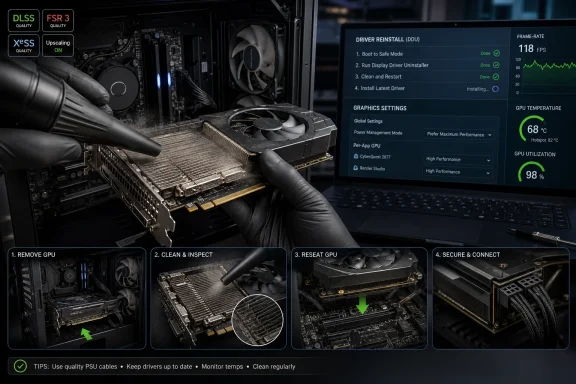
The first recommendation in How-To Geek’s guide is also the least glamorous: reinstall the GPU driver properly, using Display Driver Uninstaller rather than relying on a normal uninstall routine. That advice sounds like old forum folklore until you remember how much of a modern graphics card’s behavior is mediated through driver stacks, shader caches, game profiles, overlays, control panels, and Windows’ own device management.A GPU driver is no longer just the thing that lets Windows draw pixels. It is a performance policy engine, a compatibility shim, a shader compiler pipeline, an upscaling dispatcher, a latency-control layer, and, increasingly, an AI-feature gatekeeper. When that stack gets messy, symptoms can look indistinguishable from bad hardware: crashes, stutter, black screens, broken game launches, missing settings, or unexplained regressions after an update.
That is why a clean driver reinstall can produce results that feel disproportionate to the effort. Normal driver updates often leave behind old packages, registry entries, cached shaders, and configuration leftovers. DDU’s value is not mystical; it is blunt. It strips the display driver environment down far more aggressively so the next installation starts from a known baseline.
The caveat is that Windows itself can get in the way. Windows Update has a habit of trying to be helpful by installing a display driver automatically, sometimes before the user has installed the package they actually intended to use. The How-To Geek advice to download the correct driver first, disconnect briefly, boot into Safe Mode, run DDU, and then install the desired driver is the right sequence because it treats Windows as an active participant in the repair, not a passive backdrop.
For IT pros, this is familiar territory. The consumer gaming PC has become closer to an unmanaged workstation than a console. If the graphics subsystem is acting strangely, the clean-room driver reinstall is not a superstition; it is change control.
Windows Settings Can Quietly Steal Performance
The second fix — checking Windows power and graphics settings — is easy to underestimate because it lacks the drama of opening the case. Yet Windows now has enough graphics-related toggles that a misconfigured system can underperform without anything being physically wrong.Power mode is the obvious starting point. On a desktop, the difference between Balanced and High performance is often less dramatic than laptop users imagine, because the GPU’s own firmware and driver do much of the heavy lifting. Still, power plans can influence CPU boosting, PCIe power behavior, background responsiveness, and the way a system feels under load. If a gaming rig is inexplicably sluggish, confirming that Windows is not prioritizing energy savings is basic hygiene.
Then there is Hardware-accelerated GPU scheduling, a Windows feature that changes how scheduling work is handled between the CPU and GPU. It is not a universal miracle switch, and results vary by hardware, driver, and game. But it is precisely the sort of setting that belongs in a “before you buy” checklist because it costs nothing to test and can affect frame pacing or responsiveness in some systems.
Per-app GPU preference settings matter too, especially on machines with integrated graphics or multiple adapters. A desktop with a discrete card is usually obvious, but laptops and compact PCs can route workloads in surprising ways. Adding a game executable and assigning it to high performance is not advanced tuning; it is confirming that the right hardware is doing the job.
The broader point is that Windows has become a performance surface in its own right. Enthusiasts often benchmark the GPU and forget the operating system wrapped around it. That is a mistake, especially on a machine that has survived years of upgrades, driver swaps, game installs, launcher overlays, RGB utilities, capture tools, and motherboard software.
Dust Is the Cheapest Bottleneck in the PC
The most old-fashioned fix in the list may still be the most reliable: clean the card and check temperatures. Thermal throttling remains the great equalizer, because even a powerful GPU becomes unimpressive when it is forced to protect itself from heat.The symptoms are familiar. A game starts fine, then performance drops after several minutes. Fans ramp aggressively. Clock speeds sag. The system freezes or crashes under load but behaves on the desktop. Users often interpret this as silicon aging, but in many cases the card is simply unable to shed heat the way it did when it was new.
Dust is not cosmetic inside a gaming PC. It insulates heatsinks, clogs fin stacks, coats fan blades, and disrupts the airflow assumptions built into the case. A GPU that has spent years inhaling pet hair, carpet dust, or smoke residue may be mechanically intact while thermally crippled.
Cleaning is therefore not just maintenance; it is performance recovery. Removing the card, clearing dust from the cooler, holding fan blades still while using compressed air, and reseating the card properly can restore headroom that software cannot. Monitoring actual GPU temperature, hotspot temperature, and memory temperature where available is even better, because it turns a hunch into evidence.
There is a deeper lesson here for buyers tempted by new hardware. If an old GPU has been thermally neglected, replacing it without fixing case airflow can simply move the problem forward. Newer cards can draw more power, dump more heat, and punish cramped cases harder. The cheap fix may be the one that saves both the old card and the next one.
Upscaling Has Changed the Meaning of “Too Old”
The most important shift since the GTX 10-series and early RTX era is not raw raster performance. It is the normalization of upscaling. DLSS, FSR, XeSS, frame generation, driver-level scaling, and third-party tools have changed what it means for a GPU to “run” a game.How-To Geek’s guide points to Nvidia DLSS and AMD FSR as ways to extend the useful life of older cards, and that framing is right. Nvidia’s DLSS 4 family widened the relevance of the DLSS stack by bringing its newer transformer-based Super Resolution model to all GeForce RTX GPUs, while keeping the more advanced frame-generation features segmented by generation. RTX 20- and 30-series owners do not receive everything an RTX 50-series buyer gets, but they are not abandoned either.
AMD’s position has also moved. As reported by outlets including Tom’s Hardware and TechSpot, AMD’s FSR 4.1 expansion to Radeon RX 7000-class hardware gives RDNA 3 owners a more modern upscaling path than they had at launch. That is not the same as making every older Radeon new again, and support details still depend on drivers, games, and architecture. But the direction is clear: software is now part of the GPU lifespan story.
This is a strange development for enthusiasts raised on native-resolution purity. For years, “real” performance meant rendering every pixel the hard way. Upscaling was treated as compromise, then as convenience, and now as an expected part of the performance budget.
The catch is that upscaling is not free in the philosophical sense. It can introduce artifacts, ghosting, shimmering, latency tradeoffs, or image-quality differences depending on the game and implementation. Frame generation in particular can make motion look smoother while leaving input latency tied to the underlying rendered frame rate. A card that can produce a stable 45 fps and generate its way toward a smoother-looking output is in a very different position from one struggling at 18 fps.
Still, this is exactly where old GPUs can gain breathing room. If the choice is between medium settings at native 1440p with inconsistent frame pacing, or a balanced upscaling mode with steadier output, the latter may be the more rational experience. The goal is not benchmark purity. The goal is to avoid spending hundreds of dollars because a settings menu was left in 2019.
Reseating the Card Is Boring Until It Works
The PCIe slot and power connectors are not exciting, but they are failure points. A loose or poorly seated graphics card can produce artifacts, crashes, detection failures, or sudden instability that looks far more serious than it is.This is especially true after a PC has been moved, cleaned, upgraded, or shipped. Large modern GPUs exert leverage on motherboard slots. Power cables can be tugged sideways by case panels or cable-management pressure. Adapters and high-wattage connectors add another variable. A system that worked yesterday can become flaky after the smallest physical disturbance.
The correct response is methodical, not dramatic. Power down, unplug the machine, discharge yourself properly, remove the card, inspect the slot and connector area, and reinstall it until the retention clip engages. Then check every PCIe power connector and avoid forcing cables into sharp bends near the plug.
This advice has become more urgent as GPU power delivery has grown more complicated. The industry has already seen enough controversy around high-power connectors and melted plugs to make “check the cable” sound less like novice advice and more like risk management. Not every old card has a modern 12VHPWR-style connector, but every card depends on clean contact and stable power.
What makes this fix valuable is not that it solves every case. It is that it eliminates an entire category of false diagnosis. Before declaring a GPU dead, confirm that it is actually connected like a GPU.
Third-Party Frame Generation Is the New Bargain Bin Upgrade
How-To Geek’s final recommendation, Lossless Scaling, is the most controversial in spirit because it lives outside the vendor-blessed comfort zone. The app, sold on Steam for a modest price, can apply scaling and frame-generation techniques to games that do not natively support the feature set a user wants.For some purists, that will sound like a hack. In practice, it is part of a larger trend: users are increasingly willing to insert an intermediate software layer between game and display if it improves perceived smoothness. That might be driver-level scaling, a vendor overlay, a mod, or a tool like Lossless Scaling.
The advantage is obvious. A card that lacks official frame generation support may still produce a smoother-looking experience in some games. Older titles, emulators, indie games, and stubborn PC ports can benefit when native support is missing or poorly implemented.
The downside is equally important. Generated frames are not the same as rendered frames, and the tool cannot create responsiveness the original frame rate does not provide. If a game is CPU-bound, wildly inconsistent, or already struggling with input latency, adding frame generation can make the image look better while the controls still feel wrong. That is not a reason to dismiss the tool, but it is a reason to use it with judgment.
The best way to think about third-party scaling is not as a miracle upgrade but as a pressure valve. It can make a borderline experience tolerable. It can make an older game look better on a modern monitor. It can buy time. In the current GPU market, buying time has real value.
The Used GPU in Your Case Has a Maintenance Debt
The uncomfortable truth is that many “old GPU” complaints are really maintenance debt finally coming due. A graphics card that has run for five, seven, or even ten years has lived through operating-system upgrades, driver rewrites, game-engine transitions, dust buildup, thermal paste aging, power-supply wear, and changing display expectations.A GTX 1060 that felt wonderful at 1080p in its prime is not failing merely because it cannot make a 1440p high-refresh monitor sing in 2026. An RTX 2060 is not useless because ray tracing exposes its limits. A Radeon RX 5700 XT is not obsolete because the latest upscaler headlines favor newer architectures. Expectations age too.
That is where troubleshooting has to be honest. There is a difference between restoring lost performance and demanding impossible performance. Cleaning a cooler, reinstalling drivers, and enabling upscaling can help a card meet its realistic role. They cannot rewrite the memory bus, add VRAM, or conjure hardware support for features locked to newer generations.
VRAM is the hardest wall for many older cards. Modern games can punish 4GB and 6GB cards, particularly at higher resolutions with large texture packs. When a game exceeds available memory, the resulting stutter can be severe, and no amount of dusting will turn a 6GB card into a 12GB card. Lowering textures is not glamorous, but it is often the single most effective “repair” for cards caught by modern asset sizes.
Power supplies also deserve suspicion. A crashing GPU may be the victim, not the culprit, if an aging PSU cannot handle transient load spikes. Enthusiasts sometimes replace the most visible component first, when the fault is in the less photogenic box at the bottom of the case.
This is why the right process is diagnostic. Clean the card. Watch thermals. Reset drivers. Verify cables. Test known-good settings. Run a repeatable workload. Compare behavior before and after. If the card still artifacts at stock clocks, crashes across clean installs, or fails in another system, then the evidence begins to point toward hardware failure.
The Software Lifeline Is Also a Vendor Strategy
There is a generous way to read DLSS, FSR, driver tuning, and tools like Lossless Scaling: software is extending hardware life. There is also a more cynical reading: software lets vendors slice the market more finely, reserving the best tricks for newer cards while offering just enough support to keep older users in the ecosystem.Both readings are true.
Nvidia’s DLSS strategy is the clearest example. RTX branding created a hardware boundary around AI-assisted rendering, and each generation since has received a different mix of features. RTX 20-series users got the original promise. RTX 30-series owners received stronger hardware but not later frame-generation privileges. RTX 40-series owners got frame generation. RTX 50-series owners became the showcase for Multi Frame Generation.
AMD’s FSR strategy has been more open in branding and more uneven in execution. Earlier FSR versions ran across broad hardware, including competitors’ GPUs, but the more advanced machine-learning direction of FSR 4 and 4.1 necessarily raises questions about which architectures can run what, at what quality, and with what performance cost. As the company expands support, it also has to manage expectations.
For users, the practical lesson is to stop treating feature names as simple checkboxes. “Supports DLSS” or “supports FSR” does not tell you enough. Which version? Which mode? Which GPU generation? Which game integration? Does it improve image quality or merely boost a number? Does it add latency? Does it help the card you actually own?
That complexity is annoying, but it also creates opportunity. An older RTX card may benefit from a newer Super Resolution model even without the newest frame-generation features. A Radeon RX 7000 card may get a meaningful second wind from FSR 4.1. A non-RTX or older Radeon card may still benefit from FSR 2, FSR 3 in supported games, XeSS paths, or third-party scaling.
The GPU is no longer a fixed object. It is a hardware-and-software contract that changes over time. Sometimes that contract gets worse. Sometimes, surprisingly, it gets better.
Windows Users Should Treat GPUs Like Systems, Not Cards
The How-To Geek checklist is aimed at consumers, but the underlying logic will sound familiar to administrators: isolate variables before replacing hardware. A graphics card exists inside a system, and systems fail in layers.The Windows layer can install the wrong driver, apply an awkward default, or preserve old state after years of upgrades. The thermal layer can reduce performance gradually until the user forgets what normal looked like. The physical layer can loosen, oxidize, sag, or lose reliable power. The application layer can move the goalposts with new engines, patches, launchers, anti-cheat modules, and shader compilation behavior.
This is why “my GPU is dying” is often an imprecise diagnosis. It may be dying. It may also be choking, misconfigured, underfed, overheated, or being asked to run workloads it was never designed for.
For WindowsForum readers, the repair mindset should look like this: first restore the card to a clean and known baseline, then decide whether its baseline is still enough. That sequence matters. If you upgrade before doing the maintenance, you never learn whether the old card was actually the problem. Worse, you may carry the same dirty Windows install, bad airflow, or weak PSU into the new build.
There is also a sustainability angle that does not require moralizing. Keeping a GPU useful for another year saves money, reduces e-waste, and gives the next generation of cards time to settle in price and drivers. Enthusiasts do not need to become minimalists to recognize that extending hardware life is often the smartest form of upgrading.
The Six Fixes Add Up to a Different Buying Decision
The value of the How-To Geek advice is not that each fix is novel. Most experienced builders have used at least some of them for years. The value is that they form a hierarchy of restraint before purchase.A clean driver reinstall addresses the software foundation. Windows graphics and power settings remove obvious configuration mistakes. Cleaning and temperature checks determine whether the card is thermally constrained. Upscaling and frame-generation options reset the performance target. Reseating the card and checking power removes physical uncertainty. Lossless Scaling and similar tools offer a cheap experiment before an expensive replacement.
None of this denies that upgrades are sometimes necessary. If your workload now requires more VRAM, better encoder support, modern display outputs, stronger ray tracing, AV1 encoding, AI acceleration, or simply much higher frame rates, a new GPU may be the rational choice. But that is a different argument from “the old one feels bad this week.”
The better question is not whether your GPU is old. It is whether the card is performing as well as it reasonably can within its limits. If it is not, maintenance comes first. If it is, then an upgrade becomes a decision about needs rather than panic.
The Card Gets One More Trial Before the Checkout Page
Before the market gets another vote, the old GPU deserves a controlled test. That means treating the next evening not as shopping time, but as a short rescue operation with measurable outcomes.- A clean DDU-based driver reinstall can fix problems that ordinary driver updates leave behind.
- Windows power mode, hardware-accelerated GPU scheduling, and per-app graphics preferences are worth checking before assuming hardware failure.
- Dust removal and temperature monitoring can reveal throttling that looks like age but behaves like neglect.
- DLSS, FSR, XeSS, and third-party scaling tools can make older cards viable at settings that better match their real capabilities.
- Reseating the GPU and checking every power connector can eliminate crash and detection issues caused by bad contact.
- If the card still artifacts, overheats, crashes at stock settings, or cannot meet your VRAM needs after cleanup, replacement becomes evidence-based rather than emotional.
References
- Primary source: How-To Geek
Published: 2026-07-04T16:40:16.661434
Loading…
www.howtogeek.com