

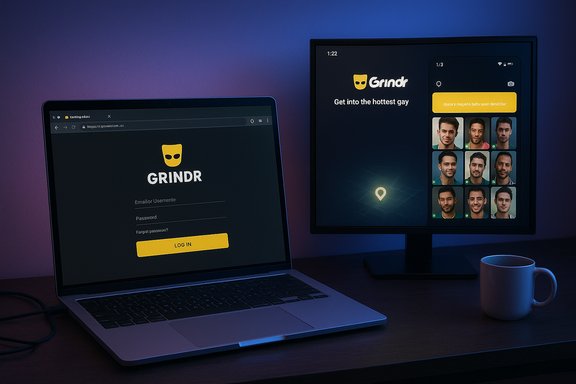
Grindr can be run on a PC or Mac in multiple ways, but the story has shifted: an official browser option exists for paying users, and emulation remains the most practical route for full mobile parity — with clear trade‑offs around performance, privacy, and system support that every Windows or macOS user should understand before they proceed.
Background
Grindr launched in 2009 as a mobile-first, location‑based social network for gay, bi, trans and queer people and quickly became the largest app of its kind worldwide. Its core experience — a grid of nearby profiles ordered by distance, direct messaging, photo sharing, and profile filters — was designed around smartphones and GPS from the start. The app remains available on iOS and Android and today offers premium tiers under the names Grindr XTRA and Grindr Unlimited. The long-standing user request — “how do I use Grindr on a desktop?” — led to two parallel realities:- an official web client, Grindr Web, launched as a browser option for subscribers; and
- the common, community‑recommended workaround of running the Android app inside an Android emulator (BlueStacks, NoxPlayer, LDPlayer and others) to reproduce the mobile UI on Windows and macOS.
What changed since older “Grindr on PC” how‑tos
Many how‑tos written earlier — and a number of downloadable guides that replicate a PrioriData‑style “Grindr for PC” workflow — asserted there was no official desktop version and recommended using an emulator as the only practical route. That guidance is now partially out of date: Grindr offers a supported browser experience for XTRA and Unlimited subscribers called Grindr Web, which removes the need for emulation in many common scenarios. For users who do not subscribe, or who need complete parity with the mobile app (including some in‑app features that remain app‑only), emulators are still the practical fallback. Note: some older guides claim broad compatibility with much older Windows releases (Windows XP in particular). That is inaccurate today — mainstream emulator vendors require modern host OS versions and hardware virtualization to work correctly. Emulation on legacy Windows versions is unlikely to provide a secure or stable experience.Grindr’s official desktop option: Grindr Web
Grindr Web is a browser‑based version of the app that permits chatting, browsing profiles and many basic interactions via Chrome, Firefox, or Edge. It is restricted to paying subscribers (XTRA and Unlimited) at the moment, so it’s not a universal replacement for the mobile app — but for subscribers it’s the fastest, safest way to use Grindr on a laptop or desktop. The official help documentation explains how to log in (web.grindr.com/login), supported browsers, and differences between app‑only features and what the web client offers. Why use Grindr Web first?- It avoids installing extra software (no emulator overhead).
- It reduces your attack surface — no third‑party runtime or APK sideloading.
- It keeps authorization and privacy under Grindr’s managed web session controls.
Running Grindr inside an Android emulator — practical options
When Grindr Web is not available (non‑subscribers), or when a user wants exact parity with the Android experience on desktop, the common method is to run the official Grindr Android app inside an emulator. The three emulators most frequently recommended are BlueStacks, NoxPlayer, and LDPlayer. Each has different trade‑offs; below are practical steps and hardening advice drawn from vendor documentation and community testing.Why emulation works
- Emulators create a contained Android runtime on your desktop that can run Play Store apps exactly as they do on phones.
- They let you sign into Google Play, install Grindr directly, and use the mobile UI with mouse & keyboard.
- Emulators also expose settings to allocate CPU/RAM, change device resolution, and map files between the guest Android environment and the host OS.
Which emulator to pick (quick guide)
- BlueStacks — broadest compatibility, frequent updates, best documentation for Windows and macOS users. Recommended for most users.
- NoxPlayer — lighter footprint on some older machines, good performance tuning options, but historically has had installer‑bundle warnings; download only from the official site.
- LDPlayer — gaming‑oriented, optimized for higher FPS and multi‑instance setups; works well on capable Windows PCs.
Step‑by‑step: install Grindr on Windows using BlueStacks (concise)
- Download BlueStacks 5 from the official BlueStacks site and run the installer as Administrator. BlueStacks documents Windows 7+ support, but Windows 10+ is recommended.
- Enable hardware virtualization (Intel VT‑x / AMD‑V) in your BIOS/UEFI if it isn’t already enabled — BlueStacks performs much better with virtualization on.
- Launch BlueStacks and sign in with a Google account inside the emulator to access the Play Store. Use a secondary Google account if you want more isolation.
- Open the Play Store inside BlueStacks, search for “Grindr” and install the official app. Verify the Play Store publisher to avoid repackaged APKs.
- Launch Grindr inside BlueStacks and sign in with your existing Grindr credentials. Configure location permissions in the emulator so Grindr can report your approximate location.
Troubleshooting common emulator issues
- App fails to load: restart the emulator; if problem persists, clear app cache or recreate the emulator instance.
- Location not showing or incorrect: enable location services in the emulator and verify Windows/macOS location permissions; some emulators provide a location spoofing tool you can set to your city.
- Performance slow: allocate more RAM/CPU in emulator settings, close resource‑heavy host apps, or use an SSD for the emulator image. BlueStacks recommends 4 GB RAM minimum and 8 GB or more for a comfortable experience.
System requirements and realistic host specs
Emulators behave like light virtual machines — they need memory, CPU and disk. Minimum vendor guidance and community experience converge on these practical baselines:- Minimum (usable): Windows 7+ or macOS Big Sur+; Intel/AMD CPU; 4 GB RAM; 5 GB free disk space.
- Recommended (smooth): Windows 10/11 or modern macOS; 8 GB+ RAM; SSD; a recent multi‑core Intel/AMD CPU with virtualization enabled. BlueStacks explicitly recommends enabling virtualization and 8 GB for a consistently good experience.
Privacy, safety and legal considerations
Running Grindr on a desktop — whether via Grindr Web or by emulation — carries privacy implications that deserve attention.- Official web sessions remain within Grindr’s managed environment and are generally the lowest‑risk path for desktop use. Subscribers using Grindr Web should prefer it when available.
- Emulators increase the attack surface: additional software (the emulator), file‑sharing features, and the need to sign in to Google Play inside a virtual device all add complexity. Only download emulators from official vendor pages and avoid repackaged installers.
- Dating apps have historically been the subject of privacy controversies. Past reporting and regulatory action have documented instances where Grindr shared sensitive profile fields (like HIV status) with third parties prior to 2018; this history is the reason many users — especially those in sensitive regions — treat data sharing and location exposure cautiously. Recent legal actions and privacy complaints against Grindr and ad partners continued to surface in 2024 and beyond. Those incidents are important context when deciding how and where to run the app.
- Use strong, unique passwords and enable two‑factor authentication where available.
- Prefer Grindr Web for desktop use if you subscribe; it avoids installing an emulator.
- If emulating, install the emulator only from the official website, keep it patched, and restrict emulator‑host file sharing unless strictly necessary.
- Be cautious about sharing sensitive profile fields (health status, home address, workplace) on any dating profile. Review Grindr’s Health Information privacy controls in the app first.
Will Grindr ban you for using an emulator?
Grindr’s terms do not specifically forbid using emulators, and most users run mobile apps in emulators without incident. However, some vendors do employ Play Integrity or device attestation checks that can detect non‑standard environments; a small number of apps may restrict features or block access if they detect emulation. In practice, most Grindr users who emulate encounter no sanction, but it is technically possible that an app could flag unusual runtime environments. Treat emulator usage as a supported but non‑native approach and expect occasional hiccups.Alternatives to Grindr (desktop‑friendly options)
If the goal is to meet people and participate in queer social networks from a desktop, several other platforms offer strong alternatives. These services either provide web clients or are frequently used via emulation:- Scruff — a popular LGBTQ+ app with travel, community and safety features; desktop experiences vary, but the service emphasizes privacy features and travel tools.
- Hornet — a social networking and dating app with a more editorial and community focus that also offers web features.
- Jack’d — a broadly used platform with strong filtering and privacy controls; the vendor advertises a large member base and premium upgrades.
- Taimi — positions itself as a social network and dating app with live streaming and strong inclusion features; available on mobile and via web for certain features.
- Planet Romeo / ROMEO — longstanding European service with detailed profiles and travel features (verify local availability). (Verify current desktop features on the vendor’s site.
Security hardening: recommended steps before you install anything
- Verify downloads: get emulators only from their official vendor pages and scan installers with up‑to‑date antivirus.
- Use a dedicated account: if signing into Google Play inside an emulator, consider a secondary Google account for isolation.
- Limit shared folders: disable or carefully control shared‑folder features between emulator and host to reduce data leakage risk.
- Keep software updated: apply emulator, host OS and antivirus updates promptly.
- Consider network controls: if privacy is critical, use a reputable VPN, and separate dating app traffic from sensitive corporate networks or systems. (Pick audited VPN providers with WireGuard support for performance and a clear privacy policy.
Realistic expectations and final verdict
- If a subscriber-level Grindr Web session meets your needs, use it: it is the safest and easiest desktop route and avoids emulation tradeoffs.
- If complete parity with the Android app is essential — or you need features that remain mobile‑only — use a mainstream emulator (BlueStacks recommended) and follow the security hardening checklist. BlueStacks’ documentation and community guides are the best starting points for system preparation and performance tuning.
- Avoid claims that very old systems (Windows XP) are legitimate targets for modern emulators; that guidance is inaccurate and unsafe.
Quick reference — recommended next steps
- Try Grindr Web if you are an XTRA or Unlimited subscriber; log in at web.grindr.com/login.
- If you need the app UI, install BlueStacks 5 from the official site, enable virtualization in UEFI/BIOS, sign into Google Play inside BlueStacks and install Grindr. Follow BlueStacks’ system recommendations (4 GB RAM minimum; 8 GB recommended for best results).
- Harden the environment: limit emulator‑host sharing, scan installers, use unique credentials and consider a dedicated Google account for the emulator.
- Review Grindr’s privacy settings and health‑info options before adding sensitive profile fields; historical incidents reinforce the need for caution about what you publish.
Source: PrioriData Grindr for PC Windows (10/8/7/XP) & Mac | Priori Data

