

Audiomack’s mobile-first catalog and artist-forward approach make it a compelling streaming option for independent-music fans, and getting that same experience on a Windows or macOS desktop is straightforward — but not necessarily plug‑and‑play: this feature explains exactly how to run Audiomack on Windows 7/8/10 and macOS, verifies the platform’s technical claims, compares the available methods, flags security and legal concerns, and gives practical, step‑by‑step guidance so you can choose the safest, most reliable path for your setup.
Audiomack launched as an artist‑centric streaming and discovery platform and has grown into a widely used service for hip‑hop, R&B, Afrobeats and other genres where emerging artists matter. The company was founded in 2012 and positions itself around free streaming with optional premium upgrades and creator monetization programs — a model that helped it become a visible alternative to mainstream services. The platform’s core proposition is simple: let artists upload directly, make music discoverable through curated charts and editorial programs, and offer listeners an easy way to stream and, in many cases, download for offline listening. Over the years Audiomack has added creator tools, label partnerships and monetization programs targeted at independent artists. The practical takeaway for desktop users is: Audiomack is primarily built for mobile and web, and while you can use it on a PC or Mac, the best desktop experiences currently rely on either the official web player, the vendor’s macOS app in Apple’s ecosystem, or running the Android app inside an emulator on Windows. The emulator approach is commonly recommended in third‑party how‑tos and remains the most complete way to reproduce the mobile app experience on traditional PCs.
How to use:
Audiomack’s desktop story today is pragmatic rather than binary: the platform is perfectly usable on a PC or Mac, but the experience varies by route. The web interface covers most listening needs safely and simply; macOS users benefit from App Store availability where present; and Windows users who want the full mobile feature set should use a vetted Android emulator while following standard security hygiene. Where vendor documentation is explicit (bitrate tiers, premium downloads), those claims have been verified here; where promotional language makes subjective claims about “excellent” audio, treat those as experiential and verify against the file’s upload bitrate and your playback hardware before assuming audiophile fidelity.
Source: PrioriData Download Audiomack for PC – Windows 7/8/10 & MAC | Priori Data
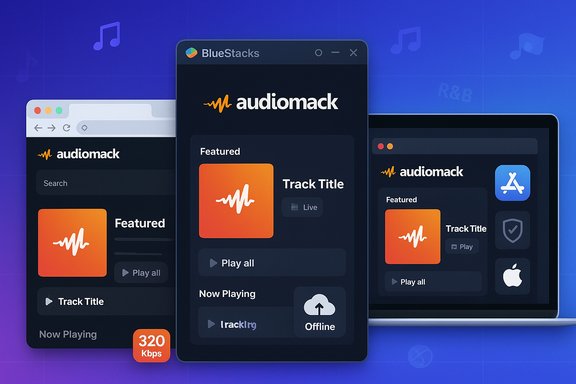 Background / Overview
Audiomack launched as an artist‑centric streaming and discovery platform and has grown into a widely used service for hip‑hop, R&B, Afrobeats and other genres where emerging artists matter. The company was founded in 2012 and positions itself around free streaming with optional premium upgrades and creator monetization programs — a model that helped it become a visible alternative to mainstream services. The platform’s core proposition is simple: let artists upload directly, make music discoverable through curated charts and editorial programs, and offer listeners an easy way to stream and, in many cases, download for offline listening. Over the years Audiomack has added creator tools, label partnerships and monetization programs targeted at independent artists. The practical takeaway for desktop users is: Audiomack is primarily built for mobile and web, and while you can use it on a PC or Mac, the best desktop experiences currently rely on either the official web player, the vendor’s macOS app in Apple’s ecosystem, or running the Android app inside an emulator on Windows. The emulator approach is commonly recommended in third‑party how‑tos and remains the most complete way to reproduce the mobile app experience on traditional PCs.What Audiomack actually offers on desktop: fact‑checked claims
Offline downloads and audio quality (verified)
- Audiomack supports offline playback and allows users to download tracks to listen without an internet connection. The platform distinguishes between free offline capability for some content and Audiomack+ (the paid tier) which unlocks unlimited downloads and higher‑quality streams. According to Audiomack’s support material, the service streams many files at a baseline of ~160 kbps, and Audiomack+ enables streaming at up to 320 kbps for files uploaded at that higher bitrate. This is a verified, vendor‑published specification.
- Important technical nuance: Audiomack is an open upload platform, which means the source quality varies. The platform can only serve the bitrate that was uploaded; a file uploaded at 128 kbps will not magically become 320 kbps by choosing a higher quality setting. That limitation is explicitly documented.
Native desktop app status (clarified)
- Audiomack provides a full web player and first‑class mobile apps for Android and iOS. There are macOS‑compatible app listings for Audiomack in Apple’s ecosystem (including Creator tools that list macOS compatibility), but the situation for a native Windows desktop app is mixed: some references list Windows among legacy or historical clients, but Audiomack’s mainstream distribution strategy emphasizes web, Android, iOS and macOS apps. The practical implication: the most reliable desktop paths today are the web player for immediate use, the macOS app for Mac users where available, or running the Android app inside an emulator for the closest mobile experience on Windows. Treat any claim that “Audiomack has a fully supported native Windows client” as something to verify at installation time because availability and store distribution can change.
Recommendations and editorial claims (caveats)
- Claims that downloads or audio “sound excellent” are subjective and depend on the upload bitrate, playback equipment, and listener expectations. Where PrioriData or promotional text says “high quality” or “excellent,” those are user‑experience statements rather than rigid technical guarantees; they should be read alongside the documented bitrates and upload‑dependent quality rules. Mark these as experiential rather than strictly verifiable.
Key features you get on desktop (summary)
- Offline listening (limited on the free tier; unlimited with Audiomack+).
- Tiered streaming quality: platform baseline around 160 kbps; Audiomack+ can stream at up to 320 kbps when source files permit.
- Personalized playlists, charts and discovery tools carried forward into the web interface.
- Artist‑centered features (creator upload/analytics, monetization programs) that run independently of the desktop client and are accessible via web or dedicated creator apps.
How to run Audiomack on Windows 7/8/10 and macOS — the practical options
Method 1 — Android emulator (recommended for Windows users who want the full mobile app experience)
Running Audiomack’s Android app inside a trusted Android emulator like BlueStacks reproduces the mobile app’s exact UI, offline caching behavior, and Audiomod features. This is the method most how‑tos recommend when a native desktop app is absent. A community‑oriented installer guide and emulator best practices mirror the steps below.- Download BlueStacks (or an alternative emulator such as NoxPlayer or LDPlayer) from the emulator vendor’s official website.
- Install the emulator as Administrator and reboot if prompted. BlueStacks 5’s minimum requirements are Windows 7 or later, at least 4 GB RAM, and ~5–10 GB free disk space; recommended is Windows 10+, 8 GB RAM and an SSD for smooth performance. Enable virtualization in BIOS/UEFI if your hardware supports it for better performance.
- Launch the emulator and sign in with a Google account to access the Google Play Store.
- Open Google Play inside the emulator and install the official Audiomack app. Confirm the app publisher shows “Audiomack, Inc.” to avoid repackaged or malicious variants.
- Launch Audiomack inside the emulator, sign in or create an account, and use the app as on mobile — including downloading files for offline playback if your subscription permits.
- Full parity with the Android app (Audiomack+ features, in‑app Audiomod, downloads, playlists, Artist Connect functionality as exposed in the mobile UI).
- Emulators increase the attack surface and must be downloaded from the official emulator site to avoid repackaged installers. BlueStacks and other mainstream emulators are widely used and supported, but community reports recommend caution with third‑party mirrors.
- Performance depends on host hardware; older Windows 7 machines with limited RAM will struggle. BlueStacks documents Windows 7 compatibility but calls out better results on Windows 10+.
- Audio routing and device passthrough may need small adjustments if you use external DACs or studio audio hardware (set emulator audio output to the system default and use WASAPI/ASIO only for native desktop audio apps, not emulators). This is a practical note rather than a platform limitation.
- Download BlueStacks only from the official site and verify checksums if published.
- Use antivirus/endpoint protection to scan installers before running them.
- Limit emulator permissions and avoid granting unnecessary access to your host file system or credentials. Consider using a dedicated, secondary Google account for Play Store sign‑in in the emulator environment.
Method 2 — Web browser (fastest, safest, limited offline features)
The Audiomack web player is fully functional for streaming, creating playlists, following artists, and discovery. It’s the simplest way to use Audiomack on any PC or Mac because it requires no installation beyond your browser. The web player is the most secure option because you avoid installing emulators or third‑party packages.How to use:
- Open your preferred desktop browser. Modern Chromium‑based browsers (Edge, Chrome) and Firefox work well.
- Navigate to Audiomack’s official site and sign in. Use the web UI to browse, stream and build playlists.
- Offline download support is limited or unavailable in the browser compared with the mobile apps; Audiomack’s vendor documentation shows offline features are centered on mobile clients and Audiomack+ subscribers. If you need offline caches on desktop, the emulator route reproduces the mobile app’s Downloads behavior, while the web route may not. Mark any claim that “browser equals full offline functionality” as inaccurate unless Audiomack explicitly changes web behavior.
Method 3 — macOS native app (when available)
If you use a Mac, Audiomack has App Store presence and some Audiomack apps list macOS compatibility (notably creator tools and iOS apps compatible with Apple silicon Macs). Check the App Store entry for compatibility and whether the app supports the full download/offline workflow on macOS. If you see a macOS‑specific Audiomack app in the App Store, install it there rather than using an emulator. Caveat:- App Store listings show device compatibility details; some apps require macOS versions and Apple silicon to run natively. Confirm your macOS version and hardware before installing.
System requirements and practical performance tips (verified)
- Emulator minimums (BlueStacks example): Windows 7+; 4 GB RAM minimum; ~5–10 GB free disk space; up‑to‑date graphics drivers and administrator privileges. Recommended: Windows 10+, 8 GB+ RAM and SSD. Enabling virtualization in BIOS/UEFI yields better performance.
- For macOS: use the macOS App Store when an Audiomack macOS‑compatible app exists. App compatibility listings will indicate minimum macOS versions and Apple Silicon requirements.
- Network: streaming and offline sync require a stable connection for downloads; higher bitrates (320 kbps) will use modestly more bandwidth but remain far lower than video streaming levels. The web help page documents bitrate tiers and their relation to uploads.
Legal, licensing and safety considerations (must‑read)
- Audiomack’s offline downloads are intended as a playback convenience and are gatekept by licensing and the platform’s business rules. Using the platform within its intended apps and buying Audiomack+ for the premium download experience is legal and supported. Using third‑party downloaders to copy tracks outside the Audiomack app, or using downloaded files contrary to the creator’s rights or the platform’s terms, can violate both Audiomack’s Terms of Service and copyright law. Treat local copies as personal‑use only unless explicit permissions exist. This is a high‑importance legal caution.
- Emulators are legal to use, but installing an emulator from an unknown source or sideloading patched APKs can expose you to malware and supply‑chain risk. Use official Play Store installs inside the emulator and avoid sideloaded inputs unless you have strong reasons and verified checksums.
- Verify whether a given Audiomack download is “premium” (blocked for non‑subscribers) — the platform explicitly marks certain downloads as Premium in its UI and support docs. If a particular track is flagged, the workaround is to subscribe or use the streaming/web player where permitted.
Alternatives and when to pick them
If your main goal is a native, polished desktop listening experience with a dedicated Windows client, consider alternative services that ship proper desktop apps:- Spotify: native Windows and macOS clients, extensive catalog, proven desktop UX.
- Apple Music: native macOS integration and iTunes legacy features; works with Apple ecosystem.
- SoundCloud: strong independent artist focus and web/desktop availability for discoverability.
Step‑by‑step cheat sheet (quick reference)
- Want the fastest, safest desktop access? Use the Audiomack web player in your browser.
- Want true parity with the mobile app (downloads, Audiomod, full app UI) on Windows? Install BlueStacks, sign into Google Play, and install the Audiomack Android app. BlueStacks minimum: Windows 7+, 4 GB RAM. Recommended: Windows 10+, 8 GB RAM.
- On Mac and you prefer a native app? Check the App Store for Audiomack or the Creator app and confirm macOS compatibility (Apple silicon requirement may apply). Install via the App Store when present.
Troubleshooting and troubleshooting checklist
- App doesn’t appear in Play Store inside emulator: confirm Google account sign‑in inside the emulator and that Play Services are functional. Consider reinstalling the emulator if Play Services errors persist.
- Downloads fail or say “Premium”: check whether the track is marked premium in the app and whether your Audiomack+ subscription is active. Contact Audiomack support for song‑specific download issues.
- Emulator performance is poor: allocate more CPU/RAM in the emulator settings, enable virtualization, and use an SSD for the emulator image. BlueStacks docs and community guides have performance tuning tips.
- Concerned about installer safety or AV flags: always download from official vendor sites, scan installers before running, and prefer signed installers or store‑distributed apps where possible. Community writeups repeatedly call out supply‑chain and repackaging risks for popular installers.
Final assessment — strengths, weaknesses and a clear recommendation
Audiomack delivers a strong experience for listeners who prioritize discovery of emerging artists and creator‑focused features. On desktop, the experience splits into two clear paths:- The web player: safest and fastest for casual listening and discovery. Use this if you want minimal risk and no installation hassle.
- Emulator + Android app: the only practical way (today) to fully replicate Audiomack’s mobile features on Windows — including the same offline download behavior and Audiomack+ functionality — provided you follow supply‑chain safety practices and meet emulator system requirements. This is the recommended approach for Windows users who want parity with mobile.
- Artist‑friendly catalog and early access to independent releases.
- Offline listening options and a clear paid tier (Audiomack+) for higher bitrate and unlimited downloads.
- Desktop parity is not seamless: the platform’s primary engineering investment is mobile and web, so desktop power users must rely on emulation for some features.
- Emulation introduces performance and security considerations, and users should avoid unofficial APKs or third‑party repackagers.
- For most desktop users, use the web player and subscribe to Audiomack+ only if you need the higher bitrate and download allowances across supported devices.
- For Windows users who must have the mobile app’s exact features on a PC, run the official Audiomack Android app inside BlueStacks (or another reputable emulator), follow the security checklist, and ensure your machine meets the emulator’s recommended specs.
Audiomack’s desktop story today is pragmatic rather than binary: the platform is perfectly usable on a PC or Mac, but the experience varies by route. The web interface covers most listening needs safely and simply; macOS users benefit from App Store availability where present; and Windows users who want the full mobile feature set should use a vetted Android emulator while following standard security hygiene. Where vendor documentation is explicit (bitrate tiers, premium downloads), those claims have been verified here; where promotional language makes subjective claims about “excellent” audio, treat those as experiential and verify against the file’s upload bitrate and your playback hardware before assuming audiophile fidelity.
Source: PrioriData Download Audiomack for PC – Windows 7/8/10 & MAC | Priori Data
