

A fresh machine feels like a promise: clean, fast, and ready for whatever you need to do next. Whether you’ve just unboxed a Windows laptop, switched to a Mac, or reinstalled the OS, the first software choices you make shape performance, privacy, and productivity for months. This feature unpacks a curated, practical list of essential apps to install on Windows and macOS, summarizes the core recommendations from TechSpot’s roundup, verifies major claims against independent reporting, and analyzes strengths, trade-offs, and security caveats so you can build a fast, safe, and repeatable desktop stack.
Most modern workflows live in the browser these days, but dedicated desktop apps still deliver clear benefits: offline access, higher performance, richer native integrations, and—often—better privacy controls. Day-one installs fall into clear categories: web browsing, identity (password managers and passkeys), power utilities (launchers, package managers, window managers), office and creative tools, developer utilities, security, backup, and multimedia. TechSpot’s guide provides a wide, pragmatic sweep across these categories; this article condenses that guidance into a practical, security-minded plan and cross-checks key claims against community and editorial reporting.
Strengths and risks
Caution: passkey support is growing but not universal. When deploying passkeys in an enterprise environment, confirm vendor support across apps and identity providers before you rely on them exclusively.
Security note: many of these utilities require Accessibility or system permissions to function (macOS) or run as elevated services (Windows). Document permissions in your setup script and apply least privilege when possible.
Verification & caution: Microsoft publishes system requirements and packaging info for Office for Mac (Universal binaries for Apple silicon + Intel). Test macros and enterprise add‑ins when migrating to macOS because some legacy Windows add-ins do not have macOS equivalents.
Source: TechSpot Essential Apps to Install on Windows and macOS
 Background / Overview
Most modern workflows live in the browser these days, but dedicated desktop apps still deliver clear benefits: offline access, higher performance, richer native integrations, and—often—better privacy controls. Day-one installs fall into clear categories: web browsing, identity (password managers and passkeys), power utilities (launchers, package managers, window managers), office and creative tools, developer utilities, security, backup, and multimedia. TechSpot’s guide provides a wide, pragmatic sweep across these categories; this article condenses that guidance into a practical, security-minded plan and cross-checks key claims against community and editorial reporting.Web Browsers: Choose based on privacy, features, and ecosystem
Modern desktop setups typically include more than one browser. The pragmatic choices break down like this:- Chrome — go-to for cross-device sync and extension compatibility, but heavier on telemetry.
- Edge — Chromium-based, tightly integrated with Windows, good battery/resource behavior on Windows.
- Safari — the optimized default on macOS with energy efficiency and Handoff benefits.
- Firefox / Brave — privacy-first alternatives; Brave adds optional Tor and crypto features.
- Vivaldi — for power users who want extreme UI and workflow customization.
- Tor Browser — for the highest level of anonymity, at the cost of speed.
Strengths and risks
- Strength: Having two browsers (one for daily use, one for private/testing) reduces cross-site fingerprinting and keeps work and personal sessions isolated.
- Risk: Browser extension ecosystems are a common attack surface; install only from trusted stores and audit extensions periodically.
Password Management and Passkeys: Upgrade identity security first
A modern essentials list must start here: a password manager. TechSpot highlights Bitwarden as the top free pick, with 1Password, Dashlane, and KeePass as notable alternatives. A good manager:- stores and syncs credentials securely,
- generates strong unique passwords,
- supports passkeys and 2FA integration,
- offers secure vault sharing for families or teams.
Caution: passkey support is growing but not universal. When deploying passkeys in an enterprise environment, confirm vendor support across apps and identity providers before you rely on them exclusively.
Power Utilities and OS Add‑ons: Small installs, big productivity returns
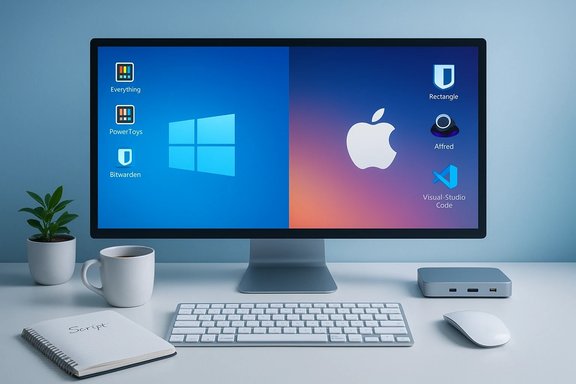
These utilities are the low-cost, high-impact tools that replicate missing OS features and automate repetitive tasks.- Launchers and search: Everything (Windows), Wox (Windows), Alfred or Raycast (macOS). Everything provides near-instant filename search and is frequently recommended as a day-one tool.
- Package managers: winget (Windows), Homebrew (macOS). These let you script installs and updates for a reproducible setup. Use a single manifest for toolchain installs so you can rebuild machines quickly.
- Window managers and productivity suites: PowerToys (Windows) with FancyZones, and Rectangle or Magnet on macOS to restore granular snap/layout behavior that power users expect. These restore muscle memory and reduce friction for window-heavy workflows.
- Clipboard managers: ClipClip (Windows), Flycut or Maccy (macOS) to store history and snippets for rapid reuse.
- Screenshots and annotations: Monosnap or ShareX for cross-platform capture and quick sharing.
Security note: many of these utilities require Accessibility or system permissions to function (macOS) or run as elevated services (Windows). Document permissions in your setup script and apply least privilege when possible.
Office, Notes, and Knowledge Work: Pick tools for collaboration and storage model
The mainstream options remain:- Microsoft 365 (Office) — industry standard in businesses; 1 TB OneDrive with subscriptions and deep Office feature parity across platforms.
- LibreOffice / FreeOffice / WPS — free alternatives for offline, license‑free document editing.
- Notion / Obsidian / OneNote / Joplin — for notes and knowledge management. Notion is great for all-in-one databases and collaboration; Obsidian is the local‑first graph-powered note tool for researchers.
Verification & caution: Microsoft publishes system requirements and packaging info for Office for Mac (Universal binaries for Apple silicon + Intel). Test macros and enterprise add‑ins when migrating to macOS because some legacy Windows add-ins do not have macOS equivalents.
PDFs and Document Tools: Don’t overpay for basic editing
- For heavy PDF editing, Adobe Acrobat remains the most feature-complete commercial option.
- For routine tasks, PDFsam (merge/split), PDFgear, PDF‑XChange, and SumatraPDF offer strong free or freemium alternatives.
- OCR and scanned-document editing: pick tools that document their security posture before feeding sensitive scans to cloud OCR services.
Creative Tools: From thumbnails to professional pipelines
- Design and UI: Figma Desktop for collaborative UI/design, and Canva for rapid templated assets.
- Photo editing: GIMP, Pixelmator Pro (Mac), Upscayl for upscaling, Darktable / RawTherapee for RAW processing.
- Vector: Inkscape for SVG editing.
- Video editing: DaVinci Resolve (free professional-grade), Shotcut, Kdenlive, and CapCut for fast social edits.
- Recording and streaming: OBS Studio remains the free standard for capturing and streaming with layered scenes and plugin support.
Developer Tools & Version Control: Fast, extensible and scriptable
- Visual Studio Code — the de facto cross-platform code editor with extensions for every major language and framework.
- Git GUIs: SourceTree, SmartGit, and the improved GitHub Desktop are all reasonable GUI options depending on workflow.
- Docker Desktop — essential for containerized development across platforms.
- Ollama and local LLM tooling — emerging tools let you run open-weight LLMs locally for privacy-conscious development workflows.
Security: Baseline protections and optional extras
Both Windows and macOS ship with capable baseline defenses (Windows Defender / Microsoft Defender, Gatekeeper and notarization on macOS), biometric login options, and built‑in firewalls. But modern threats—social engineering, AI‑generated phishing, and supply-chain attacks—mean extra layers are often worth it.- On-demand malware removal and remediation: Malwarebytes is widely recommended for adware and post‑infection cleanup; paid versions add real‑time protection. Use as a complement, not a replacement, for built-in defenses.
- Portable emergency scanners (no install): Emsisoft Emergency Kit and VirusTotal for quick multi-engine scanning.
- Enterprise & research: consult AV test reports and independent evaluators before settling on a paid suite.
Remote Access & Utilities
- RustDesk — an open-source, privacy-focused remote desktop alternative to TeamViewer.
- AnyDesk — lightweight, commercial remote access widely used for tech support.
Multimedia & Playback
- VLC — the universal player; plays almost any container/codec and remains the default fallback.
- Windows-specific: PotPlayer and MPV (scriptable) are popular with power users.
- macOS: IINA and Elmedia for polished interfaces with Apple Silicon support.
File Management, Disk Tools & Cleaners
- Disk analysers: WinDirStat / WizTree (Windows), DaisyDisk / GrandPerspective (macOS).
- Duplicate finders: dupeGuru.
- Uninstallers: BCUninstaller (Windows) and AppCleaner (macOS).
- Archive tools: 7-Zip and PeaZip for Windows; The Unarchiver for macOS.
Backup & Cloud Storage: Protect your data
- Sync and quick share: Dropbox, Google Drive, OneDrive—pick what integrates best with your workflow.
- Photos and personal media: iCloud for Apple users and Google Photos for cross-platform convenience.
- Encrypted, privacy-first drives: pCloud, Proton Drive, Internxt for zero-knowledge options.
- Full-disk backups: Backblaze (simple, unlimited device backup), IDrive (granular control, multiple devices), and Acronis for advanced hybrid protection and anti-ransomware features.
Gaming, Modding, and Streaming
- Install launchers you actually use: Steam, Epic Games Store, EA App, Battle.net, GOG Galaxy.
- Streaming & recording: OBS Studio for layered scenes and streaming workflows.
- Controller support: Steam Input now covers many controllers, reducing the need for third-party tools.
Day‑One Install Strategy: Reproducible, minimal, and safe
- Security baseline: update OS, enable full-disk encryption, set up a password manager and 2FA.
- Package manager + manifest: use winget (Windows) or Homebrew (macOS) to script a reproducible install list. · Example: brew install --cask rectangle vlc; winget install --id=VideoLAN.VLC
- Install core productivity and browser apps; create separate browser profiles for work and personal browsing.
- Add Power utilities (launcher, clipboard manager, screenshot tool), then developer or creative tools as needed.
- Configure backups and test restores; run a malware scan with an on-demand tool.
Critical Analysis: Strengths, Blind Spots, and Risks
What works well in TechSpot’s list- Practical balance: prioritizes small, high-impact tools (PowerToys, Everything, Bitwarden) that address frequent post-install annoyances.
- Cross-platform awareness: includes Mac-native alternatives such as Rectangle, Alfred, and Amphetamine, acknowledging the different OS ergonomics.
- Security-first nudges: recommends password managers, on-demand scanners, and zero-knowledge cloud options—sound starting positions for improving baseline security.
- Permissions and privacy: many power utilities require deep system permissions (accessibility, screen recording) that increase risk if a binary is compromised. Validate signatures and prefer notarized/App Store packages where possible.
- Vendor claims vs. independent verification: features like “unlimited OCR accuracy” or vendor security marketing deserve independent testing. When a tool handles sensitive data (password vaults, documents), prefer vendors with published audits and bug-bounty programs.
- Subscription creep: many modern apps use freemium/subscription models. Evaluate long-term cost vs. benefit—sometimes a one-time paid app or open-source alternative is cheaper and more private over time.
- Pricing, feature parity, and AI-enabled integrations change rapidly. Any specific price or the latest AI feature rollout should be checked against the vendor’s site at the time of purchase. Where a claim couldn’t be confirmed in the available community documents, treat it as time-sensitive and verify before procurement.
Practical Recommendations — A Minimal Day‑One Manifesto
- Install a password manager and set up 2FA before importing any legacy passwords.
- Script the essentials with winget or Homebrew so your setup is reproducible.
- Install one privacy-focused browser (Firefox/Brave) and one productivity browser (Edge/Chrome).
- Add a lightweight clipboard manager and your chosen launcher (Everything/Alfred).
- Configure backups (Backblaze/IDrive or a tested offline image) and test file restores.
- Keep security tools minimal: rely on built-in AV and supplement with on-demand Malwarebytes scans.
- Audit and limit permissions for apps that request Accessibility or Screen Recording.
Conclusion
Painting a new desktop with the right apps is about more than convenience; it’s about building an environment that supports productivity, privacy, and reliability. TechSpot’s “Essential Apps” list offers a practical, well-rounded starting point—covering browsers, password management, power utilities, creative suites, and backup strategies. Cross-referencing community and editorial sources confirms the wisdom of many picks (PowerToys, Everything, VS Code, VLC, DaVinci Resolve), while exposing areas that require extra caution (permissions, vendor telemetry, subscription traps). Make Day One about safety first—password manager, backup, and OS updates—then layer in productivity and creative apps with scripted automation so your setup is repeatable and auditable. The net result: a clean, fast machine that stays that way.Source: TechSpot Essential Apps to Install on Windows and macOS
