

Windows 7 hard disc showing less capacity then accepted. #HBCD

Amit Sharma

New Member
Joined
Jun 2, 2012
Messages
2
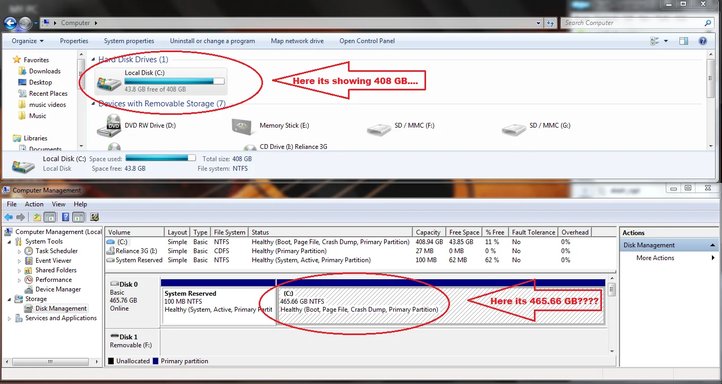
K.. so i got this problem for the the first time.. I had 2 partitions of my 500 GB Hard disc (408gb + 60Gb) in the 60 gb one. i installed ubuntu os couple of months back, and today i formated that partition, using HBCD. i formated that partition and deleted it and then i expanded my 408 gb partition to 468 gb. using some tool form the HBCD. now, when i started the windows, it is showing 408 gb capacity. I might have gone to the option of repeating the steps to merge the free space with the 408 Gb partition, but when i see the dis manager, it is showing me that the merging is successful.. I'm confused.. Please does any one have any idea what went wrong...??? I'm attaching a snapshot to make things much clearer... P.S. : I was trying to do this With HBCD for the first time...
 

Attachments

  • Untitled.webp
    Untitled.webp
    105.5 KB · Views: 323
Solution
It seems like you are experiencing an issue with partition resizing after merging the free space with your primary partition. From your description, it appears that even though the Disk Manager shows that the merging was successful, the capacity displayed in Windows Explorer remains at 408 GB instead of the expected 468 GB. Here are a few steps you can take to troubleshoot and potentially resolve this issue: 1. Refresh Disk Management: - Sometimes, Windows Explorer might not display the updated partition size immediately. Try refreshing Disk Management or restarting your system to see if the correct size is displayed. 2. Check Disk Partitions: - Verify the partitions in Disk Management to ensure that the free space has been...
It seems like you are experiencing an issue with partition resizing after merging the free space with your primary partition. From your description, it appears that even though the Disk Manager shows that the merging was successful, the capacity displayed in Windows Explorer remains at 408 GB instead of the expected 468 GB. Here are a few steps you can take to troubleshoot and potentially resolve this issue: 1. Refresh Disk Management: - Sometimes, Windows Explorer might not display the updated partition size immediately. Try refreshing Disk Management or restarting your system to see if the correct size is displayed. 2. Check Disk Partitions: - Verify the partitions in Disk Management to ensure that the free space has been properly merged with the 408 GB partition. 3. Use DiskPart: - You can use the DiskPart command-line tool in Windows to check the partition sizes and possibly extend the partition size manually if needed. 4. Third-Party Partition Manager: - If the built-in tools are not resolving the issue, consider using a third-party partition management tool to resize and merge partitions accurately. 5. Backup Data: - Before making any changes to disk partitions, ensure that you have a backup of your important data to prevent data loss in case of unforeseen issues. 6. Update Disk Drivers: - Ensure that your disk drivers are up to date. Outdated drivers can sometimes lead to issues with partition resizing and management. If you need further assistance or guidance on any specific step, feel free to provide more details or the snapshot you mentioned, and I can assist you accordingly.
 

Solution
Back
Top