

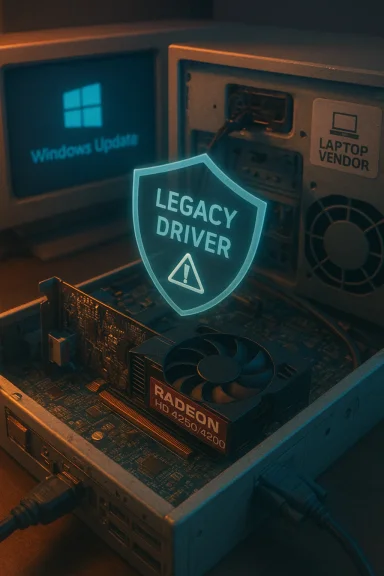
If you’re running an ATI/AMD Radeon HD 4250 or HD 4200 on Windows 10 in 2026, the short, unavoidable fact is this: these GPUs are legacy hardware and official vendor support has ended—your safest driver path is the Microsoft‑supplied legacy driver (via Windows Update) or an OEM‑provided package; everything else is an advanced, higher‑risk workaround.
The Radeon HD 4200 and HD 4250 are members of the Radeon HD 4000 family, released around 2009–2010 and built on AMD’s TeraScale architecture. These parts were designed for basic desktop compositing, legacy 3D, and modest video playback at the time—not modern codecs, multi‑monitor 4K workflows, or contemporary gaming. The hardware implements DirectX 10.1 features and uses shared system memory in many notebook designs, which constrains performance and modern feature parity.
AMD moved the HD 4000 series to a legacy support model years ago. The company explicitly states the last AMD driver package that received full feature support was the Catalyst 13.1 family targeting Windows 7/8-era systems; for Windows 8.1 and Windows 10, AMD directs users to rely on Windows Update to obtain a Microsoft‑signed legacy driver (commonly reported as the 8.970.x family, for example 8.970.100.9001). That vendor position shapes what is safe versus risky when chasing "hot" driver downloads from third‑party sites.
Microsoft’s broader timeline matters here too: Windows 10 reached end‑of‑support on October 14, 2025, which reduces the amount of platform testing and routine driver QA for legacy Windows 10 systems going forward. That change increases the impact of driver choices on production machines.
For enthusiasts who want Catalyst-era control panel features or who insist on a specific archived build, the archived Catalyst packages remain available—but they are advanced installs. Follow a strict procedure: inventory hardware IDs, create full backups, use DDU for a clean uninstall, inspect INFs, and be ready to recover if Windows Update or the driver itself reverts or breaks the stack. Community resources document many of these workflows and the precise driver build numbers people used historically; treat those threads as how‑to references, not vendor endorsements.
If you value stability, signed binaries, and minimizing kernel‑level risk—especially on an OS that passed end‑of‑support in October 2025—use Windows Update or your OEM driver. If you choose to go further, do so deliberately, with backups, and on test hardware when possible. The hardware will run, but its limits are real: be pragmatic about whether your use case truly needs an unsupported driver or whether a hardware/OS refresh is the wiser long‑term investment.
Conclusion: the “hot driver” promise for HD 4250/4200 era parts usually masks complexity. For most users, the Microsoft‑supplied legacy driver (Windows Update) or a vendor OEM package is the correct, low‑risk choice in 2026; everything else is possible but requires advanced, cautious steps and a firm backup plan.
Source: Born2Invest https://born2invest.com/?b=style-237387712/
 Background / Overview
The Radeon HD 4200 and HD 4250 are members of the Radeon HD 4000 family, released around 2009–2010 and built on AMD’s TeraScale architecture. These parts were designed for basic desktop compositing, legacy 3D, and modest video playback at the time—not modern codecs, multi‑monitor 4K workflows, or contemporary gaming. The hardware implements DirectX 10.1 features and uses shared system memory in many notebook designs, which constrains performance and modern feature parity.AMD moved the HD 4000 series to a legacy support model years ago. The company explicitly states the last AMD driver package that received full feature support was the Catalyst 13.1 family targeting Windows 7/8-era systems; for Windows 8.1 and Windows 10, AMD directs users to rely on Windows Update to obtain a Microsoft‑signed legacy driver (commonly reported as the 8.970.x family, for example 8.970.100.9001). That vendor position shapes what is safe versus risky when chasing "hot" driver downloads from third‑party sites.
Microsoft’s broader timeline matters here too: Windows 10 reached end‑of‑support on October 14, 2025, which reduces the amount of platform testing and routine driver QA for legacy Windows 10 systems going forward. That change increases the impact of driver choices on production machines.
What “legacy support” actually means for you
- No new feature drivers from AMD. The HD 4000 family will not receive modern feature releases or optimizations from AMD for Windows 10/11; AMD’s public guidance is explicit about that lifecycle change.
- Microsoft‑supplied driver is the safe fallback. For Windows 10, Microsoft distributes a signed “legacy” driver via Windows Update (the 8.970.x family in many report prioritizes stability and compatibility with the OS update process.
- OEM drivers may still be better for some notebooks. Laptop vendors sometimes published custom packages that adapt power management and hybrid‑graphics features; if your notebook maker still lists a Windows 10 driver for your specific model, that is typically preferable to generic archive installers.
Technical limits you should accept now
Practically, the HD 4200 / HD 4250 will reliably provide:- Desktop acceleration for common office and web tasks.
- Video playback for older codecs and resolutions (software decode or limited hardware offload).
- Basic DirectX 10 era game compatibility at low settings and resolutions.
- Hardware HEVC/AV1 decode or modern codec offload expected by current streaming, editing, or transcoding workflows.
- DirectX 11/12 or Vulkan feature parity; modern gaming and GPU compute workloads will be severely limited.
Where people are downloading drivers in 2026 — and what to trust
- Windows Update (Microsoft‑signed legacy driver)
- This is the that AMD points Windows 10 users to for HD 4000 family systems. It installs a Microsoft‑certified legacy driver that gives you a functioning desktop with signed binaries and the lowest kernel‑level risk.
- OEM / laptop vendor support pages
- If your notebook maker (HP, Dell, Lenovo, Acer, etc.) m download for your exact model, prefer that—especially on laptops with integrated power management, switchable graphics, or vendor‑specific features. OEM drivers are often tuned for the platform.
- Archived AMD Catalyst/CX packages (advanced)
- Community archives and long‑running driver hubs preserve Catalyst packages (8.770.x / 8.970.x lines, older Catalyst 13.x installers). These can restore Catalyst Control Center features on older systems but were written for Windows 7/8 kernels and are not actively maintained for Windows 10. Use only if you understand INF hardware IDs, driver signing, and recovery.
- Third‑party driver updaters (e.g., Driver Easy)
- Tools like Driver Easy exist and can automate detection and downloads, but community and official advice is mixed: some users and reviews praise convenience; others warn about incorrect recommendations and the risk of installinte for your exact subsystem. If you use such tools, proceed cautiously: prefer manual verification, create backups, and avoid tools that auto‑install without clear vendor origin.
A safety‑first, step‑by‑step installation workflow (recommended)
Below is a conservative sequence you can follow. Treat steps 5–9 as advanced and only perform them if you are comfortable with driver signing, recovery techniques, and have a tested fallback (full image or spare machine).- Inventory: record your exact hardware.
- Open Device Manager → Display adapters → right‑click → Properties → Details → Hardware Ids. Copy the PCI\VEN_1002&DEV_xxxx string; it’s the single most important identifier for driver compatibility.
- Backup:
- Create a System Restore point and, whenever possible, capturefore changing display drivers. Driver changes can render a machine unbootable; planning recovery is non‑negotiable.
- Try the least‑risky path first:
- Connect the PC to the internet and run Windows Update → Check for updates. Expand “Optional updates” if present and allow Windows Update to offer the Microsoft‑supplied legacy display driver. Accepting the Microsoft driver is the lowest‑risk option.
- Check the OEM:
- Visit your PC/laptop vendor’s support page and search by exact model/service tag. If the vendor publishes a Windows 10 driver tailored to your model, prefer that over g Clean state for advanced installs (use DDU):
- If you will attempt an archived Catalyst/legacy installer, first run Display Driver Uninstaller (DDU) from Safe Mode to remove all previous AMD/ATI remnants. DDU is widely used by enthusiasts and is recommended by vendor KB articles for a clean baseline.
- Inspect the archive before you run it:
- Extract the legacy Catalyst package (many installers support an /extract option). Open the extracted Display.Driver.inf and search for your hardware ID* (the PCI\VEN_1002&DEV_xxxx string). If the INF does not list your hardware ID, do not blindly edit and install—unsigned or re‑si kernel risk.
- Install manually if INF matches:
- In Device Manager → right‑click display adapter → Update driver → Browse my computer → Let me pick → Have Disk → point to the extracted INF. Install the Display driver only first, reboot, and test. Pause Windows Update temporarily while you verify the manual install to prevent automatic overwrites.
- If you must edit an INF (advanced, risky):
- Editing INFs to add your hardware ID is a serious escalation: the resulting driver may be unsigned and will likely require disabling driver signature enforcement or re‑signing. This undermines OS driver signing protections and is not recommended for production machines. If you proceed, be ready to recover via system image or Safe Mode.
- Test and masic tasks: correct resolution, video playback, sleep/resume, and GPU stability under light load. If you observe crashes, black screens, or persistent display problems, roll back immediately using Device Manager or your restore image.
Why you should be suspicious of “one‑click” driver sites and repackagers
- Many SEO‑optimized pages advertise “Windows 10 drivers” for legacy GPUs but actually redistribute repackaged installers, unsigned INFs, or versions lacking your OEM subsystem ID. Those files might produce a working desktop temporarily but increase the chance of kernel instability or conflicts with Windows Update. Community reference material repeatedly warns to prefer Microsoft/OEM binaries for stability.
- Third‑party driver updaters (Driver Easy, Driver Booster, etc.) can be convenient, but they are a trade‑off: they may recommend generic drivers that are functionally correct or may suggest drivers that don’t match the OEM subsystem. Some vendor responses and reviews defend Driver Easy’s legitimacy; community threads and Microsoft Q&A nevertheless urge caution—verify any driver it offers and create backups before applying automated updates.
- If a site or tool requires you to disable security tools, turn off driver signature enforcement, or run an unsigned installer without alternative recovery options, stop. Those are explicit risk indicators.
Why the Windows 10 end‑of‑support matters for legacy drivers
Windows 10 reached end of support on October 14, 2025, which means Microsoft will no longer provide routine security or feature updates for that OS baseline. For users running legacy GPU drivers on an unsupported OS, this changes the risk calculus:- Kernel‑level drivers (display drivers are kernel‑mode) run with high privilege. On an OS no longer receiving routine security fixes, exposing the kernel to unsigned or poorly tested drivers is a heightened risk.
- Vendor testing and compatibility checks for Windows 10 have been deprioritized; future updates to platform components (firmware, third‑party software) are less likely to be validated against older driver stacks.
Practical alternatives if the legacy route isn’t acceptable
- Replace the GPU or the whole PC: A modern discrete GPU or a newer integrated GPU (from Intel/AMD/Apple Silicon platforms) restores codec support, WDDM 2.x features, Vulkan, and full driver updates.
- Use the Microsoft‑signed legacy driver and accept limited capability: For everyday web, email, and office work, Microsoft’s legacy driver often provides a stable, signed experience.
- Try Linux for extended life: The open‑source radeon driver in the Linux kernel historically supports R600/R700 generation GPUs, and Linux distributions often provide better long‑term maintenance for older GPUs than Windows. If you’re comfortable with Linux and your workflows are supported there, this is a viable path to extend hardware life—Linux driver stacks are community‑driven and have extended support for older Radeon families.
A balanced look at Driver Easy and other updater utilities
Driver Easy and similar utilities solve a real problem: manual driver hunts can be tedious, and OEM pages sometimes vanish. Vendor replies and some independent reviews state thativers directly from manufacturer sources and installs WHQL‑certified drivers where available. That said, independent community feedback is mixed: many users report good experiences, while others warn about incorrect or excessive updates, slow free downloads, or aggressive upselling. The safe compromise is to:- Use driver updaters only to identify candidates, not to auto‑install them without manual verification.
- Check the proposed driver’s hardware ID and digital signature before installation.
- Always create a restore point or image before bulk updates.
Quick checklist: safe decisions for HD 4250 / HD 4200 owners in 2026
- Prefer Windows Update (Microsoft‑signed legacy driver) or an OEM driver for your exact model.
- Avoid downloading repackaged “hot” drivers from unknown aggregator pages that promise modern Windows 10 support for every OEM variant.
- Use DDU to create a clean baseline before attempting archived Catalyst installers, and inspect extracted INFs for your hardware ID. ([intel.com](How to Use the Display Driver Uninstaller (DDU) to Uninstall a... modern codecs or gaming performance, upgrade hardware—legacy drivers will not add those capabilities.
Final analysis and recommendation
The pursuit of a “better” Windows 10 driver for the ATI Radeon HD 4250/4200 in 2026 often ends up being a trade‑off between features and safety. AMD’s official policy is clear: the HD 4000 family is legacy, with Windows 10 legacy support delivered through Windows Update rather than ongoing AMD feature releases. Accepting that path gives you a signed, tested driver and the lowest operational risk.For enthusiasts who want Catalyst-era control panel features or who insist on a specific archived build, the archived Catalyst packages remain available—but they are advanced installs. Follow a strict procedure: inventory hardware IDs, create full backups, use DDU for a clean uninstall, inspect INFs, and be ready to recover if Windows Update or the driver itself reverts or breaks the stack. Community resources document many of these workflows and the precise driver build numbers people used historically; treat those threads as how‑to references, not vendor endorsements.
If you value stability, signed binaries, and minimizing kernel‑level risk—especially on an OS that passed end‑of‑support in October 2025—use Windows Update or your OEM driver. If you choose to go further, do so deliberately, with backups, and on test hardware when possible. The hardware will run, but its limits are real: be pragmatic about whether your use case truly needs an unsupported driver or whether a hardware/OS refresh is the wiser long‑term investment.
Conclusion: the “hot driver” promise for HD 4250/4200 era parts usually masks complexity. For most users, the Microsoft‑supplied legacy driver (Windows Update) or a vendor OEM package is the correct, low‑risk choice in 2026; everything else is possible but requires advanced, cautious steps and a firm backup plan.
Source: Born2Invest https://born2invest.com/?b=style-237387712/
