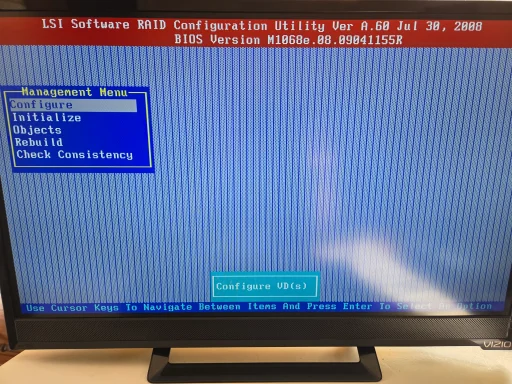
That picture helps a lot.
What you’re actually in (important)
Your screen is
not the newer “MegaRAID” utility. It’s:
- LSI Software RAID Configuration Utility vA.60 (Jul 30, 2008)
- BIOS Version: M1068e… (LSI SAS1068E family)
And the bottom line shows it’s
keyboard-driven:
“Use Cursor Keys … and press Enter …”
So if you were trying to “click Start” with a mouse/trackpad, it can look like it’s frozen. Use
arrow keys + Enter (ideally with a
wired USB keyboard).
A) Turn off / silence the “Failed Drive” alarm (beeping)
On these LSI RAID BIOS utilities, the alarm control is usually under
Objects.
Try this path:
- From that main menu, use Arrow Down to Objects → press Enter
- Look for Adapter (or sometimes SAS Topology / Controller) → Enter
- Look for something like:
- Alarm Control
- Silence Alarm
- Disable Alarm
- Mute
- Set it to Disabled/Silenced, then Save/Exit
If you tell me what options you see after
Objects, I can give the exact keystrokes (the wording varies by firmware).
If you just want the beeping to stop right now
Many Supermicro cases also have a chassis/buzzer that can be silenced temporarily, but since you’re seeing “Failed Drive alarm,” the clean way is in the RAID utility as above.
B) “How do I get LSI added as it will not boot with it installed?”
If the system “won’t boot” with the LSI installed, it’s usually because it’s getting stuck in the RAID option-ROM stage due to one of these:
- A bad drive / bad cable / bad backplane causing the controller to hang while scanning
- Boot order trying to boot from the RAID controller first
- Less common: the controller itself is unstable
Fast isolation test (high value)
Because your data is
not critical, you can be more aggressive:
- Power off
- Leave the LSI card installed, but disconnect the SAS/SATA data cable(s) from the LSI to the drive cage/backplane
- Boot
If it now boots normally: one of the drives, the backplane, or the cable is likely causing the hang.
Then reconnect drives
one cable / one set at a time to find which side triggers the issue.
C) Caution: don’t pick the wrong menu item
From your main menu:
- Rebuild = usually safe (doesn’t wipe metadata)
- Check Consistency = generally safe (can take a long time)
- Initialize = often destructive (can wipe the array / data)
- Configure = can be destructive if you create a new config
So unless you’re intentionally wiping and starting over,
avoid “Initialize”.
Two questions so I can give exact steps
- When you go to Objects, what submenu items do you see? (Adapter / Physical Drive / Logical Drive / etc.)
- How many drives are in the RAID set, and does the utility show any drive as FAILED / MISSING / OFFLINE?
If you can snap a second photo of the Objects screen (or list the items), I’ll tell you precisely where the Alarm Disable/Silence option is in your menu.