

If mongosh returns a connection refused error on Windows 11, the most likely culprit is simple: the MongoDB server process isn’t running. This guide verifies the commands and defaults you’ll need, walks through five reliable ways to start MongoDB on Windows 11 (CLI and GUI), and shows how to diagnose the common failure modes so you can get your database back online quickly and safely. I validated the core commands and defaults against the MongoDB documentation and Windows service tools, and I cross‑checked the troubleshooting steps against independent Windows guidance and the H2S Media walkthrough you provided.
MongoDB on Windows typically runs as a background service named MongoDB (or MongoDB Server depending on installer/version). When installed via the official MSI or many WinGet manifests, the installer can register and start the Windows service for you. If you didn’t choose that option or the service fails later, the server (mongod) must be started manually. The official MongoDB installer and documentation describe both paths — service registration during install and running mongod manually with explicit data paths.
Key defaults to keep in mind (verified against MongoDB docs):
From an elevated Command Prompt or PowerShell, run:
Fix:
Fix:
Fix:
Action steps:
Register the service (Administrator):
A couple of cautionary notes:
When the service doesn’t start, the MongoDB log is usually the single most informative artifact — read the last 50 lines and match the error text to the fixes above. If Windows presents only a generic “service failed to start” message, the combination of Get-Service + reading mongod.log + checking netstat for the port will almost always reveal the next action. The commands and defaults in this guide were validated against MongoDB’s documentation and standard Windows service controls, and the H2S Media walkthrough you provided aligns closely with these verified steps.
If you still hit a stubborn error after these steps, capture the exact log excerpt and the output of Get-Service MongoDB plus netstat -ano | findstr :27017 — those items let you quickly pinpoint whether the problem is permissions, configuration path, port conflict, or a corrupted data file.
Source: H2S Media How to Start MongoDB Service in Windows 11 (5 Quick Methods That Work)
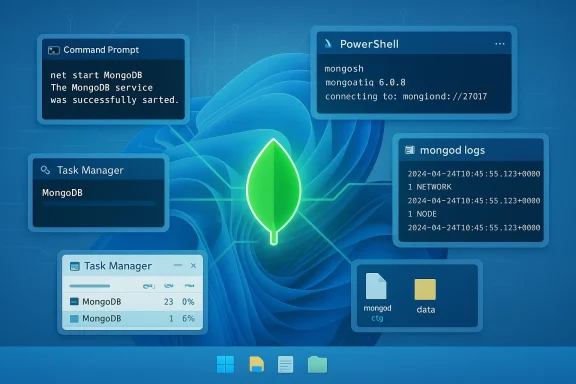 Background / Overview
MongoDB on Windows typically runs as a background service named MongoDB (or MongoDB Server depending on installer/version). When installed via the official MSI or many WinGet manifests, the installer can register and start the Windows service for you. If you didn’t choose that option or the service fails later, the server (mongod) must be started manually. The official MongoDB installer and documentation describe both paths — service registration during install and running mongod manually with explicit data paths. Key defaults to keep in mind (verified against MongoDB docs):
- Default TCP port: 27017 (mongod / mongos).
- Default manual-run data directory on Windows: C:\data\db (unless overridden with --dbpath or a config file).
- When installed with the MSI, the default install root is typically C:\Program Files\MongoDB\Server\<version>, with a configuration file at …\bin\mongod.cfg and data/log directories referenced from that config.
Quick checks — confirm the problem before changing anything
Before trying to start the service, check the service status and whether any mongod process is already running.1) Check the Windows service status (PowerShell)
Open an elevated PowerShell and run:- Get-Service MongoDB
2) Check with sc (Command Prompt)
From an elevated Command Prompt:- sc query MongoDB
3) Is mongod listening on the default port?
If the service appears running but clients can’t connect, verify the port:- netstat -ano | findstr :27017
Method 1 — Start MongoDB using Command Prompt (fastest)
This is the quickest terminal-based approach if the service exists.- Open Command Prompt as Administrator (right‑click Start → Terminal (Admin) or “Command Prompt (Admin)”).
- Run:
- net start MongoDB
- The MongoDB Server (MongoDB) service is starting.
- The MongoDB Server (MongoDB) service was started successfully.
- net stop MongoDB
- net start accepts the display name (works in many installer defaults). It waits until the service is fully started before returning. For scripting or remote operations you might prefer sc or PowerShell cmdlets.
Method 2 — Start MongoDB using PowerShell (recommended for scripting)
PowerShell gives clearer error output and integrates with other management automation.- Open PowerShell as Administrator.
- Start the service:
- Start-Service MongoDB
- Confirm:
- Get-Service MongoDB
- Start-Service MongoDB; Get-Service MongoDB
- Start-Service, Stop-Service, Restart-Service, Get-Service, Set-Service (to change start type). PowerShell returns structured objects that are easy to query in scripts.
Method 3 — Start MongoDB using the Services app (GUI)
If you prefer a GUI:- Press Win + R, type services.msc, press Enter.
- Find “MongoDB Server” or “MongoDB”.
- Right‑click → Start or double‑click → Start.
- Double-click the service → Startup type → set to Automatic (or Automatic (Delayed Start) if you want other critical services to start first) → Apply → OK.
Method 4 — Start MongoDB using Task Manager (quick GUI)
Task Manager’s Services tab is a rapid way to toggle services when Task Manager is already open.- Press Ctrl + Shift + Esc.
- Select the Services tab.
- Locate MongoDB, right‑click → Start.
Method 5 — Run mongod manually (foreground, useful for troubleshooting)
Running mongod directly provides immediate logs in your console and is ideal when the Windows service won’t start or you need a custom runtime:From an elevated Command Prompt or PowerShell, run:
- mongod --dbpath "C:\data\db"
- mongod --config "C:\Program Files\MongoDB\Server\<version>\bin\mongod.cfg"
If the Service Won’t Start — focused troubleshooting and fixes
Windows often returns a generic “service failed to start” message. Below are concise, evidence‑backed checks and fixes for the most common failures.Error: “The service did not start due to a logon failure.”
Cause: The service’s configured Log On account lacks permissions to access the data/log directories.Fix:
- Open Services (services.msc) → right‑click MongoDB → Properties → Log On tab.
- For development/lab machines: select Local System account and test starting the service.
- For production: configure a dedicated service account with the exact least-privilege rights that can read/write the db and log directories. The official installer defaults to running as Network Service but allows specifying a user.
Error: “The system cannot find the path specified.”
Cause: The configured data/log directories referenced in mongod.cfg don’t exist.Fix:
- Open your config (commonly at C:\Program Files\MongoDB\Server\<version>\bin\mongod.cfg).
- Verify storage.dbPath and systemLog.path entries.
- Create missing directories and ensure the service user has write permission. Example PowerShell to create directories:
- New-Item -ItemType Directory -Path "C:\Program Files\MongoDB\Server\<version>\data" -Force
- New-Item -ItemType Directory -Path "C:\Program Files\MongoDB\Server\<version>\log" -Force
The installer typically creates these when you accept defaults; if you moved or deleted them, the service will fail with this error.
Error: “Address already in use” (Port 27017 conflict)
Cause: Another process is bound to MongoDB’s port.Fix:
- Identify the process:
- netstat -ano | findstr :27017
- Note the PID, then:
- tasklist /FI "PID eq <PID>"
- taskkill /PID <PID> /F (only if safe to kill)
- Alternatively, change MongoDB’s port in mongod.cfg under net.port and restart.
Error: Service starts then immediately stops
Cause: Usually a configuration syntax error, permission issue, or corrupt/locked data files.Action steps:
- Inspect the MongoDB log (systemLog.path in mongod.cfg). Example:
- Get-Content "C:\Program Files\MongoDB\Server\<version>\log\mongod.log" -Tail 50
- Common log clues:
- Insufficient disk space
- Corrupted lock file references (historically mongod.lock)
- Invalid YAML/indentation in mongod.cfg
- If a stale lock file exists (older versions / abnormal shutdowns), remove it from the data directory and restart. Example (use caution — always backup first):
- Remove-Item "C:\Program Files\MongoDB\Server\<version>\data\mongod.lock" -Force
Service Does Not Exist — register MongoDB as a Windows service
If Get-Service returns “service not found,” the binaries may have been installed without service registration.Register the service (Administrator):
- mongod --config "C:\Program Files\MongoDB\Server\<version>\bin\mongod.cfg" --install
- net start MongoDB
- mongod --remove
- mongod --config "C:\Program Files\MongoDB\Server\<version>\bin\mongod.cfg" --install
Verify MongoDB is accepting connections
After you start the service, perform these quick checks to confirm the server is ready.- Check service state:
- Get-Service MongoDB → should show Running.
- Connect with the MongoDB shell:
- mongosh
- test>
- Run the ping command inside mongosh:
- db.runCommand({ ping: 1 })
- { ok: 1 }
Practical operational recommendations
- For development machines, set the Windows service Startup type to Automatic so MongoDB starts on boot and you don’t need to manually start it each session. For production, consider Automatic (Delayed Start) only if you have services that must be available earlier than MongoDB.
- Keep the mongod.cfg under source control (or a secure configuration vault) so you reproduce the same paths/ports across environments.
- Do not bind mongod to 0.0.0.0 on internet-facing hosts without authentication and firewall protection. Always restrict bindIp and enable authentication for production instances. MongoDB docs and security guidance repeatedly warn against exposing instances without proper controls.
- Use a dedicated service account with least privilege for production runs rather than Local System or Network Service. The MSI defaults to Network Service for convenience, which is acceptable for local development but not ideal for production.
- When in doubt, run mongod manually to see logs in the foreground. This short-circuits many service-management layers and shows immediate errors.
Cross-checks, verification and notes about versions
I validated the commands and defaults in this guide against the MongoDB install and mongod references (installer behavior, mongod CLI options, default port and default db path), and against Microsoft PowerShell and net/sc service management guidance. Key references used to confirm defaults and commands include MongoDB’s official Windows installation and mongod documentation and Microsoft PowerShell service cmdlet documentation. Because file paths and the exact service display name can differ slightly across installer versions and third-party installers (WinGet manifests sometimes use different naming conventions), always verify the service name with Get-Service | where DisplayName -like "Mongo" before scripting.A couple of cautionary notes:
- Some older community posts or third‑party tutorials mention removing mongod.lock as a universal fix — that is a potentially destructive action if used without understanding the engine and version you run. Always examine the log and back up your data before deleting files. I flagged this earlier because WiredTiger vs MMAPv1 handle locking differently; the log will tell you which path to take.
- Installers and WinGet manifests evolve. If you used WinGet to install MongoDB, check the actual installation directory and whether WinGet’s manifest registered the service name as MongoDB or another display name. Many WinGet manifests do register the Windows service and start it immediately, but vendor/manifests change — verify with Get-Service after install.
Quick reference commands (cheat sheet)
- Check service status (PowerShell): Get-Service MongoDB.
- Start service (Command Prompt): net start MongoDB.
- Start service (PowerShell): Start-Service MongoDB.
- Stop service: net stop MongoDB.
- Restart service (PowerShell): Restart-Service MongoDB.
- Start manually: mongod --dbpath "C:\data\db" or mongod --config "<install>\bin\mongod.cfg".
- Install as service: mongod --config "<install>\bin\mongod.cfg" --install.
Final thoughts — speed, safety, and habit
Starting MongoDB on Windows 11 is a small set of repeatable operations once you know where the service is registered and where the config points for data/logs. For developers, setting the service to Automatic and having mongosh available on PATH will remove the friction of repeated local startups. For system administrators, prefer a dedicated service account, explicit data/log mount points on dedicated disks, and automated monitoring of disk space and process health.When the service doesn’t start, the MongoDB log is usually the single most informative artifact — read the last 50 lines and match the error text to the fixes above. If Windows presents only a generic “service failed to start” message, the combination of Get-Service + reading mongod.log + checking netstat for the port will almost always reveal the next action. The commands and defaults in this guide were validated against MongoDB’s documentation and standard Windows service controls, and the H2S Media walkthrough you provided aligns closely with these verified steps.
If you still hit a stubborn error after these steps, capture the exact log excerpt and the output of Get-Service MongoDB plus netstat -ano | findstr :27017 — those items let you quickly pinpoint whether the problem is permissions, configuration path, port conflict, or a corrupted data file.
Source: H2S Media How to Start MongoDB Service in Windows 11 (5 Quick Methods That Work)
