

If you want MongoDB on a Windows 11 workstation right now, you have two solid routes: the one‑line, repeatable WinGet method that gets you from zero to a registered Windows service quickly, or the full MSI installer if you prefer a graphical, configurable setup. This feature walks both paths, verifies the most important technical details against vendor documentation, and dives into the real-world troubleshooting steps that save time when things go sideways. Much of the stepwise guidance here follows the H2S Media walkthrough you shared, and I cross‑checked the key commands and defaults against MongoDB’s official documentation and Microsoft’s WinGet guidance to ensure accuracy and repeatability. rview
MongoDB is a document‑oriented NoSQL database that stores data as JSON‑like documents. That flexibility makes it a favorite for modern stacks (Node.js, Python, .NET) where schemas evolve rapidly, and a local MongoDB instance is an easy, fast environment for development and testing.
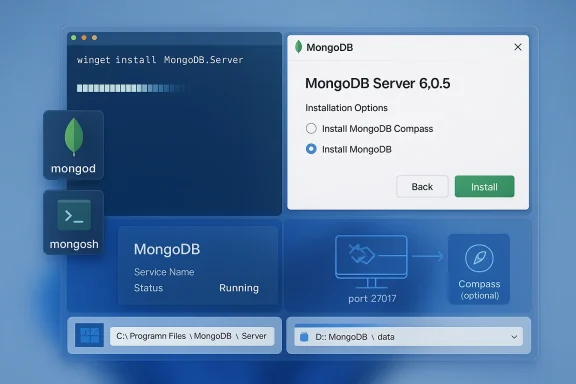
There are two mainstream ways to get MongoDB running on Windows 11:
Before you download or run installers, validate these basic requirements:
Fix:
Fix checklist:
Fix:
Fix:
This article followed the practical walkthrough presented in the H2S Media guide while verifying commands, defaults, and common failure modes against MongoDB’s official documentation and Microsoft’s WinGet reference — a cross‑checked approach that helps you install reliably and recover quickly when things don’t go as planned.
Source: H2S Media How to Install MongoDB on Windows 11 using Command or GUI
MongoDB is a document‑oriented NoSQL database that stores data as JSON‑like documents. That flexibility makes it a favorite for modern stacks (Node.js, Python, .NET) where schemas evolve rapidly, and a local MongoDB instance is an easy, fast environment for development and testing.
There are two mainstream ways to get MongoDB running on Windows 11:
- WinGet (command-line) — fastest and easiest for developer machines and repeatable automation.
- MSI installer (GUI) — offers explicit configuration options (service, db paths, Compass) and is useful in controlled environments.
 System requirements: what to check before you start
Before you download or run installers, validate these basic requirements:- Windows edition and architecture: Windows 11 (Home/Pro/Enterprise), 64‑bit only. MongoDB no longer supports 32‑bit server builds. This is a hard requirement for production and modern dev builds.
- RAM: For a local development machine, 4 GB minimum, 8 GB recommended to avoid swapping when running other tools. MongoDB’s provisioning and deployment docs commonly recommend 4 GB as a baseline for non‑production setups.
- Disk space: The MSI installer itself is several hundred megabytes; practical disk allocation for a development environment should be several GB (not just installer size). H2S Media suggests ~2 GB free for installation; treat that as a minimal guideline and allocate more if you plan to store datasets locally. If you need absolute certainty for a critical machine, provision at least 10–20 GB to leave room for DB files and replication tests.
- Permissions: Administrator access is required for machine‑scope installs and for registering MongoDB as a Windows service.
Method 1 — Install MongoDB on Windows 11 using WinGet (recommended for developers)
WinGet (Windows Package Manager) ships with modern Windows 11 builds and is the fastest repeatable way to install. Microsoft’s documentation describes the install command and its options, and WinGet supports MSI, EXE and other installer formats.Why use WinGet
- Single command installs the server and registers a Windows service in many manifests.
- Suitable for scripting and provisioning (CI/dev boxes).
- Easier to update and uninstall with a single command.
Quick steps (elevated terminal)
- Open Windows Terminal or PowerShell as Administrator.
- Run:
- To install the server:
winget install MongoDB.Server - To install the shell (mongosh):
winget install MongoDB.Shell
winget shows multiple matches, use the --id option or winget search to find the exact manifest before installing. Microsoft documents the --id, --version, and --accept-package-agreements flags for automation. What WinGet typically installs
- The server binaries (mongod, mongos) and registers a Windows service named
MongoDB(manifest dependent). Some WinGet manifests will also install Compass or other tools; check the manifest withwinget show <package>orwinget listafter installation. Be aware that community manifests occasionally lag behind vendor releases or can have installation quirks (there are historical GitHub issues related to particular MongoDB shell manifests), so verify success by checkingC:\Program Files\MongoDB\Server\<version>\bin.
After WinGet: verify
- Open a new elevated terminal and run:
Get-Service MongoDB(PowerShell) — the service should show as Running or Stopped. If stopped, start it withnet start MongoDB. - Confirm the server binary exists:
mongod --version. Ifmongodis not recognized, the installed directory may not be on PATH; addC:\Program Files\MongoDB\Server\<version>\binto the system PATH or use the full path to run binaries.
Method 2 — Install MongoDB using the MSI installer (GUI)
If you want finer control of installation paths or need to install an explicit version, use MongoDB’s MSI installer. The official MongoDB documentation details both interactive and unattended MSI installs and the command‑line msiexec options.When to choose MSI
- You need to choose a non-default installation directory.
- Corporate policies restrict WinGet or mandate MSI packages.
- You want the interactive service configuration screens to confirm data/log directory choices.
Step‑by‑step (GUI)
- Download the Community Edition MSI (choose platform Windows, package msi) from MongoDB’s download center. The MSI is typically several hundred megabytes.
- Right‑click the MSI → Run as administrator.
- Accept the license and choose Complete or Custom.
- Service Configuration — pay careful attention here:
- Install as a Windows Service: recommended for development so mongod runs as a background service and can start automatically.
- Service account: Network Service is fine for local dev; for production you should use a dedicated service account with restricted permissions.
- Service name: Default is
MongoDB. - Data directory and Log directory: Defaults are under
C:\Program Files\MongoDB\Server\<version>\dataand\log. You can relocate to a different drive for space or performance. - Optionally install MongoDB Compass (graphical UI). The MSI does not install mongosh — the shell is separate and must be downloaded/installed independently.
Unattended MSI (for automation)
MongoDB’s docs includemsiexec.exe examples for unattended installs and show how to suppress Compass or specify install locations via INSTALLLOCATION and SHOULD_INSTALL_COMPASS="0". Use those options in scripted or image builds. Post‑install verification and quick test
After either method you should confirm the installation works and verify connectivity.Verify the Windows service
- In PowerShell:
Get-Service MongoDB— check Status. - Start if necessary:
net start MongoDB.
Check versions and binaries
- Server:
mongod --version(or run full path"C:\Program Files\MongoDB\Server\<version>\bin\mongod.exe" --version). - Shell:
mongosh --versionafter you installmongosh.
Quick functional test
- Launch
mongoshin a new terminal to connect to the local instance. - Run:
db.test.insertOne({ name: "Windows 11 Test", ts: new Date() })db.test.find().pretty()
If the document returns, your server is accepting connections and basic CRUD works.
Where MongoDB stores data on Windows and how to change it
Understanding default paths matters for backups and when troubleshooting disk‑space issues.- Default installation directory (binaries):
C:\Program Files\MongoDB\Server\<version>\bin. - Default data directory (if installed as service or used defaults):
C:\Program Files\MongoDB\Server\<version>\data(or, when running mongod manually,\data\dbon the drive from which you start mongod). - Default log file:
C:\Program Files\MongoDB\Server\<version>\log\mongod.log.
- Edit the
mongod.cfgconfiguration file in the installbindirectory and changestorage.dbPath:to your desired location, e.g.: storage: dbPath: D:\MongoDB\data- Ensure the target path exists and the service account has write permissions.
- Restart the MongoDB service.
Common errors on Windows 11 and how to fix them
This section distills the real errors you’ll hit and practical fixes.Error: 'mongod' or 'mongosh' is not recognized
Cause: The binary directory is not on your PATH or you installed the server/shell separately.Fix:
- Add the correct bin directory to the system PATH:
C:\Program Files\MongoDB\Server\<version>\bin. - Close and reopen the terminal so PATH changes take effect.
- If using WinGet, check
winget listandC:\Program Files\MongoDB\Serverfor installed files. Microsoft’s WinGet docs explain how to discover manifests and installed apps.
Error: MongoDB service not running or fails to start
Symptoms:mongosh connection refused; Get-Service MongoDB shows Stopped.Fix checklist:
- Try
net start MongoDBto start the service. - Check the mongod log at
C:\Program Files\MongoDB\Server\<version>\log\mongod.logfor errors. Common causes: missing data directory, port conflict, or insufficient disk space.
Error: Address already in use (port 27017)
Cause: Another process is using the default MongoDB port (27017).Fix:
- Identify the PID:
netstat -ano | findstr :27017. - Identify the process:
tasklist /FI "PID eq <PID>". - If it’s a stale mongod process, stop/kil it:
taskkill /PID <PID> /F. - Optionally change MongoDB’s port in
mongod.cfgusing thenet.portornet:section and restart the service. MongoDB documents port 27017 as the default and how to change it.
Error: Permission denied when running mongod manually
Cause: Running mongod without Administrator privileges or using a data/log directory that your user cannot write to.Fix:
- Run your terminal as Administrator when starting mongod manually, or grant the service user write permissions to the data/log directories when using the service.
MongoDB Compass — should you install it?
MongoDB Compass is the vendor‑provided GUI for exploring databases. It’s useful for beginners and for quickly visualizing documents, running ad‑hoc queries, and building aggregation pipelines. The MSI installer offers it as an optional component, but it’s not required to run MongoDB.- Use Compass if:
- You prefer a GUI for exploration and to learn schema/layout.
- You need a fast visual way to inspect documents, indexes, and query performance.
- Use the CLI (mongosh) if:
- You automate workflows, run scripts, or work remotely (SSH).
- You want faster, keyboard-driven operations and integration into CI/CD.
Uninstalling MongoDB cleanly on Windows 11
Removal steps differ slightly depending on installation method.If you installed with WinGet
winget uninstall MongoDB.Serverwinget uninstall MongoDB.Shell
If you used MSI
- Settings → Apps → Installed apps → search for “MongoDB” → Uninstall.
C:\Program Files\MongoDBC:\Users\<username>\AppData\Local\MongoDB(if present)- Remove PATH entries you added manually.
Security, permissions, and practical production notes
A few must‑knows before you move a machine from local dev to production.- Do not bind mongod to 0.0.0.0 on internet‑connected machines without proper authentication and firewall rules. MongoDB’s docs warn about exposing instances without authentication. Always restrict
bindIpand enable authentication in production. - Use a dedicated service account with least privilege for Windows service runs in production rather than Network Service.
- Back up data files or use mongodump/mongorestore and/or MongoDB’s backup solutions when moving between environments.
- Monitor disk and memory usage — MongoDB can grow quickly depending on dataset size; set realistic disk quotas for dev machines.
Troubleshooting checklist (quick reference)
- Confirm Windows is 64‑bit and you have admin rights.
- If you used WinGet, run
winget listandwinget show MongoDB.Server. Usewinget upgradeto update. - If
mongodis not recognized, add the bin directory to PATH or run the binary by full path. - Use
Get-Service MongoDBandnet start MongoDBto manage the service. - If connection refused, inspect
mongod.logfor address in use, permission, or data path errors.
Small pitfalls and things often left unsaid
- WinGet manifests are community‑curated and vendor manifests; they’re convenient but occasionally fail if the underlying MSI changes or if the manifest is out of sync. If you see installer exit codes such as 1603, check the generated log under
%LOCALAPPDATA%\Packages\Microsoft.DesktopAppInstaller_8wekyb3d8bbwe\LocalState\DiagOutputDir. Microsoft’s WinGet docs cover logging and diagnostic steps. - The claim “2 GB disk free” is a *reasonable minimum for the installer iflect long‑term database storage. If you plan to store data locally, provision substantially more. Treat any small “installer size” claim as installer‑only guidance and not a storage plan.
- The MSI installs may create directories under Program Files — that’s fine for dev but in production you’ll usually choose a dedicated data volume for performance and backup purposes.
Recommended workflow for developers (opinionated)
- If you want a fast repeatable setup on a personal machine: use WinGet to install
MongoDB.ServerandMongoDB.Shell. Confirm PATH and service status. - Install Compass only if you prefer a GUI for exploration.
- Put DB files on a non‑C: drive if you have limited free space. Update
mongod.cfgand restart the service. - Add a simple startup script or PowerShell function that starts/stops the MongoDB service for quick local resets.
- Use
mongoshscripts for schema migration tests andmongodump/mongorestorefor local backups.
Final thoughts
Installing MongoDB on Windows 11 is straightforward, and WinGet makes developer provisioning especially speedy. If you prefer a click‑through experience or must control install parameters, the MSI installer gives explicit control over service names, data/log directories and Compass installation. Rely on the official MongoDB docs for authoritative details about installer options, default paths, and the separate mongosh distribution, and consult Microsoft’s WinGet docs when scripting installations to ensure you use the correct manifest IDs and flags.This article followed the practical walkthrough presented in the H2S Media guide while verifying commands, defaults, and common failure modes against MongoDB’s official documentation and Microsoft’s WinGet reference — a cross‑checked approach that helps you install reliably and recover quickly when things don’t go as planned.
Source: H2S Media How to Install MongoDB on Windows 11 using Command or GUI
