

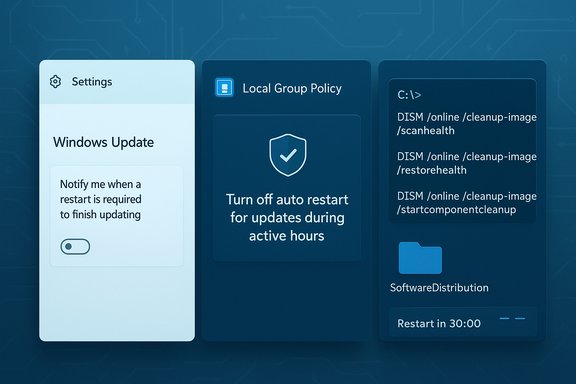
If the steady ping of "Restart to update" in Windows 11 has become a daily annoyance — and you’d rather control when your machine reboots — there are three reliable ways to mute or eliminate that notification. Each method targets a different layer of Windows update behavior: the user-facing Settings toggle (fast and reversible), the Group Policy/registry route (persistent and enterprise-friendly), and recovery-level tools (for stubborn cases where notifications persist after a restart). This article explains each approach in detail, shows exact steps you can use on Home and Pro/Enterprise editions, highlights safe alternatives, and calls out the risks and limits you need to know before changing system-level update behavior.
Windows Update is designed to keep devices secure, but its restart prompts are one of the most common frustrations for end users. The system separates the update download/install phases from the final restart phase — that last reboot often triggers a persistent toast dialog: “Restart to finish installing updates” (or similar). Microsoft exposes several controls for how and when those restarts occur, and those controls live in three places:
Computer Configuration > Administrative Templates > Windows Components > Windows Update (or Manage end user experience / Manage end user experience in some ADMX versions).
HKLM\SOFTWARE\Policies\Microsoft\Windows\WindowsUpdate\AU
Two common entries:
If minimizing interruptions is the goal, balancing timing (active hours, scheduled maintenance windows) with prompt application of security updates is the best strategy. Suppressing notifications may feel convenient in the short term, but deliberately scheduling reboots and keeping updates current avoids the hidden risk of running an insecure or unstable system. Use the methods above to take control — but keep a scheduled maintenance plan so your machine stays both quiet and protected.
Source: gadgetbridge.com Top 3 ways to disable the ‘Restart to Update’ notification in Windows 11
 Background / Overview
Windows Update is designed to keep devices secure, but its restart prompts are one of the most common frustrations for end users. The system separates the update download/install phases from the final restart phase — that last reboot often triggers a persistent toast dialog: “Restart to finish installing updates” (or similar). Microsoft exposes several controls for how and when those restarts occur, and those controls live in three places:- The Settings app — straightforward toggles for personal devices.
- Group Policy / registry — for administrators and advanced users who need persistent control.
- Recovery / servicing tools (DISM, clearing update cache) — for repair when updates fail or the system gets stuck.
1. Quick and reversible: Use the Windows Update settings (best for most users)
If you want an immediate, no-friction way to stop the restart reminder toasts, Windows 11 exposes a simple toggle in Settings. This is the least invasive option and the one recommended for casual users.Why this works
The Settings toggle controls whether Windows shows a toast notification as soon as a restart becomes pending. When set to On, Windows informs you immediately and will block automatic restarts for the first 24 hours after that notification. When set to Off (the default on many systems), the system suppresses the immediate toast and will show the first toast 24 hours after the device enters a restart-pending state. In other words, flipping the toggle only changes when and how Windows warns you — it doesn't stop updates or force you to manage restart deadlines.How to turn it off (step-by-step)
- Open Settings (press Windows + I).
- Select Windows Update from the left column.
- Click Advanced options.
- Under the Notifications section, turn Notify me when a restart is required to finish updating Off.
Pros
- Fast and safe.
- No administrator rights required (applies to the signed-in user).
- Reversible in seconds.
Cons and caveats
- This approach only controls notifications, not restarts. Automatic restarts may still happen outside active hours or when a compliance deadline is enforced by an administrator.
- It’s not a permanent, system-level block — an admin policy can override it.
- Turning notifications off may delay your awareness that a restart is required; security updates that need a reboot could remain pending longer.
2. Persistent control: Group Policy (Pro/Enterprise) and Registry (Home/Pro)
If you want a durable way to prevent Windows from performing user-unaware restarts or to remove update restart notifications across multiple machines, use Group Policy (on Pro/Enterprise/Education) or machine-wide registry settings (useful on Home or when scripting changes).Key Group Policy settings to know
- Turn off auto-restart for updates during active hours — set active hours centrally to prevent restarts in a specified window.
- No auto-restart with logged on users for scheduled automatic updates installations — prevents scheduled auto restarts if users are signed in.
- Configure auto-restart required notification for updates — control toast behavior and whether notifications dismiss automatically.
Computer Configuration > Administrative Templates > Windows Components > Windows Update (or Manage end user experience / Manage end user experience in some ADMX versions).
How to use Group Policy (step-by-step)
- Press Windows + R, type gpedit.msc and press Enter.
- Navigate to:
Computer Configuration > Administrative Templates > Windows Components > Windows Update. - Choose the policy you need:
- To block restarts during specific hours: Turn off auto-restart for updates during active hours. Enable it and set start/end times.
- To prevent auto restarts when users are signed in: enable No auto-restart with logged on users for scheduled automatic updates installations.
- Click Apply, then OK.
- Force a policy update (optional): open an elevated command prompt and run gpupdate /force.
Registry equivalents (for scripting or Home edition)
Group Policy settings map to keys under:HKLM\SOFTWARE\Policies\Microsoft\Windows\WindowsUpdate\AU
Two common entries:
- AuOptions (DWORD) — controls Configure Automatic Updates behavior. Common values:
- 2 = Notify for download and notify for install
- 4 = Auto download and schedule the install
- NoAutoRebootWithLoggedOnUsers (DWORD) — set to 1 to prevent auto-reboot if users are logged on.
- Create the WindowsUpdate\AU key if it doesn’t exist:
- reg add "HKLM\SOFTWARE\Policies\Microsoft\Windows\WindowsUpdate\AU" /f
- Set NoAutoRebootWithLoggedOnUsers:
- reg add "HKLM\SOFTWARE\Policies\Microsoft\Windows\WindowsUpdate\AU" /v NoAutoRebootWithLoggedOnUsers /t REG_DWORD /d 1 /f
- Optionally set AuOptions to 4:
- reg add "HKLM\SOFTWARE\Policies\Microsoft\Windows\WindowsUpdate\AU" /v AuOptions /t REG_DWORD /d 4 /f
Pros
- Persistent and machine-wide.
- Administrators can enforce consistent behavior across many machines.
- Registry approach works on Windows 11 Home where gpedit.msc is unavailable.
Cons and caveats
- Misconfiguring Group Policy or registry keys can cause unexpected update behavior or leave machines non-compliant with organizational policies.
- Some policies are legacy or interact: one policy may render another ineffective (documentation calls this out — e.g., Always automatically restart at scheduled time is legacy and not applicable to Windows 11).
- Admin-enforced deadlines (compliance deadlines) can still force a restart after the deadline window.
3. Repair and recover: DISM, clearing the update cache and handling persistent “restart required” toasts
If you restarted but Windows still shows a "Restart to update" message, the update might not have completed correctly, or your update cache/servicing state could be corrupted. In that case, the solution is diagnostic and repair — not just silencing notifications.When to use these tools
- The device shows a pending-reboot state after a restart.
- Updates repeatedly fail to complete or the system boots into an update loop.
- The restart notification persists despite completing a restart.
Primary tools and what they do
- DISM /Image:<drive> /Cleanup-Image /RevertPendingActions — reverts pending actions left by a previous servicing operation; useful when the machine can't boot properly or is stuck in a "Completing update" loop. This command must be run against an offline image (the Windows installation volume) — typically from Windows Recovery Environment (WinRE) or WinPE.
- DISM /Online /Get-Packages (with a PowerShell filter) — to enumerate packages with a "Pending" state and help identify stuck updates.
- Clearing the update cache (SoftwareDistribution and Catroot2) — forces Windows Update to rebuild its temporary download and verification state; solves many repeated-failure scenarios.
Step-by-step: Revert pending actions (safe recovery flow)
- Boot into Windows Recovery Environment:
- Hold Shift while clicking Restart, or use the Recovery options on boot (F11/advanced startup) to reach Troubleshoot > Advanced options.
- Open Command Prompt (or PowerShell) from Advanced options.
- Identify the drive letter that holds the Windows installation (it can change in WinRE). Example:
- Run dir C:\, dir D:\, etc., until you find the Windows folder.
- Run the revert command (replace C: with the correct drive letter):
- DISM.exe /Image:C:\ /Cleanup-Image /RevertPendingActions
- Wait for the operation to complete; you should see a success message if it worked.
- Reboot and allow the system to attempt a normal start.
Step-by-step: Enumerate pending packages (diagnostic)
From an elevated PowerShell (when Windows can boot normally):- Run:
- dism /online /get-packages /format:table | Select-String "Pending"
- Review output — package IDs listed as Pending indicate updates that didn’t complete.
- If the packages are stuck, proceed to repair sequences (DISM /RestoreHealth, SFC /scannow) or use the offline revert approach above.
Step-by-step: Clear the Windows Update cache (common fix)
- Open Command Prompt as Administrator.
- Stop update services:
- net stop wuauserv
- net stop bits
- net stop cryptSvc
- Rename cache folders (keeps a backup):
- ren C:\Windows\SoftwareDistribution SoftwareDistribution.old
- ren C:\Windows\System32\catroot2 catroot2.old
- Restart services:
- net start wuauserv
- net start bits
- net start cryptSvc
- Reboot and check Windows Update.
Pros
- Targets the root cause: corrupted servicing or cache.
- Can recover systems that are stuck during shutdown/startup update stages.
- RevertPendingActions can unblock machines that otherwise would require reinstallation.
Cons and caveats
- DISM /RevertPendingActions is a recovery tool and should be used carefully; incorrect use may remove pending changes that were necessary.
- Clearing the update cache will force Windows to re-download updates; this consumes bandwidth.
- Misidentifying the Windows drive letter in WinRE can lead to operating against the wrong partition — double-check before running DISM.
Additional tactics and practical best practices
Beyond the three headline methods, several safer alternatives let you reduce disruption without suppressing updates entirely:- Adjust Active hours (Settings > Windows Update > Advanced options > Active hours) to match your workday. The system will avoid automatic restarts during that period.
- Use Pause updates for short delays (Settings > Windows Update > Pause updates) to buy time when you need stability.
- Use Focus Assist or turn off the Windows Update app’s notifications in Settings > System > Notifications if you want to silence all update toasts but acknowledge the risk of missing a required restart.
- For managed environments, use Update Policy CSP / MDM or Windows Update for Business settings to set deadlines, control pre-notifications, and define granular update behavior (this is the recommended approach for enterprises).
- Schedule regular maintenance windows so updates and restarts happen predictably rather than as surprise interruptions.
Security and support considerations — why you shouldn’t permanently ignore restarts
- Security patches often require a reboot to complete. Silencing notifications and preventing restarts may leave critical fixes un-applied, increasing exposure to vulnerabilities.
- Enterprise IT policies may enforce deadlines; circumventing those policies can lead to non-compliant devices that no longer receive managed updates.
- Using aggressive registry or service-disable tactics (for example, disabling the Windows Update service) may break update telemetry and complicate future troubleshooting.
Short troubleshooting checklist (quick reference)
- Toggle notifications off in Settings to stop immediate toasts: Settings → Windows Update → Advanced options → turn off Notify me when a restart is required to finish updating.
- If you run Pro/Enterprise and want persistent behavior: configure Group Policy at Computer Configuration → Administrative Templates → Windows Components → Windows Update.
- If you run Home or need scripting: set NoAutoRebootWithLoggedOnUsers and other values under HKLM\SOFTWARE\Policies\Microsoft\Windows\WindowsUpdate\AU.
- If a restart message persists after a restart: boot to WinRE and run DISM /Image:C:\ /Cleanup-Image /RevertPendingActions, then reboot.
- If updates repeatedly fail: stop update services, rename SoftwareDistribution and Catroot2, restart services, and check for updates again.
Frequently asked questions (concise answers)
- How do I stop the "Restart to update" notification right now?
- Settings → Windows Update → Advanced options → turn off Notify me when a restart is required to finish updating.
- Can I permanently stop Windows from restarting to install updates?
- Not safely and not in a supported manner. Group Policy/registry settings can prevent user-unaware restarts in most cases, but critical updates and admin-enforced deadlines can still require reboots.
- The notification is still there after I restarted — what now?
- This usually indicates a stuck or failed installation. Boot to Recovery Environment and run DISM /Image:C:\ /Cleanup-Image /RevertPendingActions, or clear the update cache by renaming SoftwareDistribution and Catroot2 after stopping update services.
- I’m on Windows 11 Home—can I use Group Policy?
- Home doesn’t include gpedit.msc; use the registry keys under HKLM\SOFTWARE\Policies\Microsoft\Windows\WindowsUpdate\AU to enforce similar behaviors, or use a script to apply changes to multiple machines.
- Is it safe to clear the SoftwareDistribution folder?
- Yes — it only removes temporary update downloads and forces Windows Update to rebuild the cache. Always stop update services before you delete or rename this folder.
Final thoughts
There’s no single “perfect” method that fits every situation. For most users, the Settings toggle is the right first step: quick, reversible, minimally invasive. For admins and power users who need consistent behavior across fleets, Group Policy or registry settings are the correct tools. And for when the OS misreports a pending restart or gets stuck, DISM and a cache reset are the pragmatic recovery options that actually fix the underlying state.If minimizing interruptions is the goal, balancing timing (active hours, scheduled maintenance windows) with prompt application of security updates is the best strategy. Suppressing notifications may feel convenient in the short term, but deliberately scheduling reboots and keeping updates current avoids the hidden risk of running an insecure or unstable system. Use the methods above to take control — but keep a scheduled maintenance plan so your machine stays both quiet and protected.
Source: gadgetbridge.com Top 3 ways to disable the ‘Restart to Update’ notification in Windows 11
