

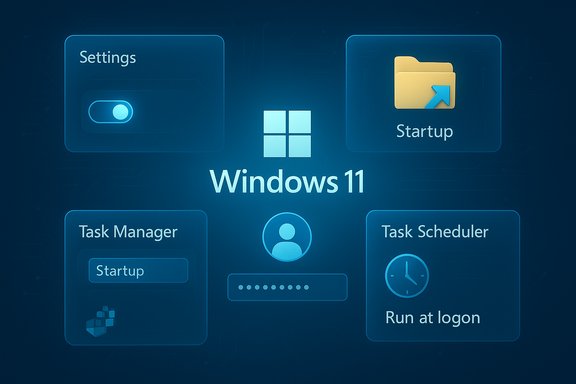
Making an app run automatically when you sign into Windows 11 is one of the simplest but most impactful tweaks you can make to streamline workflows — and there are four reliable methods to do it: Settings, the Startup folder, Task Manager, and Task Scheduler. This feature is intentionally flexible: casual users get a toggle in Settings, power users get scheduled and elevated options via Task Scheduler, and administrators can use registry, Group Policy, or scheduled tasks for precise control. The following guide distills the practical steps, explains when to use each method, and warns about common pitfalls and security risks so you can choose the safest, cleanest approach for your needs.
Windows provides multiple startup mechanisms because different apps and scenarios have different needs. Lightweight apps that just need to be present for convenience are best handled by the Settings toggle or the Startup folder. Services or apps that require elevated rights, special timing, or network readiness are better controlled via Task Scheduler. Enterprise environments often prefer Group Policy or scheduled tasks for predictable, manageable deployment. Combined, these options cover nearly every use case without resorting to unsupported hacks.
Making a program run at startup in Windows 11 is straightforward once you pick the right mechanism for the app’s needs. For everyday, non-elevated apps, use Settings or the Startup folder. For legacy or elevated apps, use Task Scheduler. For deep diagnostics and enterprise control, use Autoruns, registry keys, or Group Policy with careful auditing. Each method exists for a reason — use the one that balances convenience, security, and maintainability for your environment.
Source: Windows Report How to Make a Program Run on Startup in Windows 11
 Background
Windows provides multiple startup mechanisms because different apps and scenarios have different needs. Lightweight apps that just need to be present for convenience are best handled by the Settings toggle or the Startup folder. Services or apps that require elevated rights, special timing, or network readiness are better controlled via Task Scheduler. Enterprise environments often prefer Group Policy or scheduled tasks for predictable, manageable deployment. Combined, these options cover nearly every use case without resorting to unsupported hacks.Overview: Four practical ways to run a program at startup
- Use Settings → Apps → Startup to enable or disable modern startup entries quickly.
- Place a shortcut into the Startup folder (shell:startup) for per-user, non-elevated apps.
- Enable an entry in Task Manager → Startup to restore or toggle items Windows already recognizes.
- Create a Task Scheduler task for advanced triggers, elevated execution, and precise timing.
Using the Settings app — the quickest, lowest-risk option
What it does and when to use it
Settings gives you a simple on/off toggle for apps that register startup behavior with Windows. Use this when the app appears in the list and you don’t need elevation or special triggers. It’s the fastest and safest way for everyday users to control startup apps.Step-by-step
- Open Start and choose Settings.
- Navigate to Apps → Startup.
- Scroll the list, find the app you want, and switch it to On.
- Restart and sign in to confirm the app launches.
The Startup folder — straightforward and highly visible
Why use the Startup folder
Placing a shortcut in the Startup folder is the classic, transparent approach. It works for most desktop (Win32) apps and is per-user by default. This method is helpful when an app doesn’t register with Windows or you want the simplest possible behavior: start this program when I log in.How to open the Startup folder and add a shortcut
- Press Windows + R and enter: shell:startup then press Enter to open your per-user Startup folder.
- Right-click in the folder → New → Shortcut.
- Browse to the program’s executable (.exe) and finish creating the shortcut.
- Restart, sign in, and verify the program starts.
Pros and cons
- Pros: Extremely simple, easy to remove, visible in Explorer.
- Cons: No elevation handling, no advanced triggers, may fail for apps that require admin rights or specific working directories.
Task Manager — enable or disable existing startup items
When to use Task Manager
If an app already appears in Windows’ startup registry locations but is disabled, Task Manager is the fastest place to re-enable it. It gives a quick view of startup impact and lets you choose which items to run at sign-in.Steps
- Right‑click Start → Task Manager → click More details if necessary.
- Open the Startup tab.
- Right‑click the application → Enable (or Disable).
- Restart to confirm.
Task Scheduler — the most flexible, reliable option
Why Task Scheduler?
Task Scheduler is essential when you need:- Elevated execution without repeated UAC prompts.
- Triggers like At log on, At startup, or event-based triggers.
- A delay or conditions (e.g., “start only if network is available”).
- Running under a specific account (SYSTEM, a service account, or another user).
Create a basic “run at logon” task
- Search for Task Scheduler and open it.
- Choose Create Basic Task… (or Create Task for more options).
- Name it and choose the trigger When I log on (or When the computer starts).
- Choose Start a program, browse to the executable, and add arguments if needed.
- If the program requires elevation, check Run with highest privileges in the General tab (use Create Task, not Create Basic Task, to set this).
- Save and test the task by running it manually or rebooting.
Advanced tips for Task Scheduler
- Add a Start in path to avoid working directory problems.
- Use Conditions and Settings for retry behavior and network availability checks.
- Use the SYSTEM account for tasks that must run without any user context, but be mindful that SYSTEM tasks are powerful and must be audited.
- Use short Start-Sleep delay in the action if the app expects network resources that may not be available immediately after sign-in.
Registry and Run keys — quiet, powerful, and slightly riskier
Where startup entries live in the registry
Windows reads several well-known keys at logon; the most common are:- HKEY_CURRENT_USER\Software\Microsoft\Windows\CurrentVersion\Run (per-user)
- HKEY_LOCAL_MACHINE\Software\Microsoft\Windows\CurrentVersion\Run (all users)
Quick caution
If a program requires admin rights, a simple Run key entry will either prompt for UAC (if that’s how the app is configured) or fail silently. For elevation without UAC prompts, use Task Scheduler as a safer, auditable alternative.Troubleshooting: common reasons a program won’t start and how to fix them
1. “The requested operation requires elevation”
Some legacy or compatibility-mode apps have Run as administrator set. When launched from the Startup folder or a simple Run key, Windows blocks or prompts for elevation, which stops auto-start. The remedy is to create a scheduled task set to Run with highest privileges or to redesign the app to run without elevation when possible.2. App not listed in Settings → Startup
If the app doesn’t appear in the Settings Startup list, it either didn’t register for startup properly or it’s a type of app that registers differently (UWP/packaged apps or scheduled tasks). You can add it manually to the Startup folder or create a scheduled task. Additional troubleshooting for missing Startup page entries includes checking Group Policy and registry keys for visibility settings.3. Broken shortcut or network path
Shortcuts that point to removable or network drives fail if the resource isn’t available at logon. Use absolute local paths when possible or schedule tasks to run after network initialization. For mapped drives, prefer Task Scheduler tasks that run after network services start, or use scripts that retry until the target resource is available.4. Antivirus or security policy blocking
Endpoint protection may flag unsigned executables or unknown startup changes. If an expected startup action is blocked, check your security software’s logs and either whitelist the app or use a signed binary and managed deployment mechanisms (MDM/GPO) for enterprise environments.5. UWP/packaged apps and FullTrust processes
UWP apps and packaged full-trust tasks register differently. If you’re expecting a Store app to appear in Startup but it doesn’t, check the app’s settings and the policy keys that control UWP startup behavior. Changing these requires careful handling and may not be supported on managed devices.Security and performance considerations — what to watch for
- Limit what runs at startup. Too many apps degrade boot time and responsiveness. Audit startup items regularly and disable anything nonessential.
- Avoid storing credentials in plaintext. If your startup action must authenticate to network resources, use secure credential storage or scheduled tasks that run under the specific user account rather than embedding passwords in scripts.
- Prefer Task Scheduler for elevated tasks. It avoids repeated UAC prompts and is auditable. Always minimize the privileges granted to scheduled tasks.
- Watch for security software or corporate policy interference. Managed devices may have Group Policy or MDM rules that hide or block startup modifications. Check with your IT admin before making system-wide changes.
- Use Autoruns for a complete audit. For advanced users diagnosing mysterious startup behavior, Autoruns from Microsoft’s Sysinternals suite shows every autostart location and is invaluable for cleanup. It’s more powerful than Task Manager for deep analysis.
Step‑by‑step quick reference (choose one)
- Settings (fast): Settings → Apps → Startup → toggle On. Best for visible, modern apps.
- Startup folder (transparent): Run shell:startup → drop shortcut → restart. Best for per-user desktop apps.
- Task Manager (toggle existing): Task Manager → Startup → Enable. Best for managing pre-registered entries.
- Task Scheduler (flexible): Task Scheduler → Create Task → Trigger = At logon/startup → Action = Start a program → set privileges/conditions. Best for elevated or conditional startup.
Practical examples and advanced recipes
Example A — Run a program elevated at logon without UAC prompts
- Create a scheduled task, set Run with highest privileges, and choose the application executable. Trigger on At log on and use the user account that needs the program. Avoid storing weak credentials in tasks; prefer the interactive user option where appropriate.
Example B — Delay startup until network is ready
- In Task Scheduler add a short delay or set conditions to start the task only if the network is available. Alternatively, have the action run a small wrapper script that waits (Start-Sleep) and retries until the network resource responds. This avoids failures for apps that depend on mapped drives or cloud services.
Example C — Deploying to multiple users (enterprise)
- Use Group Policy Preferences for Run keys, startup scripts, or scheduled tasks deployed centrally. Test on a pilot group before broad rollout and audit with endpoint management tools. Avoid enabling unnecessary elevated tasks across a fleet.
When claims are uncertain: caution flags
- Some behavior around UWP startup visibility and packaged full-trust tasks can vary by Windows build and by whether the machine is domain-joined or managed. If Settings’ Startup list or registry entries behave differently than described, check the device’s management policies and the exact Windows 11 build — these factors can change behavior. Treat those scenarios as potentially environment-dependent rather than absolute.
- The precise startup timing and the order Windows launches items can vary by firmware, SSD/HDD, driver initialization, and the number of concurrent startup programs. Boot-time performance suggestions (like disabling heavy startup items and using an SSD) are broadly applicable but results will vary by hardware.
Final checklist before you set anything to auto-start
- Confirm the program works when launched manually.
- Decide whether it needs administrator rights; if so, prefer Task Scheduler.
- Avoid placing credentials in scripts; use Windows credential stores or scheduled tasks running as the intended account.
- Test the startup once as the target user and validate logs (Event Viewer, Task Scheduler history) if it fails.
- Keep an eye on boot performance; remove or delay apps that add high startup impact.
Making a program run at startup in Windows 11 is straightforward once you pick the right mechanism for the app’s needs. For everyday, non-elevated apps, use Settings or the Startup folder. For legacy or elevated apps, use Task Scheduler. For deep diagnostics and enterprise control, use Autoruns, registry keys, or Group Policy with careful auditing. Each method exists for a reason — use the one that balances convenience, security, and maintainability for your environment.
Source: Windows Report How to Make a Program Run on Startup in Windows 11
