

 Hidden Windows Disk Cleanup Button Can Free Up Gigabytes — But Know What You’re Deleting First
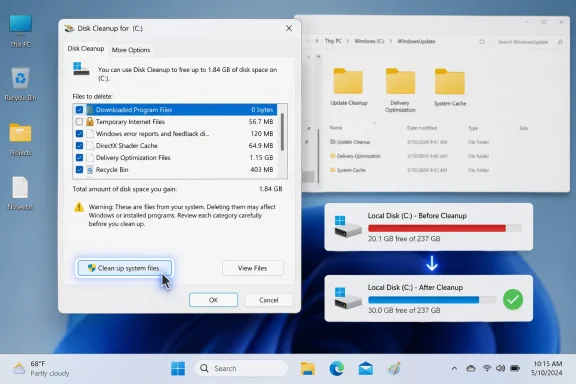
Windows users looking for a quick way to reclaim storage may have an old Microsoft utility hiding in plain sight: Disk Cleanup. The tool has been around for decades, but one option inside it is easy to overlook — the “Clean up system files” button.That single button can unlock a much deeper cleanup scan than the default Disk Cleanup view. In some cases, it can reveal gigabytes of removable Windows Update files, old installation data, temporary system files, cache files, and other items that standard cleanup may not show at first.
The feature is not exactly “hidden” in the secret-menu sense. It is visible inside the Disk Cleanup window. But many users miss it because Disk Cleanup first opens in a basic mode that focuses on ordinary temporary files. The more powerful cleanup options only appear after clicking Clean up system files and letting Windows scan the drive again with elevated permissions.
For anyone running low on disk space — especially on smaller SSDs, older laptops, or systems that have gone through multiple Windows updates — this can be one of the simplest maintenance steps to try before buying more storage or deleting personal files.
That said, it is not a magic performance button. It can help if your system drive is nearly full, because Windows needs free space for updates, paging, temporary files, indexing, app caches, and general system work. But it will not fix every slow PC. A computer can still be slow because of too little RAM, an aging hard drive, too many startup apps, malware, thermal throttling, driver issues, or failing hardware.
Still, freeing up drive space is a sensible first step — and Disk Cleanup remains one of the safest built-in tools for doing it, as long as you understand the categories before confirming deletion.
What Disk Cleanup Does
Disk Cleanup scans a selected drive and lists categories of files that Windows believes can be removed. These commonly include temporary files, thumbnails, Recycle Bin contents, cached web files, Windows error reports, Delivery Optimization files, DirectX Shader Cache, and Windows Update leftovers.When you first open Disk Cleanup, it usually performs a standard scan. This basic scan looks for user-level clutter and common temporary files. It may find some useful space, but it often does not show the biggest system-level cleanup targets.
That is where Clean up system files comes in.
When selected, Windows restarts the scan using administrator-level access and checks deeper system locations. This can expose categories such as:
- Windows Update Cleanup
- Previous Windows installation(s)
- Device driver packages
- Microsoft Defender Antivirus files
- Delivery Optimization files
- System-created Windows error reporting files
- Temporary Windows installation files
- Upgrade log files
- Additional system caches
How to Open Disk Cleanup
The easiest method is through Windows Search.- Open the Start menu.
- Type Disk Cleanup.
- Select Disk Cleanup from the search results.
- If prompted, choose the drive you want to clean — usually C:.
- Wait for the first scan to finish.
Click it.
Windows may ask you to choose the drive again. Select the same drive, usually C:, and click OK. Disk Cleanup will scan again. This second scan usually takes longer because Windows is checking system-level file locations.
Once the scan finishes, the Disk Cleanup window returns with more categories available. This is where the real storage savings often appear.
Why “Clean Up System Files” Can Free More Space
The basic Disk Cleanup scan is limited. It can remove ordinary temporary files, but it does not automatically include every protected Windows system location.Windows keeps update packages, rollback data, upgrade files, driver copies, and other operating system files for good reasons. Some of them allow you to uninstall updates, roll back to an earlier build, troubleshoot failures, or recover from problems.
Because deleting these files can have consequences, Windows does not always present them in the first lightweight scan. The Clean up system files option expands the scan and gives you access to those system categories.
This is especially useful after Windows installs a feature update or cumulative update. Windows may keep older update components so it can uninstall or repair updates if needed. Once the system is stable, many of those leftovers can be safely removed.
File Categories That Are Usually Safe to Delete
Some Disk Cleanup categories are generally low-risk. While every PC is different, the following are commonly safe for most users.Windows Update Cleanup
This can be one of the biggest space savers. It removes older update files that are no longer needed after newer updates have replaced them.Deleting this may prevent you from uninstalling certain older updates, but if your PC is working normally, this category is usually safe to remove. Windows may take some time to clean these files, and in some cases it may require a restart to finish.
Delivery Optimization Files
Windows uses Delivery Optimization to download updates and, depending on settings, share update data with other devices on your local network or the internet. The files in this category are cached update delivery files.These are usually safe to delete. Windows can download needed update files again later.
DirectX Shader Cache
This cache is used by graphics apps and games to improve load times and rendering behavior. Deleting it is generally safe because Windows and your graphics drivers can rebuild the cache when needed.The only downside is that some games or apps may take slightly longer to load or stutter briefly the next time shaders are rebuilt.
Temporary Files
Temporary files are created by Windows and apps during normal use. Most are safe to remove, although if an installer or app is currently running, it is better to close programs before cleaning them.Thumbnails
Windows creates thumbnail previews for pictures, videos, documents, and other files. Deleting thumbnails is safe, but File Explorer may take a little time to regenerate previews later.Recycle Bin
This deletes files currently sitting in the Recycle Bin. It is safe only if you are sure you do not need to restore anything from there.Before checking this box, open the Recycle Bin and confirm there are no files you want back.
Temporary Internet Files
This category usually contains cached browser-related data or legacy internet cache files. Removing it is generally safe, though websites may load slightly slower the next time cached resources need to be downloaded again.Windows Error Reports
Windows may save error reports after crashes, failed updates, or app problems. These can usually be deleted unless you are actively troubleshooting an issue and need diagnostic logs.Categories to Review Carefully
Some Disk Cleanup options deserve more caution.Previous Windows Installation(s)
This is the big one.After a major Windows upgrade, Windows may keep a previous installation folder, commonly associated with Windows.old. This allows you to roll back to the earlier version of Windows for a limited time.
If you delete previous Windows installation files, you may lose the ability to go back to the prior version using the built-in rollback option.
If the upgrade was recent, it is wise to wait until you are confident the system is stable. Check that your apps work, your files are intact, your drivers are behaving, and you do not need to revert. If everything has worked well for a while, deleting this category can reclaim a large amount of space.
Microsoft’s own guidance also warns that removing the previous Windows version cannot be undone through the normal rollback path.
Downloads
Some cleanup interfaces include the Downloads folder as an optional category. Be extremely careful with this one.Unlike temporary files, your Downloads folder may contain documents, installers, photos, archives, tax files, work files, or other items you intentionally saved. Do not select Downloads unless you have reviewed the folder and are sure everything in it can be deleted.
Device Driver Packages
Windows may keep older device driver packages. Deleting them is often fine if your hardware is working properly, but if you recently updated a driver and may need to roll back, consider leaving this alone for now.System Restore Points and Shadow Copies
Some cleanup options can remove all but the most recent restore point. This can free space, but it reduces recovery options.System Restore points and volume shadow copies can be useful if a driver, update, or app breaks something. If your PC is stable and you have a full backup, you may decide to remove older restore data. But for most users, it is smart to keep restore options unless storage is critically low.
How Much Space Can You Recover?
The answer depends heavily on the system.A PC that was recently cleaned may only show a few hundred megabytes. A computer that has been through multiple updates, driver changes, and app installations may show several gigabytes. A machine that recently upgraded from one Windows version to another may show much more if previous installation files are still present.
Common space-saving examples include:
- A few hundred MB from thumbnails and temporary files
- 1–5 GB from update cleanup
- Several GB from Delivery Optimization and temporary installation files
- 10 GB or more from previous Windows installation files, depending on the system
Will It Actually Speed Up Your PC?
It can, but the result depends on why the computer is slow.Freeing storage helps most when the system drive is nearly full. Windows performs best when it has enough free space for temporary operations, updates, virtual memory, background maintenance, logs, and app caches. If your C: drive is almost full, deleting unnecessary files can make the system feel more responsive and prevent update failures.
However, Disk Cleanup does not directly upgrade your CPU, add RAM, remove malware, or stop unnecessary startup apps. If your PC has plenty of free storage but still feels slow, Disk Cleanup may not make a noticeable difference.
The most realistic benefits are:
- More available storage
- Fewer low-disk-space warnings
- More room for Windows updates
- Less clutter in system temporary folders
- Possible improvement if the drive was critically full
- Fewer update problems caused by lack of space
Disk Cleanup vs Storage Sense
Disk Cleanup is the older utility. Storage Sense is the newer Windows storage management feature.On Windows 10, Disk Cleanup remains widely used and Microsoft still documents it as an option for freeing space. On Windows 11, Microsoft increasingly pushes users toward Settings > System > Storage, where options like Cleanup recommendations and Storage Sense can identify temporary files, unused apps, cloud-synced files, and other cleanup targets.
Storage Sense can also run automatically. It can delete temporary files, empty the Recycle Bin after a chosen period, and manage locally available cloud content. This is useful for users who do not want to remember to run cleanup manually.
Disk Cleanup is still useful because it gives a compact, familiar list of file categories and includes the important Clean up system files option. But on newer Windows 11 systems, Cleanup recommendations may be the more modern path.
A good approach is to use both:
- Use Storage Sense for ongoing automatic cleanup.
- Use Disk Cleanup with Clean up system files after major updates or when you need a deeper manual cleanup.
- Use Cleanup recommendations in Windows 11 for a guided Settings-based experience.
How to Use Cleanup Recommendations in Windows 11
Windows 11 users can also free space through Settings.- Open Settings.
- Go to System.
- Select Storage.
- Choose Cleanup recommendations.
- Review the categories shown.
- Select only the items you want to remove.
- Click Clean up.
Windows will show how much space can be saved before you delete the selected items.
How to Enable Storage Sense
Storage Sense can help prevent the same problem from returning.On Windows 11:
- Open Settings.
- Go to System.
- Select Storage.
- Turn on Storage Sense.
- Open Storage Sense settings to choose how often it runs and what it removes.
- Open Settings.
- Go to System.
- Select Storage.
- Turn on Storage Sense.
- Configure automatic cleanup options.
Storage Sense is useful for routine cleanup, but users should still review settings before enabling automatic deletion. For example, you may not want Recycle Bin files removed too quickly if you often restore deleted items.
Don’t Forget Personal Files
System cleanup can help, but personal files are often the real storage hogs. Videos, photos, downloads, game recordings, virtual machine images, ISO files, and old installers can consume far more space than Windows caches.If Disk Cleanup does not recover enough space, check these folders:
- Downloads
- Videos
- Pictures
- Documents
- Desktop
- Music
- Game capture folders
- Cloud sync folders
- Virtual machine folders
- Old phone backup folders
Just remember: moving files to an external drive is not the same as backing them up. If the external drive fails, those files may be lost. Important files should exist in more than one place.
Empty the Recycle Bin After Manual Deletions
If you manually delete large files, Windows usually moves them to the Recycle Bin. That means the files may still occupy disk space until the Recycle Bin is emptied.After reviewing that you do not need anything in it:
- Right-click Recycle Bin.
- Choose Empty Recycle Bin.
- Confirm.
Watch Out for “Cleaner” Apps
Because Windows includes Disk Cleanup, Storage Sense, Cleanup recommendations, and Windows Security, most users do not need third-party cleaner apps for basic maintenance.Some third-party utilities can be useful, but others are aggressive, misleading, or bundled with unwanted extras. They may delete browser sessions, app settings, logs, restore data, or files you did not intend to remove. Some “PC booster” tools exaggerate problems to push paid upgrades.
For routine cleanup, start with Microsoft’s built-in tools.
Best Practices Before a Deep Cleanup
Before deleting system files, especially large update or previous installation categories, consider these steps:- Restart the PC first, especially if updates were recently installed.
- Make sure Windows is activated and running normally.
- Confirm your important files are backed up.
- Check that your apps and drivers work.
- Avoid deleting previous Windows installations immediately after an upgrade.
- Do not delete Downloads unless you reviewed the folder.
- Leave restore points alone unless you have another recovery plan.
- Plug in laptops before running a large cleanup.
- Be patient; Windows Update Cleanup can take time.
What to Do If Disk Cleanup Doesn’t Free Enough Space
If the system is still low on storage after cleanup, try these additional steps:Uninstall Apps You Don’t Use
Open Settings and review installed apps. Games, creative software, developer tools, and old utilities can take up a lot of space.Move Large Files
Move videos, archives, ISO files, and old projects to another drive or external storage.Use OneDrive Files On-Demand
If you use OneDrive, Files On-Demand can keep cloud files visible in File Explorer without storing every full-size file locally.Clear Browser Downloads and Cache
Browser caches usually are not enormous, but downloads can be. Review them manually.Check Game Launchers
Steam, Xbox, Epic Games, Battle.net, and other launchers may store large game files, update caches, screenshots, or recordings.Review System Restore Storage
If restore points are using too much space, you can adjust System Protection settings. Do this carefully because restore points are useful for recovery.Add More Storage
If you constantly fight low space, the best long-term solution may be a larger SSD or an additional drive. Cleanup helps, but it cannot compensate forever for a system drive that is too small for your workload.Bottom Line
The Clean up system files button in Disk Cleanup is one of the most useful Windows maintenance options many users overlook. It can reveal cleanup categories that the standard scan does not show, including Windows Update leftovers, Delivery Optimization files, system caches, and previous installation files.Used carefully, it can reclaim meaningful storage and help Windows run more smoothly — especially if the system drive is nearly full.
The key is not to blindly check every box. Categories like Windows Update Cleanup, Delivery Optimization Files, DirectX Shader Cache, thumbnails, and temporary files are usually safe. Categories like Previous Windows installation(s), Downloads, old driver packages, and restore data deserve more thought.
For the best result, combine Disk Cleanup with Storage Sense, Cleanup recommendations, regular file organization, and a sensible backup routine. Windows already includes the tools most users need — and in this case, one overlooked button can make the difference between a cramped system drive and a much healthier PC.
Source: the-sun.com Hidden Windows button can increase storage & speed up computer with one click
