
Windows 11 Insiders are quietly seeing a set of subtle but telling UI and AI-related changes in recent Dev and Beta builds (.767x) — from a hidden taskbar toggle that hints at deeper assistant access to modernized VHD dialogs and a refreshed Protected Print Mode UI — and these updates are arriving without prominent release‑note fanfare. Recent Insider payloads bundled in the 26220 and early 26300-series cumulative updates contain the code for these experiences while visibility is being controlled server-side, meaning many of the changes are present on devices but not yet fully enabled or documented in Microsoft’s public notes.
Microsoft’s current Insider strategy delivers a common servicing binary to Dev and Beta channels while gating visibility via Controlled Feature Rollout and server-side flags. That approach lets Microsoft push a broad set of changes with minimal update churn while enabling features for subsets of Insiders for telemetry-driven validation. The result: binaries may contain UI and feature updates that appear only to some testers, and occasionally those surfaces are first noticed and reported by observant Insiders rather than announced in the official build notes.
This incremental rollout model explains why small-but-impactful changes — a new taskbar permission toggle, WinUI refreshes in Settings, and print‑platform dialog updates — can be present in a build without a line in Microsoft’s public change log. It’s also why you might see a control on your device while colleagues on the same build do not.
That said, some specifics tied to feature identifiers and internal feature tags (for example, printed internal names like Print_PlatformStabilizationFixes_2026_Wave1 or numerical Feature IDs) may not be verifiable in public release notes, and their presence in the payload should be treated as a sign of ongoing engineering work rather than a finished consumer-facing feature. I flag such internal identifiers as cautionary: they help engineers organize work but are not always meaningful to end users until Microsoft documents them publicly.
Source: thewincentral.com Hidden Windows 11 Changes Quietly Rolling Out in Dev & Beta Builds (.767x)
 Background / Overview
Microsoft’s current Insider strategy delivers a common servicing binary to Dev and Beta channels while gating visibility via Controlled Feature Rollout and server-side flags. That approach lets Microsoft push a broad set of changes with minimal update churn while enabling features for subsets of Insiders for telemetry-driven validation. The result: binaries may contain UI and feature updates that appear only to some testers, and occasionally those surfaces are first noticed and reported by observant Insiders rather than announced in the official build notes.This incremental rollout model explains why small-but-impactful changes — a new taskbar permission toggle, WinUI refreshes in Settings, and print‑platform dialog updates — can be present in a build without a line in Microsoft’s public change log. It’s also why you might see a control on your device while colleagues on the same build do not.
A new taskbar toggle that signals deeper AI integration
What Insiders are seeing
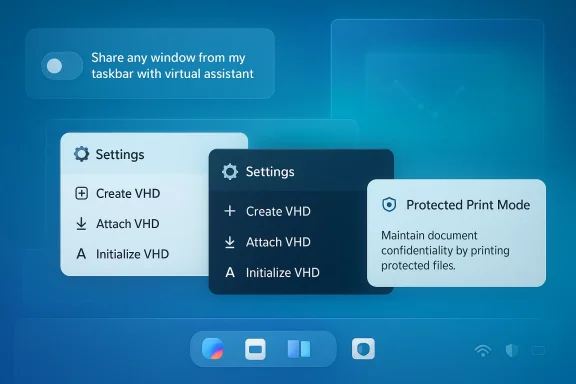
Several Insiders have reported a previously hidden toggle under Taskbar Settings that reads like a privacy/perms control for an assistant surface: a line along the lines of “Share any window from my taskbar with virtual assistant.” Whether presented as a switch or a checkbox, the setting’s presence strongly suggests an intention to allow an OS-level assistant — such as Copilot — to access or reference windows directly from the taskbar. Independent hands-on reports from the same build family also show the taskbar’s Search pill evolving into an “Ask Copilot” entry point, including inline icons for vision (share/capture) and voice activation.Why this matters
- Context-aware assistance becomes possible. Allowing the assistant to access or be granted windows from the taskbar would enable contextual actions without manual sharing — for example, summarizing the content of an active document, extracting data from a spreadsheet, or helping with an error dialog the user is viewing.
- A single, consistent entry point. The taskbar is one of Windows’ most visible surfaces; turning it into a guarded sharing hub for assistant functionality makes access predictable and discoverable.
- Permissions and telemetry questions. Adding such a toggle raises immediate privacy, security, and enterprise governance considerations. Does the toggle permit one-time sharing, transient access, or continuous monitoring? How will logs be surfaced for audits? Those are unresolved questions Insiders — and IT teams — should consider before enabling preview features on machines with sensitive data.
Practical implications for users and admins
- If you’re privacy-conscious, treat any new assistant toggle conservatively: keep it off until its behavior and logging are clear.
- IT administrators should prepare governance guidance for helpdesk staff and endpoint management policies in case the toggle reaches managed fleets.
- Automation and scripting that rely on specific taskbar behaviors may need retesting when the Copilot/taskbar experiments are enabled for your devices.
Modernized VHD dialogs: quiet UI cleanup that adds up
What changed
Insider builds in the .767x family are shipping WinUI-based, modernized confirmation dialogs for Virtual Hard Disk (VHD) actions — Create VHD, Attach VHD, and Initialize VHD — that replace legacy dialog fragments with a consistent Settings-style sheet. Visual updates include Fluent spacing, updated typography, and full light/dark theme parity consistent with broader WinUI migrations across Settings. These dialog updates are available to subsets of Insiders in both Dev and Beta preview streams.Why Microsoft is doing this
- Consistency across the OS. Migrating small but frequent system dialogs to WinUI reduces jarring theme breaks and visual inconsistencies between legacy Win32 prompts and modern Settings flows.
- Accessibility and automation. WinUI controls typically expose more reliable semantic roles, which can improve screen-reader output and keyboard navigation — though these gains must be validated across languages and assistive tools.
- Maintenance and rollout advantages. Consolidating to WinUI simplifies long-term maintenance, reduces duplicated styling work, and streamlines controlled rollouts for new dialog behavior.
Impact on IT operations
Even seemingly trivial dialog changes can break automation and RPA flows that rely on exact window titles, class names, or element hierarchies. Enterprises should:- Test UI automation and RPA flows against preview images.
- Revalidate onboarding and helpdesk scripts that perform VHD operations.
- Update documentation that screenshots legacy prompts to avoid user confusion.
Protected Print Mode gets a cleaner, theme-aware UI
What’s appearing in preview builds
Insider flights are showing refreshed dialogs for enabling and disabling Protected Print Mode, with matching Light and Dark mode visuals and a cleaner, more readable layout. The inclusion of these dialogs in the current cumulative payloads indicates Microsoft is still refining the printing platform’s user-facing surfaces as part of broader printing stability and security work. Recent build notes and Insider summaries also show printing fixes and platform stabilization as recurring items across the 26220-series updates.Why printing matters now
Printing has long been a fragile area of desktop OSes because it spans drivers, multiple subsystems, legacy code paths, and a broad array of hardware. Improving the clarity of security-related print dialogs is not just cosmetic: it reduces user error and can help admins enforce safer practices (for example, explicitly confirming when a protected-print workflow is in effect).That said, some specifics tied to feature identifiers and internal feature tags (for example, printed internal names like Print_PlatformStabilizationFixes_2026_Wave1 or numerical Feature IDs) may not be verifiable in public release notes, and their presence in the payload should be treated as a sign of ongoing engineering work rather than a finished consumer-facing feature. I flag such internal identifiers as cautionary: they help engineers organize work but are not always meaningful to end users until Microsoft documents them publicly.
Why these quiet changes matter — the bigger picture
Taken together, the updates reveal three converging priorities:- AI integrated into the shell. The taskbar toggle and taskbar-assistant experiments show Microsoft moving beyond a single Copilot app to making AI available in place-based surfaces — the taskbar, Search, and contextual vision/voice affordances. This is a platform-level shift: AI is becoming a first-class UI capability rather than an add-on.
- System-wide UI consistency. The steady migration of small system dialogs (Account Settings, VHD flows, other consistent WinUI updates) demonstrates a long-term effort to remove legacy visual remnants and bring parity between light/dark modes and modern WinUI controls. These changes improve polish but require validation of automation and accessibility paths.
- Reliability and security hardening. Refinements to print dialogs and ongoing printing stability work reflect a recognition that printing must be more robust and predictable, especially in enterprise and regulated environments. Printing fixes are repeatedly noted among fixes in the 26220/26300 series, indicating a focus on long-standing problem areas.
Risks, unanswered questions, and verification notes
Privacy and security concerns
- Scope of access. The taskbar sharing toggle implies the assistant may be allowed to access window content — but whether that access is one-time or persistent, local-only or cloud-assisted, is unclear from the visible UI alone. That distinction matters for Personally Identifiable Information (PII) and enterprise secrets.
- Telemetry and logging. Enterprises need clarity on what the assistant logs, where logs are stored, and how to audit or disable telemetry. These are governance topics that aren’t resolved by UI changes alone.
- Consent model. The presence of a permission toggle is encouraging from a privacy standpoint, but the granularity of consent (per‑window, per‑app, session-based) matters for practical security.
Compatibility and automation risk
- Breakage of UI automation. Migration to WinUI for system dialogs may change window class names, control IDs, or element trees relied upon by RPA and test automation. Organizations should test end-to-end scripts once the changes reach their test rings.
- Gated rollout confusion. Because the binaries can contain multiple features that are gated per device, different team members may report different behavior even when on the same cumulative update. This complicates troubleshooting and triage.
Verification caveats
- Some claims — for example, internal feature IDs or precise toggle wording seen in third‑party coverage — are not always visible in Microsoft’s official Insider release notes and therefore require caution. Where possible, I cross-referenced Insider summaries and multiple community reports that describe the same behaviors (taskbar Copilot pill, new WinUI dialogs, printing fixes) to establish reliability. However, any exact phrasing of hidden toggles or internal Feature IDs should be considered reported by Insiders or third‑party outlets rather than confirmed in Microsoft public documentation at this time.
What to watch next (for Insiders, IT, and power users)
- Check the Windows Update toggle: enable “Get the latest updates as soon as they are available” in Settings > Windows Update to increase the chance of being part of controlled rollouts, but only on test hardware. Microsoft’s controlled feature rollout means installations of the same KB may or may not flip features on your device immediately.
- Monitor the taskbar settings and Search/Copilot pill for new toggles or icons (vision/voice). If you see a new permission, test it in a sandbox environment to validate behavior before enabling on production machines.
- Re-run UI automation suites and RPA flows after installing Dev/Beta builds in a lab. Pay attention to account‑management dialogs and VHD flows that have been migrated to WinUI.
- Watch for official Microsoft updates in the Windows Insider Blog and Flight Hub that confirm rollout plans and clarify privacy/telemetry behavior. Because Microsoft often ramps features gradually, public confirmation may lag initial sightings by Insiders.
Practical checklist for testers and administrators
- Create a recovery snapshot before installing Dev/Beta flights on test machines.
- Enable the Insider toggle only on machines designated for testing (not production).
- Identify critical automation scripts (RPA, UI tests) and retest them against preview images.
- For governance: draft temporary guidance on assistant toggles — recommend default-off until you can audit logs and behavior.
- File clear, reproducible Feedback Hub reports if you surface unexpected behavior; include screenshots and reproduction steps so engineers can triage quickly.
Analysis: strengths, trade-offs, and where this leads
Strengths
- User-centric polish. Migrating legacy dialogs to WinUI and fixing printing dialog clarity are low-risk, high-impact wins for usability and accessibility.
- Pragmatic feature rollout. The enablement-plus-server-flag model reduces update churn while letting Microsoft iterate rapidly based on telemetry.
- Platform-readiness for assistant experiences. The taskbar sharing affordance and Copilot-powered taskbar experiments position Windows to deliver more context-aware AI features that feel integrated rather than bolted on.
Trade-offs and risks
- Transparency gap. Features that appear on devices before being documented create a transparency problem for enterprises and privacy-conscious users.
- Automation ripple effects. WinUI migrations can break automation unexpectedly, creating hidden costs for organizations that rely on UI scripting.
- Privacy and governance complexity. Assistant integrations require clear consent models, auditability, and enterprise-level controls that are not yet public.
Where this leads
These quiet updates are foundational: modernized dialogs reduce visual and accessibility debt, refreshed printing dialogs improve safety and clarity, and taskbar-level assistant controls suggest Microsoft will continue broadening assistant capabilities directly into the OS shell. Expect more such small, interlocking changes to arrive in Insider builds first, then in phased production rollouts once telemetry and enterprise feedback are satisfied.Conclusion
Windows 11’s most consequential changes over the next year may arrive not as major new apps but as a constellation of small, deliberate UI and platform improvements: guarded AI affordances in the taskbar, thorough WinUI migrations for consistency and accessibility, and steady stabilization of historically brittle subsystems like printing. For Insiders and IT professionals, the immediate work is practical: test, validate automation, establish governance for assistant toggles, and file measured feedback. The quiet nature of these rollouts is by design — it’s how Microsoft reduces risk while iterating — but it also means those watching the Insider ring closely get the earliest, and often clearest, signals about where Windows is headed next.Source: thewincentral.com Hidden Windows 11 Changes Quietly Rolling Out in Dev & Beta Builds (.767x)
