

Windows 11's Settings app is not merely a pared-down Control Panel — it's a surprising trove of hidden, oddball features that can improve convenience, productivity, and accessibility, but also introduce privacy and security trade-offs if enabled without caution. What appears at first glance to be a tidy collection of toggles and sliders actually houses Bluetooth-powered proximity locks, cross-device clipboard syncing, an AirDrop-like file transfer tool, developer-grade web portals, and legacy mixed-reality relics. This article unpacks ten of the strangest useful features tucked into Settings, explains how they work, evaluates the real benefits and risks, and offers practical guidance for power users and administrators who want to enable the helpful ones while mitigating exposure.
Windows 11 has continued Microsoft's long march away from the old Control Panel into a modern Settings app. That migration left the Settings interface with a curious mix: polished, new controls for display, accounts, and privacy sit alongside older capabilities and developer-focused pages that feel like leftovers from other Microsoft projects. The result is a Settings app that doubles as a toolkit and a small museum of Windows history.
These hidden options are worth examining because enabling them often changes system behavior in ways many users don't expect. Some are convenience features that save time, while others touch the device's attack surface, privacy envelope, or data lifecycle. Knowing which features exist, how they function, and what to watch out for helps users get value without surprises.
Some modern devices replace phone-based Dynamic Lock with presence sensors (IR cameras or radar-like sensors) that detect actual user presence and work with Windows Hello to lock and unlock the session without a phone.
Enable and configure it in System > Storage > Storage Sense.
Enable Game Mode at Gaming > Game Mode.
However, convenience often comes with cost: automated cleanup can delete irreplaceable files, silent syncs can leak sensitive content, and developer portals expand the device attack surface. The prudent approach is to enable only the features you need, configure them with conservative defaults, and treat unfamiliar Settings toggles as potential security or privacy decisions. When used thoughtfully, these odd little gems inside Settings can make Windows 11 both more productive and more personal; when left unmanaged, they can create brittle behaviors and exposure. Explore wisely.
Source: PCMag UK 10 Weird Hidden Features Inside Your Windows 11 Settings
 Background
Windows 11 has continued Microsoft's long march away from the old Control Panel into a modern Settings app. That migration left the Settings interface with a curious mix: polished, new controls for display, accounts, and privacy sit alongside older capabilities and developer-focused pages that feel like leftovers from other Microsoft projects. The result is a Settings app that doubles as a toolkit and a small museum of Windows history.These hidden options are worth examining because enabling them often changes system behavior in ways many users don't expect. Some are convenience features that save time, while others touch the device's attack surface, privacy envelope, or data lifecycle. Knowing which features exist, how they function, and what to watch out for helps users get value without surprises.
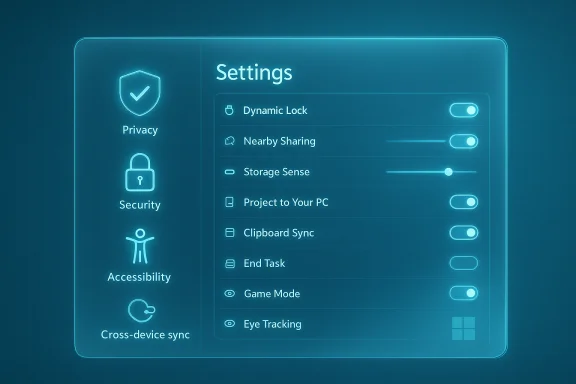
Overview of the ten features
- Dynamic Lock — locks the PC when your paired phone or presence sensor moves away.
- Nearby Sharing — a Windows-native peer-to-peer file and link sharing system over Bluetooth/Wi‑Fi.
- Storage Sense — automated cleanup rules that can purge Downloads, temp files, and Recycle Bin contents.
- Project to Your PC — turns your PC into a wireless display target for other devices.
- Clipboard Sync — syncs clipboard history between Windows PCs and, optionally, to Android via SwiftKey.
- End Task button on the taskbar — exposes a quick way to force-close misbehaving apps from the taskbar.
- Game Mode — a gaming toggle that mutes notifications and attempts to minimize interruptions; performance impact is modest.
- Eye Tracking — native support for eye-tracking hardware for control and accessibility.
- Title Bar Window Shake (Aero Shake) — minimize others by shaking a window's title bar.
- Device Portal — a developer-facing web interface for diagnostics and remote management, with remnants from Mixed Reality tooling.
Dynamic Lock
What it does and how to enable it
Dynamic Lock automatically locks your Windows PC when the paired Bluetooth device — typically your phone — moves out of range. Enable it under Accounts > Sign-in options > Additional settings. The system watches Bluetooth signal strength and triggers the lock when the device is deemed to have moved away.Some modern devices replace phone-based Dynamic Lock with presence sensors (IR cameras or radar-like sensors) that detect actual user presence and work with Windows Hello to lock and unlock the session without a phone.
Benefits
- Convenience and safety: Locks a workstation automatically when you walk away, reducing the chance of shoulder-surfing or unauthorized access.
- Low friction: No need to remember Windows+L; it’s automatic once paired.
Risks and caveats
- False positives: Bluetooth fluctuations might incorrectly interpret distance, producing unwanted locks during brief signal drops.
- Device dependency: Relying on a phone as a proximity token means that losing the phone or leaving it behind can lock you out or create access complications.
- Security posture: Bluetooth pairing must be secured. An attacker who can spoof or tamper with the Bluetooth environment could potentially prevent locking or trick the PC into unlocking.
Best practices
- Use a strong device pairing process and remove stale paired devices.
- Prefer presence sensors (Windows Hello-compatible IR cameras) where available for more reliable detection.
- Treat Dynamic Lock as an added convenience — not a sole security control — and continue to enforce strong sign-in methods.
Nearby Sharing
How it works
Nearby Sharing is Windows’ built-in, peer-to-peer sharing system that uses Bluetooth or local Wi‑Fi to transfer files, photos, or links between Windows PCs. Configure it at System > Nearby Sharing and use the Share option from File Explorer or the Share dialog.Benefits
- AirDrop for Windows: Fast ad-hoc file transfers without email or cloud uploads.
- No account requirements: Can be limited to devices using the same Microsoft account or open to all nearby Windows devices.
Risks and caveats
- Local exposure: If set to "Everyone nearby," any Windows device in range can attempt to send files — rely on prompts, but this increases nuisance or social-engineering risk.
- Platform limitation: Works only between Windows devices; cross-platform options require third-party tools.
- Network security: Transfers over untrusted Wi‑Fi can be susceptible to local network eavesdropping if not securely negotiated.
Best practices
- Limit Nearby Sharing to “My devices only” or devices signed in with the same Microsoft account for personal use.
- For enterprise environments, use managed file-sharing solutions that offer logging and policy enforcement.
- Turn the feature off when not needed.
Storage Sense
What it can do
Storage Sense automates disk maintenance tasks: purging temporary files, emptying Recycle Bin, and optionally deleting items from Downloads after configurable time thresholds (1, 14, 30, or 60 days).Enable and configure it in System > Storage > Storage Sense.
Benefits
- Automated housekeeping: Frees space with minimal user intervention.
- Customizable retention: Granular choices for how long Downloads items are kept.
Risks and caveats
- Data loss: Too-aggressive settings can delete files users expected to retain (e.g., a download saved for later).
- User confusion: Casual users may not realize files were deleted by an automated policy.
- Backup mismatch: If a user relies on local downloads for backup, Storage Sense may silently remove them before they’re copied elsewhere.
Best practices
- Review the default thresholds and raise retention if you frequently store useful files in Downloads.
- Use cloud sync for critical files and educate users on where to save important downloads.
- For IT-managed machines, set Storage Sense policies via device management rather than leaving defaults.
Project to Your PC
Capabilities and setup
Project to Your PC lets a Windows device act as a wireless display target. Install the optional Wireless Display feature and enable System > Projecting to this PC. Once enabled, other Windows devices can press Windows+K and cast their screen to the host PC.Benefits
- Flexible workflows: Use a powerful desktop as a display for a laptop, run collaborative sessions, or mirror a device in meetings.
- No extra hardware: Works over a local network without HDMI cables.
Risks and caveats
- Network exposure: Allowing unsolicited projection increases the attack surface; attackers on the same network might attempt to connect.
- Privacy leakage: Accepting a projection session reveals the remote screen on your display.
- Performance and latency: Mirroring can be affected by network quality.
Best practices
- Configure projection to require user approval and restrict to authenticated devices.
- Use it on trusted networks (home or secured enterprise VLANs) only.
- Disable the feature when not in use.
Clipboard Sync
What it does
Windows 11 stores clipboard history (Windows+V) and can sync clipboard contents between PCs tied to the same Microsoft account. A manual sync option lets users push specific clipboard entries to other devices. On Android, signing into the SwiftKey keyboard with your Microsoft account enables clipboard sync across platforms.Benefits
- Productivity: Seamless copy-paste between laptop and desktop increases efficiency.
- Control: The manual push method gives users selective sharing control.
Risks and caveats
- Data leakage: Sensitive content copied to the clipboard (passwords, tokens, PII) may be synced unintentionally.
- Cross-device persistence: Clipboard items can persist beyond the intended timeframe and remain on a device you no longer control.
- Third-party app exposure: Other apps on synced devices may access clipboard content.
Best practices
- Never copy passwords or sensitive tokens if clipboard sync is enabled; use a password manager that supports secure copy features.
- Use the manual sync option when you need to ensure only selected content travels between devices.
- Review and purge clipboard history periodically via Windows+V.
An End Task Button on the Taskbar
What it offers
An "End Task" toggle under System > Advanced adds a right-click option to forcibly close apps directly from the taskbar. This cuts the need to open Task Manager to terminate hung processes.Benefits
- Speed: Faster recovery from frozen applications.
- Convenience: Less technical friction for non-expert users.
Risks and caveats
- Data loss: Forcibly terminating an app can discard unsaved work.
- Frequent misuse: Users might habitually kill apps instead of troubleshooting, masking underlying problems.
Best practices
- Use sparingly for truly unresponsive apps.
- Teach users to save work regularly and to use "End Task" only as a last resort.
- For systems with recurring hangs, investigate root causes (drivers, updates, extensions).
Game Mode
Intended behavior
Game Mode attempts to optimize gaming by reducing interruptions and deprioritizing background work. It blocks some Windows Update activities and suppresses notifications, while Microsoft’s earlier resource APIs have been deprecated, meaning the performance gains are often minimal.Enable Game Mode at Gaming > Game Mode.
Benefits
- Fewer interruptions: Notifications and certain updates are muted during play.
- Simplicity: Default-on behavior means most players won’t need to configure anything.
Risks and caveats
- Limited impact: Benchmarks often show negligible frame-rate improvements, and the feature is not a silver bullet for performance issues.
- Expectation mismatch: Users may expect dramatic gains and be disappointed.
Best practices
- Keep Game Mode enabled for a distraction-free session; disable only when troubleshooting specific incompatibilities.
- Focus optimization efforts on drivers, GPU settings, and game-specific tweaks rather than relying on Game Mode alone.
Eye Tracking
Functionality and requirements
Windows 11 supports eye-tracking hardware natively for pointer control, typing, and accessibility interactions. Devices such as specialist Tobii eye trackers integrate directly, enabling hands-free operation.Benefits
- Accessibility: Life-changing for users with limited motor control, enabling independent computer use.
- Hands-free interactions: Can accelerate workflows for specialized users (e.g., content reviewers, assistive tech contexts).
Risks and caveats
- Hardware dependency: Requires dedicated, often costly hardware not standard on most laptops.
- False triggers: Gaze interpretation can produce unintended actions without careful calibration.
- Privacy concerns: Eye movement data can be sensitive; applications and services receiving gaze signals must be trusted.
Best practices
- Use eye-tracking only with reputable hardware and vendor software.
- Calibrate thoroughly and adjust dwell times to reduce false positives.
- Treat gaze data as sensitive — manage storage and sharing carefully.
Title Bar Window Shake (Aero Shake)
What it is
A legacy usability gesture from the Aero era, Aero Shake lets users minimize all other windows by grabbing and shaking the title bar of a window. It’s found under System > Multitasking as Title Bar Window Shake and is disabled by default.Benefits
- Quick focus: Useful for quickly isolating a single window without hunting for minimize buttons.
- Familiarity: Longtime Windows users may prefer the physical gesture.
Risks and caveats
- Accidental activation: Users who move windows often may trigger unwanted minimization.
- Limited utility: Modern multitasking features (Snap Layouts, Virtual Desktops) often make Aero Shake redundant.
Best practices
Turn it on only if you find the gesture helpful; otherwise leave it off.Device Portal
What it exposes
Device Portal is a developer-oriented web interface that provides remote diagnostics, window management, and file browsing for devices — originally built for HoloLens and Mixed Reality workflows. Enable Developer Mode and Device Portal under System > Advanced.Benefits
- Remote diagnostics: Useful for developers and IT admins who need device telemetry and remote control.
- Advanced tooling: Exposes endpoints for debugging, imaging, and performance analysis.
Risks and caveats
- Attack surface: Exposing a web portal on a device can be risky if left enabled or misconfigured.
- Legacy cruft: Some pages reference Mixed Reality and HoloLens artifacts that aren't relevant to most users, increasing confusion.
- Authentication and network exposure: Proper authentication (and network segmentation) is essential when Device Portal is enabled.
Best practices
- Enable Device Portal only for development sessions and disable it after use.
- Ensure strong authentication and restrict access to trusted networks or management VLANs.
- For enterprise use, prefer managed remote tools with logging and compliance controls.
What these features tell us about Windows settings design
Windows 11's Settings app is a hybrid: part modern UX, part legacy toolbox, and part developer console. That combination yields both opportunity and risk. On the opportunity side, Microsoft has consolidated many conveniences into a single place, enabling workflows that span devices, accessibility modes, and new interaction models. On the risk side, the Settings app collects a wide range of capabilities — some with significant security and privacy implications — side by side without a single, unified risk posture or centralized explanation. Users and administrators must therefore act deliberately.- Power users gain meaningful productivity benefits from Nearby Sharing, Clipboard Sync, and Project to Your PC.
- IT teams should evaluate features like Device Portal and Dynamic Lock for managed configurations and policies that align with corporate security standards.
- Accessibility advocates will welcome built-in eye-tracking and presence-aware sign-in improvements that reduce friction for people with disabilities.
Recommendations for users and administrators
- Audit and default-disable any developer or network-facing features (Device Portal, Project to Your PC, Nearby Sharing) on managed machines unless specifically required.
- Educate users about Storage Sense’s aggressive settings; recommend cloud storage for important downloads.
- Treat clipboard syncing as a convenience feature with real privacy risk; disable it on systems handling sensitive information.
- Prefer presence sensors and Windows Hello for automatic lock/unlock over phone-based Dynamic Lock when possible.
- For gamers, test Game Mode on a per-title basis but focus optimization work on drivers and hardware settings first.
- For environments with assistive-technology needs, plan procurement for compatible eye-tracking hardware and create clear data-handling rules for gaze telemetry.
Conclusion
Windows 11's Settings app is a surprising mix of hidden conveniences and legacy artifacts that rewards exploration. Features such as Nearby Sharing, Clipboard Sync, and Project to Your PC can materially streamline cross-device workflows, while developer-facing tools like Device Portal remain powerful but require careful control. Accessibility features, including eye tracking and presence-based sign-in, show meaningful progress toward more inclusive interactions.However, convenience often comes with cost: automated cleanup can delete irreplaceable files, silent syncs can leak sensitive content, and developer portals expand the device attack surface. The prudent approach is to enable only the features you need, configure them with conservative defaults, and treat unfamiliar Settings toggles as potential security or privacy decisions. When used thoughtfully, these odd little gems inside Settings can make Windows 11 both more productive and more personal; when left unmanaged, they can create brittle behaviors and exposure. Explore wisely.
Source: PCMag UK 10 Weird Hidden Features Inside Your Windows 11 Settings
