

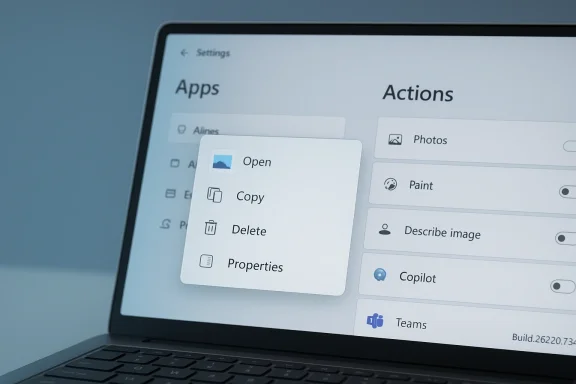
Microsoft has quietly given Windows 11 users a real way to make the intrusive “AI Actions” entry in File Explorer’s right‑click menu disappear: in Insider Preview Build 26220.7344 Microsoft changed File Explorer’s context‑menu logic so that if there are no available or enabled AI Actions, the entire AI Actions section is suppressed, and you can achieve that outcome by turning every App Action off in Settings → Apps → Actions.
Windows 11 has been steadily folding small, context‑sensitive AI shortcuts into core surfaces of the OS. One prominent example is AI Actions — a File Explorer submenu that surfaces AI‑powered shortcuts such as Bing Visual Search, Blur background, Erase object, Remove background, and Copilot‑powered Summarize options for supported files. The intent was straightforward: present one‑click access to common, generative tasks directly where users already interact with files. That intent collided with reality. For many users the submenu mainly acted as a launcher: selecting an AI Action would open Photos, Paint, Edge, or Copilot to perform the work rather than edit the file inline inside Explorer. Worse, a usability bug made matters worse: even after toggling all the AI Actions off in Settings, the parent AI Actions header remained visible as an empty, useless placeholder — consuming vertical space and adding visual clutter to an already dense context menu. Community feedback pushed the issue into the spotlight and Microsoft responded in the December Insider update.
Typical AI Actions you might have seen include:
From a product‑management perspective, the fix is low‑risk and high‑impact. It’s a conditional suppression in the shell’s menu assembly — small code, big usability payoff. More than that, it signals Microsoft’s responsiveness to community feedback inside the Insider program and shows an appetite for incremental polish amid a broader push to add AI experiences across Windows.
At the same time, the underlying debates remain unresolved. Users still lack a built‑in way to fully customize the context menu, enterprises still need clear, auditable assurances about data flows for AI Actions, and staged rollouts continue to create short windows of inconsistent behaviour. For now, the supported path — toggling App Actions off in Settings — provides a clean, supported way to banish the AI Actions header when you don’t want it, and the Windows Insider release notes make that behaviour explicit.
Source: BetaNews Microsoft will let you remove AI Action from the Windows 11 context menu
 Background
Windows 11 has been steadily folding small, context‑sensitive AI shortcuts into core surfaces of the OS. One prominent example is AI Actions — a File Explorer submenu that surfaces AI‑powered shortcuts such as Bing Visual Search, Blur background, Erase object, Remove background, and Copilot‑powered Summarize options for supported files. The intent was straightforward: present one‑click access to common, generative tasks directly where users already interact with files. That intent collided with reality. For many users the submenu mainly acted as a launcher: selecting an AI Action would open Photos, Paint, Edge, or Copilot to perform the work rather than edit the file inline inside Explorer. Worse, a usability bug made matters worse: even after toggling all the AI Actions off in Settings, the parent AI Actions header remained visible as an empty, useless placeholder — consuming vertical space and adding visual clutter to an already dense context menu. Community feedback pushed the issue into the spotlight and Microsoft responded in the December Insider update. What Microsoft changed in Build 26220.7344
Microsoft documented the fix explicitly in the Windows Insider release notes for Windows 11 Insider Preview Build 26220.7344 (KB5070316): “If there are no available or enabled AI Actions, this section will no longer show in the context menu.” That single sentence changes the display logic: File Explorer now checks whether any registered App Actions that expose AI Actions are present and enabled for the selected file type, and if none are found it omits the AI Actions parent entirely. Independent reporting and community tests confirm the behavior: after installing the build and toggling all AI Actions off under Settings → Apps → Actions, the AI Actions item no longer appears in the File Explorer right‑click menu on devices where the staged rollout flag has reached them. Several outlets that tracked the change framed it as a tidy UX polish that restores user control over menu chrome.Channels and rollout behaviour
The change shipped to the Dev and Beta channels and Microsoft notes that many fixes in Insider builds are gradually rolled out and sometimes server‑gated. That means two machines running the same build may show different behavior while the feature flag ramps. If you updated and still see the empty AI Actions header after disabling actions, it may simply be that the staged flag has not yet reached your device.How AI Actions works now — the practical view
AI Actions are implemented on top of Windows’ App Actions framework: an extensible registration system that lets applications expose small, task‑oriented handlers to the OS. When File Explorer builds a context menu it queries registered handlers for the selected file type and displays the AI Actions parent only if there is at least one applicable, enabled handler. The Build 26220.7344 change adds a guard that omits the parent when the handler list is empty.Typical AI Actions you might have seen include:
- Bing Visual Search — perform an image lookup in Edge using the selected file.
- Blur background / Erase object / Remove background — quick links into Photos or Paint editing tools.
- Summarize — Copilot‑powered summarization for Office documents in OneDrive/SharePoint (requires Microsoft 365/Copilot entitlements).
How to remove AI Actions from the context menu today
If your device has received the updated behavior you can make the AI Actions parent disappear through the supported Settings path — no registry hacks or third‑party shell editors required.- Open Settings (Win + I).
- Go to Apps in the left column.
- Click Actions.
- Toggle off every app action listed that exposes AI Actions (Photos, Paint, Describe image/system, Microsoft 365/Copilot entries, Teams, etc..
- Right‑click a supported file (for example JPG or PNG) in File Explorer and confirm the AI Actions parent no longer appears.
Why this matters: UX, control, and perception
Small context‑menu entries matter. File Explorer is one of the highest‑frequency surfaces in Windows; repeated exposure to a cluttered right‑click menu compounds frustration. The empty AI Actions placeholder was more than an aesthetic annoyance: it disrupted visual scanning patterns, used up vertical space on small screens, and reinforced the perception that Microsoft was stuffing AI into every surface rather than thoughtfully integrating it. This change restores a basic expectation: if you opt out of a feature, the OS should stop advertising it in the UI.From a product‑management perspective, the fix is low‑risk and high‑impact. It’s a conditional suppression in the shell’s menu assembly — small code, big usability payoff. More than that, it signals Microsoft’s responsiveness to community feedback inside the Insider program and shows an appetite for incremental polish amid a broader push to add AI experiences across Windows.
Critical analysis — strengths and remaining gaps
Strengths
- Respects user choice. Turning toggles off in Settings now removes the UI chrome the toggles control. That restores a predictable relationship between settings and visible UI.
- Low‑risk engineering. The change is a guard clause in menu assembly logic — easy to roll out, easy to revert.
- Part of a larger cleanup. Microsoft is also experimenting with grouping similar commands, consolidating OneDrive menu entries, and improving Open With behavior — all steps toward a leaner Explorer.
Limitations and unresolved issues
- Not full customizability. There is still no native, user‑friendly context‑menu editor in Windows Settings to permanently remove or reorder first‑party entries. Power users who want fine‑grained control must resort to registry edits or third‑party utilities.
- Fragmented behavior during rollouts. The staged, server‑gated model produces short windows where devices on the same binary behave differently. That makes troubleshooting and documentation harder for IT teams and support staffs.
- Perception vs. reality. Hiding an empty header removes an immediate annoyance but does not address the broader question: should the OS surface first‑party AI affordances in context menus at all? Many users argue that duplicating app capabilities in the shell feels like product placement more than productivity tooling.
Privacy, security and enterprise governance concerns
AI Actions are more than a visual nuisance — they are a new surface that sometimes triggers local or cloud processing. For example, document summarization is tied to Microsoft 365/Copilot entitlements and may invoke cloud services; other image operations can be implemented locally or routed to Microsoft datacenters depending on device capabilities and licensing. That raises several governance considerations for IT teams:- Data egress: Administrators should confirm whether a given AI Action uploads file contents to Microsoft services and under what entitlements and terms. Copilot/Microsoft 365 flows are often tied to tenant licensing and conditional controls.
- Audit and compliance: Organizations should map which App Actions are enabled across their managed fleet and whether those actions are permitted under data‑handling policies. The presence of an AI Actions menu does not, by itself, mean data leaves the corporate perimeter — but the underlying handler might.
- Controls and hardening: Where available, manage exposure through Windows Update rings, Group Policy, MDM policies (Intune), AppLocker/MDM to block or restrict the implementing apps, or by removing the apps themselves from managed images. Relying on staged Insider rollouts or toggles alone is not a substitution for firm administrative controls.
Recommendations for different audiences
For everyday users who just want a clean menu
- Follow the Settings → Apps → Actions path and toggle off all App Actions. If you’re on an Insider build and the AI Actions header still appears, allow time for the staged rollout to complete.
For power users
- If you require deeper context‑menu control (reordering or permanently hiding specific first‑party entries), consider well‑known shell editors or registry techniques, but proceed cautiously: unsupported edits can have stability or security implications.
- Keep an eye on upcoming Insider releases: Microsoft’s long‑term direction may include a more robust menu management tool or additional granular controls.
For IT administrators and security teams
- Verify for each AI Action whether data is processed locally or sent to cloud services.
- Use Update rings, Group Policy, or MDM to pilot changes in a controlled manner.
- Consider blocking or removing unwanted handler apps from managed images if policy requires it.
- Monitor telemetry and audit logs for unexpected uploads or Copilot usage tied to context‑menu actions.
Broader context — where this fits in Microsoft’s AI strategy
This change is a small but instructive piece of a larger engineering story. Microsoft is building foundational platform plumbing (for example Model Context Protocol, or MCP) to let agents discover and call app tools and connectors securely; AI Actions is an early, consumer‑visible surface built on those plumbing layers. Addressing UX friction like an empty context‑menu header is necessary as Microsoft experiments with agentic workflows tied to apps and system connectors. But the presence of MCP and agent connectors also amplifies the governance and transparency requirements for administrators and users.What to watch next
- Whether Microsoft will add a native context‑menu editor in Settings to let users remove or rearrange built‑in entries without hacks. Many users and power users still want that level of control.
- How Microsoft communicates per‑action data flows and whether it will surface, at the point of action, whether processing is local or cloud‑based.
- How staged rollouts are handled for UI fixes: clearer messaging about server‑gated flags and rollout windows would make support and documentation easier for admins and community sites tracking changes.
Conclusion
What looks like a tiny change — hiding an empty AI Actions entry in File Explorer — is a useful example of user‑first polishing that matters in practice. By adjusting context‑menu logic in Build 26220.7344, Microsoft restored a basic expectation: turning off a setting should remove the visible UI for that setting. The fix is a pragmatic, low‑risk improvement that reduces clutter and signals attention to quality.At the same time, the underlying debates remain unresolved. Users still lack a built‑in way to fully customize the context menu, enterprises still need clear, auditable assurances about data flows for AI Actions, and staged rollouts continue to create short windows of inconsistent behaviour. For now, the supported path — toggling App Actions off in Settings — provides a clean, supported way to banish the AI Actions header when you don’t want it, and the Windows Insider release notes make that behaviour explicit.
Source: BetaNews Microsoft will let you remove AI Action from the Windows 11 context menu
