

If you’re wrestling with the phrase “Hot ATI Install Manager 2026” or still see an “AMD Catalyst Install Manager” entry on a modern Windows PC, you’re not alone — this article explains what that software is, why it still appears, how Catalyst fits into AMD’s current driver story, and safe, practical ways to install or retire legacy Catalyst-era drivers on Windows systems in 2026. I’ll also walk through step‑by‑step, conservative installation workflows, explain the manual INF method for archived Catalyst packages, and flag the security and compatibility risks you need to know before you click install.
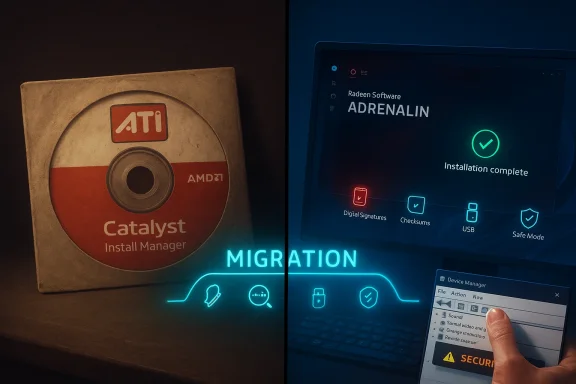
AMD’s long-running driver suite originally shipped as ATI Catalyst (later AMD Catalyst). That driver stack included the display driver, the Catalyst Control Center (CCC), and an installer utility commonly shown as AMD Catalyst Install Manager. In 2015 AMD substantially overhauled this stack: Catalyst was succeeded by Radeon Software Crimson, which later evolved into the modern Radeon Software — Adrenalin family. The name change marked a rewrite of the UI and installer framework and a shift in how AMD delivers updates and features.
Despite that evolution, archives of Catalyst installers remain in circulation because many legacy Radeon cards — and older laptops with vendor‑specific drivers — still require those packages or their extracted driver binaries to operate correctly on older Windows mCommunity and support documentation still references manual installation procedures for legacy Catalyst packages and the use of the AMD/ATI installer utilities for older hardware.
Why be cautious:
For most users in 2026 the right path is:
In summary: the AMD Catalyst Install Manager is an archival installer artifact from the Catalyst era. It can still be used for legacy GPU support, but in 2026 you should default to Windows Update, OEM packages, or Radeon Software Adrenalin, and treat any legacy Catalyst install as an advanced, backup‑first operation. Follow the safety checklist above, verify digital signatures, and use DDU where needed — those three steps cover most real‑world failures and security pitfalls when dealing with ATI/AMD drivers today.
Source: Born2Invest https://born2invest.com/?b=style-231985912/
 Background / Overview
AMD’s long-running driver suite originally shipped as ATI Catalyst (later AMD Catalyst). That driver stack included the display driver, the Catalyst Control Center (CCC), and an installer utility commonly shown as AMD Catalyst Install Manager. In 2015 AMD substantially overhauled this stack: Catalyst was succeeded by Radeon Software Crimson, which later evolved into the modern Radeon Software — Adrenalin family. The name change marked a rewrite of the UI and installer framework and a shift in how AMD delivers updates and features. Despite that evolution, archives of Catalyst installers remain in circulation because many legacy Radeon cards — and older laptops with vendor‑specific drivers — still require those packages or their extracted driver binaries to operate correctly on older Windows mCommunity and support documentation still references manual installation procedures for legacy Catalyst packages and the use of the AMD/ATI installer utilities for older hardware.
What is the AMD Catalyst Install Manager?
A short technical definition
The AMD Catalyst Install Manager is the installer utility bundled with older Catalyst driver packages. Its job historically was to:- Unpack and install the display driver binaries and device INF files.
- Install Catalyst Control Center and optional components.
- Offer uninstall/repair/modify options for Catalyst‑era installations.
Why people still see it in 2026
There are a few common reasons users still encounter Catalyst Instay installer was never fully removed and left service entries, scheduled tasks, or leftover files under C:\AMD or C:\ATI.- The sysWindows 7/8 to Windows 10/11 without a clean driver migration, preserving old installer artifacts.
- Third‑party repackaged drivers or unofficial “all‑in‑one” installers included components. These repackaged bundles are often risky and sometimes unsigned.
AMD’s driver roadmap: Catalyst → Crimson → Adrenalin
Understanding the driver lineage clarifies why Catalyst-era packages are archival rather than current.- Catalyst was AMD’s driver brand for many years and included CCC. The last major Catalyst releases were focused on Windows 7/8-era kernels.
- In late 2015 AMD introduced Radeon Software Crimson, a full redesign of the stack (Qt UI, faster load, monthly updates). Crimson intentionally replaced Catalyst and set the path to Adrenalin.
- Today AMD delivers Radeon Software (Adrenalin Edition) builds for Windows 10 and Windows 11, with legacy Catalyst builds preserved only for older hardware compatibility. Recent vendor messaging and release notes show AMD consolidating active feature development in the Adrenalin series while maintaining maintenance updates for certain older GPUs.
Should you install Catalyuide
Short answer: only if you have a specific legacy GPU that requires it, and only after careful preparation.Why be cautious:
- Many Catalyst packages were written for Windows 7/8 kernels and are not validated for modern Windows 10/11 updates. They can break modern Boot, Memory Integrity, and driver signing enforcement.
- Unofficial / repackaged installers frequently remove digital signatures, edit INFs, and security risk. Always check signatures and prefer vendor pages.
- You have an older discrete GPU (HD 5000 / 6000 / 7000 era or mobility variants) that the modern Adrenalin installer refuses to support, and the official AMD archive lists a legacy Catalyst package targeting your exact device.
- You're restoring an old workstation or using software that specifically depends on legacy driver behavior unavailable in modern Radeon Software.
Safe, conservative workflow for installing AMD graphics dems
This stepwise workflow reduces risk and follows community and vendor best practices.- Inventory and backups (non‑negotiable)
- Record your GPU hardware ID: Device Manager → Display adapters → right‑click → Propertie Ids (copy the PCI\VEN_1002&DEV_xxxx string).
- Create a System Restore point and ideally a full disk image. Driver changes to the display stack can render a system temporarily unusable.
- Try n first
- Let Windows Update attempt to install a Microsoft‑signed Radeon driver via Settings → Windows Update → View optional updates → Driver updates. This is typically the safest approach.
- Check OEM/vendor downloads for branded systems
- For laptops or vendor‑branded desktops, prefer the OEM driver package. OEM packages are tested for hybrid graphics, power management, and hotkeys.
- If you must install a vendor AMD package (Adrenalin or legacy Catalyst)
- Download the recommended WHQL Adrenalin build or the specific legacy Catalyst package listed for your GPU on AMD's product page. Verify digital signatures and any provided checksums. (tomshardware.com)
- Clean previous drivers if switching families or troubleshooting
- Use AMD Cleanup Utility or the community‑recommended Display Driver Uninstalleo remove residual artifacts. Community evidence shows DDU significantly reduces partial install failures.
- Install as Administrator and validate
- Run the installer as Administrator, select the minimal set of components if you prefer, reboot, and validate Device Manager shows an AMD driver (not Microsoft Basic Display Adapter).
- Keep a rollback plan
- Keep the installer and DDU on removable media. If anything breaks, restore your image or roll back the drger.
Advanced: how to perform a manual INF install for archived Catalyst packages
This is an advanced, last‑resort method for legacy GPUs when the GUI installer refuses to run. Only attempt this if you are comfortable with Windows admin tasks and have full backups.- Step A — Extract the installer
- Launch the Catalyst installer and let it self‑extract (it usinto C:\AMD or C:\ATI). If the GUI fails, don’t panic — note the extraction path.
- Step B — Inspect the INF
- Open the extracted Packages\Drivers\Display\W86 or W64 folder and find the Display.Driver*.inf. Search for your exact PCI\VEN_1002&DEV_xxxx hardware ID. If theur device, stop. Do not edit the INF unless you are prepared to re‑sign drivers — editing and signing drivers incorrectly undermines kernel signing protections.
- Step C — Install via Device Manager
- In Device Manager, right‑click the display adapter → Update driver → Browse my computer for driver software → Let me pick from a list → Have Disk… → point to the extracted INF and install only the Display Driver component. Reboot.
- Step D — Handling signature problems
- If Windows refuses due to driver signing enforcement, you can temporarily disable signature enforcement for the session (Advanced Boot Options → Disaenforcement) or enable Test Mode (bcdedit /set testsigning on) for a short test. Revert any enforcement changes after testing. Do not leave enforcement disabled on production machines.
Troubleshooting common failure modes
- Installer reports “This device is no: The driver’s INF lacks your device’s VID/PID. Fix: extract the package and install via Device Manager only if the INF contains your hardware ID.
- Device Manager shows “Microsoft Basic Display Adapter” after install
Cause: Partial instaltraces. Fix: Boot to Safe Mode, run DDU, and retry the correct package. - Windows Update keeps replacing your manual driver
Cause: Microsoft cataloged a different signed driver as preferred. Fix: Pause/hide the specific driver update while you validate the manual install; re‑enable updates after confirmation. - Catalyst/Install Manager persists after uninstall
Fix: Use Revo Uninstaller or manual cleanup (uninstall, remove C:\AMD/C:\ATI, remove service entries) and then run an anti‑adware / anti‑malware scan. ment success with Revo in stubborn cases.
Security, integrity, and privacy considerations
- Always verify digital signatures.properties → Digital Signatures tab should list AMD or your OEM. Unsigned installers are a red flag.
- Check checksums. If AMD or OEM publishes SHA‑256 hashes, verify them. Avoid third‑partyyptographic checksums.
- Beware repackaged installers and “one‑click” updaters. They frequently bundle adware or unsigned kernel code. Community moderation and security‑minded posts strongly discourage their use.
- Cookie/privacy text snippets (like the one quoted in your original message) are generic website cookie notices. They are unrelated to driver integrity but remind you to avoid downlers from unknown or commercial sites that may prioritize marketing over authenticity. Treat any such site claims (e.g., “cheap ATI drivers” or “free shipping” banners) as unverified advertising. imitations — what can go wrong
- System instability and black screens: changing the display stack can produce boot failures; always have Safe Mode and recovery media ready.
- Uressions: legacy Catalyst packages may lack optimizations and support for modern APIs (Vulkan, DX12) and video offload features on new Windows kernelsres: unsigned or repackaged drivers can introduce kernel‑level malware. Verify signatures and use scans on any downloaded binary.
- OEM nuance: on laptops with switchable graphics, installing a grenalin package can break power‑management, battery life, or hotkeys. Prefer OEM packages for laptop models.
Practical, step‑by‑step checklist (copy/past create a full system image and at least a System Restore point. CI\VEN_1002&DEV_xxxx from Device Manager.
-tional driver first.- If branded device, downlo
- If using AMD package: verify digital signature, checksums if present. ks or cleaning a broken install: run DDU in Safe Mode, reboot.
- Install the driveinimal components if unsure. Reboot and validate.
- If GUI installer fails and you need a r: extract, verify INF contains your hardware ID, and install via Device Manager (Have Disk). Use signing exceptions only for short tests.
Final analysis and recommendation
The “Hot ATI Install Manager 2026” phrasing captures a real user experience: legacy ATI/AMD installer artifacts still surface on modern systems. The technical reality is straightforward — Catalyst is legacy; the modern supported stack is Radeon Software (Adrenalin). Use Catalyst packages only when an archived driver is the only path to hardware functionality for older GPUs, and always perform that work with strict safety steps: backups, signature checks, DDU cleans, INF verification, and an immediate rollback plan.For most users in 2026 the right path is:
- Prefer Windows Update or OEM drive Use modern Radeon Software Adrenalin releases when your GPU is supported.
- Only use Catalyst/archived installers for genuine legacy needs and treat such installs as advanced operations requiring careful risk management.
In summary: the AMD Catalyst Install Manager is an archival installer artifact from the Catalyst era. It can still be used for legacy GPU support, but in 2026 you should default to Windows Update, OEM packages, or Radeon Software Adrenalin, and treat any legacy Catalyst install as an advanced, backup‑first operation. Follow the safety checklist above, verify digital signatures, and use DDU where needed — those three steps cover most real‑world failures and security pitfalls when dealing with ATI/AMD drivers today.
Source: Born2Invest https://born2invest.com/?b=style-231985912/
