

Microsoft has pushed passkeys from a future-facing concept into a practical sign-in option for both personal and work/school accounts, and the company’s guidance now makes the process feel deliberately familiar: pick a device, choose a storage location, confirm with a biometric or PIN, and you are done. The latest support documentation also shows Microsoft leaning hard into sync, Windows Hello, and Microsoft Password Manager as the preferred on-ramp for most users, while still keeping room for hardware security keys and third-party credential managers. For Windows users, that means passkeys are no longer just “supported” in theory; they are becoming a normal part of account setup and daily authentication.
Passkeys are Microsoft’s latest step in the broader industry move away from passwords and toward phishing-resistant authentication. Instead of typing a secret that can be stolen, reused, or tricked out of a user through a fake login page, the passkey ties sign-in to a device and to the user’s local unlock method, such as face, fingerprint, or PIN. Microsoft’s support pages explicitly frame passkeys as a replacement for passwords and note that biometric data stays on the device rather than being shared with Microsoft.
That matters because the history of consumer and enterprise identity is largely a history of workarounds. Password complexity rules, multi-factor authentication, SMS codes, app approvals, and one-time codes all improved security in pieces, but they also added friction. Passkeys represent the strongest attempt yet to combine ease of use with cryptographic security, and Microsoft is positioning Windows as one of the most important platforms for that transition. Windows 10 and newer are now officially listed as supported for Microsoft account passkeys, while Windows 11 adds deeper management options for locally saved credentials.
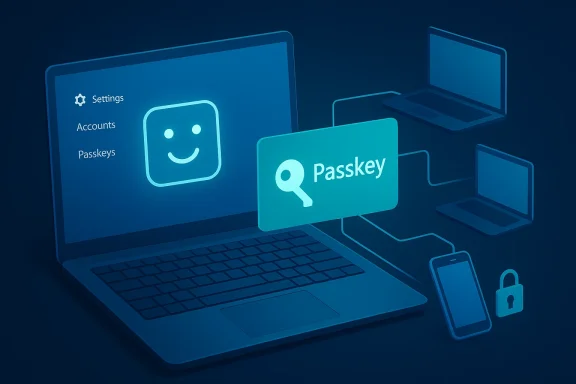
The company’s current support pages also reflect a shift in where identity lives. Microsoft no longer treats the Windows device itself as the only meaningful storage location. A passkey can be saved locally, synced via Microsoft Password Manager, stored in a third-party credential manager, placed on a security key, or even written to a phone or tablet through a QR-code flow. That flexibility is central to adoption, because users do not all live in the same device ecosystem.
For Microsoft, this is more than a convenience feature. It is a strategic bridge between consumer accounts, enterprise identity, Windows sign-in, Microsoft Edge, Microsoft Authenticator, and the broader FIDO2 ecosystem. The support pages now read like a map of the company’s passwordless ambitions: create a passkey in one place, use it in another, manage it from a central setting, and sync it wherever the user goes. That is a significant evolution from the older model where each authenticator method was a separate island.
The support material also emphasizes that passkeys are not limited to a single device model or storage strategy. A user can save the passkey to Microsoft Password Manager, a third-party passkey manager, a security key, a phone or tablet, or the Windows device itself. This is a practical acknowledgment that passwordless authentication has to fit mixed fleets, not just perfect lab conditions.
There is also an important trust angle. Microsoft notes that biometric data stays on the device, which helps remove one of the biggest psychological barriers to using face or fingerprint unlock. Users are often more willing to accept biometrics when the vendor is explicit that the biometric template is local and never shared.
The supported storage choices are especially interesting. Microsoft Password Manager is presented as a first-class option, and Microsoft says passkeys saved there will sync across Windows devices. That creates a powerful convenience layer for people who already live in Edge and Microsoft account services. It also suggests Microsoft wants passkeys to become part of a managed identity fabric rather than isolated credentials.
This matters for enterprise admins and for power users. A locally bound passkey offers tighter device-level control, while a synced passkey offers survivability and convenience across multiple devices. The trade-off is familiar from the broader endpoint-management world: convenience increases resilience, but it also expands the number of places an identity artifact can exist.
What stands out here is that Microsoft is folding passkeys into the same control plane that already governs account recovery and verification. That is the right design choice, because passkeys are only useful if they remain visible enough to manage but simple enough not to overwhelm the user. The company appears to be trying to preserve a single place where identity methods can be added, reviewed, or revoked.
That model is significant because it lowers the burden of remembering passwords without removing the need for trust signals. The user is still proving presence on a trusted device, but the proof is cryptographic and local rather than memorized and reusable. That is a more modern way to define identity. It also feels less ceremonial to the end user, which helps adoption.
The organization-controlled model also explains why Microsoft Authenticator remains relevant. Authenticator can be used to register and use a passkey for work accounts, and Microsoft says the easiest and fastest way to add one is directly in the app. The company also notes specific mobile OS requirements for passkey setup in Authenticator, with iOS 17 and Android 14 or later in one of the documented scenarios.
The trade-off is operational complexity. Companies will need to decide whether they want passkeys in Microsoft Authenticator, on a hardware key, on a managed Windows device, or in a third-party platform. The more options a business allows, the more flexibility it gains, but the harder it becomes to standardize support and recovery.
Microsoft even has a dedicated support page for synchronizing passkeys to a Microsoft account. The workflow involves creating or signing in with a passkey in an app or website, then choosing to save it to the Microsoft account when prompted. This is a strong signal that Microsoft wants users to think of passkeys as part of their account ecosystem, not just a local Windows trick.
At the same time, sync changes the threat model. A synced passkey depends on the security of the sync provider, account recovery process, and the user’s broader account hygiene. That is not necessarily a weakness, but it is a reminder that passwordless does not mean riskless. It means the risk moves elsewhere.
This multi-path strategy also shows that Microsoft understands passkey adoption depends on portability, not just purity. Users may begin with Windows Hello, migrate to a phone-based key, or keep a hardware key for recovery and high-risk sign-ins. The ecosystem will win if it feels interoperable rather than coercive.
The same emphasis on proximity and device ownership is echoed in the troubleshooting guidance. Microsoft warns that some passkey creation paths can fail if the user uses the wrong profile or the wrong camera app, especially in work-account scenarios. Those details may seem small, but they reveal how tightly passkey registration is tied to identity context and device state.
For synced passkeys, Microsoft says users must manage them from the synced passkey provider. That means Microsoft Password Manager, third-party managers, and authenticator-based workflows each have their own maintenance surfaces. This may sound fragmented, but it is actually consistent with how identity systems work in the real world: ownership follows the provider.
The support article also warns that some passkeys can become invalid or no longer usable if they were deleted from the account or created in the wrong profile. That is a subtle but important reminder that passkeys are not magical tokens floating in the cloud; they are managed credentials with dependencies and state. Treat them like infrastructure, not stickers.
The “use a passkey in Windows” guidance reinforces this by saying that if a passkey is stored locally or synchronized from Microsoft Password Manager or another manager, Windows Hello is the way to sign in. This creates a coherent mental model: the passkey may live elsewhere, but Windows Hello is the local gatekeeper.
Windows 11 also gives admins and advanced users more visibility into passkey services and advanced options. Microsoft says users can enable or disable passkey services and configure third-party integrations in the advanced settings area. That kind of control is likely to matter most in managed environments, where security policy and usability have to coexist.
The competitive pressure also extends to browser vendors, device makers, and third-party password managers. Microsoft’s support for non-Microsoft passkey managers is a hedge against lock-in concerns, but it also means the company wants to be a central orchestrator even when the credential itself lives elsewhere. That is a classic platform play: be open enough to participate everywhere, but integrated enough to stay indispensable.
The broader market implication is that passkeys are moving from “emerging standard” to “expected feature.” Once a platform giant like Microsoft normalizes passkeys in core account workflows, rival services have more incentive to support them everywhere else. In that sense, Microsoft is not merely following the standard; it is helping turn the standard into a default user expectation.
The next stage will likely be less about raw support and more about polish, education, and recovery. Users need clearer stories about where their passkeys live, what happens when they replace a device, and how to manage a mix of local, synced, and third-party credentials. Enterprises will also want better policy guidance so they can choose the right balance between simplicity and control.
Source: Microsoft Support Create and save a passkey - Microsoft Support
 Background
Passkeys are Microsoft’s latest step in the broader industry move away from passwords and toward phishing-resistant authentication. Instead of typing a secret that can be stolen, reused, or tricked out of a user through a fake login page, the passkey ties sign-in to a device and to the user’s local unlock method, such as face, fingerprint, or PIN. Microsoft’s support pages explicitly frame passkeys as a replacement for passwords and note that biometric data stays on the device rather than being shared with Microsoft.That matters because the history of consumer and enterprise identity is largely a history of workarounds. Password complexity rules, multi-factor authentication, SMS codes, app approvals, and one-time codes all improved security in pieces, but they also added friction. Passkeys represent the strongest attempt yet to combine ease of use with cryptographic security, and Microsoft is positioning Windows as one of the most important platforms for that transition. Windows 10 and newer are now officially listed as supported for Microsoft account passkeys, while Windows 11 adds deeper management options for locally saved credentials.
The company’s current support pages also reflect a shift in where identity lives. Microsoft no longer treats the Windows device itself as the only meaningful storage location. A passkey can be saved locally, synced via Microsoft Password Manager, stored in a third-party credential manager, placed on a security key, or even written to a phone or tablet through a QR-code flow. That flexibility is central to adoption, because users do not all live in the same device ecosystem.
For Microsoft, this is more than a convenience feature. It is a strategic bridge between consumer accounts, enterprise identity, Windows sign-in, Microsoft Edge, Microsoft Authenticator, and the broader FIDO2 ecosystem. The support pages now read like a map of the company’s passwordless ambitions: create a passkey in one place, use it in another, manage it from a central setting, and sync it wherever the user goes. That is a significant evolution from the older model where each authenticator method was a separate island.
What Microsoft Says a Passkey Is
Microsoft’s wording is simple on purpose. A passkey is a replacement for a password, and it uses the device’s secure unlock method to authenticate the user. In consumer guidance, Microsoft says the passkey can be created for a personal account through Advanced Security Options, while work or school accounts use the organization’s security-info workflow. That distinction is important because it shows Microsoft treating identity governance differently depending on whether the account is owned by an individual or by an employer.The support material also emphasizes that passkeys are not limited to a single device model or storage strategy. A user can save the passkey to Microsoft Password Manager, a third-party passkey manager, a security key, a phone or tablet, or the Windows device itself. This is a practical acknowledgment that passwordless authentication has to fit mixed fleets, not just perfect lab conditions.
Why the definition matters
The wording matters because it signals a design philosophy. Microsoft is not trying to sell passkeys as a novelty; it is trying to normalize them as the default way to prove identity. If a technology is described as a “replacement for your password,” users start thinking in migration terms rather than experimentation terms. That subtle framing change is often what turns a security feature into a mainstream habit.There is also an important trust angle. Microsoft notes that biometric data stays on the device, which helps remove one of the biggest psychological barriers to using face or fingerprint unlock. Users are often more willing to accept biometrics when the vendor is explicit that the biometric template is local and never shared.
- Passkeys reduce dependence on reusable passwords.
- Device unlock methods become the real “secret.”
- Microsoft’s model supports multiple storage locations.
- The feature is meant to be normal, not niche.
- Local biometric data is not shared with Microsoft.
How Creation Works on Windows
Microsoft’s Windows guidance lays out a familiar sign-up path. The user opens a website or app that supports passkeys, selects the option to create one, chooses where to save it, and then completes the process with the chosen unlock method. That flow may sound routine, but it is the key to reducing setup anxiety for everyday users. The fewer unexplained branches there are in the registration process, the more likely users are to finish it successfully.The supported storage choices are especially interesting. Microsoft Password Manager is presented as a first-class option, and Microsoft says passkeys saved there will sync across Windows devices. That creates a powerful convenience layer for people who already live in Edge and Microsoft account services. It also suggests Microsoft wants passkeys to become part of a managed identity fabric rather than isolated credentials.
Device-bound versus synced passkeys
Microsoft’s newer manage-passkeys guidance makes a useful distinction between device-bound passkeys and synced passkeys. Locally saved passkeys can be viewed and deleted in Windows Settings under Accounts > Passkeys, while synced passkeys must be managed from the provider that syncs them, such as Microsoft Password Manager or a third-party credential manager. That distinction is not just technical housekeeping; it defines who controls the security boundary.This matters for enterprise admins and for power users. A locally bound passkey offers tighter device-level control, while a synced passkey offers survivability and convenience across multiple devices. The trade-off is familiar from the broader endpoint-management world: convenience increases resilience, but it also expands the number of places an identity artifact can exist.
- Microsoft Password Manager offers sync across Windows devices.
- A third-party passkey manager can be used if installed.
- An iPhone, iPad, or Android device can hold the passkey via QR-code flow.
- A security key is still a valid option.
- The Windows device can store the passkey locally.
The Microsoft Account Path
For Microsoft personal accounts, the process begins at the account’s Advanced Security Options page. The user selects “Add a new way to sign in or verify,” then chooses Face, Fingerprint, PIN, or Security Key, and follows the prompts. Microsoft also says users can later remove a passkey from the same security settings area, which is important for lifecycle management rather than one-time setup.What stands out here is that Microsoft is folding passkeys into the same control plane that already governs account recovery and verification. That is the right design choice, because passkeys are only useful if they remain visible enough to manage but simple enough not to overwhelm the user. The company appears to be trying to preserve a single place where identity methods can be added, reviewed, or revoked.
Personal account sign-in flow
Microsoft’s sign-in instructions are direct. When a user reaches a prompt, they choose Sign-in options or Other ways to sign in, select the passkey-associated method, choose the passkey from the list, and then complete the secure prompt with face, fingerprint, PIN, or security key. In other words, the browser or app becomes the front door, but the device becomes the lockpick-resistant keyring.That model is significant because it lowers the burden of remembering passwords without removing the need for trust signals. The user is still proving presence on a trusted device, but the proof is cryptographic and local rather than memorized and reusable. That is a more modern way to define identity. It also feels less ceremonial to the end user, which helps adoption.
- Create the passkey from the Microsoft account security page.
- Choose a method that matches the device you want to use.
- Use the passkey from sign-in options when prompted.
- Remove old passkeys when a device is retired or replaced.
- Keep recovery methods current so account access is never stranded.
Work and School Accounts
Microsoft’s work/school guidance is slightly more constrained and that is by design. The company says an organization must support passkeys before users can create one for a work or school account. Creation happens from the Security info page, where users choose Add sign-in method and then select Passkey or Passkey in Microsoft Authenticator. That structure keeps identity policy in the hands of IT, which is essential for governance and compliance.The organization-controlled model also explains why Microsoft Authenticator remains relevant. Authenticator can be used to register and use a passkey for work accounts, and Microsoft says the easiest and fastest way to add one is directly in the app. The company also notes specific mobile OS requirements for passkey setup in Authenticator, with iOS 17 and Android 14 or later in one of the documented scenarios.
Why enterprises should care
Enterprises should care because passkeys reduce the attack surface tied to password theft and phishing. That does not eliminate identity risk, but it changes the economics of compromise. A fake login page can capture a password, but it cannot easily duplicate a device-bound passkey challenge.The trade-off is operational complexity. Companies will need to decide whether they want passkeys in Microsoft Authenticator, on a hardware key, on a managed Windows device, or in a third-party platform. The more options a business allows, the more flexibility it gains, but the harder it becomes to standardize support and recovery.
- Work/school passkeys require organizational support.
- Security info is the control point for enterprise registration.
- Authenticator remains a major path for mobile enrollment.
- Policy and recovery planning matter as much as the technology.
- Admins should define which passkey types are approved.
Microsoft Password Manager and Sync
One of the most important parts of Microsoft’s current passkey story is sync. The company says passkeys saved to Microsoft Password Manager in Edge or through the Windows plugin can sync across Windows devices. That turns passkeys from a single-device security feature into a multi-device convenience system, which is where mass adoption tends to happen.Microsoft even has a dedicated support page for synchronizing passkeys to a Microsoft account. The workflow involves creating or signing in with a passkey in an app or website, then choosing to save it to the Microsoft account when prompted. This is a strong signal that Microsoft wants users to think of passkeys as part of their account ecosystem, not just a local Windows trick.
The sync advantage
Sync solves the classic “lost device” problem that has always haunted local authentication. If a passkey is locked only to one device, replacing that device can become a support issue or a self-service headache. Sync reduces that pain, which makes passwordless sign-in more acceptable to ordinary users who are not willing to maintain elaborate backup plans.At the same time, sync changes the threat model. A synced passkey depends on the security of the sync provider, account recovery process, and the user’s broader account hygiene. That is not necessarily a weakness, but it is a reminder that passwordless does not mean riskless. It means the risk moves elsewhere.
- Sync makes passkeys easier to use across devices.
- Microsoft Password Manager is a central piece of the strategy.
- Users still need account recovery and device protection.
- Sync improves adoption by lowering replacement-device friction.
- The security boundary shifts from password reuse to identity management.
Security Keys, Phone-Based Passkeys, and Third-Party Managers
Microsoft’s documentation is careful not to lock users into one ecosystem. If a person prefers a security key, that is supported. If they want a third-party passkey manager, Microsoft says they can use one. If they want to save a passkey to an iPhone, iPad, or Android device, they can do that too, typically through a QR-code flow and proximity verification. That openness is a practical necessity in a market where users own mixed hardware and businesses standardize on different credential stacks.This multi-path strategy also shows that Microsoft understands passkey adoption depends on portability, not just purity. Users may begin with Windows Hello, migrate to a phone-based key, or keep a hardware key for recovery and high-risk sign-ins. The ecosystem will win if it feels interoperable rather than coercive.
QR codes and proximity checks
Microsoft’s support page notes that saving a passkey to a phone or tablet requires Bluetooth proximity verification with the Windows device. That extra step is a feature, not a bug. It reduces the chance that an attacker could register a remote device without physically being near the user’s Windows machine.The same emphasis on proximity and device ownership is echoed in the troubleshooting guidance. Microsoft warns that some passkey creation paths can fail if the user uses the wrong profile or the wrong camera app, especially in work-account scenarios. Those details may seem small, but they reveal how tightly passkey registration is tied to identity context and device state.
- Security keys remain a strong fallback for advanced users.
- Phone and tablet storage improves portability.
- Third-party managers prevent vendor lock-in.
- Bluetooth proximity adds a useful protection layer.
- Profile separation matters for work and personal identities.
Managing and Removing Passkeys
Microsoft’s management guidance is one of the most useful parts of the new documentation because it treats passkeys like living credentials rather than static setup artifacts. In Windows 11, users can go to Settings, then Accounts, then Passkeys, to view device-bound credentials and delete what they no longer need. That is a welcome step toward making passwordless authentication maintainable at scale.For synced passkeys, Microsoft says users must manage them from the synced passkey provider. That means Microsoft Password Manager, third-party managers, and authenticator-based workflows each have their own maintenance surfaces. This may sound fragmented, but it is actually consistent with how identity systems work in the real world: ownership follows the provider.
Lifecycle hygiene
Lifecycle hygiene will matter more than the initial setup. A user who gets a new phone, new laptop, or new security key should create the new passkey first and only then remove the old one. Microsoft’s troubleshooting advice makes this sequencing explicit, which is exactly what support teams need when handling replacement-device scenarios.The support article also warns that some passkeys can become invalid or no longer usable if they were deleted from the account or created in the wrong profile. That is a subtle but important reminder that passkeys are not magical tokens floating in the cloud; they are managed credentials with dependencies and state. Treat them like infrastructure, not stickers.
- Review passkeys regularly.
- Remove obsolete credentials after device replacement.
- Keep recovery paths current.
- Verify whether a passkey is device-bound or synced.
- Use the right account profile during creation.
Windows 11, Windows Hello, and the User Experience
Windows is the natural home for passkeys because Windows Hello already conditions users to expect face, fingerprint, or PIN as a normal way to unlock a device. Microsoft’s support pages now link those familiar unlock methods to passkey sign-in, which means the platform is effectively extending local device authentication into web and app identity. That is a strong UX story because it relies on habits users already have.The “use a passkey in Windows” guidance reinforces this by saying that if a passkey is stored locally or synchronized from Microsoft Password Manager or another manager, Windows Hello is the way to sign in. This creates a coherent mental model: the passkey may live elsewhere, but Windows Hello is the local gatekeeper.
Why the UI matters
A good security feature can still fail if the interface is confusing. Microsoft’s setup language tries to avoid that by keeping the decision points limited: where do you want to save it, and how do you want to verify yourself? That simplicity is strategically important because authentication features spread only when users can complete them without a help desk.Windows 11 also gives admins and advanced users more visibility into passkey services and advanced options. Microsoft says users can enable or disable passkey services and configure third-party integrations in the advanced settings area. That kind of control is likely to matter most in managed environments, where security policy and usability have to coexist.
- Windows Hello is the local trust anchor.
- The passkey can be stored elsewhere, but Windows handles the unlock.
- Simplicity is key to mass adoption.
- Advanced options help managed environments.
- User familiarity lowers the support burden.
Competitive Implications for the Market
Microsoft’s passkey strategy is not just about improving sign-in; it is about shaping the identity market around Windows, Edge, Authenticator, and Microsoft account services. By integrating support across local devices, sync, and enterprise workflows, Microsoft is making it easier for users to stay inside its ecosystem. That matters because the winner in passwordless identity may not be the vendor with the best cryptography alone, but the one that makes everyday use feel effortless.The competitive pressure also extends to browser vendors, device makers, and third-party password managers. Microsoft’s support for non-Microsoft passkey managers is a hedge against lock-in concerns, but it also means the company wants to be a central orchestrator even when the credential itself lives elsewhere. That is a classic platform play: be open enough to participate everywhere, but integrated enough to stay indispensable.
Consumer versus enterprise effects
For consumers, the pitch is convenience and phishing resistance. For enterprises, the pitch is reduced password risk, better control, and less dependence on SMS or ad hoc recovery methods. Those two audiences want similar outcomes, but they need different controls, and Microsoft’s documentation reflects that split.The broader market implication is that passkeys are moving from “emerging standard” to “expected feature.” Once a platform giant like Microsoft normalizes passkeys in core account workflows, rival services have more incentive to support them everywhere else. In that sense, Microsoft is not merely following the standard; it is helping turn the standard into a default user expectation.
- Microsoft strengthens its ecosystem gravity.
- Passkeys become a competitive baseline, not a premium feature.
- Browser and credential-manager vendors must keep pace.
- Enterprises get stronger security options.
- Consumers get simpler sign-in with less password fatigue.
Strengths and Opportunities
Microsoft’s current passkey implementation has several clear strengths. It is broad in device support, flexible in storage options, and integrated into the places users already go for account and device management. That combination gives it a real chance to move passkeys from technical novelty into everyday behavior.- Strong phishing resistance compared with passwords.
- Windows Hello integration makes sign-in familiar.
- Microsoft Password Manager sync improves portability.
- Multiple storage choices fit mixed environments.
- Enterprise-aware workflows keep policy controls intact.
- Recovery and removal tooling supports lifecycle management.
- Third-party support reduces lock-in concerns.
Risks and Concerns
The same flexibility that makes passkeys attractive also introduces complexity. Different storage locations, different management surfaces, and different profile contexts can confuse users, especially when they switch devices or mix personal and work identities. Microsoft’s troubleshooting guidance already hints at the support load that can come with that complexity.- Profile confusion can break work-account setups.
- Device replacement can strand users without a clear backup.
- Sync dependencies create new trust points.
- User misunderstanding may lead to abandoned passkeys.
- Mixed manager environments can complicate support.
- Policy inconsistency may slow enterprise rollout.
- Recovery planning remains essential even in passwordless systems.
Looking Ahead
Microsoft’s passkey roadmap now looks less like a feature rollout and more like a long-term identity migration strategy. The support pages point toward a world where Windows, Edge, Authenticator, and Microsoft account services all reinforce one another around passwordless sign-in. If that ecosystem keeps tightening, passkeys could become the standard way many Windows users prove identity without ever typing a password again.The next stage will likely be less about raw support and more about polish, education, and recovery. Users need clearer stories about where their passkeys live, what happens when they replace a device, and how to manage a mix of local, synced, and third-party credentials. Enterprises will also want better policy guidance so they can choose the right balance between simplicity and control.
- Broader app and website adoption of passkeys.
- Better education around sync versus device-bound credentials.
- More enterprise policy options for managed environments.
- Continued refinement of Microsoft Authenticator workflows.
- Expanded cross-device and cross-platform usability.
Source: Microsoft Support Create and save a passkey - Microsoft Support
