

Windows Defender Firewall is the first line of defense for most Windows 11 PCs, but the built‑in rules and automatic prompts don’t always match every app’s needs — when that happens you must add a manual exception. PCWorld’s short, step‑by‑step walkthrough is a useful quick reference for the process, and this feature expands that guidance with practical troubleshooting, command‑line alternatives, and the security trade‑offs you should weigh before granting network access.
Microsoft ships Microsoft Defender Firewall enabled by default on Windows 11, and the Windows Security app (the “Windows Security” dashboard in Settings) is the UI hub for most firewall tasks. That panel lets you check the firewall status for Domain, Private and Public profiles, toggle protections, and open the simplified “Allow an app through firewall” dialog for app‑level exceptions. Microsoft’s documentation explains both the UI steps and the security risks involved when allowing apps or opening ports. Allowing an app is usually safer than opening raw ports because an app exception is scoped to a specific executable path and only takes effect when that program runs; opening ports leaves a persistent listening surface that can be abused. Still, any exception increases the attack surface, so treat these actions as deliberate and temporary unless you’ve validated the app’s provenance.
Netsh maps directly to the same rule objects that the UI creates; it’s useful when you need quick, one‑line changes or to automate rule import/export. Microsoft’s netsh documentation shows equivalent examples and covers migrating from older netsh firewall syntax to advfirewall.
PowerShell provides richer object handling and is the preferred method for configuration management and scripting across many systems; official docs and respected PowerShell guides include usage patterns and best practices.
This example allows RDP only from the home subnet, restricting exposure. Replace remoteip and profile to match your network policy.
Additional reading within the Windows Security app and Microsoft documentation will help you master more advanced topics such as Connection Security Rules (IPsec), policy export/import, and centralized firewall management for enterprise deployments.
Source: PCWorld How to allow apps through Windows 11's firewall
 Background / Overview
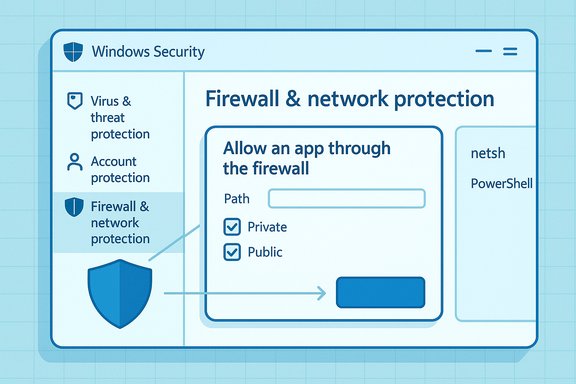
Microsoft ships Microsoft Defender Firewall enabled by default on Windows 11, and the Windows Security app (the “Windows Security” dashboard in Settings) is the UI hub for most firewall tasks. That panel lets you check the firewall status for Domain, Private and Public profiles, toggle protections, and open the simplified “Allow an app through firewall” dialog for app‑level exceptions. Microsoft’s documentation explains both the UI steps and the security risks involved when allowing apps or opening ports. Allowing an app is usually safer than opening raw ports because an app exception is scoped to a specific executable path and only takes effect when that program runs; opening ports leaves a persistent listening surface that can be abused. Still, any exception increases the attack surface, so treat these actions as deliberate and temporary unless you’ve validated the app’s provenance. Quick UI steps (the PCWorld method, expanded)
The short PCWorld checklist is the fastest route for most users. Follow these steps when an app won’t connect and you trust its source. The numbered method below follows the exact flow in Windows 11 but adds a few checks you should make first.- Open Settings: Type “Settings” in the Start menu search and press Enter.
- Navigate: Settings → Privacy & security → Windows Security → Firewall & network protection.
- Click Allow an app through the firewall.
- Click Change settings (you’ll need administrator rights; UAC may prompt).
- Find the app in the list and check Private and/or Public depending on the networks you trust; then click OK.
- If the app isn’t listed, click Allow another app…, then Browse to the program’s executable (.exe) path and add it. Save the changes.
- Choose Private for home/work networks you trust and Public for open networks like cafés. Only grant Public access when absolutely necessary.
- If the Change settings button is greyed out, your device may be managed by organizational policies or you are not in an administrator account. Contact your administrator or run an elevated Settings session.
What happens under the hood
When you use the “Allow an app through the firewall” dialog, Windows creates explicit rule objects in the firewall policy that match the exact program path and the selected profiles. Those rule objects are equivalent to the inbound firewall rules you can inspect in the classic Windows Defender Firewall with Advanced Security console (wf.msc). Advanced rules are more precise: you can limit by port, remote IP, protocol, service, or even require IPsec for authenticated connections. Use the Advanced console if you need granular control.Command‑line alternatives (when UI isn’t enough)
For power users, administrators, or when scripting is required (for multiple machines or imaging tasks), use either netsh or PowerShell to add or remove rules. These methods are deterministic and scriptable.Netsh (legacy but still supported)
Example — allow an inbound rule for a specific app:netsh advfirewall firewall add rule name="My App" dir=in action=allow program="C:\Program Files\MyApp\myapp.exe" enable=yes profile=private,publicNetsh maps directly to the same rule objects that the UI creates; it’s useful when you need quick, one‑line changes or to automate rule import/export. Microsoft’s netsh documentation shows equivalent examples and covers migrating from older netsh firewall syntax to advfirewall.
PowerShell (recommended for modern automation)
Example — create the same rule using PowerShell:New-NetFirewallRule -DisplayName "My App" -Direction Inbound -Program "C:\Program Files\MyApp\myapp.exe" -Action Allow -Profile Private,PublicPowerShell provides richer object handling and is the preferred method for configuration management and scripting across many systems; official docs and respected PowerShell guides include usage patterns and best practices.
Advanced scenarios and configuration options
Inbound vs Outbound rules
- Inbound rules control traffic coming into your PC (servers, hosted services, listening ports).
- Outbound rules constrain programs that attempt to connect out to the internet (useful to block telemetry or unknown exfiltration attempts).
Ports vs Programs
- If an app uses dynamic ports or multiple helper processes, a program‑based rule is safer.
- If you’re hosting a service, open only the specific port(s) needed and restrict remote IP ranges where possible. Opening broad port ranges is a common misconfiguration that increases risk.
IP and profile scoping
You can constrain rules by:- Profile (Domain, Private, Public) so the rule only applies on selected network types.
- Remote IP or subnets to limit which hosts can reach your service.
- Protocol and local/remote ports for transport-level control.
These restrictions reduce attack surface when correctly applied.
Troubleshooting: why the app still can’t connect
If you followed PCWorld’s UI steps and the app still won’t connect, walk through this checklist:- Confirm you added the correct executable path. Many apps use launcher stubs or helper services; add the actual network process. Use Task Manager to find the running process name.
- Verify the active network profile: Windows applies rules based on the current profile (Private/Public/Domain). If a rule is limited to Private but Windows thinks the network is Public, the rule won’t apply. Check the active profile in Firewall & network protection.
- Check for Outbound blocks: Some environments add restrictive outbound rules; test with ping/traceroute and temporarily allow all outbound to isolate the problem.
- Look for third‑party security software conflicts: Commercial antiviruses and VPN clients can intercept or override Windows firewall behavior. Temporarily disable or reconfigure them and retest.
- Use built‑in logs: Windows firewall logging records blocked connections. Increase the log size and enable both dropped and successful connection logging in Firewall properties, then inspect pfirewall.log (default: C:\Windows\System32\LogFiles\Firewall\pfirewall.log).
- Windows firewall logging (as above).
- Microsoft Message Analyzer or Wireshark to inspect packets and confirm whether traffic reaches the host or is blocked locally.
- netsh advfirewall firewall show rule name=all to verify the rule exists and matches the executable path.
Security considerations — what you should never do lightly
Allowing an app through the firewall is effectively telling your device to accept network traffic for that program. Follow these hard rules:- Never allow an app unless you trust its publisher and have verified the executable’s location and signature. Malicious programs often masquerade as legitimate names.
- Prefer program‑scoped rules over opening ports. A program rule only exposes the network surface when the named binary runs; a port stays open continuously.
- Avoid granting Public profile access unless absolutely necessary — very few consumer apps require unrestricted access on public networks. Use Private for home and work networks you trust.
- Revoke exceptions when they are no longer needed. Keep firewall rules under periodic review and remove stale items that increase the attack surface.
Enterprise and team deployment notes
In managed environments, local firewall settings may be overridden by Group Policy, Intune, or other MDM solutions. If changes are blocked or greyed out:- Check Group Policy (gpedit.msc) or Device Configuration policies in Intune for firewall rule deployment.
- Use centralized rule deployment (Group Policy or Intune) for consistent policy across endpoints rather than manual on‑machine changes.
- For large fleets, automate rule creation using PowerShell scripts that call New‑NetFirewallRule or Group Policy preferences. These methods scale and reduce human error.
Practical examples and recipes
Example 1 — Allow a game’s launcher only on private networks
- Identify the game executable via Task Manager (e.g., C:\Program Files\Game\game.exe).
- Run PowerShell as Administrator and execute:
New-NetFirewallRule -DisplayName "Game Launcher" -Direction Inbound -Program "C:\Program Files\Game\game.exe" -Action Allow -Profile Private - Test connectivity on your home network; do not add Public profile unless required for gameplay in public Wi‑Fi.
Example 2 — Allow Remote Desktop (RDP) via netsh for a restricted subnet
netsh advfirewall firewall add rule name="RDP-HomeSubnet" dir=in action=allow program="%SystemRoot%\system32\svchost.exe" service=TermService localport=3389 remoteip=192.168.1.0/24 profile=private enable=yesThis example allows RDP only from the home subnet, restricting exposure. Replace remoteip and profile to match your network policy.
Common mistakes and how to avoid them
- Adding the wrong executable: double‑check the file path; some apps update by swapping executables, which can invalidate an existing rule. Use the process path at runtime to be sure.
- Granting Public access blindly: never enable Public unless testing or you have strong reasons. It’s the most permissive profile.
- Forgetting to test both inbound and outbound contexts: some apps need both directions open (e.g., P2P clients). Map requirements before creating multiple rules.
- Leaving logs unchecked: firewall changes without logging create blind spots; increase log size and forward logs to a central collector for enterprise environments.
When to call for help
If you cannot resolve connectivity despite rule changes:- Verify whether organizational policies are enforcing settings (contact IT).
- Use netsh advfirewall firewall show rule name="RuleName" verbose to inspect rule parameters.
- Escalate to vendor support for complex apps — some network behaviors (authentication handshakes, TLS SNI mismatches, UDP hole punching) require vendor insight or server‑side changes.
Conclusion
Windows 11’s firewall gives home users and administrators a practical mix of simplicity and depth: the Allow an app through the firewall dialog covers most everyday needs (the PCWorld checklist is an excellent quick reference), but the underlying rule model supports precise, scripted, and enterprise‑grade configurations when required. Always prefer program‑scoped rules, restrict by profile and remote IP when possible, log changes, and revoke permissions when they’re no longer needed. Microsoft’s official guidance explains the security tradeoffs — add exceptions only when necessary — and administrators can scale configuration via PowerShell or netsh to keep environments consistent and auditable.Additional reading within the Windows Security app and Microsoft documentation will help you master more advanced topics such as Connection Security Rules (IPsec), policy export/import, and centralized firewall management for enterprise deployments.
Source: PCWorld How to allow apps through Windows 11's firewall
