

Windows 11 can still be configured in 2026 as a mostly local, Microsoft-minimized desktop, but doing so now means deliberately working around setup defaults, replacing cloud hooks, disabling promotions, and accepting that Microsoft may close some of those exits in future builds. The interesting part is not that the tweaks exist. It is that they now read less like personalization and more like a quiet referendum on what Windows is supposed to be.
Paul Thurrott’s latest “Switcher 2026” experiment lands because it exposes the central contradiction of modern Windows. Microsoft still sells Windows as the broad, flexible PC platform where users choose their browser, storage provider, development tools, and workflow. But the out-of-box experience increasingly behaves as if Windows is the onboarding funnel for Microsoft accounts, Edge, OneDrive, Copilot, Microsoft 365, Store-distributed apps, telemetry, and recurring prompts to reconsider all of the above.
That does not mean Windows 11 is unusable, or even uniquely hostile. It means the default installation is no longer neutral ground. To make Windows feel like Windows rather than a Microsoft services kiosk, the user has to spend the first hour of ownership undoing a strategy.
The most revealing part of Thurrott’s walkthrough is how ordinary the desired endpoint is. He is not describing a cracked-down, privacy-absolutist, air-gapped workstation. He is describing a Windows laptop with a local account, a non-Microsoft cloud provider, a preferred browser, BitLocker enabled, unwanted inbox apps removed, File Explorer cleaned up, and the Copilot key made less annoying.
That used to be called “setting up a PC.” In 2026, it feels closer to a restoration project.
The process begins where Microsoft’s incentives are most visible: the Windows 11 Out of Box Experience. The OOBE is supposed to help users make basic choices about region, keyboard, network, account, privacy, and device setup. In practice, it is also the point at which Microsoft tries hardest to convert a Windows license into a Microsoft account relationship.
Thurrott’s test machines, a Surface Laptop 7 and HP OmniBook 5, are both Snapdragon X Arm PCs. That matters less because of Arm than because these are precisely the sort of modern machines Microsoft wants to define the Windows future: efficient, AI-branded, thin, connected, Copilot-friendly, and tied into the company’s cloud identity model. His decision to reset them and rebuild from scratch is a useful stress test of whether the platform still allows a more traditional PC configuration.
The answer is yes, with caveats. The local-account path still exists in his experiment through the familiar command-line bypass, but it is no longer something Microsoft presents as a legitimate preference. It is a side door, and one Microsoft has already signaled it would prefer to board up.
Microsoft has defensible arguments here. Account-based setup makes password recovery easier, enables device tracking, syncs settings, binds Store purchases, stores BitLocker recovery keys, and makes OneDrive backup almost frictionless for mainstream users. For a nontechnical buyer who loses a laptop or forgets a password, those conveniences are not imaginary.
The problem is that convenience has hardened into coercion. Windows 11 Home has long been more aggressive about requiring an internet connection and Microsoft account during setup, and Windows 11 Pro has steadily become less accommodating as well. The old Microsoft line was that Windows is better with an account. The newer experience increasingly implies that Windows is incomplete without one.
That matters because identity is not just a login method. It is a policy boundary. Once the user signs in with a Microsoft account, Windows can more naturally activate cloud backup prompts, advertise subscriptions, synchronize browser and settings behavior, restore Store apps, and position Microsoft services as the presumed center of the machine. Even when each individual prompt can be defended as helpful, the combined effect is that the operating system arrives with a business model already installed.
Thurrott’s use of the OOBE bypass is therefore not merely a trick. It is a small act of platform self-determination. The fact that users need such a trick tells us more about Microsoft’s product direction than any keynote slide about choice.
This is the part of the minimalist Windows setup that separates enthusiasts from average users. It is one thing to skip a Microsoft account. It is another to understand where a BitLocker key should live, why it must not live only on the encrypted system drive, and what happens during motherboard repair, firmware changes, or boot recovery when that key is required.
On Windows 11 Pro, the trade-off is manageable. BitLocker remains available, and users can save the recovery key to a file, print it, or store it somewhere under their own control. Thurrott’s choice to put the key on a NAS is exactly the kind of self-managed setup many WindowsForum readers will find familiar: boring, sensible, and dependent on the user’s own backup discipline.
Windows 11 Home is more revealing. Device encryption exists, but the full BitLocker management path is not there in the same way. Microsoft’s smoother route is to sign in with a Microsoft account and let the ecosystem handle recovery-key escrow. Thurrott’s workaround was to buy a cheap Windows 11 Pro key and upgrade, which solved the immediate problem but also underlines the weirdness of the product segmentation.
For security-minded users, this is the uncomfortable reality: minimizing Microsoft can make you more private and more in control, but it can also make you more responsible for failure modes Microsoft would otherwise hide. A local account plus BitLocker is a fine configuration. A local account plus BitLocker plus a lost recovery key is a self-inflicted disaster.
Instead, Edge has become a recurring lesson in how to convert a good product into a symbol of overreach. Default browser settings have improved since Windows 11’s earliest days, but Microsoft still reserves privileged paths where Windows features open Edge or route users toward Microsoft-controlled surfaces. Search, Widgets, web suggestions, and PDF handling have all been part of this long-running friction.
Thurrott’s approach is pragmatic. Install the browser you actually want, set it as default, change PDF associations, and use a redirect utility if you want Windows to stop treating Edge as the browser of last resort for system-driven links. That is not extreme. It is what a platform should allow by design.
The European angle is important because it demonstrates that Microsoft can make more of Windows uninstallable and configurable when regulation forces the issue. In the European Economic Area, changes tied to the Digital Markets Act have made parts of the Windows experience more flexible, including browser-related behavior that users elsewhere cannot access through normal settings. The technical barrier is not the problem. The business preference is.
For U.S. users, Edge remains more deeply embedded. Microsoft’s support position is that Edge is part of Windows and cannot normally be removed. That may be a reasonable engineering statement in some contexts, but to users who remember Internet Explorer antitrust history, it sounds like a very old song played on new hardware.
But for users who already rely on another provider, OneDrive’s default prominence in File Explorer and setup can feel less like safety and more like squatting. Windows does not merely offer OneDrive; it often behaves as if cloud backup means OneDrive unless told otherwise. That is a subtle but important distinction.
Thurrott’s replacement is Synology Drive Client, tied to his NAS. Other users might choose Dropbox, Google Drive, Proton Drive, iCloud Drive, Nextcloud, or no sync client at all. The point is not that OneDrive is bad. The point is that Windows should not assume the storage layer any more than it assumes the browser, editor, password manager, or note-taking app.
Once OneDrive is removed, the cleanup continues. File Explorer still carries traces of Microsoft’s preferred model: Home, Recent, Favorites, Shared, Office.com content, Gallery, and navigation-pane clutter that may not match how a power user thinks about files. Thurrott’s decision to open File Explorer to This PC and remove the Gallery entry through the Registry is the sort of detail that makes administrators sigh with recognition.
Windows keeps adding “helpful” surfaces. Enthusiasts keep turning them off because the old file manager bargain was simple: show me the file system, do it quickly, and do not editorialize.
Microsoft has acknowledged the need for more remapping options, including the ability to restore Right Ctrl or use the context menu function in a future Windows update. That is welcome, but the sequence is backwards. Users should not have to wait for Microsoft to rediscover that keyboards are input devices, not campaign billboards.
For now, PowerToys Keyboard Manager and third-party utilities occupy the gap. Thurrott maps the Copilot key to behave like the neighboring key, effectively turning a bad key into a harmless duplicate. Others may map it to Right Ctrl, Search, a launcher, or something more elaborate.
There is a larger lesson here for the Copilot+ PC era. Microsoft wants AI to feel native to Windows. But “native” is not the same as “inescapable.” The more Microsoft hardwires Copilot into visible, physical, and default surfaces, the more resistance it creates among exactly the users who might otherwise experiment with it on their own terms.
AI does not become trusted by taking away keys. It becomes trusted by earning a place in the workflow.
The issue is not only third-party crapware from OEMs, though that remains alive and well. Thurrott’s HP example includes the usual promotional debris: booking services, storage offers, Adobe promotions, and other shortcuts that blur the line between installed software and Start menu advertising. The issue is also Microsoft’s own growing inventory of inbox apps and service stubs.
News, Copilot, Microsoft 365 Copilot, Mixed Reality Link, OneNote, Microsoft 365, Teams variants, consumer widgets, Store suggestions, Office web hooks, search highlights, and other surfaces may each have an audience. But installed together, before the user has expressed any preference, they create the sense of a desktop that has already been monetized.
Administrators know this pattern well. A new PC is not ready when Windows first reaches the desktop. It is ready after updates, driver validation, firmware checks, app removal, policy application, browser configuration, endpoint security setup, encryption verification, and user data migration. The consumer version of that process is less formal, but it is increasingly similar.
This is why Thurrott’s walkthrough resonates beyond hobbyist tinkering. The modern Windows setup experience makes ordinary users do light systems administration just to reach a clean baseline. Enthusiasts can handle that. The broader question is why they should have to.
For sysadmins and enthusiasts, winget is liberating because it makes Windows setup repeatable. It also reduces the need to open Edge, search the web, dodge deceptive download ads, and manually click through installers. On a fresh system, a small script can install browsers, editors, utilities, sync clients, media tools, developer environments, and productivity software in minutes.
Thurrott deliberately installs web-based packages rather than Store-based versions where possible. That preference will not be universal, but it reflects a common unease. The Microsoft Store has improved significantly, yet many Windows users still trust direct installers, package managers, or vendor-managed update channels more than Microsoft’s consumer storefront.
The irony is that winget embodies the platform neutrality Microsoft should be proud to champion. It does not need to nag users into Microsoft 365. It does not need to hijack defaults. It simply helps Windows users get the software they want. More of Windows should feel like that.
Thurrott’s advice starts with the obvious setting: turn off optional diagnostic data. But he also notes the limitation that required diagnostic data remains, and that more aggressive control requires third-party tools or policy-level intervention. This is where Windows’ consumer and enterprise personalities diverge sharply.
In enterprise environments, administrators can use Group Policy, MDM, security baselines, compliance tooling, and edition-specific controls to reduce noise and enforce consistency. On consumer PCs, users are left with Settings pages, registry edits, community scripts, and patience. That gap matters because Microsoft’s most aggressive consumer nudges often land on the machines least likely to be centrally managed.
The privacy question is not whether Microsoft collects telemetry. Every modern OS vendor does. The issue is proportionality, clarity, and trust. Users are more willing to share diagnostic data when they believe the operating system is working for them. They are less willing when the same operating system is also inserting ads, steering browser behavior, and using setup to push account conversion.
Trust is cumulative. So is distrust.
None of these are shocking. Many are personal preferences. But taken together, they reveal a design culture that keeps adding visible features faster than it refines the baseline experience.
Windows 11 is not short of clever ideas. Snap layouts can be useful. Widgets can be useful. Search highlights can be useful. Nearby sharing can be useful. Dynamic refresh rate can be useful. The problem is that Microsoft too often treats “useful to someone” as justification for “visible to everyone.”
Power users do not necessarily want a barren OS. They want an OS that respects the difference between capability and interruption. A feature hidden one click away is still a feature. A feature that activates on hover, lights up the taskbar, injects content into search, or opens the wrong browser becomes a negotiation.
This is why the clean Windows desktop feels calmer than the default Windows desktop. It is not because it has fewer features available. It is because fewer features are demanding attention.
The strategic conclusion is less comforting: the path depends on loopholes, regional rules, third-party utilities, edition upgrades, Registry edits, and a user willing to revisit settings after updates. That is not the posture of a platform confident in user choice. It is the posture of a platform whose owner wants to keep choice formally available while making the default funnel increasingly difficult to avoid.
There is also a maintenance question. Windows updates can restore apps, change defaults, add new inbox components, introduce new taskbar items, or alter setup behavior. Microsoft is not uniquely guilty here; Apple and Google also use OS updates to advance ecosystem priorities. But Windows’ historical identity as the open, configurable PC platform makes these moves feel more jarring.
For IT pros, the lesson is to codify preferences rather than rely on memory. Use provisioning packages, scripts, winget manifests, Group Policy, MDM profiles, exported registry files, and documented setup checklists where appropriate. If you care about a clean Windows state, treat it as configuration management, not a one-time ritual.
For enthusiasts, the lesson is more philosophical. Windows is still flexible, but flexibility increasingly belongs to users who know where Microsoft hid the switches.
Paul Thurrott’s latest “Switcher 2026” experiment lands because it exposes the central contradiction of modern Windows. Microsoft still sells Windows as the broad, flexible PC platform where users choose their browser, storage provider, development tools, and workflow. But the out-of-box experience increasingly behaves as if Windows is the onboarding funnel for Microsoft accounts, Edge, OneDrive, Copilot, Microsoft 365, Store-distributed apps, telemetry, and recurring prompts to reconsider all of the above.
That does not mean Windows 11 is unusable, or even uniquely hostile. It means the default installation is no longer neutral ground. To make Windows feel like Windows rather than a Microsoft services kiosk, the user has to spend the first hour of ownership undoing a strategy.
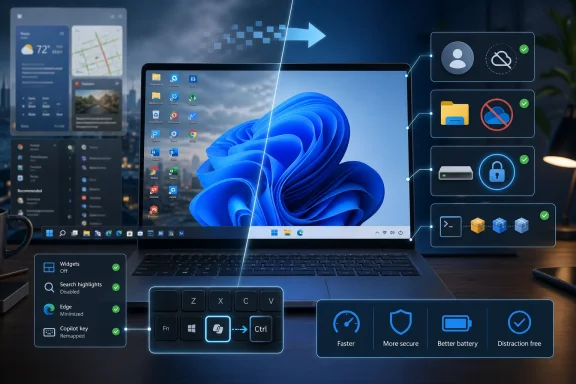 The Clean Windows Desktop Is Now a Manual Build
The most revealing part of Thurrott’s walkthrough is how ordinary the desired endpoint is. He is not describing a cracked-down, privacy-absolutist, air-gapped workstation. He is describing a Windows laptop with a local account, a non-Microsoft cloud provider, a preferred browser, BitLocker enabled, unwanted inbox apps removed, File Explorer cleaned up, and the Copilot key made less annoying.That used to be called “setting up a PC.” In 2026, it feels closer to a restoration project.
The process begins where Microsoft’s incentives are most visible: the Windows 11 Out of Box Experience. The OOBE is supposed to help users make basic choices about region, keyboard, network, account, privacy, and device setup. In practice, it is also the point at which Microsoft tries hardest to convert a Windows license into a Microsoft account relationship.
Thurrott’s test machines, a Surface Laptop 7 and HP OmniBook 5, are both Snapdragon X Arm PCs. That matters less because of Arm than because these are precisely the sort of modern machines Microsoft wants to define the Windows future: efficient, AI-branded, thin, connected, Copilot-friendly, and tied into the company’s cloud identity model. His decision to reset them and rebuild from scratch is a useful stress test of whether the platform still allows a more traditional PC configuration.
The answer is yes, with caveats. The local-account path still exists in his experiment through the familiar command-line bypass, but it is no longer something Microsoft presents as a legitimate preference. It is a side door, and one Microsoft has already signaled it would prefer to board up.
Microsoft Account Pressure Has Become the First Policy Fight
The Microsoft account requirement is the symbolic heart of the dispute because it changes the meaning of first boot. A local account says the PC belongs first to the person sitting in front of it. An online account says the PC is part of a larger Microsoft-managed identity, synchronization, recovery, advertising, and services framework.Microsoft has defensible arguments here. Account-based setup makes password recovery easier, enables device tracking, syncs settings, binds Store purchases, stores BitLocker recovery keys, and makes OneDrive backup almost frictionless for mainstream users. For a nontechnical buyer who loses a laptop or forgets a password, those conveniences are not imaginary.
The problem is that convenience has hardened into coercion. Windows 11 Home has long been more aggressive about requiring an internet connection and Microsoft account during setup, and Windows 11 Pro has steadily become less accommodating as well. The old Microsoft line was that Windows is better with an account. The newer experience increasingly implies that Windows is incomplete without one.
That matters because identity is not just a login method. It is a policy boundary. Once the user signs in with a Microsoft account, Windows can more naturally activate cloud backup prompts, advertise subscriptions, synchronize browser and settings behavior, restore Store apps, and position Microsoft services as the presumed center of the machine. Even when each individual prompt can be defended as helpful, the combined effect is that the operating system arrives with a business model already installed.
Thurrott’s use of the OOBE bypass is therefore not merely a trick. It is a small act of platform self-determination. The fact that users need such a trick tells us more about Microsoft’s product direction than any keynote slide about choice.
BitLocker Shows the Trade-Off Microsoft Would Rather Simplify
Disk encryption is where the local-account argument stops being purely ideological. If a user avoids a Microsoft account, Windows no longer has an obvious Microsoft cloud location for saving the BitLocker recovery key. That creates a real responsibility: if you enable encryption and lose the recovery key, you may lose the data.This is the part of the minimalist Windows setup that separates enthusiasts from average users. It is one thing to skip a Microsoft account. It is another to understand where a BitLocker key should live, why it must not live only on the encrypted system drive, and what happens during motherboard repair, firmware changes, or boot recovery when that key is required.
On Windows 11 Pro, the trade-off is manageable. BitLocker remains available, and users can save the recovery key to a file, print it, or store it somewhere under their own control. Thurrott’s choice to put the key on a NAS is exactly the kind of self-managed setup many WindowsForum readers will find familiar: boring, sensible, and dependent on the user’s own backup discipline.
Windows 11 Home is more revealing. Device encryption exists, but the full BitLocker management path is not there in the same way. Microsoft’s smoother route is to sign in with a Microsoft account and let the ecosystem handle recovery-key escrow. Thurrott’s workaround was to buy a cheap Windows 11 Pro key and upgrade, which solved the immediate problem but also underlines the weirdness of the product segmentation.
For security-minded users, this is the uncomfortable reality: minimizing Microsoft can make you more private and more in control, but it can also make you more responsible for failure modes Microsoft would otherwise hide. A local account plus BitLocker is a fine configuration. A local account plus BitLocker plus a lost recovery key is a self-inflicted disaster.
The Browser War Never Really Ended
The Windows browser story remains one of Microsoft’s strangest self-owns. Edge is a capable Chromium browser. It is fast, compatible, integrated, and useful as a secondary browser even for people who prefer Chrome, Firefox, Brave, Vivaldi, Arc, or smaller projects like Helium. If Microsoft simply trusted Edge to compete on merit, many users would keep it around without resentment.Instead, Edge has become a recurring lesson in how to convert a good product into a symbol of overreach. Default browser settings have improved since Windows 11’s earliest days, but Microsoft still reserves privileged paths where Windows features open Edge or route users toward Microsoft-controlled surfaces. Search, Widgets, web suggestions, and PDF handling have all been part of this long-running friction.
Thurrott’s approach is pragmatic. Install the browser you actually want, set it as default, change PDF associations, and use a redirect utility if you want Windows to stop treating Edge as the browser of last resort for system-driven links. That is not extreme. It is what a platform should allow by design.
The European angle is important because it demonstrates that Microsoft can make more of Windows uninstallable and configurable when regulation forces the issue. In the European Economic Area, changes tied to the Digital Markets Act have made parts of the Windows experience more flexible, including browser-related behavior that users elsewhere cannot access through normal settings. The technical barrier is not the problem. The business preference is.
For U.S. users, Edge remains more deeply embedded. Microsoft’s support position is that Edge is part of Windows and cannot normally be removed. That may be a reasonable engineering statement in some contexts, but to users who remember Internet Explorer antitrust history, it sounds like a very old song played on new hardware.
OneDrive Is Useful Until It Becomes Assumed
OneDrive is another case where the product and the push are not the same thing. As a cloud storage client, OneDrive is competent and deeply integrated. For many users, especially Microsoft 365 subscribers, it is a reasonable default. Known Folder Move can save people from themselves by backing up Desktop, Documents, and Pictures without requiring them to understand backup strategy.But for users who already rely on another provider, OneDrive’s default prominence in File Explorer and setup can feel less like safety and more like squatting. Windows does not merely offer OneDrive; it often behaves as if cloud backup means OneDrive unless told otherwise. That is a subtle but important distinction.
Thurrott’s replacement is Synology Drive Client, tied to his NAS. Other users might choose Dropbox, Google Drive, Proton Drive, iCloud Drive, Nextcloud, or no sync client at all. The point is not that OneDrive is bad. The point is that Windows should not assume the storage layer any more than it assumes the browser, editor, password manager, or note-taking app.
Once OneDrive is removed, the cleanup continues. File Explorer still carries traces of Microsoft’s preferred model: Home, Recent, Favorites, Shared, Office.com content, Gallery, and navigation-pane clutter that may not match how a power user thinks about files. Thurrott’s decision to open File Explorer to This PC and remove the Gallery entry through the Registry is the sort of detail that makes administrators sigh with recognition.
Windows keeps adding “helpful” surfaces. Enthusiasts keep turning them off because the old file manager bargain was simple: show me the file system, do it quickly, and do not editorialize.
The Copilot Key Is a Hardware-Level Branding Exercise
The Copilot key may be the most perfect example of Microsoft’s current Windows problem because it takes a software strategy and stamps it onto the keyboard. A key that once served as Right Ctrl, or could have been a neutral programmable key, is now a physical ad for Microsoft’s AI ambitions. That makes sense in a marketing deck. It makes less sense when a user accidentally hits it ten times a week and launches something they did not ask for.Microsoft has acknowledged the need for more remapping options, including the ability to restore Right Ctrl or use the context menu function in a future Windows update. That is welcome, but the sequence is backwards. Users should not have to wait for Microsoft to rediscover that keyboards are input devices, not campaign billboards.
For now, PowerToys Keyboard Manager and third-party utilities occupy the gap. Thurrott maps the Copilot key to behave like the neighboring key, effectively turning a bad key into a harmless duplicate. Others may map it to Right Ctrl, Search, a launcher, or something more elaborate.
There is a larger lesson here for the Copilot+ PC era. Microsoft wants AI to feel native to Windows. But “native” is not the same as “inescapable.” The more Microsoft hardwires Copilot into visible, physical, and default surfaces, the more resistance it creates among exactly the users who might otherwise experiment with it on their own terms.
AI does not become trusted by taking away keys. It becomes trusted by earning a place in the workflow.
Debloating Has Become a Normal Administrative Layer
The word debloat used to carry a whiff of overreaction. It suggested dubious scripts, broken Windows components, and YouTube optimization folklore. Now it is hard to set up a consumer Windows machine without performing some kind of debloating, whether manually or through tools such as Win11Debloat.The issue is not only third-party crapware from OEMs, though that remains alive and well. Thurrott’s HP example includes the usual promotional debris: booking services, storage offers, Adobe promotions, and other shortcuts that blur the line between installed software and Start menu advertising. The issue is also Microsoft’s own growing inventory of inbox apps and service stubs.
News, Copilot, Microsoft 365 Copilot, Mixed Reality Link, OneNote, Microsoft 365, Teams variants, consumer widgets, Store suggestions, Office web hooks, search highlights, and other surfaces may each have an audience. But installed together, before the user has expressed any preference, they create the sense of a desktop that has already been monetized.
Administrators know this pattern well. A new PC is not ready when Windows first reaches the desktop. It is ready after updates, driver validation, firmware checks, app removal, policy application, browser configuration, endpoint security setup, encryption verification, and user data migration. The consumer version of that process is less formal, but it is increasingly similar.
This is why Thurrott’s walkthrough resonates beyond hobbyist tinkering. The modern Windows setup experience makes ordinary users do light systems administration just to reach a clean baseline. Enthusiasts can handle that. The broader question is why they should have to.
Winget Quietly Offers the Windows Microsoft Should Emphasize
There is a better Windows hiding inside Thurrott’s process, and its name is Windows Package Manager. Winget is one of Microsoft’s most important under-celebrated tools because it treats Windows like a real software platform rather than a Store funnel. Search for an app, install it by package ID, update everything, script the process, and move on.For sysadmins and enthusiasts, winget is liberating because it makes Windows setup repeatable. It also reduces the need to open Edge, search the web, dodge deceptive download ads, and manually click through installers. On a fresh system, a small script can install browsers, editors, utilities, sync clients, media tools, developer environments, and productivity software in minutes.
Thurrott deliberately installs web-based packages rather than Store-based versions where possible. That preference will not be universal, but it reflects a common unease. The Microsoft Store has improved significantly, yet many Windows users still trust direct installers, package managers, or vendor-managed update channels more than Microsoft’s consumer storefront.
The irony is that winget embodies the platform neutrality Microsoft should be proud to champion. It does not need to nag users into Microsoft 365. It does not need to hijack defaults. It simply helps Windows users get the software they want. More of Windows should feel like that.
Privacy Settings Are No Longer a Single Screen
Windows 11’s privacy story is difficult because Microsoft can truthfully say it offers many controls, while users can truthfully say the system still feels too chatty. Diagnostic data, advertising IDs, suggestions, tailored experiences, search highlights, cloud content, app permissions, location, speech, inking, and account synchronization are scattered across enough surfaces that privacy configuration becomes a scavenger hunt.Thurrott’s advice starts with the obvious setting: turn off optional diagnostic data. But he also notes the limitation that required diagnostic data remains, and that more aggressive control requires third-party tools or policy-level intervention. This is where Windows’ consumer and enterprise personalities diverge sharply.
In enterprise environments, administrators can use Group Policy, MDM, security baselines, compliance tooling, and edition-specific controls to reduce noise and enforce consistency. On consumer PCs, users are left with Settings pages, registry edits, community scripts, and patience. That gap matters because Microsoft’s most aggressive consumer nudges often land on the machines least likely to be centrally managed.
The privacy question is not whether Microsoft collects telemetry. Every modern OS vendor does. The issue is proportionality, clarity, and trust. Users are more willing to share diagnostic data when they believe the operating system is working for them. They are less willing when the same operating system is also inserting ads, steering browser behavior, and using setup to push account conversion.
Trust is cumulative. So is distrust.
The Best Windows 11 Setup Is a List of Things to Disable
The long tail of Thurrott’s configuration changes is almost comic in its specificity. Remove Search and Task View from the taskbar. Rename the PC. Show battery percentage. Change Energy Saver behavior. Disable adaptive color. Enable Night Light. Adjust scaling and refresh rate. Remove Edge tabs from Alt+Tab. Turn off Snap layout behavior when dragging windows to the top of the screen. Disable search highlights. Tame Widgets. Change Print Screen back to the old behavior. Configure a quieter theme. Disable touchpad gestures if they get in the way.None of these are shocking. Many are personal preferences. But taken together, they reveal a design culture that keeps adding visible features faster than it refines the baseline experience.
Windows 11 is not short of clever ideas. Snap layouts can be useful. Widgets can be useful. Search highlights can be useful. Nearby sharing can be useful. Dynamic refresh rate can be useful. The problem is that Microsoft too often treats “useful to someone” as justification for “visible to everyone.”
Power users do not necessarily want a barren OS. They want an OS that respects the difference between capability and interruption. A feature hidden one click away is still a feature. A feature that activates on hover, lights up the taskbar, injects content into search, or opens the wrong browser becomes a negotiation.
This is why the clean Windows desktop feels calmer than the default Windows desktop. It is not because it has fewer features available. It is because fewer features are demanding attention.
The Local Windows Path Is Still Viable, but It Is Getting Narrower
The practical conclusion from Thurrott’s experiment is encouraging: a Microsoft-minimized Windows 11 setup remains possible. You can use a local account, encrypt the disk, remove OneDrive, avoid Microsoft 365, set another browser, install apps through winget, clean File Explorer, remap the Copilot key, suppress telemetry where possible, and end up with a fast, personal, relatively quiet PC.The strategic conclusion is less comforting: the path depends on loopholes, regional rules, third-party utilities, edition upgrades, Registry edits, and a user willing to revisit settings after updates. That is not the posture of a platform confident in user choice. It is the posture of a platform whose owner wants to keep choice formally available while making the default funnel increasingly difficult to avoid.
There is also a maintenance question. Windows updates can restore apps, change defaults, add new inbox components, introduce new taskbar items, or alter setup behavior. Microsoft is not uniquely guilty here; Apple and Google also use OS updates to advance ecosystem priorities. But Windows’ historical identity as the open, configurable PC platform makes these moves feel more jarring.
For IT pros, the lesson is to codify preferences rather than rely on memory. Use provisioning packages, scripts, winget manifests, Group Policy, MDM profiles, exported registry files, and documented setup checklists where appropriate. If you care about a clean Windows state, treat it as configuration management, not a one-time ritual.
For enthusiasts, the lesson is more philosophical. Windows is still flexible, but flexibility increasingly belongs to users who know where Microsoft hid the switches.
A Windows Setup That Says the Quiet Part Out Loud
A Microsoft-minimized Windows 11 build is not for everyone, but the exercise clarifies what Microsoft has bundled into the modern PC experience. The defaults are no longer just defaults; they are an argument about accounts, cloud storage, browsers, AI, telemetry, and subscriptions.- A local account remains the clearest dividing line between Windows as a personal computer operating system and Windows as an entry point into Microsoft’s services ecosystem.
- BitLocker is still essential, but avoiding Microsoft account recovery-key storage means the user must take key backup seriously.
- Edge is good enough to compete without privileged system behavior, which makes Microsoft’s continuing browser steering more damaging than necessary.
- OneDrive is valuable for users who choose it, but Windows should not treat Microsoft cloud storage as the assumed file layer.
- The Copilot key shows the risk of turning hardware into branding before the underlying AI workflow has earned universal trust.
- Winget is the rare modern Windows component that expands user agency instead of narrowing it.
References
- Primary source: thurrott.com
Published: Mon, 18 May 2026 15:35:09 GMT
Switcher 2026: Minimizing the Microsoft in Windows 11 ⭐ - Thurrott.com
Here's a curious conundrum: You use Windows 11 but you also want to minimize your use of other Microsoft products and services.www.thurrott.com - Official source: support.microsoft.com
Why can't I uninstall Microsoft Edge? | Microsoft Support
Learn more about why you can't uninstall Microsoft Edge on your Windows computer.support.microsoft.com - Official source: learn.microsoft.com
Remap the Copilot key to Ctrl in Windows 11? - Microsoft Q&A
Is there a way to remap the key that normally opens the awful Copilot feature (the one next to Alt Gr on the keyboard)? I'm left handed, so I use my right hand to press Ctrl and plus/minus keys on keypad to zoom in and out in Photoshop and other…learn.microsoft.com - Official source: answers.microsoft.com
Reprogram Copilot key - Microsoft Q&A
On my new Windows 11 computer, the right Ctrl button has been converted to a button that opens Copilot. I would like to reassign the button but to being a Ctrl button. There are a lot of posts out there about how the Copilot button is really a…answers.microsoft.com - Related coverage: windowscentral.com
How to remap Copilot to any key on Windows 11 | Windows Central
On Windows 11, you can use the Keyboard Manager tool from PowerToys to remap the Copilot shortcut to any key, and in this guide, I'll show you how.www.windowscentral.com - Related coverage: pureinfotech.com
Microsoft blocks bypass to skip Microsoft Account during setup on Windows 11 - Pureinfotech
Microsoft removes workarounds to bypass the Microsoft account when setting up Windows 11, including "bypassnro" and ms-cxh:localonly." pureinfotech.com
- Related coverage: howtogeek.com
- Related coverage: tomshardware.com
Microsoft clamping down on Windows 11 local account setup — latest Insider build removes 'local-only commands,' skipping Microsoft account sign-in will crash setup process | Tom's Hardware
Microsoft is clamping down on the practicewww.tomshardware.com - Related coverage: tweaktown.com
Hate the dedicated Copilot key on your Windows 11 laptop? Tiny new tool can change it back to right Ctrl
Reverting the Copilot key to right CTRL should be an option provided by Microsoft - or indeed remapping it to something else - but it isn't. www.tweaktown.com
- Related coverage: allthings.how
How to Remove Edge Using Wintoys 2.0 Digital Markets Act Option on Windows 11
Follow these steps to uninstall Microsoft Edge in Windows 11 using Wintoys 2.0's Digital Markets Act feature.allthings.how - Related coverage: windowslatest.com
Windows 11 24H2 update will let you replace Copilot key with a context menu shortcut
Windows 11 might let you remap the Copilot key in future updates. This may help Microsoft avoid complaints from unsatisfied Copilot users. www.windowslatest.com
- Related coverage: toptechguides.com
- Related coverage: techradar.com
Microsoft is 'removing known mechanisms for creating a local account' from Windows 11 setup - get ready to use a Microsoft account | TechRadar
This isn't a popular decision...www.techradar.com - Related coverage: tomsguide.com
Microsoft might be cracking down on Windows 11 local account setups — here's what we know so far | Tom's Guide
Microsoft is attempting to restrict account access for local accounts.www.tomsguide.com - Related coverage: laswitchtech.com
- Related coverage: media.geeksforgeeks.org

