

Changing the Microsoft account on a Windows 11 PC is a deceptively simple task that touches sign‑in identity, cloud sync, device security, and — in some Windows builds — the initial setup behavior of the operating system itself.
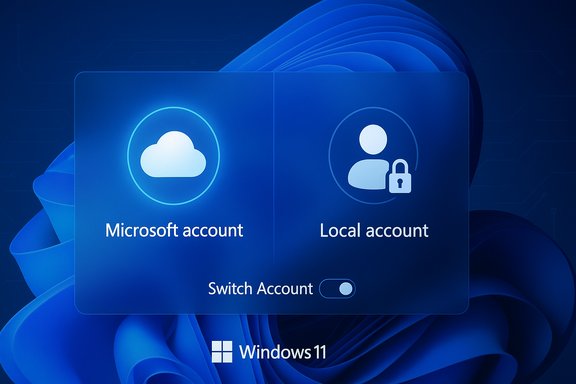
Windows 11 supports two primary local sign‑in models: a Microsoft account (MSA) — an email‑based identity that ties your device to OneDrive, Microsoft Store purchases, and cloud sync — and a local account, which exists only on the device and does not automatically sync settings, files, or credentials to Microsoft services. Microsoft’s own guidance walks through switching either way from Settings > Accounts > Your info, and it explicitly recommends using an MSA for the best integrated experience while still documenting how to return to a local account. In 2024–2025 Microsoft has also tightened the out‑of‑box experience (OOBE) to discourage or block common installation‑time bypasses that previously allowed users to create a local account during setup. That means some previously familiar setup workarounds no longer work on recent Insider and public builds. If you plan to avoid an MSA at install time, you need to be aware of these changes. This article provides a clear, practical walkthrough for:
Changing the account that signs you into Windows 11 is a decision that affects syncing, security, and device recovery. Follow the official Settings flows for the safest outcome, verify BitLocker recovery key placement before you make changes, and treat OOBE workarounds as fragile on modern builds — prepare to create local accounts after setup or use controlled deployment tools where necessary.
Source: MSPoweruser How To Change Microsoft Account On Windows 11: A Step-by-Step Guide
 Background / Overview
Windows 11 supports two primary local sign‑in models: a Microsoft account (MSA) — an email‑based identity that ties your device to OneDrive, Microsoft Store purchases, and cloud sync — and a local account, which exists only on the device and does not automatically sync settings, files, or credentials to Microsoft services. Microsoft’s own guidance walks through switching either way from Settings > Accounts > Your info, and it explicitly recommends using an MSA for the best integrated experience while still documenting how to return to a local account. In 2024–2025 Microsoft has also tightened the out‑of‑box experience (OOBE) to discourage or block common installation‑time bypasses that previously allowed users to create a local account during setup. That means some previously familiar setup workarounds no longer work on recent Insider and public builds. If you plan to avoid an MSA at install time, you need to be aware of these changes. This article provides a clear, practical walkthrough for:- switching between Microsoft and local accounts on an existing Windows 11 install;
- adding and removing Microsoft accounts for additional users;
- troubleshooting when the usual switch option is missing;
- security and data‑loss warnings (including BitLocker implications); and
- recommendations for a safe migration.
Why this matters: account type tradeoffs
Short, practical comparison:- Microsoft Account (MSA)
- Benefits: Seamless cloud integration (OneDrive), cross‑device sync of settings, easy recovery options, Microsoft Store purchases tied to the account, Windows features such as Find My Device and automatic BitLocker key backup.
- Drawbacks: More cloud dependency; if you lose access to the MSA you may need to recover online to restore certain device features.
- Local Account
- Benefits: More privacy and device‑local control; less cloud telemetry by default; useful in isolated or kiosk scenarios.
- Drawbacks: No automatic sync across devices; password recovery is harder (no remote reset via Microsoft account); some features (Store, OneDrive integration) are less convenient or disabled.
Quick checklist: what to do before you start
Always take these preparatory steps to reduce risk:- Back up important files (external drive, secondary cloud service, or OneDrive copy). This prevents accidental data loss when deleting or changing accounts.
- Note the Microsoft account email and confirm you can sign in to account.microsoft.com (if switching to or from an MSA).
- If your device uses BitLocker or device encryption, confirm where the recovery key is stored (MSA, Azure/Entra ID, printout, or USB). If BitLocker keys were backed up to an MSA during setup, removing that MSA from the device without ensuring a copy of the key could make recovery harder.
- Make sure you have an administrator account available on the machine; switching account types typically requires admin privileges.
How to switch from a Microsoft account to a local account (step‑by‑step)
If you are signed in with an MSA and want to change that user to a local account while keeping the same user profile and files, follow these steps:- Open Settings (Press Win + I).
- Go to Accounts > Your info.
- Under Account settings, click Sign in with a local account instead (this link appears only if you’re currently using an MSA).
- Windows will prompt you to verify your current MSA password; enter it.
- Create a new local username, password, and password hint (the username must be unique on the device).
- Click Next, then choose Sign out and finish.
- Sign back in with your new local account credentials.
Notes and caveats
- Some cloud‑backed features (OneDrive, synced settings, Find My Device, BitLocker backup to MSA) will stop functioning until you re‑associate them with an MSA.
- If the account was the device’s only administrator, create or enable another admin before removing MSA access to avoid being locked out.
How to switch from a local account to a Microsoft account
If you’re signed in with a local account and want to attach an MSA to that user:- Open Settings (Win + I) → Accounts → Your info.
- Click Sign in with a Microsoft account instead.
- Enter the Microsoft account email address and password you want to use (or create a new MSA if you don’t have one).
- Verify any two‑factor prompts (phone, Authenticator app) if required.
- Follow the prompts and select Sign out and finish when complete, then sign in with the MSA.
Adding a different Microsoft account or an additional user
To add an entirely new user (local or MSA) to the PC:- Open Settings → Accounts → Family & other users (label may appear as Other users on some builds).
- Under Other users, click Add account.
- For an MSA: enter the person’s email or phone number and follow the sign‑in steps.
- For a local account: choose I don’t have this person’s sign‑in information → then Add a user without a Microsoft account and create the username and password.
Removing a Microsoft account from a Windows 11 PC
If you need to remove an MSA that’s listed as an additional user (not the current signed‑in user):- Settings → Accounts → Family & other users.
- Under Other users, select the account to remove.
- Click Remove.
- Confirm by choosing Delete account and data (removes account and its local data) or Delete account (choices depend on the UI—Windows may ask about data that is tied to that account).
Troubleshooting — “Sign in with a local account instead” is missing
On some Windows installs users report the “Sign in with a local account instead” option is not present under Settings > Accounts > Your info. Common causes and remedies:- The device is managed by an organization, or an Azure AD / work/school account is in use. Organization policies can hide or block this option.
- The account is governed by Microsoft Family Safety (child accounts are restricted).
- Windows build changes or bugs: on some builds Microsoft has moved or temporarily changed how the guidance is surfaced. Community answers and Microsoft’s support forum indicate alternate paths when the link is missing. Suggested workarounds include:
- Create a new local user (Settings → Family & other users → Add someone else → Add a user without a Microsoft account), then transfer files to the new account and, if needed, remove the old MSA user.
- Remove any listed work/school accounts from Settings → Accounts → Email & accounts, restart, and then check again for the option.
- For managed or enterprise devices, contact your IT admin to change policies.
If the option is missing, Microsoft’s community threads and support answers provide these alternative approaches.
The out‑of‑box experience (OOBE) — what changed and why it matters
In 2024–2025 Microsoft has actively closed several popular setup‑time bypasses that let users create a local account during the initial Windows 11 setup. Known tricks such as the “bypassnro” command and other local‑only URI workarounds have been disabled in Insider builds, and subsequent public releases have followed with tighter restrictions. The stated rationale is to ensure the setup experience completes correctly and to reduce the number of devices left in a partially configured state. The practical impact: if your goal is to avoid signing in with an MSA during first setup, expect additional friction and fewer reliable workarounds on up‑to‑date builds. Recommendation: If you require a local account for privacy or special deployment reasons, create it after the system is set up or use properly configured unattended setup media for large deployments. Rufus and unattended XML methods still offer controlled deployment paths for IT administrators, but casual in‑OOBE tricks are increasingly unreliable.BitLocker and device encryption: a critical warning
Starting with Windows 11 24H2 and in many OEM setups, Windows now enables device encryption (BitLocker) for supported devices by default when you sign in with an MSA or an Entra ID (Azure AD). When that happens, the BitLocker recovery key is often automatically backed up to the Microsoft account (or the organization’s Entra account). If you remove the MSA from the device without having the recovery key exported or saved elsewhere, you could make recovery more difficult if BitLocker later demands the key. Always verify where the recovery key is stored prior to making major account changes. Microsoft provides a page explaining where to find BitLocker recovery keys and that keys backed up to an MSA can be retrieved at the Microsoft recovery key portal. Practical steps:- Visit the Microsoft recovery key page (aka.ms/myrecoverykey) from another device and sign in to confirm the key is present.
- Consider printing or exporting the recovery key to an external USB or secure document before removing or switching accounts.
- If a device is managed by an organization, the recovery key may be held in the organization’s Entra/Azure AD endpoint — contact IT.
Migrating OneDrive, Microsoft Store purchases, and app data
Switching an account changes the identity that owns cloud data and store purchases. Key actions to consider:- OneDrive: If the profile you convert to a local account was syncing OneDrive, download or copy the files you need locally before disconnecting OneDrive, or reassign them via OneDrive’s selective sync. Signing out of the MSA may pause OneDrive sync until you sign in again.
- Microsoft Store: Purchases and subscriptions are tied to the MSA. If you switch to a local account and later sign in with a different MSA, you may not be able to access purchases associated with the previous account.
- Apps with per‑account settings: Some apps store settings in the cloud under the MSA and will lose those settings if you switch to a local account. Make a list of apps where cloud settings matter and export configs where possible.
Advanced scenarios: Work/school (Azure AD) and hybrid identities
If the account on the PC is an Azure AD / Work or School account (for example, you signed in with a corporate email), the process is different and often controlled centrally:- You typically cannot convert an Azure AD account to a local account via Settings; IT policies may prevent it.
- Password resets and account management must go through your organization’s Azure AD self‑service or your helpdesk.
- If a device is Azure AD joined, consider whether removing the device from Azure AD is appropriate — consult IT.
Recovery and rollback strategies
If something goes wrong:- Use a different administrator account to recover files or re‑enable an MSA.
- Restore a file backup from your backup medium.
- If BitLocker locks you out, use the recovery key retrieved from the Microsoft portal or from your printout/USB.
- As a last resort, you can reset the PC (Settings → System → Recovery → Reset this PC) — but this will erase apps and possibly personal files if you choose the “Remove everything” option.
Security best practices when changing accounts
- Use strong, unique passwords for local accounts or enable passwordless sign‑in using Windows Hello and Microsoft Authenticator for MSAs.
- Enable two‑factor authentication (MFA) on your Microsoft account before using it for device sign‑in.
- Keep a current copy of BitLocker recovery keys and verify their location before removing any account that originally stored a key.
- Limit administrator privileges: give admin rights only to accounts that truly need them.
- Maintain a regular backup routine to guard against accidental deletions during account changes.
Real‑world troubleshooting examples (concise)
- Missing “Sign in with a local account instead”: Create a new local admin user, migrate files, and delete the original MSA user if you must remove the Microsoft identity. This is a common workaround referenced in community and Microsoft Q&A threads.
- BitLocker asks for recovery key after account change: retrieve the key from the MSA at the Microsoft recovery portal (aka.ms/myrecoverykey) or contact your organization.
- Want to skip MSA during new installation but installer blocks it: expect reduced reliability of community bypasses on new builds — use IT deployment methods or add a local account afterward.
Step‑by‑step quick reference (two one‑page cheat sheets)
Switch MSA → Local (preserve profile)- Settings → Accounts → Your info.
- Click Sign in with a local account instead.
- Verify MSA password.
- Create local username/password.
- Sign out and sign in with new local credentials.
- Settings → Accounts → Your info.
- Click Sign in with a Microsoft account instead.
- Enter MSA email and password.
- Complete verification prompts; sign out and sign back in.
- Settings → Accounts → Family & other users.
- Click Add account → choose MSA or Add a user without a Microsoft account for a local user.
- Create credentials and set account type.
- Settings → Accounts → Family & other users.
- Select account → Remove → confirm deletion options.
Final analysis and judgement
Changing Microsoft account sign‑in in Windows 11 is straightforward in most home scenarios using the Settings app, and Microsoft documents the precise flows for both directions. Strengths of the current design:- Clear UI flows for in‑place conversion that preserve profile data.
- Tight integration with cloud services that simplify recovery and cross‑device features when you use an MSA.
- Built‑in guidance and fallbacks for adding and removing accounts.
- Recent changes to Windows setup (OOBE) increasingly block casual bypasses to avoid leaving devices partially configured; power users who relied on those tricks will need new deployment approaches.
- BitLocker and device encryption are now tightly coupled to account choice; unplanned removal of an MSA without confirming recovery keys can create lockout scenarios.
- Managed devices and Azure AD accounts are governed by policies that can hide or disable UI options, making self‑service conversion impossible in enterprise contexts.
FAQ (concise)
- Can I switch back to an MSA after moving to a local account?
Yes — use Settings → Accounts → Your info → Sign in with a Microsoft account instead to re‑link. - Will I lose files when switching to a local account?
No — the in‑place conversion preserves local user files. However, cloud‑synced data and settings are not available until you re‑associate the MSA or reconfigure syncing. - How do I create a new Microsoft account?
Create one online at Microsoft’s account sign‑up flow or follow the Sign in with a Microsoft account instead path which includes account creation. - What happens when I remove an MSA from a device?
The account and its associated local profile data may be removed if you choose Delete account and data. Back up first. - Is it safe to use a local account instead of an MSA?
It is safe when combined with local security best practices (strong passwords, BitLocker, and backups), but you will forgo the convenience and recovery features that an MSA provides. Microsoft continues to recommend MSAs for integrated features.
Changing the account that signs you into Windows 11 is a decision that affects syncing, security, and device recovery. Follow the official Settings flows for the safest outcome, verify BitLocker recovery key placement before you make changes, and treat OOBE workarounds as fragile on modern builds — prepare to create local accounts after setup or use controlled deployment tools where necessary.
Source: MSPoweruser How To Change Microsoft Account On Windows 11: A Step-by-Step Guide
