

How to check your SMB version on Windows 11 is simpler than it sounds, but the right method depends on what you actually want to know. If you’re troubleshooting file shares, NAS access, or old network hardware, the most reliable answer comes from checking an active connection rather than just reading a settings flag. Microsoft’s own guidance also makes the security message clear: SMB1 is outdated and risky, while SMB2 and SMB3 should stay enabled on modern Windows systems. m](Detect, enable, and disable SMBv1, SMBv2, and SMBv3 in Windows))
SMB, or Server Message Block, is the protocol Windows uses for file sharing, printer access, and a lot of network communication that users never think about until it breaks. On Windows 11, the relevant question is not just whether SMB exists, but which dialect the client and server negotiated during a real connection. That matters because the protocol family has evolved significantly over time, and Windows now strongly prefers SMB2/SMB3 for performance and security. (learn.microsoft.com)
The old SMB1 protocol is still around in some environments for compatibility, but Microsoft has spent years nudging customers away from it. The company says SMB1 has significant security vulnerabilities and is not installed by default in any edition of Windows 11. In contrast, SMBv2 was introduced in Windows Vista and SMBv3 in Windows 8, making them the modern baseline for file sharing on current systems. (learn.microsoft.com)
That creates a practical tension for Wiusers may only notice a network drive that refuses to connect, while IT admins often see a broader issue: legacy NAS devices, old printers, or older embedded systems still insist on SMB1. The result is a compatibility problem wrapped inside a security decision, and that is why checking the SMB version is often the first diagnostic step. (learn.microsoft.com)
The distinction also matters because the same machine can support multiple SMB versions, but negotiate a different one depending on the endpoint. An SMB share that works with one device may connect using SMB 3.1.1, while another older device may fall back to a much weaker dialect if ither words, supporting a version and actively using it are not the same thing. (learn.microsoft.com)
For that reason, Windows 11 troubleshooting should start with the active session, then move to server/client capability checks only if needed. That sequence gives you both the real-world negotiation result and the system-wide configuration state, which is especially useful when you are comparing a PC against a NAS or another Windows machine. (learn.microsoft.com)
Open Windows Terminal or PowerShell as administrator, then run the command below:
Look at the Dialect column. Microsoft’s SMB documentation describes SMB3.1.1 as the modern SMB3 dialect family used by current Windows releases, and in practice that is the version most Windows 10/11 systems should prefer when the other side supports it. If you see 2.1, 3.0, or 3.1.1, you are in the modern SMB range. (learn.microsoft.com)
If the result is True, SMB2 and SMB3 are enabled. If it is False, they are disabled, which is not typical for a healthy modern Windows 11 setup. Microsoft recommends keeping SMBv2 and SMBv3 enabled because they provide major functionality such as encryption, multichannel support, durable handles, and better performance. (learn.microsoft.com)
This method is useful because it tells you the platform’s capability rather than the negotiated state of one particular session. In other words, it answers the question, “Is the machine ready to use modern SMB?” That is different from asking, “What version did this one share use?” (learn.microsoft.com)
That is why modern enterprises shas part of the operating baseline rather than optional extras. Turning them off may solve one narrow test problem, but it usually creates more downstream risk than it resolves. The long-term cost is rarely worth the temporary workaround. (learn.microsoft.com)
This method is still valuable because it gives non-technical users a visible confirmation without needing command-line knowledge. It also helps when the problem is policy-driven or when a support technician is walking a user through a fix on the phone. The downside is that it does not tell you which SMB dialect is currently being negotiated on a live share.
Microsoft is unambiguous about SMB1: it has significant security vulnerabilities, and the company strongly encourages customers not to use it. The official guidance even says that, instead of reinstalling SMB1, you should update the server that still requires it. That is the clearest possible signal that SMB1 should be treated as a last resort. (learn.microsoft.com)
For consumer users, this often shows up as a home lab problem: an old storage box, an aging printer, or a media device from a different era. For businesses, the same issue can be much more serious because one old exception can become a permanent security hole. Compatibility is not a strategy.
SMB2 and SMB3 were buil, larger reads and writes, durable file handles, and more robust session handling. Microsoft specifically notes that SMBv3 supports encryption, SMB Direct, and transparent failover, which are especially important in enterprise and high-performance environments. That means SMB3 is not just “newer”; it is materially better suited to modern Windows 11 usage. (learn.microsoft.com)
It is still worth remembering that the highest version your PC supports is not always the version the other side will negotiate. A Windows 11 machine can be fully capable of SMB 3.1.1 and still end up talking to an older NAS in a much lower dialect. The actual negotiated version is what matters in troubleshooting. (learn.microsoft.com)
If you are managing a server or another Windows PC, the server-side configuration may be more useful than the client-side connection. Microsoft provides Get-SmbServerConfiguration to inspect whether SMB1 or SMB2 is enabled on the server component. That can help you determine whether the problem is on your machine or on the remote host. (learn.microsoft.com)
Microsoft’s documentation also recommends updating the server that still requires SMB1 rather than reinstalling the feature on the Windows 11 client. That reflects a broader security philosophy: fix the legacy endpoint if you can, because every client you leave exposed becomes a future liability. (learn.microsoft.com)
That is why many admins now treat SMB1 the way they treat unsupported browsers or end-of-life VPN appliances. It may still connect, but that does not mean it belongs in production. Connection success is not security success. (learn.microsoft.com)
If the connection works to one device but not another, compare the SMB dialects, signing requirements, and authentication settings between them. Microsoft’s SMB signing guidance shows that newer Windows releases can require stronger signing behavior, which can affect compatibility with third-party devices that were never built for current security defaults. That kind of mismatch can look like a version problem even when it is really a policy problem.
It is also worth checking whether the device can be configured for SMB2 or SMB3 through its own admin interface. Many older appliances support a newer dialect but ship with outdated defaults, so the “broken share” is really just a configuration problem. That is a much better outcome than enabling a deprecated protocol on Windows 11. (learn.microsoft.com)
If the device is truly ancient, the better answer is often replacement. That may be annoying, but it is still preferable to weakening the entire PC for one old box that cannot modernize. The cheapest fix is not always the safest one.
Enterprises also care about workload-specific features like encryption, failover, multichannel, and durable handles. Those capabilities matter for file servers, clustered storage, and branch-office performance, so disabling the wrong SMB version can have operational consequences beyond simple connectivity. That is why version checks should be paired with change control. (learn.microsoft.com)
The biggest opportunity is to use version checking as a chance to clean up legacy infrastructure rather than merely restore connectivity. If a share only works after enabling SMB1, that is a signal to modernize the device, update firmware, or isolate the workload. In that sense, the diagnostic is also a security audit. That is a useful side effect. (learn.microsoft.com)
Another concern is assuming that a supported SMB version automatically means a secure or stable connection. A Windows 11 system can support SMB3 and still fail because of firewall policy, signing requirements, bad credentials, or a broken NAS firmware build. Version checking helps, but it is not the whole diagnosis. (learn.microsoft.com)
For Windows 11 users, the practical lesson is straightforward. Check the active dialect first, confirm the system-wide settings second, and resist the urge to enable SMB1 unless you have exhausted every better option. That approach solves today’s connectivity problem without creating tomorrow’s security headache. It is the rare troubleshooting habit that helps twice. (learn.microsoft.com)
Source: HowToiSolve How to Check SMB Version on Windows 11 (Step-by-Step Guide)
 Background
SMB, or Server Message Block, is the protocol Windows uses for file sharing, printer access, and a lot of network communication that users never think about until it breaks. On Windows 11, the relevant question is not just whether SMB exists, but which dialect the client and server negotiated during a real connection. That matters because the protocol family has evolved significantly over time, and Windows now strongly prefers SMB2/SMB3 for performance and security. (learn.microsoft.com)The old SMB1 protocol is still around in some environments for compatibility, but Microsoft has spent years nudging customers away from it. The company says SMB1 has significant security vulnerabilities and is not installed by default in any edition of Windows 11. In contrast, SMBv2 was introduced in Windows Vista and SMBv3 in Windows 8, making them the modern baseline for file sharing on current systems. (learn.microsoft.com)
That creates a practical tension for Wiusers may only notice a network drive that refuses to connect, while IT admins often see a broader issue: legacy NAS devices, old printers, or older embedded systems still insist on SMB1. The result is a compatibility problem wrapped inside a security decision, and that is why checking the SMB version is often the first diagnostic step. (learn.microsoft.com)
The distinction also matters because the same machine can support multiple SMB versions, but negotiate a different one depending on the endpoint. An SMB share that works with one device may connect using SMB 3.1.1, while another older device may fall back to a much weaker dialect if ither words, supporting a version and actively using it are not the same thing. (learn.microsoft.com)
For that reason, Windows 11 troubleshooting should start with the active session, then move to server/client capability checks only if needed. That sequence gives you both the real-world negotiation result and the system-wide configuration state, which is especially useful when you are comparing a PC against a NAS or another Windows machine. (learn.microsoft.com)
Method 1: Check the Active SMB Version
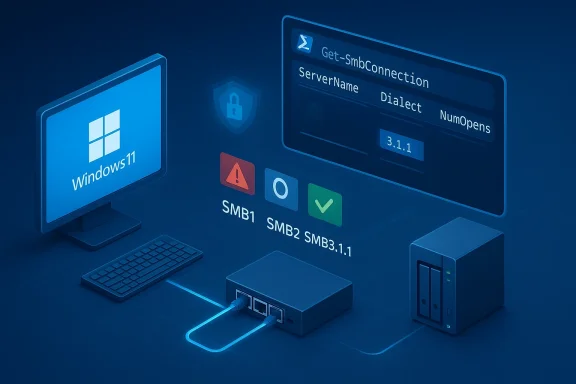
The most accurate way to check SMB version on Windows 11 is to inspect an active SMB connection. Microsoft documents the Get-SmbConnection family of SMB tooling as part of its SMB detection and management guidance, and this is the method you want if you need to know what version is being used right now. If there is no active share connection, the command may show nothing, which is normal rather than an error. (learn.microsoft.com)Why this method is best
An active connection tells you the negotiated dialect between your machine and the remote server. That is more useful than assuming the system is using the newest available version, because the server on the other end may force a lower SMB dialect for compatibility reasons. This is the practical difference between a settings page and a live diagnostic. ([learn.microsoft.com]oft.com/en-us/windows-server/storage/file-server/troubleshoot/detect-enable-and-disable-smbv1-v2-v3))Open Windows Terminal or PowerShell as administrator, then run the command below:
Get-SmbConnectionLook at the Dialect column. Microsoft’s SMB documentation describes SMB3.1.1 as the modern SMB3 dialect family used by current Windows releases, and in practice that is the version most Windows 10/11 systems should prefer when the other side supports it. If you see 2.1, 3.0, or 3.1.1, you are in the modern SMB range. (learn.microsoft.com)
What the command returns a dialect like 3.1.1, that is the strongest signal you are using a current SMB stack. If you see 3.0 or 2.1, the connection is still modern, but the remote device may be older or may not expose the newest features. If nothing appears, you probably are not connected to a network share at that moment.
A small but important caveat: the command is only as informative as the connection you are testing. If you have several mapped drives or multiple NAS devices, each one can negotiate a different SMB dialect. That makes it smart to test the exact share that is causing trouble rather than assuming all network storage behaves the same way. That detail is easy to miss. (learn.microsoft.com)Quick takeaways
- Use Get-SmbConnection to see the active SMB dialect.
- Check the Dialect column for the negotiated version.
- 3.1.1 is the best sign of a modern connection.
- Blank output usually means no current SMB share session.
- This method is the closest thing to a ground truth check.
Method 2: Check Whether SMB2/SMB3 Are Enabled
If you want to know whether the machine supports the modern SMB stack, check the SMB server configuration. Microsoft says you can use Get-SmbServerConfiguration | Select EnableSMB2Protocol to detect whether SMB2/SMB3 are enabled. On Windows 11, this is usually the state you want to verify when you are diagnosing compatibility or policy issues. (learn.microsoft.com)The command to run
Open an elevated PowerShell session and run:Get-SmbServerConfiguration | Select EnableSMB2ProtocolIf the result is True, SMB2 and SMB3 are enabled. If it is False, they are disabled, which is not typical for a healthy modern Windows 11 setup. Microsoft recommends keeping SMBv2 and SMBv3 enabled because they provide major functionality such as encryption, multichannel support, durable handles, and better performance. (learn.microsoft.com)
This method is useful because it tells you the platform’s capability rather than the negotiated state of one particular session. In other words, it answers the question, “Is the machine ready to use modern SMB?” That is different from asking, “What version did this one share use?” (learn.microsoft.com)
What SMB2/SMB3 enablement affects
Microsoft’s documentation is explicit that disabling SMBv3 removes features like encryption, SMB Direct, multichannel, and transparent failover. Disabling SMBv2 removes capabilities such as durable handles, larger reads and writes, and improved signing behavior. Those are not minor conveniences; they are central to the reliability and performance of Windows file sharing. (learn.microsoft.com)That is why modern enterprises shas part of the operating baseline rather than optional extras. Turning them off may solve one narrow test problem, but it usually creates more downstream risk than it resolves. The long-term cost is rarely worth the temporary workaround. (learn.microsoft.com)
Key points
- True means SMB2/SMB3 are enabled.
- False means the modern SMB stack is disabled.
- This check is about capability, not live negotiation.
- Microsoft recommends keeping SMBv2 and SMBv3 enabled.
- Disabling SMBv3 removes important security and performance features. (learn.microsoft.com)
Method 3: Check SMB1 in Windows Features
Windows 11 still lets you inspect SMB1 through the graphical interface, and that is helpful if you prefer not to use PowerShell. Microsoft’s guidance says SMB1 caWindows Features under SMB 1.0/CIFS File Sharing Support**. If the checkbox is cleared, SMB1 is off; if it is selected, SMB1 is enabled. (learn.microsoft.com)Step-by-step GUI path
Press Win + R, typeoptionalfeatures.exe, and press Enter. In the Windows Features dialog, scroll to SMB 1.0/CIFS File Sharing Support. If the box is checked, SMB1 is enabled. If the box is unchecked, SMB1 is disabled, which is the recommended state for Windows 11. (learn.microsoft.com)This method is still valuable because it gives non-technical users a visible confirmation without needing command-line knowledge. It also helps when the problem is policy-driven or when a support technician is walking a user through a fix on the phone. The downside is that it does not tell you which SMB dialect is currently being negotiated on a live share.
Microsoft is unambiguous about SMB1: it has significant security vulnerabilities, and the company strongly encourages customers not to use it. The official guidance even says that, instead of reinstalling SMB1, you should update the server that still requires it. That is the clearest possible signal that SMB1 should be treated as a last resort. (learn.microsoft.com)
Practical interpretation
If you discover SMB1 is enabled, the first question should be why. A legacy NAS, scanner, or embedded appliance may be the reason, but enabling SMB1 just to “make things work” can expose the device and the network to unnecessary risk. That is especially true on a Windows 11 system that otherwise supports much safer SMB options. (learn.microsoft.com)For consumer users, this often shows up as a home lab problem: an old storage box, an aging printer, or a media device from a different era. For businesses, the same issue can be much more serious because one old exception can become a permanent security hole. Compatibility is not a strategy.
Quick summary
- Use optionalfeatures.exe to open Windows Features.
- Find SMB 1.0/CIFS File Sharing Support.
- Checked means SMB1 enabled.
- Unchecked means SMB1 disabled.
- Microsoft recommends keeping SMB1 off unless there is no alternative. (learn.microsoft.com)
Understanding SMB Versions
SMB version numbers tell you more than just age; they describrformance model behind the connection. SMB1 is the legacy protocol, SMB2 is the modern baseline, and SMB3 adds a suite of higher-end capabilities such as encryption and better resiliency. Microsoft’s documentation frames SMBv2 and SMBv3 as the versions to keep enabled, not the versions to phase out. (learn.microsoft.com)SMB1 vs SMB2 vs SMB3
SMB1, also known as CIFS in many user-facing dialogs, dates back to an older era of Windows networking. It lacks the stronger design choices that make SMB2 and SMB3 more efficient and secure. That is why Microsoft keeps emphasizing compatibility pain on one side and serious vulnerabilities on the other. (learn.microsoft.com)SMB2 and SMB3 were buil, larger reads and writes, durable file handles, and more robust session handling. Microsoft specifically notes that SMBv3 supports encryption, SMB Direct, and transparent failover, which are especially important in enterprise and high-performance environments. That means SMB3 is not just “newer”; it is materially better suited to modern Windows 11 usage. (learn.microsoft.com)
Why 3.1.1 matters
If you see 3.1.1 in the Dialect field, the connection is using the newest SMB3 dialect family available in modern Windows ecosystems. That is the best sign that both endpoints are up to date and that the connection is taking advantage of current security and performance features. It is the SMB equivalent of seeing a modern TLS handshake rather than an ancient fallback. (learn.microsoft.com)It is still worth remembering that the highest version your PC supports is not always the version the other side will negotiate. A Windows 11 machine can be fully capable of SMB 3.1.1 and still end up talking to an older NAS in a much lower dialect. The actual negotiated version is what matters in troubleshooting. (learn.microsoft.com)
Version cheat sheet
- SMB1 / CIFS: legacy, insecure, deprecated.
- SMB2: modern foundation, much better than SMB1.
- SMB3: adds stronger security and resilience features.
- SMB 3.1.1: best modern dialect on Windows 11. (learn.microsoft.com)
What to Do If SMB Version Is Not Showing
Sometimes the command returns no useful output, assarily mean something is broken. If there is no live SMB share mounted or no active SMB session, Get-SmbConnection may have nothing to report. That is a normal limitation of the method, not a sign that SMB is missing from Windows 11.Check the connection first
Before you troubleshoot the version, make sure you are connected to the share you care about. Map the network drive, open the NAS folder, or access the shared path in File Explorer, then rerun the command. Without an active session, there is no dialect negotiation to display. ([learn.microso.microsoft.com/en-us/windows-server/storage/file-server/troubleshoot/detect-enable-and-disable-smbv1-v2-v3))If you are managing a server or another Windows PC, the server-side configuration may be more useful than the client-side connection. Microsoft provides Get-SmbServerConfiguration to inspect whether SMB1 or SMB2 is enabled on the server component. That can help you determine whether the problem is on your machine or on the remote host. (learn.microsoft.com)
Common reasons for blank or confusing results
- No network share is currently open.
- The remote device is offline.
- The share uses a protocol path outside SMB.
- SMB is blocked by firewall or policy.
- The device is so old that it only negotiates SMB1.
Recommended sequence
- Open the share you are testing.
- Run Get-SmbConnection.
- Check the Dialect field.
- If needed, run Get-SmbServerConfiguration.
- Only then consider GUI or registry checks.
Security Implications of SMB1
The security story is the most important part of SMB version checking. Microsoft explicitly warns that SMBv1 has significant vulnerabilities, and Windows 11 does not install it by default. That is not a cosmetic product choice; it is a direct response to the long history of abuse around legacy SMB implementations. (learn.microsoft.com)Why SMB1 is a problem
SMB1 lacks the stronger protections that later SMB versions bring to the table. The protocol is older, less effi with attack paths that modern defenders try to eliminate rather than accommodate. In practical terms, enabling SMB1 should be seen as temporary compatibility debt, not a normal operating mode. (learn.microsoft.com)Microsoft’s documentation also recommends updating the server that still requires SMB1 rather than reinstalling the feature on the Windows 11 client. That reflects a broader security philosophy: fix the legacy endpoint if you can, because every client you leave exposed becomes a future liability. (learn.microsoft.com)
Consumer and enterprise impact
For consumers, the risk may feel abstract until a ransomware incident or exposed NAS turns it into a real problem. For enterprises, the risk is more sits in the middle of file shares, scripts, backups, and administrative workflows. One insecure exception can create an entry point across the network.That is why many admins now treat SMB1 the way they treat unsupported browsers or end-of-life VPN appliances. It may still connect, but that does not mean it belongs in production. Connection success is not security success. (learn.microsoft.com)
Security checklist
- Keep SMB1 disabled unless there is no alternative.
- Prefer SMB2/SMB3 for all modern shares.
- Test legacy devices in isolation before widening access.
- Upgrade NAS firmware or appliance software where possible.
- Treat SMB1 as a last-resort bridge, not a standing configuration.
Troubleshooting SMB Connection Problems
If SMB version checks reveal modern protocols but the share still fails, the issue may be elsewhere. Microsoft’s SMB guidance makes clear that SMBv2 and SMBv3 include features like multichannel, encryption, and durable handles, so when those are presn still breaks, you need to look at authentication, firewall policy, or device compatibility. (learn.microsoft.com)What to check next
Start with the obvious: confirm that the remote share name is correct, the device is online, and the account has permission. Then check whether firewall rules, VPN settings, or endpoint protection are blocking the connection. SMB failures are often blamed on version mismatches when the real issue is access control or transport filtering. (learn.microsoft.com)If the connection works to one device but not another, compare the SMB dialects, signing requirements, and authentication settings between them. Microsoft’s SMB signing guidance shows that newer Windows releases can require stronger signing behavior, which can affect compatibility with third-party devices that were never built for current security defaults. That kind of mismatch can look like a version problem even when it is really a policy problem.
When a legacy device is the culprit
A very old NAS or printer may only support SMB1. In those cases, the safest fix is usually to update the device firmware, replace the device, or move the workload elsewhere. If you absolutely must use SMB1, isolate the device and disable the feature again as soon as possible. (learn.microsoft.com)It is also worth checking whether the device can be configured for SMB2 or SMB3 through its own admin interface. Many older appliances support a newer dialect but ship with outdated defaults, so the “broken share” is really just a configuration problem. That is a much better outcome than enabling a deprecated protocol on Windows 11. (learn.microsoft.com)
Common fixes
- Restart the PC and the NAS or remote host.
- Update Windows 11.
- Update the NAS firmware or printer firmware.
- Verify the share path and credentials.
- Check firewall, VPN, and network isolation rules.
Enterprise vs Consumer Scenarios
In consumer environments, SMB version checking is usually about convenience and compatibility. A home user wants a network drive to mount, a media library to appear, or a shared folder to open without drama. In that world, the answer is often a simple upgrade of the NAS or a switch to SMB2/SMB3 on the device side. (learn.microsoft.com)Home users
For home users, the GUI path through optionalfeatures.exe is often the easiest route. It is visual, low-risk, and quione who just wants their shared folder back. But the temptation to “just enable SMB1” can create long-term exposure, especially if the device remains on the network all the time. (learn.microsoft.com)If the device is truly ancient, the better answer is often replacement. That may be annoying, but it is still preferable to weakening the entire PC for one old box that cannot modernize. The cheapest fix is not always the safest one.
Enterprise admins
For enterprise IT, SMB version checks are part of a larger hardening and compatibility program. Admins need to know whether endpoints are using modern dialects, whether SMB1 is still installed anywhere, and whether a legacy exception is quietly waiting to become an incident. Microsoft’s recommendation to keep SMBv2 and SMBv3 enabled aligns with that broader governance model. (learn.microsoft.com)Enterprises also care about workload-specific features like encryption, failover, multichannel, and durable handles. Those capabilities matter for file servers, clustered storage, and branch-office performance, so disabling the wrong SMB version can have operational consequences beyond simple connectivity. That is why version checks should be paired with change control. (learn.microsoft.com)
Comparison snapshot
- Consumer priority: easy connectivity.
- Enterprise priority: security, reliability, and auditability.
- Consumer risk: legacy home devices forcing SMB1.
- Enterprise risk: one insecure exception spreading across the fleet.
- Best practice in both cases: use SMB2/SMB3 and avoid SMB1.
Strengths and Opportunities
Windows 11 already gives you multiple ways to check SMB version, which is valuable because different users need different levels of depth. The command-line tools are precise, while the GUI route is approachable, and Microsoft’s own documentation supports both. That combination makes troubleshooting easier for everyone from a home user to a systems administrator. (learn.microsoft.com)The biggest opportunity is to use version checking as a chance to clean up legacy infrastructure rather than merely restore connectivity. If a share only works after enabling SMB1, that is a signal to modernize the device, update firmware, or isolate the workload. In that sense, the diagnostic is also a security audit. That is a useful side effect. (learn.microsoft.com)
- Get-SmbConnection shows the live negotiated dialect.
- Get-SmbServerConfiguration shows system capability.
- The Windows Features dialog offers a friendly GUI path.
- SMB2 and SMB3 support better security and performance.
- SMB1 checks can reveal hidden technical debt.
- Modern Windows gives admins enough telemetry to make informed decisions.
- Version checks can uncover policy drift before it becomes a wider problem. (learn.microsoft.com)
Risks and Concerns
The main risk is enabling SMB1 as a quick fix and never turning it back off. That choice can linger for months or years and quietly reintroduce a protocol Microsoft says has significant security vulnerabilities. On a single home PC that is bad enough; across a business fleet it is a serious governance issue. (learn.microsoft.com)Another concern is assuming that a supported SMB version automatically means a secure or stable connection. A Windows 11 system can support SMB3 and still fail because of firewall policy, signing requirements, bad credentials, or a broken NAS firmware build. Version checking helps, but it is not the whole diagnosis. (learn.microsoft.com)
- SMB1 creep is the biggest long-term danger.
- Users may confuse support with active negotiation.
- Some devices require firmware updates before SMB2/3 works properly.
- Disabling SMBv2 or SMBv3 can remove essential features.
- Security policies can look like protocol failures.
- Old appliances can force unsafe compromises.
- One legacy exception can become an organizational blind spot. (learn.microsoft.com)
Looking Ahead
SMB is not going away, but the direction of travel is already clear: fewer legacy exceptions, more default security, and more pressure to retire SMB1 wherever it still survives. Microsoft’s documentation on Windows 11 reflects that reality by pushing users toward SMB2 and SMB3 and away from older protocols that no longer fit modern threat models. (learn.microsoft.com)For Windows 11 users, the practical lesson is straightforward. Check the active dialect first, confirm the system-wide settings second, and resist the urge to enable SMB1 unless you have exhausted every better option. That approach solves today’s connectivity problem without creating tomorrow’s security headache. It is the rare troubleshooting habit that helps twice. (learn.microsoft.com)
- Verify the live connection with Get-SmbConnection.
- Confirm SMB2/SMB3 are enabled with Get-SmbServerConfiguration.
- Use optionalfeatures.exe only when you need the GUI.
- Treat SMB1 as temporary, not permanent.
- Upgrade or replace legacy devices that cannot speak SMB2/SMB3.
- Re-test after every change so you know exactly what fixed the problem.
Source: HowToiSolve How to Check SMB Version on Windows 11 (Step-by-Step Guide)
Last edited:
