

Windows 11 users should generally not enable SMB1 unless they have no other way to reach a legacy device, because the protocol is outdated, insecure, and still associated with major attack paths that modern Windows versions are designed to avoid. The practical rule is simple: try to fix the device, firmware, or share settings first, and treat SMB1 as a temporary compatibility bridge rather than a normal configuration choice. Microsoft’s own Windows security direction has moved decisively toward newer SMB versions, and recent Windows security coverage in the forum ecosystem continues to treat SMB-based attack surface as something to harden, not expand
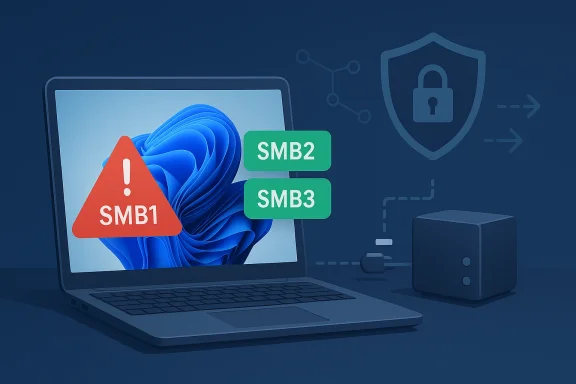
SMB, or Server Message Block, is the Windows file-sharing protocol that lets devices share files, printers, and other network resources. Over the years, it has evolved through several generations, with SMB1 representing the oldest widely deployed version and SMB2/SMB3 representing the modern stack that Windows actually wants you to use. The key point is not just age, but design philosophy: SMB1 was built for a different threat era, while SMB2 and SMB3 reflect a world where encryption, integrity, and tighter session handling matter much more.
That difference is why SMB1 has been progressively demoted across Microsoft’s platforms. By Windows 11, it is disabled by default, and that default matters because it communicates Microsoft’s position more clearly than any warning dialog ever could. In practical terms, the operating system is saying that compatibility with very old devices is an exception, not the standard. For home users, that means SMB1 is often only relevant when some old NAS, printer, or embedded device has never been updated.
The security history around SMB1 is also impossible to ignore. SMB1 is widely associated with some of the most notorious lateral-movement and ransomware-era attacks in recent memory, and the protocol’s architecture does not offer the protections that modern environments expect. Even when a machine is behind a home router, enabling a legacy protocol broadens the number of ways an attacker, malicious insider, or compromised device could move laterally. That is exactly the kind of risk Windows 11 tries to reduce by default.
The article you supplied gets the core advice right: use SMB1 only if absolutely necessary, enable it briefly if you must, and disable it again afterward. That matches the common security posture around deprecated Windows features. The part worth emphasizing, though, is that this is not just about abstract “bad security”; it is about the practical tradeoff between keeping an old device alive and keeping a modern PC defensible.
The problem is that bridges are not meant to become roads. Once SMB1 is enabled broadly, it starts to function as a permanent concession to the past. That is when the risk profile changes from “temporary compatibility” to “long-term exposure.” A feature that exists for migration should not be mistaken for a feature that belongs in a steady-state Windows 11 setup.
In everyday terms, SMB1 is the equivalent of keeping an old key under the mat because the newer lock looks inconvenient. It may work, but it is the kind of convenience that tends to get expensive later. If a device supports SMB2 or SMB3, there is almost never a good reason to stay on SMB1.
The risk is amplified in mixed environments. A Windows 11 PC connected to an old NAS, a legacy printer, and a few unmanaged devices creates more paths for misconfiguration and opportunistic abuse. The more places SMB1 exists, the more likely it is to be overlooked during routine security checks. That is how “just for this one device” becomes a hidden network weakness.
For consumer users, the risk may feel theoretical until it is not. For businesses, the risk is much more concrete because SMB traffic can sit inside a broader compromise chain. One compromised endpoint can become a stepping stone to shared folders, backups, and file servers. In that sense, SMB1 is not just an old feature; it is a possible multiplier for other security mistakes.
This is where nuance matters. The right answer for a home user trying to recover files from a retired NAS is not identical to the right answer for a small business trying to run payroll from an ancient server appliance. One is a temporary recovery task; the other may be an operational dependency. But the security principle is still the same: if SMB1 must exist, it should exist for the shortest practical time.
That simplicity can be misleading. The ease of enabling SMB1 does not mean the decision is low-risk. A single checkbox can widen your exposed network surface, which is why the security conversation has to happen before the feature is turned on, not after. The real cost is not the reboot; it is what you leave running once the system comes back.
It also helps to isolate the test. If you are only trying to connect one NAS, do not treat SMB1 as a general home-network optimization. Limit the use case, verify the device, and then shut the feature back off. That discipline is especially important if the PC is also used for work, cloud sync, or shared family access.
This is especially important for laptops and mixed-use PCs that leave the home network. A machine that connects to public Wi-Fi, hotel networks, or business VPNs should not carry unnecessary legacy services. The more networks a device touches, the more you should prefer minimal attack surface over convenience.
The most practical rule is simple: if you enabled SMB1 for one task, disable it immediately after that task succeeds. If the device still does not work without SMB1, the correct next step is usually to fix the device—not to normalize the protocol.
The important thing is that security and speed are not in tension here. Newer SMB versions usually improve both. That means the argument for SMB1 gets weaker every year. If a device still needs SMB1, the device—not the PC—is the part that is behind.
The documentation step is especially useful if a printer or NAS is shared by multiple people. If another user later “discovers” SMB1 and thinks it is a handy fix, your notes can stop the feature from spreading by accident. In that sense, documentation is part of security hygiene, not administrative busywork.
For a household, the safest posture is to use SMB1 only for a one-time transfer or setup task. If the legacy device is part of daily life, it is usually better to replace it than to keep the protocol enabled for months or years. The replacement cost may feel annoying, but it is often lower than the long-term risk.
In managed environments, the job is not merely to disable SMB1 on Windows 11 endpoints. It is also to identify legacy servers, imaging environments, storage appliances, and specialty devices that may still depend on it. The right enterprise answer is usually migration planning, not exception management.
For users and IT administrators, the real challenge is not deciding whether SMB1 is useful in theory. It is deciding whether the legacy device in front of you is worth keeping alive in a way that weakens the rest of the network. The answer will sometimes be yes for a short period, but it should almost never be yes for the long term.
Source: HowToiSolve Should You Enable SMB1 on Windows 11? Risks & Fix Explained
 Background
SMB, or Server Message Block, is the Windows file-sharing protocol that lets devices share files, printers, and other network resources. Over the years, it has evolved through several generations, with SMB1 representing the oldest widely deployed version and SMB2/SMB3 representing the modern stack that Windows actually wants you to use. The key point is not just age, but design philosophy: SMB1 was built for a different threat era, while SMB2 and SMB3 reflect a world where encryption, integrity, and tighter session handling matter much more.That difference is why SMB1 has been progressively demoted across Microsoft’s platforms. By Windows 11, it is disabled by default, and that default matters because it communicates Microsoft’s position more clearly than any warning dialog ever could. In practical terms, the operating system is saying that compatibility with very old devices is an exception, not the standard. For home users, that means SMB1 is often only relevant when some old NAS, printer, or embedded device has never been updated.
The security history around SMB1 is also impossible to ignore. SMB1 is widely associated with some of the most notorious lateral-movement and ransomware-era attacks in recent memory, and the protocol’s architecture does not offer the protections that modern environments expect. Even when a machine is behind a home router, enabling a legacy protocol broadens the number of ways an attacker, malicious insider, or compromised device could move laterally. That is exactly the kind of risk Windows 11 tries to reduce by default.
The article you supplied gets the core advice right: use SMB1 only if absolutely necessary, enable it briefly if you must, and disable it again afterward. That matches the common security posture around deprecated Windows features. The part worth emphasizing, though, is that this is not just about abstract “bad security”; it is about the practical tradeoff between keeping an old device alive and keeping a modern PC defensible.
What SMB1 Actually Does
At a functional level, SMB1 is just a file-sharing protocol. It enables access to shared folders, network printers, and some legacy appliance interfaces that still speak in old Windows dialects. For many users, that means SMB1 only appears when they plug in an older NAS or try to revive a printer that has not received a firmware update in years.Why legacy support still exists
Legacy support survives because hardware does not age at the same speed as software policy. A printer that still works mechanically may have firmware frozen in time, and a low-cost NAS may have been shipped with SMB1 support long after the world moved on. That creates a compatibility trap: the device is physically fine, but the network protocol it understands is not. In practice, SMB1 becomes a bridge for one last connection.The problem is that bridges are not meant to become roads. Once SMB1 is enabled broadly, it starts to function as a permanent concession to the past. That is when the risk profile changes from “temporary compatibility” to “long-term exposure.” A feature that exists for migration should not be mistaken for a feature that belongs in a steady-state Windows 11 setup.
SMB1 versus modern SMB
SMB2 and SMB3 introduced major improvements in performance and resilience, but the bigger story is security. Modern SMB versions support stronger integrity handling and, in SMB3’s case, encryption features that SMB1 simply does not offer in the same way. That means SMB1 is not just older; it is structurally less suitable for today’s threat environment.In everyday terms, SMB1 is the equivalent of keeping an old key under the mat because the newer lock looks inconvenient. It may work, but it is the kind of convenience that tends to get expensive later. If a device supports SMB2 or SMB3, there is almost never a good reason to stay on SMB1.
- SMB1 is mainly a compatibility protocol.
- SMB2 and SMB3 are the secure default path.
- Older hardware often drives SMB1 usage, not user preference.
- A temporary fix can become a permanent liability if left in place.
Why SMB1 Is Dangerous
The biggest issue with SMB1 is not that it is merely “old.” It is that its age maps directly to a weaker security model, and that weak model can be exploited in real environments. SMB1 lacks the modern safeguards users now take for granted, which makes it a bad fit for systems that handle personal documents, backups, or home-office work.Security vulnerabilities and attack surface
SMB1 has long been associated with serious wormable and lateral-movement scenarios. Once a protocol becomes a common vector in major outbreaks, it stops being a neutral compatibility layer and becomes a recognized attack surface. That matters because attackers do not need every PC to be vulnerable; they only need one enabling condition, and SMB1 is often that condition.The risk is amplified in mixed environments. A Windows 11 PC connected to an old NAS, a legacy printer, and a few unmanaged devices creates more paths for misconfiguration and opportunistic abuse. The more places SMB1 exists, the more likely it is to be overlooked during routine security checks. That is how “just for this one device” becomes a hidden network weakness.
No meaningful modern protection baseline
SMB1 also lacks the stronger baseline protections that came later. That includes the kind of session security and encryption posture that modern Windows administrators expect when sensitive files are moving across the network. If the data is important enough to care about, it is important enough to avoid moving over a protocol that was never designed for current expectations.For consumer users, the risk may feel theoretical until it is not. For businesses, the risk is much more concrete because SMB traffic can sit inside a broader compromise chain. One compromised endpoint can become a stepping stone to shared folders, backups, and file servers. In that sense, SMB1 is not just an old feature; it is a possible multiplier for other security mistakes.
- Outdated protocol design increases the chance of exploitation.
- Legacy compatibility can obscure where the weak point actually is.
- Lateral movement becomes easier if SMB1 remains enabled.
- Data exposure rises when encryption and integrity controls are weaker.
When You Might Still Need SMB1
There are still valid edge cases where SMB1 appears unavoidable. The most common one is an older NAS or embedded network appliance that never received a firmware update with SMB2 or SMB3 support. Another is a legacy printer or multifunction device that exposes scanning or sharing features through old SMB-only interfaces.Common legacy scenarios
Some users also encounter SMB1 when restoring archived systems or dealing with old Windows-era software that was never modernized. In those cases, the problem is not that SMB1 is desirable, but that the surrounding hardware or software ecosystem has frozen in time. If replacement is not immediately possible, SMB1 may be the only short-term way to keep a workflow alive.This is where nuance matters. The right answer for a home user trying to recover files from a retired NAS is not identical to the right answer for a small business trying to run payroll from an ancient server appliance. One is a temporary recovery task; the other may be an operational dependency. But the security principle is still the same: if SMB1 must exist, it should exist for the shortest practical time.
How to decide if you really need it
A useful decision process is to ask whether the device itself can be changed before Windows 11 is changed. That means checking firmware updates, alternate connection methods, or built-in settings that allow a newer SMB mode. If the device can speak a modern protocol, SMB1 should not be enabled at all. If the device cannot be updated, then SMB1 becomes a last resort, not a default workaround.- Check whether the device supports SMB2 or SMB3.
- Update the device firmware or management software.
- Test alternative sharing or file transfer methods.
- Enable SMB1 only if no modern option exists.
- Disable SMB1 again immediately after use.
- Old NAS devices are a frequent reason SMB1 survives.
- Legacy printers can still depend on SMB1-era interfaces.
- Firmware updates may eliminate the need entirely.
- Temporary recovery use is safer than permanent exposure.
How to Enable SMB1 on Windows 11
The basic steps in the supplied article are the right ones: open Windows Features, locate SMB 1.0/CIFS File Sharing Support, check the box, and restart the PC. That is the standard consumer-facing way to turn the feature on, and it is intentionally simple because Microsoft expects most users never to need it.The Windows Features path
The feature lives in the classic Windows optional-components interface, which is a clue in itself. Microsoft does not present SMB1 as a recommended modern setting; it is buried with other optional components because it is there for compatibility, not for everyday use. Once enabled, it may allow old devices to reconnect without immediately replacing hardware.That simplicity can be misleading. The ease of enabling SMB1 does not mean the decision is low-risk. A single checkbox can widen your exposed network surface, which is why the security conversation has to happen before the feature is turned on, not after. The real cost is not the reboot; it is what you leave running once the system comes back.
Safer enabling discipline
If SMB1 must be enabled, the safest approach is to make the change as narrowly and briefly as possible. That means documenting why you enabled it, which device needed it, and when you plan to remove it. This is a small administrative habit, but it prevents “temporary” compatibility changes from becoming invisible permanent ones.It also helps to isolate the test. If you are only trying to connect one NAS, do not treat SMB1 as a general home-network optimization. Limit the use case, verify the device, and then shut the feature back off. That discipline is especially important if the PC is also used for work, cloud sync, or shared family access.
- Use the built-in Windows Features panel.
- Enable only the SMB1 component you actually need.
- Restart to activate the change.
- Record the reason and the device involved.
- Schedule the disable step before you forget.
Why You Should Turn It Back Off
If SMB1 was enabled to solve a specific problem, it should be disabled as soon as that problem is solved. That advice is not just cautious—it is the whole point of modern Windows hardening. Leaving SMB1 on after the fact turns a compatibility exception into a standing risk, and that is a bad trade on a modern PC.The security argument
A disabled-by-default feature is usually disabled because it broadens the risk surface more than it improves the baseline user experience. SMB1 is a textbook example. Once the compatibility task is complete, the benefit drops close to zero while the downside remains. At that point, the feature stops being a solution and starts being technical debt.This is especially important for laptops and mixed-use PCs that leave the home network. A machine that connects to public Wi-Fi, hotel networks, or business VPNs should not carry unnecessary legacy services. The more networks a device touches, the more you should prefer minimal attack surface over convenience.
The maintenance argument
Turning SMB1 off also makes troubleshooting easier in the long run. If a future problem appears, you know you are dealing with a deliberate configuration rather than an accidental legacy holdover. That matters because obscure old settings often complicate future support work, particularly when a device changes owners or the original setup notes are missing.The most practical rule is simple: if you enabled SMB1 for one task, disable it immediately after that task succeeds. If the device still does not work without SMB1, the correct next step is usually to fix the device—not to normalize the protocol.
- Disable SMB1 when the legacy task is finished.
- Reboot again so the change fully applies.
- Re-test the device before assuming failure.
- Prefer a device-side fix over a Windows-side exception.
- Remove temporary compatibility settings from your baseline.
SMB1 vs SMB2/SMB3
The comparison between SMB1 and the newer protocols is not subtle. SMB2 and SMB3 are faster, more capable, and materially more secure for modern use. SMB1 can still function, but it functions as a compatibility relic rather than a first-choice transport.Security and performance differences
From a security standpoint, SMB2/SMB3 are the only sensible defaults for Windows 11. They are better aligned with current expectations for integrity, encryption, and authentication behavior. From a performance standpoint, they also handle modern network conditions more efficiently, which is why even non-security users often get a better experience once older devices are upgraded.The important thing is that security and speed are not in tension here. Newer SMB versions usually improve both. That means the argument for SMB1 gets weaker every year. If a device still needs SMB1, the device—not the PC—is the part that is behind.
Practical comparison
A quick side-by-side view makes the choice clearer:- SMB1: legacy compatibility, weaker security, slower behavior, no modern encryption baseline.
- SMB2/SMB3: modern compatibility, stronger security, better performance, recommended for Windows 11.
Consumer and enterprise impact
For consumers, SMB1 usually comes down to one old device on a home network. For enterprises, it can be much more serious because a single legacy share can undermine broader hardening work. In a managed environment, even one SMB1-enabled system can complicate audit results and create a path for movement between systems.- SMB2/SMB3 are the correct modern choice.
- SMB1 is a fallback for broken legacy compatibility.
- Enterprises face a larger blast radius than home users.
- Upgrading the device is usually better than enabling the protocol.
Best Practices Before You Flip the Switch
Before enabling SMB1, it helps to approach the problem like a troubleshooting tree rather than a quick fix. The goal is to solve the sharing issue without normalizing insecure settings. That means checking the device first, the Windows configuration second, and SMB1 last.Step-by-step checklist
- Confirm the exact device that needs access.
- Check the device documentation for SMB2/SMB3 support.
- Install any available firmware or driver updates.
- Try an alternate sharing method, if available.
- Enable SMB1 only if all modern options fail.
- Use the feature only long enough to complete the task.
- Disable SMB1 once access is no longer needed.
What to document
It is also wise to document the reason for enabling SMB1, especially if you support family members, a small office, or multiple PCs. Note the model of the device, the date you enabled SMB1, and the date you plan to remove it. That simple paper trail makes later cleanup much easier.The documentation step is especially useful if a printer or NAS is shared by multiple people. If another user later “discovers” SMB1 and thinks it is a handy fix, your notes can stop the feature from spreading by accident. In that sense, documentation is part of security hygiene, not administrative busywork.
- Identify the exact legacy device.
- Look for firmware or protocol upgrades first.
- Avoid enabling SMB1 on a whim.
- Write down the change and the reason.
- Treat the setting as temporary by default.
Enterprise Versus Home Use
SMB1 is a different problem depending on the environment. In a home setting, the main concern is usually personal file exposure and avoiding a self-inflicted security headache. In an enterprise setting, the concern is broader because SMB traffic often intersects with identity, backups, shared storage, and the movement of sensitive data.Home users
Home users often enable SMB1 to get one old printer or NAS working again. That may feel harmless, but home networks are increasingly full of laptops, phones, IoT devices, and cloud-synced PCs. Once SMB1 is on, it is part of that broader mix, which means the legacy protocol can become one more thing that gets forgotten.For a household, the safest posture is to use SMB1 only for a one-time transfer or setup task. If the legacy device is part of daily life, it is usually better to replace it than to keep the protocol enabled for months or years. The replacement cost may feel annoying, but it is often lower than the long-term risk.
Enterprises
Enterprises should be far less tolerant of SMB1. The protocol is not just a convenience issue; it is a policy issue. A security team that finds SMB1 still enabled must treat it as technical debt, an audit finding, and a potential attack path all at once. That is why most corporate baselines already aim to block or remove it.In managed environments, the job is not merely to disable SMB1 on Windows 11 endpoints. It is also to identify legacy servers, imaging environments, storage appliances, and specialty devices that may still depend on it. The right enterprise answer is usually migration planning, not exception management.
- Home users face convenience-versus-risk tradeoffs.
- Enterprises face policy, audit, and lateral-movement risks.
- Legacy devices should be inventoried, not ignored.
- Replacement is usually cheaper than extended exposure.
Strengths and Opportunities
The good news is that Windows 11 already gives users the right default by keeping SMB1 off, which reduces accidental exposure. That default, combined with the availability of SMB2 and SMB3 on modern devices, means many users can solve their problem without touching legacy protocols at all. The opportunity here is to use the SMB1 question as a prompt to modernize older hardware and clean up network habits.- Windows 11 ships with a safer default.
- SMB2 and SMB3 cover the vast majority of valid use cases.
- A one-time SMB1 need can reveal outdated hardware.
- Firmware updates may eliminate the compatibility gap.
- Disabling SMB1 afterward limits residual risk.
- Documentation creates better long-term hygiene.
- The issue can be a useful modernization trigger.
Risks and Concerns
The largest risk is that a temporary compatibility fix becomes a permanent hidden exposure. Once SMB1 is enabled and the device starts working again, many users never revisit the setting, which means the old protocol can quietly remain active for months. That kind of inertia is exactly how legacy security problems survive in otherwise modern environments.- SMB1 may stay enabled longer than intended.
- Old NAS and printer firmware may never be updated.
- Mixed-device networks can mask the source of risk.
- Users may confuse compatibility with safety.
- Legacy protocols can complicate future troubleshooting.
- A single insecure device can undermine broader hardening.
- Home users may underestimate lateral-movement risk.
Looking Ahead
The long-term direction is clear: SMB1 is not coming back as a preferred Windows feature. The ecosystem keeps moving toward stronger SMB versions, better device firmware, and tighter security expectations, which leaves SMB1 increasingly stranded as a stopgap for old hardware. In other words, every year that passes makes SMB1 less like a feature and more like a compatibility artifact.For users and IT administrators, the real challenge is not deciding whether SMB1 is useful in theory. It is deciding whether the legacy device in front of you is worth keeping alive in a way that weakens the rest of the network. The answer will sometimes be yes for a short period, but it should almost never be yes for the long term.
- Check for SMB2/SMB3 support first.
- Upgrade or replace legacy devices where possible.
- Use SMB1 only as a temporary bridge.
- Disable it immediately after the job is done.
- Review old devices before they become permanent liabilities.
Source: HowToiSolve Should You Enable SMB1 on Windows 11? Risks & Fix Explained
