

Windows 10 update control has always been a balancing act between security and operational stability, and that tension is sharper now that Windows 10 itself is past its free-support era. Microsoft’s servicing model does not really offer a true “off” switch for updates, but it does provide several levers for delaying, staging, or tightly governing when updates reach desktops. For organizations, the real question is not whether to block Windows updates forever, but how to reduce disruption without drifting into unsupported, unpatched risk. The best answer depends on whether you need a temporary pause, a version hold, or a stricter enterprise policy posture.
The idea of stopping Windows updates is older than Windows 10, but the conversation changed once Microsoft embraced a more continuous servicing model. In the old cadence, administrators often treated patches as occasional maintenance windows. In the Windows 10 era, updates became more frequent, more automated, and more tied to lifecycle enforcement, which made the experience feel less optional and more prescriptive. That shift explains why so many IT teams still look for ways to slow, defer, or stage updates rather than simply accept default behavior.
Organizations usually want control for practical reasons, not rebellion. A patch that looks routine in Redmond can still break a line-of-business app, disrupt a kiosk image, or complicate a hardened workstation build. In remote or bandwidth-constrained deployments, the issue may be more about network economics than software compatibility. In each of those cases, the goal is not to avoid maintenance forever; it is to preserve predictability long enough to test, validate, and roll out on the organization’s own schedule.
Microsoft’s own documentation and support posture make the underlying philosophy plain: updates are intended to keep devices secure, and pause controls are temporary by design. That means the strongest enterprise controls are policy-based, version-targeted, and centrally managed rather than consumer-style toggles. It also means that once a release reaches end of servicing, Windows Update may force a feature update to move the device back to a supported state. In practice, that limits how useful “blocking” really is over the long term.
For Windows 10 specifically, that lifecycle pressure is now the key backdrop. Microsoft ended free updates and security fixes for Windows 10 on October 14, 2025, which makes any strategy built around indefinite deferral much riskier than it was before. Organizations can still delay, stage, or selectively approve updates, but the cost of staying frozen is now much higher. In other words, update control is still possible; update avoidance is increasingly a dead end.
There is also a governance argument. Public kiosks, digital signage systems, point-of-sale terminals, and hardened operator desktops are not general-purpose endpoints. They are controlled appliances in all but name, and administrators usually want them to remain visually and behaviorally stable for as long as possible. A feature update that changes the interface, policy defaults, or background services can create user confusion, training debt, or compliance issues.
Bandwidth is another legitimate concern, especially in remote field operations or distributed sites with limited WAN capacity. If hundreds or thousands of devices decide to pull updates at the same time, the network can become the bottleneck long before the patches finish installing. That is one reason Microsoft built management layers like WSUS, Intune, and Delivery Optimization rather than relying entirely on consumer-style downloading behavior. The organization wants to shape traffic, not simply react to it.
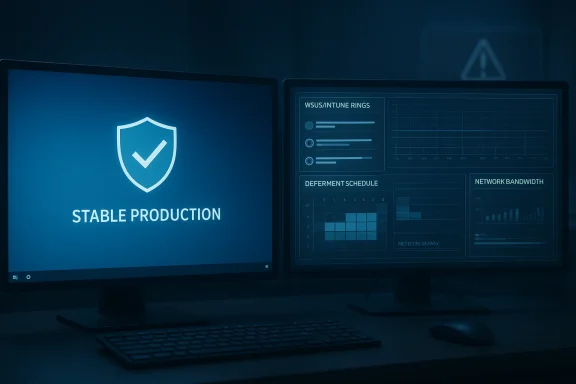
WSUS is the classic example of deliberate control. Admins can approve only the patches they want to roll out, which gives them a staging buffer for testing and compatibility validation. That approval workflow is especially useful where one bad patch could break a production application across many devices. In effect, WSUS turns Windows Update into an internal software release pipeline rather than a public feed.
Intune is more nuanced. It does not simply “block everything,” but it does allow organizations to hold devices on specific versions, defer feature updates, and manage rollout timing across rings. Microsoft’s newer policy model is increasingly about version control rather than crude on/off decisions. That is a subtle but important distinction: the administrator is not disabling maintenance; they are choosing which maintenance and when.
This approach is useful when an organization wants a lighter touch than WSUS or Intune. It can be deployed locally or through domain policy, and it gives administrators a straightforward way to slow automatic behavior without fully severing the device from update infrastructure. In many environments, that is enough to convert an annoying auto-install process into a manageable notification workflow.
But Group Policy is not a perfect shield. It changes the default, not the possible. Users can still go into Windows Update and choose to install, and Microsoft can still push devices forward when lifecycle rules demand it. So while Group Policy is a useful brake, it is not a guarantee of permanent deferral. That limitation is central to understanding why policy-based control is better than pretending the update engine can be turned off forever.
That makes the service-disable method a last resort rather than a best practice. It may be useful in narrow, controlled cases such as imaging, lab work, or a short-term troubleshooting window. It is a poor choice for ordinary endpoint governance because it bypasses the layered servicing model that Windows expects to use. It also makes troubleshooting harder later, since the device is now outside the normal servicing pattern.
The biggest problem is durability. A disabled service is not the same thing as a robust policy. Microsoft has repeatedly shown that it prefers to enforce supportability through settings, deadlines, and lifecycle logic rather than letting devices drift indefinitely. So even if the service is disabled today, that does not mean the machine is permanently exempt tomorrow.
The benefit is obvious in constrained environments. If a laptop is tethered to a hotspot, or if a machine is living on a limited uplink, metering can protect precious bandwidth. It can also reduce the chances that Windows Update competes with critical business traffic at the wrong time. But Microsoft explicitly leaves room for important or security-critical traffic to move anyway, so administrators should not assume that metering equals immunity.
This is why metered connections are a traffic-shaping control, not a policy substitute. They are best used as part of a broader approach that also includes update deferral or centralized approval. Alone, they may reduce the problem enough to be helpful. Alone, they are not enough to satisfy strict change-control requirements.
That matters because blocking updates makes sense only while there is something worth blocking. If the underlying version is out of support, the real issue becomes migration or Extended Security Updates, not indefinite deferral. Microsoft’s own servicing posture makes clear that unsupported releases are not meant to remain frozen forever; in some cases, the system is designed to move forward automatically when servicing ends.
For IT teams, this is the point at which patch management becomes lifecycle management. You can still delay a quality update, but you cannot rely on update blocking as a long-term strategy for a platform whose normal support window has already closed. The more a machine depends on Windows 10 beyond support, the more every blocked update becomes a risk decision rather than a convenience measure.
That difference explains why Microsoft gives managed environments more sophisticated tools than it gives home users. Intune update rings, feature update policies, and policy CSP settings allow organizations to define version targets and deferral windows. Home machines, by contrast, get simpler controls such as pause buttons, active hours, and the occasional notify-before-install setting. Microsoft’s message is consistent across both audiences: the platform should remain current, but the timing can be shaped according to the device’s role.
The consumer experience often feels paternalistic because Microsoft is trying to prevent users from freezing themselves into an unsafe state. In managed settings, the same behavior feels like governance because IT has a formal duty to keep endpoints compliant. That is why the same Windows Update mechanism can be viewed as annoying, helpful, or mandatory depending on the environment.
For organizations still running Windows 10 desktops, that means the real work is now about transition planning. The longer a device stays on an unsupported or near-end-of-support release, the less valuable it becomes to ask how to block updates. The more urgent question is how to migrate, how to stage exceptions, and how to protect the few systems that truly must remain in place for business reasons.
What to watch next:
Source: TechTarget How to prevent updates on Windows 10 desktops | TechTarget
 Overview
The idea of stopping Windows updates is older than Windows 10, but the conversation changed once Microsoft embraced a more continuous servicing model. In the old cadence, administrators often treated patches as occasional maintenance windows. In the Windows 10 era, updates became more frequent, more automated, and more tied to lifecycle enforcement, which made the experience feel less optional and more prescriptive. That shift explains why so many IT teams still look for ways to slow, defer, or stage updates rather than simply accept default behavior.Organizations usually want control for practical reasons, not rebellion. A patch that looks routine in Redmond can still break a line-of-business app, disrupt a kiosk image, or complicate a hardened workstation build. In remote or bandwidth-constrained deployments, the issue may be more about network economics than software compatibility. In each of those cases, the goal is not to avoid maintenance forever; it is to preserve predictability long enough to test, validate, and roll out on the organization’s own schedule.
Microsoft’s own documentation and support posture make the underlying philosophy plain: updates are intended to keep devices secure, and pause controls are temporary by design. That means the strongest enterprise controls are policy-based, version-targeted, and centrally managed rather than consumer-style toggles. It also means that once a release reaches end of servicing, Windows Update may force a feature update to move the device back to a supported state. In practice, that limits how useful “blocking” really is over the long term.
For Windows 10 specifically, that lifecycle pressure is now the key backdrop. Microsoft ended free updates and security fixes for Windows 10 on October 14, 2025, which makes any strategy built around indefinite deferral much riskier than it was before. Organizations can still delay, stage, or selectively approve updates, but the cost of staying frozen is now much higher. In other words, update control is still possible; update avoidance is increasingly a dead end.
Why organizations try to block or slow Windows 10 updates
The most common reason is compatibility. Legacy applications, custom drivers, and specialized workflows are often more fragile than vendors admit, and a quality update can expose that fragility immediately. If a business depends on a production system that has been tuned around a very specific Windows build, a surprise patch is not an abstract inconvenience; it can become an outage. That is why IT teams sometimes prefer a brief delay over immediate adoption.There is also a governance argument. Public kiosks, digital signage systems, point-of-sale terminals, and hardened operator desktops are not general-purpose endpoints. They are controlled appliances in all but name, and administrators usually want them to remain visually and behaviorally stable for as long as possible. A feature update that changes the interface, policy defaults, or background services can create user confusion, training debt, or compliance issues.
Bandwidth is another legitimate concern, especially in remote field operations or distributed sites with limited WAN capacity. If hundreds or thousands of devices decide to pull updates at the same time, the network can become the bottleneck long before the patches finish installing. That is one reason Microsoft built management layers like WSUS, Intune, and Delivery Optimization rather than relying entirely on consumer-style downloading behavior. The organization wants to shape traffic, not simply react to it.
Business scenarios that drive update control
- Legacy line-of-business software that has not been certified on newer builds.
- Kiosk and signage devices where stability matters more than feature churn.
- Hardened images that would be undermined by an unvetted update path.
- Branch offices and field sites with limited connectivity or expensive data.
- Validation-heavy environments where testing must precede broad deployment.
Centralized patch management is the safest control plane
The strongest way to prevent unwanted Windows updates is to stop treating each PC as an island. Tools such as WSUS and Microsoft Intune let administrators control approval, timing, and version targeting from a central console. That model does not eliminate updates; it replaces broad automatic deployment with a managed release process. For enterprises, that is usually the right answer because it scales, it audits well, and it aligns with compliance practices.WSUS is the classic example of deliberate control. Admins can approve only the patches they want to roll out, which gives them a staging buffer for testing and compatibility validation. That approval workflow is especially useful where one bad patch could break a production application across many devices. In effect, WSUS turns Windows Update into an internal software release pipeline rather than a public feed.
Intune is more nuanced. It does not simply “block everything,” but it does allow organizations to hold devices on specific versions, defer feature updates, and manage rollout timing across rings. Microsoft’s newer policy model is increasingly about version control rather than crude on/off decisions. That is a subtle but important distinction: the administrator is not disabling maintenance; they are choosing which maintenance and when.
Where centralized management wins
A centralized patch stack gives IT four practical advantages. First, it creates a testing window before broad deployment. Second, it reduces the chance of a single device independently deciding to update at the worst possible time. Third, it allows policy to follow hardware classes, user groups, or business units. Fourth, it produces logs and compliance evidence, which matter when a patch decision needs to be explained later.- Controlled rollout instead of device-by-device surprises.
- Clear approval chains for security, operations, and application owners.
- Better visibility into version drift and compliance gaps.
- More predictable bandwidth consumption across the fleet.
- Easier exception handling for special-purpose systems.
Group Policy still matters on Pro and Enterprise
For Windows 10 Pro and Enterprise systems, Group Policy remains one of the most practical local controls. The familiar setting under Windows Update allows IT to switch Automatic Updates from fully automatic installation to a notify-before-download-and-install model. That does not prevent users from choosing to install updates manually, but it does stop Windows from silently moving ahead on its own.This approach is useful when an organization wants a lighter touch than WSUS or Intune. It can be deployed locally or through domain policy, and it gives administrators a straightforward way to slow automatic behavior without fully severing the device from update infrastructure. In many environments, that is enough to convert an annoying auto-install process into a manageable notification workflow.
But Group Policy is not a perfect shield. It changes the default, not the possible. Users can still go into Windows Update and choose to install, and Microsoft can still push devices forward when lifecycle rules demand it. So while Group Policy is a useful brake, it is not a guarantee of permanent deferral. That limitation is central to understanding why policy-based control is better than pretending the update engine can be turned off forever.
What Group Policy actually does
The policy is best understood as a notification strategy, not a hard block. It preserves IT’s ability to decide whether updates should be automatically applied or simply announced. For environments with good user discipline or a separate approval process, that may be enough. For less controlled environments, it is usually only one layer in a broader servicing plan.- Open Group Policy Editor.
- Navigate to the Windows Update policy path.
- Enable Configure Automatic Updates.
- Choose the option that notifies before download and installation.
- Combine it with broader patch governance if the fleet is large.
Disabling the Windows Update service is a blunt instrument
Some administrators go straight to services.msc and disable the Windows Update service. On paper, this looks like the cleanest stopgap: if the service doesn’t run, updates don’t install. In practice, it is more of a disruption tactic than a sustainable policy, because Microsoft can restore update behavior through other mechanisms and because disabling core services often creates maintenance side effects.That makes the service-disable method a last resort rather than a best practice. It may be useful in narrow, controlled cases such as imaging, lab work, or a short-term troubleshooting window. It is a poor choice for ordinary endpoint governance because it bypasses the layered servicing model that Windows expects to use. It also makes troubleshooting harder later, since the device is now outside the normal servicing pattern.
The biggest problem is durability. A disabled service is not the same thing as a robust policy. Microsoft has repeatedly shown that it prefers to enforce supportability through settings, deadlines, and lifecycle logic rather than letting devices drift indefinitely. So even if the service is disabled today, that does not mean the machine is permanently exempt tomorrow.
When service-level blocking makes sense
This method is best confined to very specific operational situations. For example, a lab image that is being preserved for a test cycle may need to remain untouched. A staging system used for diagnostics may need temporary stability. A production desktop that simply “should not update” is a much weaker case, because the security and support costs rise quickly.- Temporary lab or staging environments.
- Imaging workflows before final deployment.
- Short troubleshooting periods where update activity is undesirable.
- Very controlled offline systems with a defined maintenance owner.
Metered connections can reduce update activity, but not eliminate it
Setting a connection to metered is often misunderstood as a hard block. It is not. The technique mainly tells Windows to reduce background consumption, which can significantly slow update downloads and other data-heavy services. That makes it a good tactic for mobile, branch, or field use, but not a reliable way to guarantee that no updates ever occur.The benefit is obvious in constrained environments. If a laptop is tethered to a hotspot, or if a machine is living on a limited uplink, metering can protect precious bandwidth. It can also reduce the chances that Windows Update competes with critical business traffic at the wrong time. But Microsoft explicitly leaves room for important or security-critical traffic to move anyway, so administrators should not assume that metering equals immunity.
This is why metered connections are a traffic-shaping control, not a policy substitute. They are best used as part of a broader approach that also includes update deferral or centralized approval. Alone, they may reduce the problem enough to be helpful. Alone, they are not enough to satisfy strict change-control requirements.
Hidden side effects of metering
The catch is that Windows is not the only thing that reacts to a metered flag. Other applications may also tone down their behavior, which is useful sometimes and annoying at other times. Depending on the device and the workload, metering can suppress expected syncing, reduce background convenience, or alter how cloud apps behave. That makes it a more approximate tool than many users realize.- Lower update traffic, but not a guaranteed full block.
- Potential side effects on other apps that respect data-saving mode.
- Useful for mobile and remote deployments.
- Better as a bandwidth guardrail than as a security policy.
Windows 10’s end-of-support status changes the math
The biggest shift in 2025 and 2026 is that Windows 10 is no longer a supported operating system in the free-update sense. Microsoft’s support materials say the OS no longer receives free security fixes after October 14, 2025, which means the old calculus of “let’s just hold off a little longer” now carries a larger security penalty. Organizations that still have Windows 10 desktops in production are no longer merely tuning patch cadence; they are managing an aging platform.That matters because blocking updates makes sense only while there is something worth blocking. If the underlying version is out of support, the real issue becomes migration or Extended Security Updates, not indefinite deferral. Microsoft’s own servicing posture makes clear that unsupported releases are not meant to remain frozen forever; in some cases, the system is designed to move forward automatically when servicing ends.
For IT teams, this is the point at which patch management becomes lifecycle management. You can still delay a quality update, but you cannot rely on update blocking as a long-term strategy for a platform whose normal support window has already closed. The more a machine depends on Windows 10 beyond support, the more every blocked update becomes a risk decision rather than a convenience measure.
Why end-of-support is a hard line
End-of-support turns update policy into an asset-management problem. It forces organizations to decide whether they will upgrade, buy time with ESU, or accept increasing exposure. That is why the conversation around stopping updates is now inseparable from hardware refresh planning and application compatibility review.- Windows 10 is no longer a “wait and see” platform.
- Holding back updates no longer preserves a supported baseline.
- Unsupported systems become governance and security liabilities.
- Migration planning now has to sit beside patch policy.
Enterprise vs. consumer impact is not the same
Consumers usually want fewer interruptions. Enterprises usually want fewer surprises. Those are related goals, but they lead to different policy choices. Consumer users are mostly looking for convenience and control during work or personal time; enterprise admins are looking for repeatability, compliance, and fleet-wide predictability.That difference explains why Microsoft gives managed environments more sophisticated tools than it gives home users. Intune update rings, feature update policies, and policy CSP settings allow organizations to define version targets and deferral windows. Home machines, by contrast, get simpler controls such as pause buttons, active hours, and the occasional notify-before-install setting. Microsoft’s message is consistent across both audiences: the platform should remain current, but the timing can be shaped according to the device’s role.
The consumer experience often feels paternalistic because Microsoft is trying to prevent users from freezing themselves into an unsafe state. In managed settings, the same behavior feels like governance because IT has a formal duty to keep endpoints compliant. That is why the same Windows Update mechanism can be viewed as annoying, helpful, or mandatory depending on the environment.
The practical split
- Consumers need simpler controls and fewer surprise reboots.
- Enterprises need staged rollout, reporting, and version enforcement.
- Managed devices can tolerate policy complexity if it reduces risk.
- Home users usually prefer convenience over administrative rigor.
Strengths and Opportunities
The current Windows servicing model has more strengths than it gets credit for, especially in environments that need control without chaos. It gives administrators enough levers to reduce risk, and it gives Microsoft a path to keep the ecosystem broadly current. When those controls are used well, they make patching more predictable rather than more invasive.- Better rollout discipline for important business applications.
- Less chance of a patch hitting every desktop at once.
- More stable experiences for kiosks and specialized systems.
- Easier bandwidth management in distributed environments.
- Clearer separation between testing and deployment.
- Stronger version governance through modern management tools.
- More user-friendly timing controls than the earliest Windows 10 releases offered.
Risks and Concerns
The risks are equally real. Any method that delays updates can also delay security fixes, and any method that “blocks” updates can create a false sense of safety if the system is actually just drifting out of support. The more an organization leans on delay, the more it needs testing discipline and rollback plans to avoid turning caution into stagnation.- Users may believe a pause is more permanent than it really is.
- Small businesses may confuse deferral with a true opt-out.
- Service-disable tactics can create maintenance blind spots.
- Metered connections can have unintended application side effects.
- Unsupported Windows 10 machines increase organizational risk over time.
- Update deferral can mask deeper lifecycle and migration problems.
- Aggressive blocking can worsen vendor compatibility and support issues.
Looking Ahead
Microsoft is unlikely to return to a world where users can simply turn updates off and forget about them. The company’s direction is more likely to be tighter version targeting, better scheduling, and more policy-driven enforcement across managed and unmanaged devices. In other words, the future is probably more controllable but not less current.For organizations still running Windows 10 desktops, that means the real work is now about transition planning. The longer a device stays on an unsupported or near-end-of-support release, the less valuable it becomes to ask how to block updates. The more urgent question is how to migrate, how to stage exceptions, and how to protect the few systems that truly must remain in place for business reasons.
What to watch next:
- More aggressive use of Intune and update rings for version governance.
- Continued lifecycle enforcement for Windows 11 and older Windows 10 fleets.
- Shorter, more bounded pause windows rather than indefinite deferral.
- More emphasis on user-facing scheduling instead of raw blocking.
- Greater pressure on organizations to retire unsupported Windows 10 images.
Source: TechTarget How to prevent updates on Windows 10 desktops | TechTarget
Last edited:
