

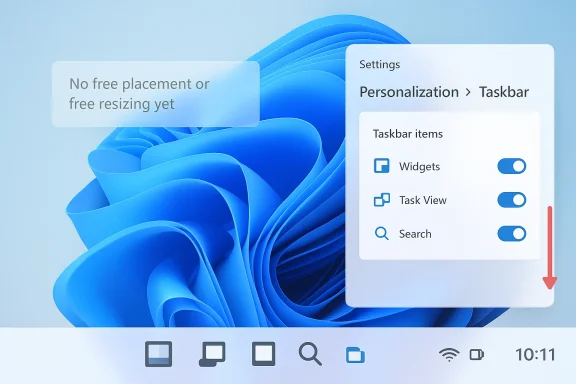
Windows 11’s taskbar is still less flexible than many longtime users would like, but it is more configurable than it was when the OS first launched. Microsoft has gradually restored some control over Widgets, Task View, the Search experience, pinned apps, tray behavior, and key taskbar behaviors through Settings and Insider-era improvements. The important caveat is that several classic options from older Windows versions still aren’t back, including true drag-anywhere placement and free-form resizing, which remains a major point of frustration for power users. Windows 11’s own evolution shows that Microsoft is willing to add back usability features over time, even if the process is slow and selective.
When Windows 11 arrived, Microsoft made a deliberate break from the more permissive taskbar model users had known for decades. The taskbar became centered by default, visually cleaner, and more opinionated in how it handled icons, search, widgets, and system controls. That design looked modern, but it also reduced the sense of personal control that many Windows users had taken for granted since much earlier versions of the OS.
That tradeoff mattered because the taskbar is not just decoration. It is one of the most frequently touched parts of Windows, and even subtle changes can alter how people work every day. In Windows 11’s early releases, Microsoft trimmed away a number of familiar customization options, then slowly began restoring some of them in later builds as feedback accumulated.
A major theme in the Windows 11 story has been restoration through iteration. Microsoft first prioritized a simplified shell, then began reintroducing practical capabilities like drag-and-drop support, taskbar overflow, taskbar icon scaling, and more nuanced multi-monitor behavior. That pattern suggests the company is learning that a cleaner UI is only part of the equation; users also want a desktop that adapts to them.
The taskbar also has a symbolic role in the broader Windows debate. It is one of the most visible indicators of whether Microsoft trusts users to shape their own workspace. When the company locks it down, the change feels ideological, not merely cosmetic. When it reopens settings, users tend to see it as a sign that Microsoft is listening, even if the feature set is still incomplete.
That context is essential for understanding why “How to Edit the Taskbar in Windows 11” remains such a popular topic. The answer is not just a list of Settings toggles. It is also a map of what Windows 11 allows today, what it still withholds, and where Microsoft appears to be heading next.
A few controls stand out immediately. You can toggle Widgets and Task View on or off, choose among different Search display modes, and decide whether the taskbar should appear on multiple monitors. You can also set Taskbar alignment to control whether icons are centered or left-aligned, which remains one of the simplest and most noticeable tweaks.
The key point is that these settings affect both appearance and workflow. A left-aligned taskbar feels more traditional and is often easier for users migrating from Windows 10, while a centered layout suits people who prefer the default Windows 11 aesthetic. Neither choice is objectively better, but each changes how quickly the desktop feels familiar.
Windows 11’s current philosophy is best described as limited personalization. Microsoft is no longer pretending the taskbar is frozen, but it still chooses which forms of customization are acceptable. That makes the available controls valuable, because they are often the only officially supported way to shape the shell without relying on third-party tools.
There is also a practical enterprise angle. IT departments generally prefer supported settings over unofficial tweaks, and the built-in taskbar options are easier to standardize across devices. In a business environment, that matters almost as much as appearance, because consistency reduces support overhead.
The full box is the most discoverable option, but it also consumes the most space. The icon-only choice is cleaner and better for minimalists, though it requires more intent from the user. In other words, Windows 11 still lets you tune Search for either convenience or restraint, which is a rare kind of compromise in the current UI.
The best way to think about Widgets is that they are optional ambient content. Some people like the quick glance at relevant updates, while others find the panel noisy or too consumer-focused. Microsoft’s recent approach suggests it understands both reactions, which is why the setting exists at all.
That is why Task View is best understood as a power-user feature with mainstream consequences. It gives Windows 11 a more modular feel, especially on large monitors or laptop setups where switching contexts happens constantly. Turning it off can make the taskbar less crowded, but leaving it on can improve workflow speed.
Rearranging is equally straightforward. Just drag the icons into the order you prefer. That sounds obvious, but icon order is one of the most underrated taskbar controls because it determines whether your most-used apps are easy to reach by habit or buried in a sequence that never quite fits your workflow.
That gap is one of the reasons third-party tools continue to attract attention. When Microsoft’s native options stop short of what power users need, the ecosystem inevitably fills the void. The fact that there is still demand for unofficial customization solutions says a lot about how far Windows 11 has come — and how far it still has to go.
The tray is especially important because it is where quick status awareness happens. If your Wi-Fi changes, your battery drops, or a security app wants attention, this is where Windows usually signals it. A good configuration keeps those signals visible without turning the corner of the screen into visual noise.
This is one of the places where Windows 11’s design feels more modern than Windows 10, but also a bit more constrained. Microsoft appears to favor a cleaner surface, yet it still leaves enough room for users to keep the most important status items in view. That balance is good, but it is not the same as full freedom.
What makes alignment important is that it changes visual scanning. With center alignment, the taskbar feels balanced and modern. With left alignment, it feels more linear and traditional, which many users still prefer in professional environments.
The downside is predictability. Auto-hide can occasionally feel like the desktop is hiding important controls from you, especially if you’re multitasking quickly. That makes it one of those settings that feels brilliant on some setups and annoying on others.
For enterprise users, this matters even more. Multi-monitor layouts are common in operations, finance, engineering, and creative work, and taskbar consistency across screens can reduce wasted motion. It is a subtle improvement, but in a workday full of small interruptions, subtle improvements are often the most valuable.
This is why taskbar discussions still generate strong reactions. The issue is not nostalgia for its own sake. It is about preserving different ergonomic preferences, different display shapes, and different ways of allocating screen real estate. A locked taskbar makes Windows feel more standardized, but also less adaptable.
Microsoft’s continued reluctance to fully reopen these controls has pushed some users toward third-party solutions. That demand shows that the market is still there, even if the company has not fully served it natively. When a platform creates a gap, the ecosystem always tries to fill it.
Third-party solutions are not necessarily a sign that native Windows is broken. They are a sign that the official product does not yet meet every workflow. In a healthy ecosystem, there is room for both supported settings and optional power-user tools.
For businesses, the calculus is different. Enterprises usually prefer native controls because they are easier to audit, document, and maintain. That is one reason why Microsoft’s gradual return of built-in taskbar options matters: every supported option reduces the pressure to rely on unofficial customization paths.
The bigger question is philosophical. Does Microsoft want Windows 11 to be a tightly managed shell with a few safe customization points, or does it want to restore the platform’s reputation as the most adaptable desktop environment on the market? The answer will shape how users judge not just the taskbar, but the rest of the OS.
Source: Guiding Tech How to Edit the Taskbar in Windows 11
 Background
When Windows 11 arrived, Microsoft made a deliberate break from the more permissive taskbar model users had known for decades. The taskbar became centered by default, visually cleaner, and more opinionated in how it handled icons, search, widgets, and system controls. That design looked modern, but it also reduced the sense of personal control that many Windows users had taken for granted since much earlier versions of the OS.That tradeoff mattered because the taskbar is not just decoration. It is one of the most frequently touched parts of Windows, and even subtle changes can alter how people work every day. In Windows 11’s early releases, Microsoft trimmed away a number of familiar customization options, then slowly began restoring some of them in later builds as feedback accumulated.
A major theme in the Windows 11 story has been restoration through iteration. Microsoft first prioritized a simplified shell, then began reintroducing practical capabilities like drag-and-drop support, taskbar overflow, taskbar icon scaling, and more nuanced multi-monitor behavior. That pattern suggests the company is learning that a cleaner UI is only part of the equation; users also want a desktop that adapts to them.
The taskbar also has a symbolic role in the broader Windows debate. It is one of the most visible indicators of whether Microsoft trusts users to shape their own workspace. When the company locks it down, the change feels ideological, not merely cosmetic. When it reopens settings, users tend to see it as a sign that Microsoft is listening, even if the feature set is still incomplete.
That context is essential for understanding why “How to Edit the Taskbar in Windows 11” remains such a popular topic. The answer is not just a list of Settings toggles. It is also a map of what Windows 11 allows today, what it still withholds, and where Microsoft appears to be heading next.
What You Can Change Today
The most useful thing to know is that Windows 11 still gives you several meaningful ways to tune the taskbar, even if it no longer offers the broad freedom of older Windows releases. You can adjust which buttons appear, how the taskbar aligns, how it behaves on multiple displays, and how it responds to alerts. For many users, these options are enough to make the desktop feel much more personal and less cluttered.Core Settings That Still Matter
Open Settings with Win + I, then go to Personalization and choose Taskbar. That section is the control center for most taskbar customization in Windows 11. From there, you can manage items such as Widgets, Task View, Search, and system tray-related options.A few controls stand out immediately. You can toggle Widgets and Task View on or off, choose among different Search display modes, and decide whether the taskbar should appear on multiple monitors. You can also set Taskbar alignment to control whether icons are centered or left-aligned, which remains one of the simplest and most noticeable tweaks.
The key point is that these settings affect both appearance and workflow. A left-aligned taskbar feels more traditional and is often easier for users migrating from Windows 10, while a centered layout suits people who prefer the default Windows 11 aesthetic. Neither choice is objectively better, but each changes how quickly the desktop feels familiar.
- Widgets can be turned off if you do not want live content on the taskbar.
- Task View can be hidden if you do not use virtual desktops.
- Search can be shown as a box, an icon-plus-label, an icon only, or hidden.
- Taskbar alignment can be switched between centered and left-oriented layouts.
- Multi-monitor taskbar behavior can be enabled for wider setups.
- Notification and tray behavior can be tuned to reduce visual noise.
Why These Toggles Matter
These are small changes on paper, but they have a large day-to-day effect. Removing a few icons can make the taskbar feel calmer, while restoring a more traditional alignment can improve muscle memory. For users who spend all day inside Windows, tiny interface decisions add up quickly.Windows 11’s current philosophy is best described as limited personalization. Microsoft is no longer pretending the taskbar is frozen, but it still chooses which forms of customization are acceptable. That makes the available controls valuable, because they are often the only officially supported way to shape the shell without relying on third-party tools.
There is also a practical enterprise angle. IT departments generally prefer supported settings over unofficial tweaks, and the built-in taskbar options are easier to standardize across devices. In a business environment, that matters almost as much as appearance, because consistency reduces support overhead.
Search, Widgets, and Task View
Windows 11’s taskbar is no longer just a launcher strip. Microsoft has turned it into a small information hub, with Search, Widgets, and Task View occupying prominent positions depending on how you configure the system. That shift reflects the company’s broader effort to make the shell more discovery-driven and less purely utilitarian.Search Modes and Their Tradeoffs
Search is one of the most flexible items you can edit. Windows 11 lets you choose a full Search box, a compact Search icon and label, a bare Search icon, or no visible taskbar Search at all. That range is useful because different users treat Search very differently: some want it always visible, while others prefer to trigger it from the Start menu or keyboard.The full box is the most discoverable option, but it also consumes the most space. The icon-only choice is cleaner and better for minimalists, though it requires more intent from the user. In other words, Windows 11 still lets you tune Search for either convenience or restraint, which is a rare kind of compromise in the current UI.
Widgets: Helpful or Distracting
Widgets have a more complicated reputation. Microsoft positions them as a glanceable source of weather, calendar, traffic, sports, finance, and other updates, but many users see them as an information feed rather than a pure productivity tool. That is why Windows 11 allows you to hide them entirely if you prefer a quieter desktop.The best way to think about Widgets is that they are optional ambient content. Some people like the quick glance at relevant updates, while others find the panel noisy or too consumer-focused. Microsoft’s recent approach suggests it understands both reactions, which is why the setting exists at all.
Task View and Multitasking
Task View is more than a button; it is the gateway to virtual desktops and window-switching workflows. If you use multiple desktops to separate work, research, personal tasks, or creative projects, keeping Task View visible on the taskbar can be genuinely useful. If you do not use that feature, though, it becomes just another icon occupying space.That is why Task View is best understood as a power-user feature with mainstream consequences. It gives Windows 11 a more modular feel, especially on large monitors or laptop setups where switching contexts happens constantly. Turning it off can make the taskbar less crowded, but leaving it on can improve workflow speed.
- Search box: best for visibility, least minimalist.
- Search icon and label: a middle ground.
- Search icon only: best for compact setups.
- Hidden Search: best if you use keyboard shortcuts or the Start menu instead.
- Widgets on: useful for glanceable information.
- Widgets off: better for simplicity and fewer distractions.
Pinning, Rearranging, and Unpinning Apps
If you want the taskbar to function like a personal command strip, pinning apps is still the single most useful customization available. Windows 11 supports the classic behavior of pinning apps for fast access, rearranging icons, and unpinning what you no longer need. That preserves one of the taskbar’s oldest strengths: keeping your most important tools within one click.How Pinning Works
You can pin an app or shortcut to the taskbar by dragging it there or using the app’s context menu. Once pinned, it stays available even when the app is closed, which makes it especially useful for frequently used programs like browsers, editors, productivity apps, and communication tools. Microsoft also reintroduced drag-and-drop behavior after earlier Windows 11 limitations, which made pinning feel much more natural again.Rearranging is equally straightforward. Just drag the icons into the order you prefer. That sounds obvious, but icon order is one of the most underrated taskbar controls because it determines whether your most-used apps are easy to reach by habit or buried in a sequence that never quite fits your workflow.
What You Still Can’t Pin
Windows 11 still does not treat every kind of item equally. While you can pin apps and shortcuts, you generally cannot pin individual files and folders to the taskbar in the same way you can pin programs. That limitation matters because some users want a taskbar that works like a custom launcher for projects, not just applications.That gap is one of the reasons third-party tools continue to attract attention. When Microsoft’s native options stop short of what power users need, the ecosystem inevitably fills the void. The fact that there is still demand for unofficial customization solutions says a lot about how far Windows 11 has come — and how far it still has to go.
Practical Pinning Tips
A well-organized taskbar is usually built around frequency, not aesthetics. Keep the apps you launch constantly near the center of your attention, and move secondary tools outward. If you use multiple work modes, consider grouping related apps together so the taskbar becomes a visual map of your day rather than a random row of icons.- Pin browsers, editors, and chat apps first.
- Keep project-specific tools near each other.
- Remove anything you only open once in a while.
- Reorder icons to match your actual workflow.
- Avoid over-pinning, which makes the bar harder to scan.
System Tray and Notification Area
The system tray remains one of the most practical parts of the taskbar, because it gives you direct access to background utilities, status indicators, and quick controls. In Windows 11, the tray is still editable through Settings, although Microsoft continues to present it in a more streamlined form than older Windows releases did.What the Tray Controls Affect
Tray customization mainly determines which icons appear by default. That makes it useful for cleaning up clutter from apps that are constantly resident in the background but not always worth seeing. It also matters for laptops and business devices, where the tray can become overloaded with sync, security, audio, and communication utilities.The tray is especially important because it is where quick status awareness happens. If your Wi-Fi changes, your battery drops, or a security app wants attention, this is where Windows usually signals it. A good configuration keeps those signals visible without turning the corner of the screen into visual noise.
Balancing Visibility and Clarity
There is always a tradeoff between showing enough and showing too much. Hiding rarely used icons can clean up the desktop and make the clock area easier to read, but too much hiding can make the system feel opaque. The best configurations are the ones that preserve essential alerts while eliminating the junk.This is one of the places where Windows 11’s design feels more modern than Windows 10, but also a bit more constrained. Microsoft appears to favor a cleaner surface, yet it still leaves enough room for users to keep the most important status items in view. That balance is good, but it is not the same as full freedom.
- Keep security and battery indicators visible.
- Hide tray icons from apps you rarely interact with.
- Reduce duplicate status icons when possible.
- Preserve shortcuts you use for audio, network, or sync controls.
- Treat the tray as a working surface, not a badge collection.
Taskbar Behavior: Alignment, Auto-Hide, and Multi-Monitor Support
The behavior settings are where the taskbar starts to feel truly personal. Here you can change alignment, hide the taskbar until it is needed, enable flashing app alerts, and make the bar appear across multiple displays. These settings affect not just the look of the desktop, but how the desktop responds under pressure.Alignment and Visual Flow
The most visible option is Taskbar alignment. Centered icons are the signature Windows 11 look, but left alignment remains popular because it mirrors older versions of Windows and often feels more efficient to users with strong keyboard-and-mouse habits. This is one of those settings that can make a system feel either immediately comfortable or oddly unfamiliar.What makes alignment important is that it changes visual scanning. With center alignment, the taskbar feels balanced and modern. With left alignment, it feels more linear and traditional, which many users still prefer in professional environments.
Auto-Hide and Focus
Auto-hide is another classic option that still works in Windows 11. When enabled, the taskbar stays out of the way until you move the pointer to it, which can be useful on smaller screens or in full-screen workflows. It is not for everyone, but for users who want maximum workspace, it remains a practical compromise.The downside is predictability. Auto-hide can occasionally feel like the desktop is hiding important controls from you, especially if you’re multitasking quickly. That makes it one of those settings that feels brilliant on some setups and annoying on others.
Multiple Displays
Windows 11 also lets you enable the taskbar on multiple displays, which is a major quality-of-life feature for docking stations and multi-monitor setups. This is one of the strongest examples of Microsoft listening to real work habits, because the best taskbar for a laptop is not always the best taskbar for a dual-monitor workstation.For enterprise users, this matters even more. Multi-monitor layouts are common in operations, finance, engineering, and creative work, and taskbar consistency across screens can reduce wasted motion. It is a subtle improvement, but in a workday full of small interruptions, subtle improvements are often the most valuable.
- Centered alignment suits users who like the Windows 11 default look.
- Left alignment suits users migrating from Windows 10 or older.
- Auto-hide is ideal for compact screens and immersive work.
- Multiple displays is essential for docked or workstation setups.
- Flashing app alerts can be left on for visibility or disabled if they feel distracting.
What Microsoft Removed — and Why That Still Matters
No article about editing the Windows 11 taskbar is complete without acknowledging the features Microsoft has not fully brought back. In particular, the taskbar still cannot be freely moved to the left or right side in the mainstream release channel, and it cannot be resized the way older Windows users once expected. Those missing capabilities continue to define the limits of customization in Windows 11.The Big Missing Pieces
The two most commonly cited omissions are taskbar repositioning and taskbar height adjustment. Users who relied on vertical taskbars, thinner bars, or top-docked layouts lost real flexibility when Windows 11 launched. For many people, those were not fringe features; they were part of an efficient workflow.This is why taskbar discussions still generate strong reactions. The issue is not nostalgia for its own sake. It is about preserving different ergonomic preferences, different display shapes, and different ways of allocating screen real estate. A locked taskbar makes Windows feel more standardized, but also less adaptable.
Why Vertical or Resizable Bars Matter
Vertical taskbars can be especially useful on widescreen monitors, where horizontal space is abundant but vertical space is precious. Resizing can also help users fit more icons, labels, or controls without relying on overflow behavior. In other words, these are productivity features as much as aesthetic ones.Microsoft’s continued reluctance to fully reopen these controls has pushed some users toward third-party solutions. That demand shows that the market is still there, even if the company has not fully served it natively. When a platform creates a gap, the ecosystem always tries to fill it.
The Direction of Travel
At the same time, recent Windows 11 preview activity suggests Microsoft is at least reconsidering its stance. Insider-era changes have included more taskbar flexibility, scaling behavior, and other refinements that look like pieces of a broader redesign philosophy. Whether or not complete repositioning arrives soon, the trend line is clearly more open than it was at launch.- Still missing: official taskbar placement on all screen edges.
- Still missing: true freeform taskbar resizing.
- Still incomplete: the old level of shell customization.
- Still evolving: taskbar scaling and overflow behavior.
- Still relevant: third-party tools for users who need more control.
Third-Party Tools and Workarounds
Because Microsoft’s built-in options remain limited, a substantial user community still turns to third-party customization tools. The appeal is obvious: these tools often restore functionality that Windows 11 removed, or add configuration layers that Microsoft has not yet made official.Why Users Look Elsewhere
The biggest reason is simple frustration. If the operating system does not let you shape the taskbar the way you want, users naturally look for software that does. That dynamic is especially strong among enthusiasts, IT tinkerers, and people who use Windows as a daily production tool rather than a passive consumer platform.Third-party solutions are not necessarily a sign that native Windows is broken. They are a sign that the official product does not yet meet every workflow. In a healthy ecosystem, there is room for both supported settings and optional power-user tools.
The Tradeoff: Power vs. Supportability
These tools can be incredibly useful, but they also introduce risk. Unsupported mods may stop working after updates, create stability issues, or require users to troubleshoot problems Microsoft never intended to support. That makes them best suited for users who understand the tradeoffs and are comfortable managing them.For businesses, the calculus is different. Enterprises usually prefer native controls because they are easier to audit, document, and maintain. That is one reason why Microsoft’s gradual return of built-in taskbar options matters: every supported option reduces the pressure to rely on unofficial customization paths.
The Ecosystem Signal
The popularity of these tools sends a clear message to Microsoft. Users are not asking for impossible features; they are asking for familiar controls the platform used to provide. That distinction is important because it means the demand is rooted in workflow continuity, not novelty.- They show real demand for more customization.
- They reduce dependence on awkward workarounds.
- They can restore lost behaviors faster than Microsoft does.
- They also carry update and compatibility risks.
- They are most appealing to advanced users, not mainstream users.
Strengths and Opportunities
Windows 11’s taskbar may not yet be the fully flexible control surface some people want, but it has real strengths. Microsoft has quietly built a taskbar that can still be tailored for productivity, reduced clutter, and better multi-monitor use, even while preserving the modern Windows 11 look. The opportunity now is to keep expanding that balance without making the interface feel overloaded.- Cleaner defaults make the desktop feel calmer and less crowded.
- Centered or left-aligned layouts allow users to match their habits.
- Widgets and Task View toggles let people remove features they never use.
- Search display options make the taskbar adaptable to different screen sizes.
- Multi-monitor support improves workstation setups.
- Tray customization helps reduce background noise.
- Gradual restoration of old behaviors builds trust with longtime users.
- Supported settings reduce the need for risky third-party hacks.
Risks and Concerns
The biggest concern is that Windows 11’s taskbar can still feel like a compromise between modern design and old expectations. Microsoft has improved flexibility, but not enough to fully satisfy users who want the freedom Windows used to offer by default. If future changes arrive only partially or inconsistently, the company risks extending frustration rather than resolving it.- No true free placement still frustrates experienced users.
- No built-in height resizing limits ergonomic tuning.
- Too many default surfaces can make the desktop feel busy.
- Widgets can become noise if they are not carefully controlled.
- Search behavior can feel cluttered if web and local results are not clearly separated.
- Third-party dependency remains a support and stability concern.
- Feature inconsistency across builds can confuse users and admins.
- Slow rollout cycles make simple fixes take too long.
Looking Ahead
The taskbar story in Windows 11 is not finished, and that is exactly why it remains so interesting. Microsoft has already shown that it can reverse course when enough users push back, but it tends to do so in stages rather than all at once. That means the next wave of changes may be less about a dramatic overhaul and more about a steady return of small but important freedoms.The bigger question is philosophical. Does Microsoft want Windows 11 to be a tightly managed shell with a few safe customization points, or does it want to restore the platform’s reputation as the most adaptable desktop environment on the market? The answer will shape how users judge not just the taskbar, but the rest of the OS.
- Watch for more built-in taskbar settings in Insider builds.
- Watch whether Microsoft expands placement or sizing controls.
- Watch how Widgets, Search, and Task View continue to evolve.
- Watch for changes that improve multi-monitor and docking workflows.
- Watch whether Microsoft keeps trimming clutter without removing control.
Source: Guiding Tech How to Edit the Taskbar in Windows 11
