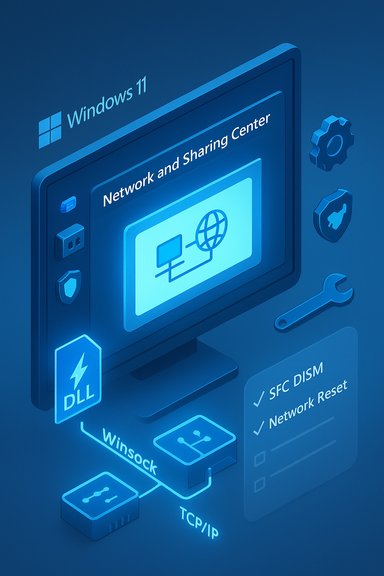
If your Wi‑Fi keeps dropping at the worst possible moments — in the middle of a video call, during the cliffhanger of a show, or while a large download stalls — the problem is fixable and usually not as mysterious as it feels. This guide walks through the practical, step‑by‑step fixes that stop constant Wi‑Fi drops on Windows laptops and desktops, explains why each fix works, flags the risks and caveats, and gives advanced checks when the easy things don’t cut it. The procedure follows the proven repair flow used by technicians and community experts: confirm the problem is network‑side, eliminate simple client settings that trigger disconnects, update and reset the network stack, and then move into router, interference and hardware checks if the problem persists.
Intermittent Wi‑Fi drops are a common complaint that can be caused by many separate issues: ISP or router instability, physical interference or distance, overloaded networks, driver or power‑management bugs on the PC, VPN and security software conflicts, or corrupted TCP/IP/DNS settings on the client. The quickest way to narrow the root cause is to test whether other devices on the same network suffer the same drops; if they do, the problem is likely with the ISP or router. If only one Windows PC is affected, focus on the device itself. Community troubleshooting flows and Microsoft guidance converge on the same escalation path: quick checks (reboot, other devices, run Windows troubleshooter), driver and power checks, network stack resets (netsh, ipconfig, Winsock), and network reset as a last local fix before checking hardware or ISP.
Conclusion
Persistent Wi‑Fi drops on Windows are frustrating, but the problem almost always fits into reproducible categories — ISP/router, interference and distance, device power/driver issues, or corrupt network settings. Following a disciplined troubleshooting flow — confirm the scope (other devices or one device), disable VPN/security for testing, set device power options, update/reinstall drivers, run the netsh/ipconfig/Winsock repair sequence, and finally network reset — will resolve the majority of cases. When those steps fail, targeted hardware and router checks (channel selection, firmware, DHCP settings, and alternate adapters) reveal the true culprit. Keep vendor driver packages handy, test changes methodically, and exercise caution before destructive steps on managed devices. The right fix is usually the combination of a vendor driver update and a quick network stack reset — but when the underlying cause is aging hardware or severe interference, a router or NIC upgrade is the long‑term solution.
Source: How-To Geek Annoyed by constant Wi-Fi drops? Here’s the fix you need
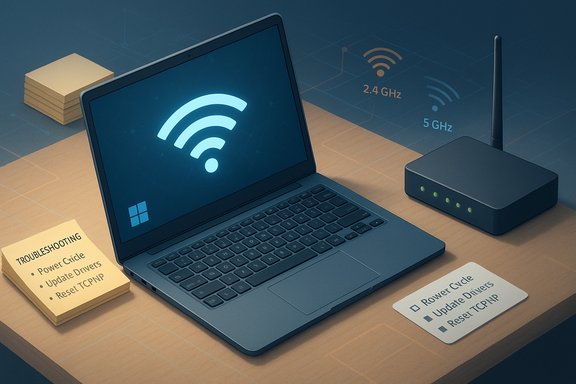 Background / Overview
Intermittent Wi‑Fi drops are a common complaint that can be caused by many separate issues: ISP or router instability, physical interference or distance, overloaded networks, driver or power‑management bugs on the PC, VPN and security software conflicts, or corrupted TCP/IP/DNS settings on the client. The quickest way to narrow the root cause is to test whether other devices on the same network suffer the same drops; if they do, the problem is likely with the ISP or router. If only one Windows PC is affected, focus on the device itself. Community troubleshooting flows and Microsoft guidance converge on the same escalation path: quick checks (reboot, other devices, run Windows troubleshooter), driver and power checks, network stack resets (netsh, ipconfig, Winsock), and network reset as a last local fix before checking hardware or ISP.Rule out issues with your internet connection first
Before changing anything on the PC, confirm whether the problem is the web connection or the Windows device.- Check other devices: If a phone, tablet or another laptop on the same Wi‑Fi network also disconnects, the issue is likely the router or ISP. If only one Windows PC drops, continue with device troubleshooting.
- Power cycle your modem and router: Unplug power for 30–60 seconds, then plug back in. This clears transient firmware or routing table errors in the gateway.
- Look for router warning lights or error messages on the ISP portal, and check your ISP status if they publish an outage feed.
- Reduce active clients: Too many simultaneous streams or downloads on the same home network can overwhelm the gateway. Temporarily disconnect non‑essential devices to test stability.
Quick Windows fixes that often stop drops
These are the fast, safe actions that fix the majority of intermittent Wi‑Fi problems.1) Restart your PC and router (yes, still useful)
Reboot both endpoints in sequence: router first, then the PC. This clears transient state and often resolves quick disconnects. Many community guides recommend this as step one.2) Run the built‑in Windows network troubleshooters
Windows Troubleshooter can automatically detect and sometimes fix misconfigurations. On Windows 10/11: Settings → System → Troubleshoot → Other troubleshooters → run Internet Connections and Network Adapter troubleshooters. This is a quick, non‑destructive first pass.3) Check for obvious blockers: VPNs and security suites
Third‑party VPNs and aggressive security/firewall software can interfere with connections. Temporarily disable your VPN and (briefly) your third‑party firewall/AV — test with one change at a time. If disabling a VPN or security product fixes the drops, review its network settings, or reinstall/update it.Adjust power management settings (common culprit on laptops)
Windows and NIC drivers can turn off the Wi‑Fi adapter to save power, which may cause intermittent reconnects when the adapter enters a low‑power state.- How to change it:
- Right‑click Start → Device Manager.
- Expand Network adapters, right‑click your Wi‑Fi adapter → Properties.
- Open the Power Management tab and uncheck Allow the computer to turn off this device to save power.
- Click OK, then reboot and test.
Remove other saved networks and change connection priorities
If your PC has many saved SSIDs, Windows may try to roam between networks and pick a weaker one — resulting in disconnects or “I connected, then lost it” behavior.- Go to Settings → Network & Internet → Wi‑Fi → Manage known networks.
- For your primary network, ensure Connect automatically when in range is checked.
- For other saved networks, either uncheck automatic connect or choose Forget to prevent accidental roaming.
Switch Wi‑Fi band or change the channel to avoid interference
Wireless drops are often caused by radio interference or poor band selection.- 2.4 GHz vs 5 GHz:
- 2.4 GHz: longer range and better penetration through walls, but congested and slower; ideal for range and older devices.
- 5 GHz: faster and less interference, with more non‑overlapping channels; better for streaming and video calls if you are near the router. Use 6 GHz where available for even cleaner spectrum.
- 2.4 GHz channel selection:
- In most regions the 2.4 GHz band effectively offers three non‑overlapping channels: 1, 6 and 11. Choosing one of these reduces adjacent‑channel interference. Use a Wi‑Fi analyzer app to see which of the three is least crowded in your area.
- How to change:
- Log into your router (common addresses: 192.168.1.1 or 192.168.0.1).
- Open Wireless or Wi‑Fi settings.
- Switch SSID to 5 GHz if your device supports it, or adjust the 2.4 GHz channel to 1, 6, or 11.
- Save changes and reboot the router if required.
Update or reinstall Wi‑Fi drivers and firmware
Outdated or buggy drivers are one of the most common causes of persistent Wi‑Fi drops on Windows.- Update flow:
- Open Device Manager → Network adapters → right‑click your Wi‑Fi adapter → Update driver → Search automatically.
- If Windows can’t find a stable update, download the OEM vendor driver from the laptop or NIC manufacturer (Intel, Qualcomm, Realtek) and install it manually — vendor drivers are often more stable than generic Microsoft drivers.
- When to uninstall and reinstall:
- If updates don’t help, uninstall the adapter in Device Manager (optionally select Delete driver software if you have a downloaded vendor package ready), reboot, then install the vendor driver.
- For router firmware, check the router maker’s support site and apply firmware updates as recommended.
Reset the network adapter and the Windows network stack
When configuration corruption is the cause, resetting the adapter and the TCP/IP stack is often the fastest way to restore stability.Use the GUI (Network Reset)
- Settings → Network & Internet → Advanced network settings → Network reset → Reset now.
- Warning: this removes saved Wi‑Fi networks, VPN clients and virtual switches — you’ll need to reinstall or reconfigure them after the reboot. Use this as a last GUI step after driver/adapter steps.
Use the command line (the proven repair flow)
Run an elevated Command Prompt or Windows Terminal (Admin) and execute these commands one by one:- netsh winsock reset — reset the Winsock Catalog (fixes socket/API corruption).
- netsh int ip reset c:\resetlog.txt — reset TCP/IP stack to defaults (overwrites TCP/IP registry keys).
- ipconfig /release — release the current IP.
- ipconfig /renew — request a new IP lease from the router.
- ipconfig /flushdns — clear the DNS resolver cache.
When the adapter still drops: advanced diagnostics
If the above didn't fix it, these advanced checks help isolate hardware, DHCP and routing issues.- Ping and traceroute checks:
- ping 192.168.1.1 (router) to confirm local link.
- ping 8.8.8.8 to test raw IP connectivity (bypass DNS).
- nslookup google.com to verify DNS resolution.
- Use Event Viewer:
- Check Application and Services Logs → Microsoft → Windows → Dhcp‑Client, DNS‑Client, and WLAN‑AutoConfig for adapter and DHCP errors. These logs often show frequent DHCP reassignments, authentication failures, or driver errors that match disconnect events.
- Capture a network trace:
- netsh trace start capture=yes tracefile=c:\temp\nettrace.etl — collect a low‑level ETL trace for advanced analysis or to share with vendor support.
- Check DHCP leases and router limits:
- Some ISP or router firmware has client limits or aggressive lease timers that kick devices off after short intervals. Log into the router and check DHCP lease duration and maximum client settings. If the DHCP lease is unusually short or the router shows frequent lease churn, lengthen the lease time.
- Test with a USB Wi‑Fi dongle or tether:
- If a USB adapter or phone hotspot stays stable while the built‑in NIC drops, the built‑in NIC may be failing — either hardware or its driver. Swapping adapters is one of the clearest ways to isolate NIC hardware faults.
Router and environment checks
Sometimes the cause is physical or router configuration.- Place the router centrally and elevated, away from thick concrete walls, metal objects and heavy electronics (microwaves can cause bursts of interference on 2.4 GHz).
- If you live in an apartment block, use a Wi‑Fi analyzer to detect crowded channels and pick the clearest non‑overlapping channel (1, 6, or 11 on 2.4 GHz).
- Consider mesh Wi‑Fi or an extender if coverage drops in parts of your home. Modern mesh systems reduce handoff issues and keep roaming stable.
- Check router firmware, disable experimental QoS features temporarily, and ensure the router isn’t overloaded by dozens of IoT clients that push it to capacity.
Security, privacy and policy caveats
- Network Reset removes VPN clients and virtual adapters. If you rely on virtual network adapters for work (company VPNs, Hyper‑V virtual switches), re‑install or coordinate with IT before performing a reset.
- WPA3 is recommended but check compatibility. WPA3 reduces attacks and can improve reliability when supported end‑to‑end; however, mixing WPA3 with older clients can cause connectivity issues. Use WPA3 transition mode or WPA2 if you have legacy devices.
- Changing DNS providers (Cloudflare, Google, Quad9) can improve name resolution stability but shifts trust; review privacy policies and enterprise DNS policies before changing system DNS.
What to try, in order (concise checklist)
- Reboot router and PC; check other devices for drops.
- Temporarily disable VPN and third‑party firewall/AV.
- Turn off “Allow the computer to turn off this device to save power” in Device Manager; set Wi‑Fi adapter to maximum performance in Power Options.
- Forget other saved SSIDs; connect to the correct band (5 GHz if possible).
- Update vendor drivers and router firmware; install OEM drivers from Intel/Realtek/Qualcomm when available.
- Run the network stack reset: netsh winsock reset → netsh int ip reset → ipconfig /release → ipconfig /renew → ipconfig /flushdns; reboot.
- If still unstable, Network Reset (GUI) and reconfigure VPN/virtual adapters after restart.
- Advanced: capture netsh trace, check Event Viewer logs, test with USB adapter or phone hotspot, and review router DHCP/lease settings.
Critical analysis — strengths, blind spots and risks
Strengths of this approach- The escalation sequence (ISP → quick restarts → adapter power/drivers → stack resets → network reset → hardware/router checks) is efficient and well tested across Microsoft documentation and community knowledge. It resolves most user‑level issues without replacing hardware.
- The command‑line repair flow (Winsock, TCP/IP reset, ipconfig sequences) targets the most common forms of configuration corruption that lead to intermittent connectivity and is explicitly documented by Microsoft.
- Channel and band recommendations (move to 5 GHz, use channels 1/6/11 on 2.4 GHz) are grounded in RF science and widely accepted best practice.
- The Device Manager “Allow the computer to turn off this device to save power” setting may not behave uniformly across all NIC vendors; some vendors report it only affects suspend/hibernate behavior, not runtime power management. That makes the setting a useful but not guaranteed fix — always test changes and consult the NIC vendor’s release notes.
- Network Reset wipes saved networks and virtual adapters. For corporate devices with managed VPNs, Group Policy, or enterprise DNS, resetting can break access; coordinate with IT before performing destructive steps.
- Claims about third‑party “driver updaters” that promise to auto‑fix everything should be treated cautiously; prefer OEM or Microsoft‑signed drivers from vendor sites rather than third‑party driver updaters unless you trust the vendor. Community posts sometimes recommend utilities, but those carry risk.
- Multiple devices fail on Wi‑Fi: router/ISP is more likely.
- Single device fails, but USB Wi‑Fi or phone hotspot works: built‑in NIC or driver issue.
- Intermittent drops only in specific rooms: coverage/interference problem.
- Drops occurring with heavy load: router overheating or resource exhaustion may be the reason.
When to call in the pros or replace hardware
- If you suspect hardware failure (NIC or router) after testing with an alternate adapter and another router, replacement is the next step.
- If your router is older than 4–5 years and you rely on many simultaneous devices, upgrading to a modern dual‑band/tri‑band or mesh system will make long‑term stability and security easier.
- For managed corporate devices, escalate to your IT department before performing resets that remove security or VPN clients.
Final notes and practical tips
- Keep a short troubleshooting log: note times of drops, whether other devices were affected, and whether you were using VPNs, conferencing apps or large downloads at the time — this helps an ISP or technician correlate logs to events.
- Use simple monitoring tools while you reproduce the problem: ping -t 8.8.8.8 will show packet loss and can help you determine whether drops are gradual or binary disconnects.
- If you change DNS servers (for example to 1.1.1.1 or 8.8.8.8) and it stabilizes browsing, remember DNS changes do not fix lower‑level link issues — they only address resolution problems and caching issues. Use ipconfig /flushdns afterwards to clear stale records.
Conclusion
Persistent Wi‑Fi drops on Windows are frustrating, but the problem almost always fits into reproducible categories — ISP/router, interference and distance, device power/driver issues, or corrupt network settings. Following a disciplined troubleshooting flow — confirm the scope (other devices or one device), disable VPN/security for testing, set device power options, update/reinstall drivers, run the netsh/ipconfig/Winsock repair sequence, and finally network reset — will resolve the majority of cases. When those steps fail, targeted hardware and router checks (channel selection, firmware, DHCP settings, and alternate adapters) reveal the true culprit. Keep vendor driver packages handy, test changes methodically, and exercise caution before destructive steps on managed devices. The right fix is usually the combination of a vendor driver update and a quick network stack reset — but when the underlying cause is aging hardware or severe interference, a router or NIC upgrade is the long‑term solution.
Source: How-To Geek Annoyed by constant Wi-Fi drops? Here’s the fix you need