

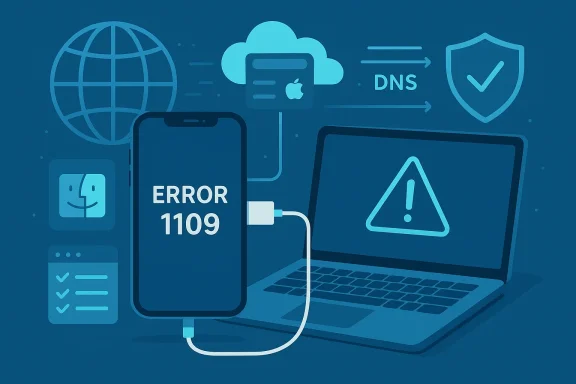
If your iPhone update or restore fails mid-process with the cryptic message “Error Code (1109)”, you’re not alone — this error most commonly signals a failure for your computer to complete the necessary network exchange with Apple’s update servers, and it’s resolvable in most cases with a few targeted network, host-file, and USB checks before you hand the device to a technician.
Error 1109 has surfaced repeatedly in 2024–2026 as iPhone users update or restore devices via Finder (macOS), iTunes/Apple Devices (Windows), or vendor tools. It typically appears mid‑flash or during verification, halting the process and leaving the phone unupdated — sometimes stuck in Recovery or requiring a restore. Apple’s official guidance categorizes 1109 among network connectivity and server contact errors; the company’s troubleshooting focuses on ensuring the computer can reach Apple’s update servers and that local network or security software is not blocking the exchange.
Independent reporting and hands‑on guides that examined numerous user reports echo the same central theme: most 1109 incidents trace to network/DNS/host-file issues or to an interrupted USB data path. Community troubleshooting threads and recent how‑to pieces converge on the same first steps: check network access (including VPNs and firewalls), inspect the hosts file for gs.apple.com redirections, try a different DNS, and if needed use another computer (preferably a Mac) or a different physical USB connection.
Below you’ll find a practical, prioritized troubleshooting playbook that takes you from the least invasive checks to deeper fixes — plus a technical explanation of why each item matters, the risks involved, and an evidence‑based decision tree so you can recover your device with minimal data loss and downtime.
Typical network culprits:
Caution: Editing the hosts file requires administrator rights and mistakes can affect other services — follow instructions closely or create a backup of the original hosts file before changing it.
On Windows 10/11: Settings > Network & Internet > Ethernet/Wi‑Fi > Edit IP settings > Manual > set DNS. Guides from major vendors show the exact UI steps.
Why: If your ISP’s DNS resolves Apple domains incorrectly or slowly, a reliable public resolver often fixes the connection issue fast.
Caution: Restoring erases the device. Only proceed if you have a backup or accept data loss.
Source: OS X Daily How to Fix Error Code 1109 When Restoring or Updating iPhone
 Background / Overview
Error 1109 has surfaced repeatedly in 2024–2026 as iPhone users update or restore devices via Finder (macOS), iTunes/Apple Devices (Windows), or vendor tools. It typically appears mid‑flash or during verification, halting the process and leaving the phone unupdated — sometimes stuck in Recovery or requiring a restore. Apple’s official guidance categorizes 1109 among network connectivity and server contact errors; the company’s troubleshooting focuses on ensuring the computer can reach Apple’s update servers and that local network or security software is not blocking the exchange.Independent reporting and hands‑on guides that examined numerous user reports echo the same central theme: most 1109 incidents trace to network/DNS/host-file issues or to an interrupted USB data path. Community troubleshooting threads and recent how‑to pieces converge on the same first steps: check network access (including VPNs and firewalls), inspect the hosts file for gs.apple.com redirections, try a different DNS, and if needed use another computer (preferably a Mac) or a different physical USB connection.
Below you’ll find a practical, prioritized troubleshooting playbook that takes you from the least invasive checks to deeper fixes — plus a technical explanation of why each item matters, the risks involved, and an evidence‑based decision tree so you can recover your device with minimal data loss and downtime.
What causes Error 1109? A technical primer
Network-level failures and server reachability
When Finder, iTunes, or the Apple Devices app restores or updates an iPhone, your computer must contact Apple’s update servers to download firmware, validate signatures, and complete the install. If that connection fails or is rerouted, the update/restore process can abort with codes such as 1109, 3194, or the 3000–3999 family of errors. This is the official classification Apple uses for connectivity-related failures.Typical network culprits:
- Local firewall, antivirus, or security suites that block the updater’s outbound connections.
- VPN or proxy services that reroute traffic or change DNS resolution.
- ISP DNS problems or router issues that misdirect or drop connections to Apple’s servers.
- Hosts file entries that explicitly redirect gs.apple.com to a local or blocked IP (a common leftover from device downgrading or jailbreaking guides).
DNS and hosts file behaviours
DNS translates domain names to IP addresses. If DNS responses are slow, wrong, or blocked, the update service can’t fetch or verify the correct firmware files. Additionally, a hosts file entry referencing gs.apple.com (Apple’s signing server) will override DNS and can prevent contacting Apple altogether — a known cause of restore/update errors. Apple’s official guidance instructs checking and, if necessary, commenting out or removing any gs.apple.com lines in the hosts file.USB / hardware and transfer interruptions
Not every 1109 is purely network-related. Interrupted USB transfers — caused by a faulty Lightning cable, an underpowered USB port, a dodgy hub, or an intermittently loose connector — can cause mid‑process failure. Community reports frequently cite different cables or switching ports as the thing that finally allowed the restore to complete.Software bugs or platform-specific issues
Recent community threads indicate a higher frequency of 1109 reports when using Windows + Apple Devices app; some users report successful restores on Macs while Windows attempts repeatedly fail. This suggests occasional platform‑specific anomalies in the updater or how the app interacts with the OS networking stack. Those reports are anecdotal but widespread enough to justify trying a different machine as a troubleshooting step.A prioritized, step‑by‑step fix sequence (try in this order)
Before you begin: back up any data you can. If the phone is functional you can back up to iCloud; if already in Recovery or stuck, a prior backup is essential to avoid data loss. If you must restore and there’s no backup, be prepared for data loss as the restore process can wipe the device.1) Update local software first (low risk, quick)
- Make sure the computer is up to date — macOS updates, or the latest iTunes/Apple Devices app on Windows. Apple’s docs recommend updating these components before attempting restore/update procedures.
- Reboot the computer and the iPhone (force restart if needed) before retrying.
2) Disable VPN, proxies, third‑party firewalls, and antivirus temporarily (moderate risk)
- Turn off VPN clients and remove any system proxies.
- Temporarily disable third‑party antivirus or firewall only while connected to a safe network. Make sure to re-enable them immediately after the restore/update completes.
3) Check and reset the hosts file (technical, but high effectiveness)
- On macOS: open Terminal and edit /private/etc/hosts; look for any lines mentioning gs.apple.com and prepend a
#(comment it) or remove them entirely. Save and reboot. Apple documents the exact steps in their support guidance. - On Windows: Microsoft provides a standard hosts file snippet and steps to restore it to default — follow the Microsoft support article to reset the Windows hosts file to the default contents, or remove any gs.apple.com entries.
Caution: Editing the hosts file requires administrator rights and mistakes can affect other services — follow instructions closely or create a backup of the original hosts file before changing it.
4) Change your computer’s DNS to a reliable public resolver (very low risk)
Switch your computer’s DNS servers to public resolvers such as:- Google Public DNS: 8.8.8.8 and 8.8.4.4
- Cloudflare: 1.1.1.1 and 1.0.0.1
On Windows 10/11: Settings > Network & Internet > Ethernet/Wi‑Fi > Edit IP settings > Manual > set DNS. Guides from major vendors show the exact UI steps.
Why: If your ISP’s DNS resolves Apple domains incorrectly or slowly, a reliable public resolver often fixes the connection issue fast.
5) Try an alternate network path: ethernet, hotspot, or different location (very low risk)
- Plug the computer directly into your modem (bypass the router) via Ethernet.
- If possible, connect the computer to a phone hotspot or a different network entirely.
- If you’re on a corporate or managed network, move to a home or mobile connection to avoid managed filtering.
6) Use a different computer or use a Mac (practical workaround)
If Windows keeps failing, try the same restore/update on a Mac; many users have reported success restoring via Finder on macOS where the Apple Devices app on Windows fails. If you can borrow a friend’s machine or visit an Apple Store, that often clears the problem.7) Replace USB cable and change USB port / remove hubs (hardware check)
- Use an Apple‑certified Lightning cable (or an original/known-good cable).
- Plug directly into the computer’s rear USB port (desktop) or a primary port (avoid USB hubs).
- Try USB 2.0 vs 3.0 ports if available; some older devices behave better on USB 2.0 ports.
8) Enter Recovery or DFU mode and attempt restore (advanced)
If the device is stuck or normal update fails, use Recovery Mode or DFU (Device Firmware Update) mode to force a restore:- Put the iPhone into Recovery/DFU mode (procedure varies by model — look up DFU steps for your exact iPhone model).
- Use Finder (macOS) or iTunes / Apple Devices (Windows) to restore the device.
Caution: Restoring erases the device. Only proceed if you have a backup or accept data loss.
9) Read and analyze logs (diagnostic)
- On Windows, Apple Devices logs (when installed from the Microsoft Store) are created in the app cache path; community posts indicate the updater logs can be inspected to verify whether the failure was network‑related or local. Look for iPad Updater or iPhone Updater logs in the local cache/app data.
10) Contact Apple Support or visit an Apple Store
If you’ve exhausted the steps above and a restore still fails, Apple Support or an Apple Authorized Service Provider (AASP) can attempt a restore on their network and hardware. Apple’s own support pages recommend this as a last resort if local troubleshooting fails. Bring your device and any error numbers / screenshots — they’ll often run a device restore on a known-good Mac to isolate the problem.Practical decision tree: which fix to try first
- Is the phone responsive? If yes, back it up (iCloud) immediately.
- Update Apple software and reboot computer + phone.
- Disable VPN/firewall/antivirus and retry.
- Check hosts file (gs.apple.com), then change DNS to 1.1.1.1 / 8.8.8.8.
- Move to Ethernet or hotspot; try a different computer (preferably macOS).
- Swap Lightning cable and port; remove hubs/peripherals.
- Use Recovery/DFU mode and restore (last‑ditch: expect device wipe).
- If all else fails, contact Apple or visit an AASP.
Safety, risks, and caveats
- Back up first: If your device is still accessible, create a backup — either iCloud or via iTunes/Finder. Restores can and often will erase data.
- Disabling security software: Turning off antivirus, firewall, or any network security temporarily can expose your machine — only do this on a trusted network and re-enable protections immediately after the operation.
- Hosts file edits: Mistakes in the hosts file can break name resolution for other services. Always keep a copy of the original hosts file and follow documented instructions for editing/restoring. Microsoft’s support article explains how to reset the hosts file to default on Windows.
- Third‑party tools: Some community posts recommend third‑party flashing utilities. These can carry risks (unofficial software, potential warranty/service complications) — use them only if you understand the tradeoffs and after exhausting official channels.
- Unverifiable/partial claims: Community posts sometimes attribute 1109 to “hardware faults like loose wires in USB jacks” or to “ISP blocking specific Apple IPs”. Those are plausible and occasionally true in specific cases, but are not universally verifiable. Where multiple independent users report the same symptom (for example, success after switching to a Mac), it’s reasonable to treat it as a practical workaround rather than an explanation of the root cause. Flagging such claims as community observed is appropriate.
Examples and community evidence (what others found that worked)
- Several Apple Discussions threads show users resolving 1109 by disabling Norton / third‑party firewalls or by using Apple’s macOS Finder instead of Windows Apple Devices. One participant explicitly noted success after disabling their security software temporarily.
- Reddit threads and other user posts document success switching DNS to Cloudflare/Google or using a phone hotspot; others reported success after changing the physical cable or port. These anecdotal reports are consistent across many independent threads, reinforcing the network/DNS and USB hardware hypotheses.
Quick checklist you can copy & follow (compact)
- Backup your device (iCloud if possible).
- Update Finder / iTunes / Apple Devices to the latest version; reboot both computer and iPhone.
- Temporarily disable VPN, antivirus, and software firewalls.
- Check hosts file for any gs.apple.com entries and remove/comment them.
- Change computer DNS to 1.1.1.1 / 1.0.0.1 or 8.8.8.8 / 8.8.4.4 and reboot network.
- Connect via Ethernet or mobile hotspot; retry the restore.
- Swap Lightning cable and switch USB ports; avoid hubs.
- Try a different computer (if Windows fails, try a Mac).
- If device is unresponsive, use Recovery/DFU restore (expect erase).
- Inspect Apple updater logs if available; capture error code and contact Apple Support if unresolved.
When to escalate to Apple Support or service
- If you cannot restore via a different computer and a DFU restore fails repeatedly, escalate.
- If the device shows hardware symptoms (doesn’t charge, unpredictable disconnects, or physical port damage), an AASP or Apple Store can test hardware and perform a supervised restore.
- Keep logs and error codes—Apple technicians often ask for the exact numeric code and can run a restore on their managed environment to confirm whether the failure is local to your setup.
Final analysis and takeaways
- Root cause pattern: Across official guidance and widespread community reports, most Error 1109 instances are due to network-level issues (DNS, hosts file, VPN/proxy/firewall) or an intermittent USB transfer problem. Apple’s support article matches that diagnosis and prescribes network and hosts-file checks as top‑line remedies.
- Practical order: Start with low‑risk software checks (update apps, reboot), then disable VPN/antivirus, inspect the hosts file, switch DNS, and only after those steps move to hardware checks and DFU restores. This sequence avoids unnecessary data loss and maximizes the chance of a painless fix.
- Community wisdom: Anecdotal evidence strongly supports trying a different machine (many users report Windows+Apple Devices failures resolved on macOS Finder) and experimenting with DNS or hotspot tethering when ISP/network filtering is suspected. Those are valid, pragmatic workarounds when you need a fast recovery.
Source: OS X Daily How to Fix Error Code 1109 When Restoring or Updating iPhone
