

Microsoft still serves direct Windows 10 ISO downloads in 2026 from its official software-download page, but Windows visitors are steered toward the Media Creation Tool unless the browser identifies itself as a non-Windows device. That small bit of browser theater is the difference between a wizard Microsoft prefers and the raw installation image many power users actually want. The trick is not piracy, not a cracked mirror, and not some back-alley archive; it is Microsoft’s own page changing its behavior based on the client in front of it. The larger story is that Windows 10 has become legacy software without becoming irrelevant.
As How2Shout recently detailed in a practical walkthrough, the direct ISO option remains available if the page thinks you are arriving from a Mac, iPad, Linux system, or Android device. Microsoft’s own lifecycle documentation confirms the other half of the picture: Windows 10 reached end of support on October 14, 2025, and version 22H2 is the final feature release. That makes the ISO download less of a routine maintenance chore and more of a preservation act for an operating system that millions still need but Microsoft would rather move past.
Microsoft’s Windows 10 download page has always looked simpler than it really is. On a Windows PC, it emphasizes the Media Creation Tool, a small executable that downloads Windows, prepares USB media, and can generate an ISO as part of the process. For casual users, that is a defensible default: fewer choices, fewer failed USB sticks, fewer support calls.
But for enthusiasts and administrators, the tool is often friction masquerading as convenience. If you are building a virtual machine, staging an offline installer, feeding an image to Rufus or Ventoy, or archiving the final Windows 10 release, you may not want a wizard deciding the path. You want the ISO directly, intact and ready to verify.
The direct download is not gone. Microsoft simply hides it from Windows browsers because Windows browsers can run the Media Creation Tool. A non-Windows visitor gets the ISO selector instead because the tool would be useless there. The server-side assumption is reasonable; the user experience is not.
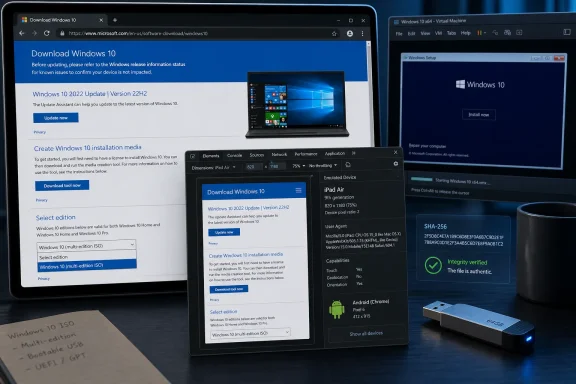
This is why the user-agent trick works. Your browser sends a string identifying the operating system and browser family, and Microsoft’s page uses that signal to decide what to show. Change the string, refresh the page, and the “download tool now” path gives way to edition, language, and architecture menus.
The generated links are temporary and typically valid for 24 hours. They come from Microsoft’s own download infrastructure, require no sign-in, and do not ask for a product key at the download stage. Activation remains a separate matter after installation, governed by a digital license or valid key.
The one practical gotcha is that the disguise must remain in place long enough to complete the page flow. If you close Developer Tools too early, some browsers revert the user agent, the page detects Windows again, and the ISO selector can disappear. Once the download itself has started, you can close the tools and let the transfer finish.
Firefox can do the same job, but less elegantly. It can override the user agent through advanced configuration, though that path is fiddlier than Chromium’s device toolbar. For most readers, the browser you already have installed is the right one to use; Edge itself can pretend not to be running on Windows long enough to get you the file Microsoft is already willing to serve.
Recent Rufus builds include a download option next to the usual “Select” button. Instead of pointing Rufus at an ISO you already have, you can ask it to retrieve one. The tool then walks through Windows version, release, edition, language, and architecture choices before downloading the image from Microsoft’s servers.
That matters because Rufus is not merely replacing the Media Creation Tool with another black box. It gives users the ISO and the media-writing controls in one place. It can also handle scenarios Microsoft’s wizard does not prioritize, including more flexible partition schemes and installation-media customization.
There is one catch worth noting. Rufus exposes the download feature only when it can reach its online update-check script. If a firewall, DNS filter, endpoint policy, or offline environment blocks that check, the button may appear only as a plain file selector. That limitation is not fatal, but it explains why two users can run the same utility and see different controls.
That does not mean Windows 10 stopped booting. It does not mean installation media became illegal. It does not mean activation servers vanished overnight. It means Microsoft’s ordinary stream of free updates, fixes, and support for mainstream Windows 10 installations ended unless a device is covered by Extended Security Updates.
This distinction matters because a Windows ISO has two identities. It is both an installer and a support commitment. Microsoft can still host the installer while declining to treat the installed operating system as a fully supported platform for most users.
The practical result is a strange middle age for Windows 10. It is too old to recommend casually for new deployments, too entrenched to disappear, and still necessary for hardware that cannot officially move to Windows 11. The ISO remains valuable precisely because the upgrade path is uneven.
The consumer ESU options are unusually consumer-friendly by Microsoft standards. Eligible users can enroll at no additional cost by syncing PC settings with a Microsoft account, redeem Microsoft Rewards points, or pay a one-time fee. Microsoft has also said a consumer ESU license can cover multiple devices tied to the same account.
That is welcome, but it is not the same as full support. ESU is about security updates, not new features, design improvements, hardware enablement, or a return to active development. Windows 10 22H2 remains the end of the line.
For administrators, that difference is the whole policy question. ESU may justify keeping a lab machine, point-of-sale device, legacy workstation, or reluctant home PC alive for another cycle. It does not justify pretending Windows 10 has a future equal to Windows 11.
The problem is that Microsoft’s preferred path becomes the only obvious path for Windows users. The company’s page design collapses several different user intents into one answer: download the tool. For a family member reinstalling Windows, that may be fine. For someone building images, testing deployments, or maintaining a VM library, it is unnecessary ceremony.
The direct ISO route restores choice. It lets the user decide whether the image will be mounted, stored, checksummed, written to USB, attached to a hypervisor, or imported into a deployment workflow. In that sense, the user-agent workaround is less about cheating the page than about escaping a one-size-fits-all assumption.
There is also a trust issue. A clean ISO from Microsoft is easier to reason about than an ISO obtained from an enthusiast mirror, a torrent index, or a repack site with “updated drivers” baked in. The safest Windows installer is the boring one from Microsoft’s own servers.
PowerShell’s
The more important verification rule is source discipline. If the browser trick or Rufus can pull the file from Microsoft, there is little reason to use third-party ISO mirrors. A mirror may be harmless, but the risk is asymmetric: one modified installer can compromise every system you build with it.
That is especially true now that Windows 10 is post-support for ordinary users. Legacy operating systems attract people looking for shortcuts. The right shortcut is to make Microsoft show the direct ISO button, not to trust a random download site because it ranks well in search.
The 32-bit image remains relevant for edge cases: very old hardware, unusually constrained legacy applications, or specific embedded scenarios. Those cases exist, but they are not the default. Choosing 32-bit by accident on a modern system is an avoidable self-own that limits memory use and may create driver headaches.
The multi-edition ISO is also worth understanding. It does not mean you are downloading separate Home and Pro images manually. The installer contains multiple consumer editions, and the installed edition is determined by product key, firmware-embedded license, or the choice presented during setup.
That flexibility is one reason the ISO is worth keeping. A single official 64-bit multi-edition image can serve a home reinstall, a Pro VM, or a repair environment, assuming the licensing side is legitimate. The bits are common; activation is where entitlement is enforced.
This is where the direct download shines. There is no USB stick to prepare, no wizard-generated media to babysit, and no reason to write an image to a device only to read it back into a VM. You attach the ISO, boot the guest, install, patch, snapshot, and move on.
For developers and IT pros, Windows 10 VMs still have uses even after end of support. They are useful for regression testing, legacy application support, browser compatibility checks, documentation work, and reproducing customer environments. ESU may cover some of those cases; isolated lab networks may cover others.
But the same caution applies: a VM is not a magic security boundary. If it has network access, browser access, shared folders, or clipboard integration, an unpatched guest can still become a problem. The ISO gets you installed; your isolation model determines how much risk you are actually taking.
That shift changes how we should talk about downloading it. This is no longer merely “how to get Windows 10.” It is how to obtain the final general-purpose Windows 10 image while Microsoft is still making it straightforward to do so. The distinction matters for collectors, technicians, repair shops, and anyone responsible for aging fleets.
It also matters for households with unsupported Windows 11 hardware. Many perfectly capable PCs fail Microsoft’s Windows 11 requirements because of CPU generation, TPM configuration, or firmware expectations. For those systems, Windows 10 22H2 plus ESU may be the most realistic short-term security posture.
Still, the direction of travel is clear. Microsoft wants the installed base on Windows 11 and, increasingly, on newer hardware that supports its security and AI-era assumptions. Windows 10’s continued availability is a concession to reality, not a reversal of strategy.
As How2Shout recently detailed in a practical walkthrough, the direct ISO option remains available if the page thinks you are arriving from a Mac, iPad, Linux system, or Android device. Microsoft’s own lifecycle documentation confirms the other half of the picture: Windows 10 reached end of support on October 14, 2025, and version 22H2 is the final feature release. That makes the ISO download less of a routine maintenance chore and more of a preservation act for an operating system that millions still need but Microsoft would rather move past.
 Microsoft’s Download Page Is a Funnel, Not a Neutral Shelf
Microsoft’s Windows 10 download page has always looked simpler than it really is. On a Windows PC, it emphasizes the Media Creation Tool, a small executable that downloads Windows, prepares USB media, and can generate an ISO as part of the process. For casual users, that is a defensible default: fewer choices, fewer failed USB sticks, fewer support calls.But for enthusiasts and administrators, the tool is often friction masquerading as convenience. If you are building a virtual machine, staging an offline installer, feeding an image to Rufus or Ventoy, or archiving the final Windows 10 release, you may not want a wizard deciding the path. You want the ISO directly, intact and ready to verify.
The direct download is not gone. Microsoft simply hides it from Windows browsers because Windows browsers can run the Media Creation Tool. A non-Windows visitor gets the ISO selector instead because the tool would be useless there. The server-side assumption is reasonable; the user experience is not.
This is why the user-agent trick works. Your browser sends a string identifying the operating system and browser family, and Microsoft’s page uses that signal to decide what to show. Change the string, refresh the page, and the “download tool now” path gives way to edition, language, and architecture menus.
The Old Browser Trick Still Has a Job in 2026
In Chromium-based browsers such as Edge, Chrome, Brave, and Opera, the cleanest route is to open Developer Tools, enable device emulation, choose a mobile or tablet profile, and refresh the Windows 10 download page. Once the browser presents itself as an iPad, Android phone, or another non-Windows device, Microsoft’s page exposes the Windows 10 multi-edition ISO dropdown. From there, the flow is ordinary: choose the edition, confirm the language, and pick 64-bit or 32-bit.The generated links are temporary and typically valid for 24 hours. They come from Microsoft’s own download infrastructure, require no sign-in, and do not ask for a product key at the download stage. Activation remains a separate matter after installation, governed by a digital license or valid key.
The one practical gotcha is that the disguise must remain in place long enough to complete the page flow. If you close Developer Tools too early, some browsers revert the user agent, the page detects Windows again, and the ISO selector can disappear. Once the download itself has started, you can close the tools and let the transfer finish.
Firefox can do the same job, but less elegantly. It can override the user agent through advanced configuration, though that path is fiddlier than Chromium’s device toolbar. For most readers, the browser you already have installed is the right one to use; Edge itself can pretend not to be running on Windows long enough to get you the file Microsoft is already willing to serve.
Rufus Turns the Workaround Into a Button
The browser method is useful because it explains the mechanism. Rufus is useful because it makes the mechanism almost irrelevant. The USB-creation utility has long been a favorite among Windows enthusiasts because it is portable, fast, and more transparent than Microsoft’s own wizard.Recent Rufus builds include a download option next to the usual “Select” button. Instead of pointing Rufus at an ISO you already have, you can ask it to retrieve one. The tool then walks through Windows version, release, edition, language, and architecture choices before downloading the image from Microsoft’s servers.
That matters because Rufus is not merely replacing the Media Creation Tool with another black box. It gives users the ISO and the media-writing controls in one place. It can also handle scenarios Microsoft’s wizard does not prioritize, including more flexible partition schemes and installation-media customization.
There is one catch worth noting. Rufus exposes the download feature only when it can reach its online update-check script. If a firewall, DNS filter, endpoint policy, or offline environment blocks that check, the button may appear only as a plain file selector. That limitation is not fatal, but it explains why two users can run the same utility and see different controls.
The ISO Is Official, But the Operating System Is Retired
The file you are fetching in 2026 is not a mystery build. It is Windows 10 version 22H2, the final feature release of the operating system. Microsoft announced in 2023 that 22H2 would be the last Windows 10 feature update, and its lifecycle pages now place the consumer end-of-support date firmly in the past: October 14, 2025.That does not mean Windows 10 stopped booting. It does not mean installation media became illegal. It does not mean activation servers vanished overnight. It means Microsoft’s ordinary stream of free updates, fixes, and support for mainstream Windows 10 installations ended unless a device is covered by Extended Security Updates.
This distinction matters because a Windows ISO has two identities. It is both an installer and a support commitment. Microsoft can still host the installer while declining to treat the installed operating system as a fully supported platform for most users.
The practical result is a strange middle age for Windows 10. It is too old to recommend casually for new deployments, too entrenched to disappear, and still necessary for hardware that cannot officially move to Windows 11. The ISO remains valuable precisely because the upgrade path is uneven.
ESU Changes the Risk Calculation, Not the Direction of Travel
Microsoft’s consumer Extended Security Updates program is the safety valve in this story. Microsoft’s support pages say consumer ESU can protect eligible Windows 10 devices beyond the October 2025 cutoff, and reporting from outlets including Tom’s Hardware and BleepingComputer has tracked Microsoft’s 2026 extension of that runway through October 2027. The terms have shifted Windows 10 from “unsupported cliff” to “temporary bridge,” but they have not revived it as a long-term platform.The consumer ESU options are unusually consumer-friendly by Microsoft standards. Eligible users can enroll at no additional cost by syncing PC settings with a Microsoft account, redeem Microsoft Rewards points, or pay a one-time fee. Microsoft has also said a consumer ESU license can cover multiple devices tied to the same account.
That is welcome, but it is not the same as full support. ESU is about security updates, not new features, design improvements, hardware enablement, or a return to active development. Windows 10 22H2 remains the end of the line.
For administrators, that difference is the whole policy question. ESU may justify keeping a lab machine, point-of-sale device, legacy workstation, or reluctant home PC alive for another cycle. It does not justify pretending Windows 10 has a future equal to Windows 11.
The Media Creation Tool Was Never the Villain
It is tempting to frame the Media Creation Tool as Microsoft’s attempt to keep users from the “real” download. That is too simple. The tool solves a genuine problem for a mainstream audience that wants a bootable USB stick and does not want to learn what an ISO is.The problem is that Microsoft’s preferred path becomes the only obvious path for Windows users. The company’s page design collapses several different user intents into one answer: download the tool. For a family member reinstalling Windows, that may be fine. For someone building images, testing deployments, or maintaining a VM library, it is unnecessary ceremony.
The direct ISO route restores choice. It lets the user decide whether the image will be mounted, stored, checksummed, written to USB, attached to a hypervisor, or imported into a deployment workflow. In that sense, the user-agent workaround is less about cheating the page than about escaping a one-size-fits-all assumption.
There is also a trust issue. A clean ISO from Microsoft is easier to reason about than an ISO obtained from an enthusiast mirror, a torrent index, or a repack site with “updated drivers” baked in. The safest Windows installer is the boring one from Microsoft’s own servers.
Verification Is Boring Until It Saves a Reinstall
Most users will be fine if they download the ISO directly from Microsoft over HTTPS and use it immediately. But WindowsForum readers know that “probably fine” is not the same as verified. A large ISO can be corrupted by an interrupted download, flaky storage, or an overenthusiastic network appliance.PowerShell’s
Get-FileHash command is the simple sanity check. It computes a SHA-256 hash of the downloaded image so you can compare it against a known-good value when Microsoft publishes one or against a trusted reference in a controlled environment. Even when you do not have a public hash handy, hashing the file before moving it around gives you a baseline for later integrity checks.The more important verification rule is source discipline. If the browser trick or Rufus can pull the file from Microsoft, there is little reason to use third-party ISO mirrors. A mirror may be harmless, but the risk is asymmetric: one modified installer can compromise every system you build with it.
That is especially true now that Windows 10 is post-support for ordinary users. Legacy operating systems attract people looking for shortcuts. The right shortcut is to make Microsoft show the direct ISO button, not to trust a random download site because it ranks well in search.
The 64-Bit Choice Is No Longer Much of a Choice
The Windows 10 download page still offers 32-bit and 64-bit images. For nearly everyone, the correct answer is 64-bit. Any mainstream PC from the last decade that can sensibly run Windows 10 should be using the 64-bit edition.The 32-bit image remains relevant for edge cases: very old hardware, unusually constrained legacy applications, or specific embedded scenarios. Those cases exist, but they are not the default. Choosing 32-bit by accident on a modern system is an avoidable self-own that limits memory use and may create driver headaches.
The multi-edition ISO is also worth understanding. It does not mean you are downloading separate Home and Pro images manually. The installer contains multiple consumer editions, and the installed edition is determined by product key, firmware-embedded license, or the choice presented during setup.
That flexibility is one reason the ISO is worth keeping. A single official 64-bit multi-edition image can serve a home reinstall, a Pro VM, or a repair environment, assuming the licensing side is legitimate. The bits are common; activation is where entitlement is enforced.
Virtual Machines Make the Direct ISO More Than a Convenience
The Media Creation Tool is built around physical media. Virtualization is not. If you are installing Windows 10 in Hyper-V, VMware, VirtualBox, Proxmox, or another hypervisor, the ISO is the native unit of work.This is where the direct download shines. There is no USB stick to prepare, no wizard-generated media to babysit, and no reason to write an image to a device only to read it back into a VM. You attach the ISO, boot the guest, install, patch, snapshot, and move on.
For developers and IT pros, Windows 10 VMs still have uses even after end of support. They are useful for regression testing, legacy application support, browser compatibility checks, documentation work, and reproducing customer environments. ESU may cover some of those cases; isolated lab networks may cover others.
But the same caution applies: a VM is not a magic security boundary. If it has network access, browser access, shared folders, or clipboard integration, an unpatched guest can still become a problem. The ISO gets you installed; your isolation model determines how much risk you are actually taking.
Windows 10 Has Become an Archive With a Pulse
There is an odd cultural shift happening around Windows 10. For years, it was the default Windows release: familiar, stable enough, and mostly unremarkable. Now it is becoming something else, a maintained relic for enrolled machines and a compatibility layer for everyone else.That shift changes how we should talk about downloading it. This is no longer merely “how to get Windows 10.” It is how to obtain the final general-purpose Windows 10 image while Microsoft is still making it straightforward to do so. The distinction matters for collectors, technicians, repair shops, and anyone responsible for aging fleets.
It also matters for households with unsupported Windows 11 hardware. Many perfectly capable PCs fail Microsoft’s Windows 11 requirements because of CPU generation, TPM configuration, or firmware expectations. For those systems, Windows 10 22H2 plus ESU may be the most realistic short-term security posture.
Still, the direction of travel is clear. Microsoft wants the installed base on Windows 11 and, increasingly, on newer hardware that supports its security and AI-era assumptions. Windows 10’s continued availability is a concession to reality, not a reversal of strategy.
The Sensible Windows 10 ISO Plan in 2026
The direct ISO trick is useful, but it should sit inside a plan rather than become the plan. Downloading an operating system is easy; deciding what role that operating system should play after its official retirement is the harder part. The right answer depends on whether you are repairing, testing, preserving, or daily-driving.- Use Microsoft’s own download page with a non-Windows user agent when you need the raw ISO rather than the Media Creation Tool.
- Use Rufus when your end goal is a bootable USB stick and you want the download and writing workflow in one place.
- Choose the 64-bit Windows 10 22H2 multi-edition ISO unless you have a specific legacy reason to use 32-bit.
- Treat ESU as a temporary security bridge, not as evidence that Windows 10 has returned to active development.
- Avoid third-party ISO mirrors when Microsoft and reputable tools can still fetch the image directly.
- Keep a migration plan for Windows 11, new hardware, or a non-Windows alternative before the ESU runway ends.
References
- Primary source: H2S Media
Published: 2026-07-07T08:19:11.753695
Loading…
www.how2shout.com - Related coverage: windowscentral.com
Microsoft warns Windows 11 version 24H2 support is coming to an end for some devices soon: Here's what that means and how you can stay secure | Windows Central
If you're running Windows 11 Home or Pro on version 24H2 in 2026, you'll soon need to upgrade to remain supported.www.windowscentral.com - Official source: support.microsoft.com
Loading…
support.microsoft.com - Official source: learn.microsoft.com
Windows 10 - release information | Microsoft Learn
Learn release information for Windows 10 releaseslearn.microsoft.com - Official source: microsoft.com
End of support for Windows 10, Windows 8.1, and Windows 7 | Microsoft Windows
Make a smooth transition to Windows 11 from your unsupported operating system with help from Microsoft. Enjoy the benefits of upgrading to a Windows 11 PC.www.microsoft.com - Related coverage: tomshardware.com
Microsoft extends free Windows 10 security updates for a second year — program now ends on October 12, 2027 | Tom's Hardware
Just as the memory shortage pushes PC prices even higher.www.tomshardware.com
- Related coverage: tomsguide.com
Windows 10 End of Life: Microsoft releases final update — everything you need to know | Tom's Guide
So long, Windows 10www.tomsguide.com - Related coverage: cuit.columbia.edu
Microsoft Windows 10 End of Support | Columbia University Information Technology
 www.cuit.columbia.edu
- Related coverage: rz.uni-wuerzburg.de
Loading…
www.rz.uni-wuerzburg.de - Related coverage: tech-latest.com
Loading…
tech-latest.com - Official source: download.microsoft.com
- Related coverage: techradar.com
Microsoft in 2025: year in review | TechRadar
Microsoft pushed AI even harder this year – and Windows 11 users rebelledwww.techradar.com - Related coverage: pcgamer.com
- Related coverage: scscc.club
- Related coverage: transparity.com
Loading…
www.transparity.com - Related coverage: us.sokkia.com
Loading…
us.sokkia.com