

If you booted a Windows 11 PC in 2025–2026 and found an ever-present Copilot icon, a Copilot entry in Edge, Notepad, Paint, File Explorer’s right‑click menu, and even a dedicated Copilot key on your laptop, you’re not imagining things—Microsoft has intentionally layered Copilot across the OS, and removing it reliably now requires a methodical, multi‑layer approach rather than a single toggle.
Microsoft’s Copilot is no longer a small sidebar experiment; it is a family of features and apps that span Windows, Microsoft 365, and Edge. On modern Windows 11 builds Copilot surfaces as a consumer‑facing app, as embedded UI inside first‑party apps, and as provisioning artifacts that can be reinstalled automatically by Windows servicing. That architectural reality is why casual attempts to “hide” Copilot often fail: uninstalling the Copilot app removes the primary front end, but contextual integrations and silent reprovisioning paths can leave pieces of the assistant visible or functional.
Two important platform changes matter for anyone trying to reclaim a non‑AI desktop:
If your system lists Copilot as an installed app, removing that package is the cleanest first move. It takes seconds and removes the primary Copilot front end and several shell integrations.
Steps:
If you only want the taskbar icon gone:
Group Policy historically offered a “Turn off Windows Copilot” setting. On recent feature updates Microsoft has reclassified this policy as legacy and recommends using AppLocker/WDAC or uninstalling the app instead. Practically, the Group Policy:
PowerShell lets you remove the Copilot Appx/MSIX package for the current user, existing users, and prevent provisioning for future accounts.
Run PowerShell or Windows Terminal as Administrator and enter:
Important notes:
Uninstalling the Copilot app does not necessarily remove Copilot’s Edge integration. Edge exposes Copilot-specific toggles.
Steps:
Notepad:
Even after you remove the app, Copilot‑style AI suggestions and web (Bing) results can appear in Search. To disable these suggestions:
A major source of frustration is Copilot returning after a Windows update. Windows has a content delivery mechanism that can silently install first‑party apps. To reduce the chance Copilot reappears:
Step 1 — Disable silent app installs:
Step 2 — (Supplementary) Add the deprecated “Turn off Windows Copilot” policy:
Step 3 — Clean startup entries:
Newer laptop models often ship with a physical Copilot key that sends the equivalent of a special shortcut (commonly reported as Win + Shift + F23). If you’ve removed Copilot, you’ll likely want to remap that key.
Option A — Built‑in Windows remapping (limited):
Advanced users: community AutoHotkey scripts are available that remap the Copilot key; use caution and review scripts before running.
End of article.
Source: H2S Media How to Disable Copilot in Windows 11 — Uninstall, Hide, and Stop It from Coming Back
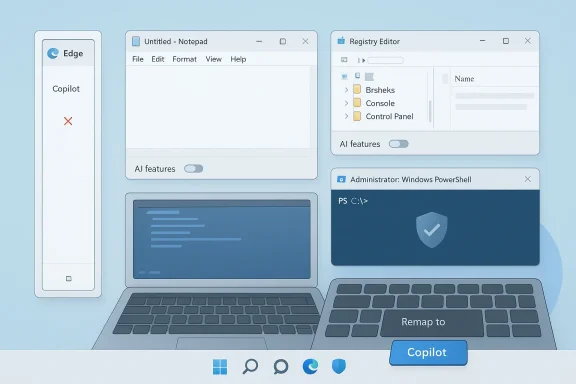 Background
Microsoft’s Copilot is no longer a small sidebar experiment; it is a family of features and apps that span Windows, Microsoft 365, and Edge. On modern Windows 11 builds Copilot surfaces as a consumer‑facing app, as embedded UI inside first‑party apps, and as provisioning artifacts that can be reinstalled automatically by Windows servicing. That architectural reality is why casual attempts to “hide” Copilot often fail: uninstalling the Copilot app removes the primary front end, but contextual integrations and silent reprovisioning paths can leave pieces of the assistant visible or functional.Two important platform changes matter for anyone trying to reclaim a non‑AI desktop:
- Copilot transitioned into a standalone app on recent Windows 11 feature updates, which makes literal uninstallation possible from Settings on most consumer systems.
- Microsoft continues to provision and manage Copilot through servicing pathways and content delivery defaults, so blocking its return requires both package removal and a prevention layer against silent installs.
Quick summary: the layered plan
To remove Copilot and reduce the likelihood it returns, you should combine three classes of action:- Uninstall or remove the Copilot package (Settings or PowerShell).
- Disable app‑specific toggles (Edge, Notepad, Paint) and remove Search suggestions.
- Prevent reprovisioning by disabling silent app installs and cleaning provisioned packages.
What Copilot is and why it persists
A layered, multi‑surface feature
Copilot functions at three levels:- The consumer Copilot app (a user‑visible package).
- In‑app integrations (Edge toolbar/sidebar, Notepad/Notepad’s AI features, Paint/Photos generative tools, File Explorer “Ask Copilot”).
- Provisioned packages and servicing hooks that allow Copilot to be silently installed or re‑provisioned during updates.
Why Microsoft deploys it this way
From Microsoft’s perspective, treating Copilot as a “core experience” helps deliver consistent AI features across devices, and provisioning paths let Microsoft maintain parity and security of the Copilot client. For end users and administrators who prefer to opt out, that design produces friction: multiple surfaces to toggle and aggressive update behavior.Method 1 — Uninstall the Copilot app (the essential first step)
Works for: typical consumer installs of Windows 11 where Copilot is a listed app.If your system lists Copilot as an installed app, removing that package is the cleanest first move. It takes seconds and removes the primary Copilot front end and several shell integrations.
Steps:
- Press Windows + I to open Settings.
- Go to Apps > Installed apps.
- Search for “Copilot” or “Microsoft Copilot”.
- Click the three‑dot menu next to the Copilot entry and choose Uninstall.
- Confirm and reboot if prompted.
- The Copilot app itself.
- The Copilot taskbar button and the main chat UI.
- The most direct shell integrations tied to that package.
- Copilot UI inside Microsoft Edge (toolbar and sidebar).
- Per‑app AI toggles (Notepad, Paint, Photos).
- Provisioned packages or silent re‑installs initiated by Windows update or content delivery defaults.
Method 2 — Hide the Copilot icon from the taskbar (quick cosmetic fix)
Works for: any edition — instant and reversible.If you only want the taskbar icon gone:
- Right‑click the Copilot taskbar icon and select “Unpin from taskbar.”
Method 3 — Disable Copilot via Group Policy (enterprise/Pro level controls and caveats)
Works for: Pro, Enterprise, Education (but effectiveness varies by build).Group Policy historically offered a “Turn off Windows Copilot” setting. On recent feature updates Microsoft has reclassified this policy as legacy and recommends using AppLocker/WDAC or uninstalling the app instead. Practically, the Group Policy:
- Often removes the taskbar button and blocks the Win + C shortcut.
- Does not reliably stop Copilot from being accessed through Search or Edge.
- May be ignored on some Pro builds and is most reliably effective on Enterprise/Education SKUs.
- Press Windows + R, run gpedit.msc.
- Navigate to User Configuration > Administrative Templates > Windows Components > Windows Copilot.
- Open “Turn off Windows Copilot”, set to Enabled, Apply, OK.
- Run gpupdate /force or reboot.
Method 4 — Remove Copilot for all users via PowerShell (thorough package removal)
Works for: all editions; requires Administrator privileges.PowerShell lets you remove the Copilot Appx/MSIX package for the current user, existing users, and prevent provisioning for future accounts.
Run PowerShell or Windows Terminal as Administrator and enter:
- Uninstall for current user:
Get-AppxPackage -Name "Microsoft.Copilot" | Remove-AppxPackage - Uninstall for all existing user accounts:
Get-AppxPackage -AllUsers -Name "Microsoft.Copilot" | Remove-AppxPackage -AllUsers - Prevent Copilot from being provisioned for newly created user accounts:
Get-AppxProvisionedPackage -Online | Where-Object {$_.DisplayName -like "[I]Copilot[/I]"} | Remove-AppxProvisionedPackage -Online
Important notes:
- If the package is not named exactly the same on all builds, a wildcard or package family name may be required; confirm the package name with
Get-AppxPackageif the first command returns nothing. - Removing provisioned packages alters how new accounts are provisioned; it is reversible but requires re-provisioning if you later want Copilot back.
How to disable Copilot inside Microsoft Edge
Works for: all editions.Uninstalling the Copilot app does not necessarily remove Copilot’s Edge integration. Edge exposes Copilot-specific toggles.
Steps:
- Open Microsoft Edge.
- Open Settings > Appearance > Copilot and Sidebar (or find Copilot settings inside Appearance).
- Under the Copilot settings for the toolbar and sidebar, turn off “Show Copilot button on the toolbar” and related toggles.
- Restart Edge.
- The Copilot toolbar button, sidebar, in‑page suggestions, and writing assistance can be removed from Edge’s UI. Depending on Edge updates, exact setting names may differ, but the Appearance section holds the app‑specific Copilot controls.
How to disable Copilot features in Notepad, Paint, and Photos
Works for: all editions.Notepad:
- Open Notepad, click the Settings (gear) icon, find the AI Features section and turn the Copilot toggle off. This is a per‑app setting and takes effect immediately.
- For Paint’s generative features, create registry policy values to disable the generative tools if a built‑in toggle is not present. In Registry Editor create the key:
HKEY_LOCAL_MACHINE\SOFTWARE\Microsoft\Windows\CurrentVersion\Policies\Paint
and add DWORD values: DisableCocreator= 1DisableGenerativeFill= 1
Restart after making registry changes.
- Photos’ AI features tend to be in-app toggles; check the app’s Settings and turn off any Copilot/AI options.
How to remove Copilot suggestions from Windows Search
Works for: all editions (requires registry edit).Even after you remove the app, Copilot‑style AI suggestions and web (Bing) results can appear in Search. To disable these suggestions:
- Open Registry Editor (regedit).
- Navigate to:
HKEY_LOCAL_MACHINE\SOFTWARE\Policies\Microsoft\Windows\Explorer
(If the Explorer key doesn’t exist, create it.) - Create a new DWORD (32‑bit) Value named:
DisableSearchBoxSuggestions
and set its value to1. - Restart the PC.
How to stop Copilot from being silently reinstalled (the critical prevention layer)
Works for: all editions (requires registry changes and admin steps).A major source of frustration is Copilot returning after a Windows update. Windows has a content delivery mechanism that can silently install first‑party apps. To reduce the chance Copilot reappears:
Step 1 — Disable silent app installs:
- Open Registry Editor.
- Go to:
HKEY_CURRENT_USER\Software\Microsoft\Windows\CurrentVersion\ContentDeliveryManager - Create or edit the DWORD (32‑bit) Value:
SilentInstalledAppsEnabled
and set it to0. - Restart.
Step 2 — (Supplementary) Add the deprecated “Turn off Windows Copilot” policy:
- Create or edit the registry key:
HKEY_LOCAL_MACHINE\SOFTWARE\Policies\Microsoft\Windows\WindowsCopilot - Add a DWORD named:
TurnOffWindowsCopilot
and set it to1.
Step 3 — Clean startup entries:
- Open Task Manager (Ctrl + Shift + Esc) > Startup and disable any Copilot entries.
How to remap or reclaim the physical Copilot key
Works for: all editions on devices with a physical Copilot key.Newer laptop models often ship with a physical Copilot key that sends the equivalent of a special shortcut (commonly reported as Win + Shift + F23). If you’ve removed Copilot, you’ll likely want to remap that key.
Option A — Built‑in Windows remapping (limited):
- Settings > Personalization > Text input > Customize Copilot key on keyboard.
- You can assign the key to a limited set of MSIX-packaged apps or configure it to open Search. This does not let you directly reassign to classic .exe apps.
- Install Microsoft PowerToys.
- Open PowerToys > Keyboard Manager > Remap a shortcut.
- Add an input mapping from
Win + Shift + F23to your desired output (for example Right Ctrl or a custom app shortcut). - Apply and test.
Advanced users: community AutoHotkey scripts are available that remap the Copilot key; use caution and review scripts before running.
Enterprise guidance: durable blocking at scale
For enterprise admins the best durable approaches are:- Use AppLocker or WDAC to block the Copilot package preemptively.
- Deploy removal scripts (PowerShell) as part of imaging or post‑deployment configuration.
- Use Intune/MDM policies to control provisioned packages and content delivery defaults.
- Test any uninstall or blocking strategy on a pilot group before wide deployment; Microsoft’s supported per‑admin removal controls in Insider channels are intentionally narrow and conditional.
- A surgical Group Policy (RemoveMicrosoftCopilotApp) appeared in Insider channels with narrow gating; it’s not a universal fleet kill switch.
- AppLocker/WDAC provide the strongest enforcement but require thorough testing to avoid collateral blocking of legitimate packages.
What you lose if you disable Copilot
Removing Copilot is safe for core Windows functionality, but you will lose helpful AI features:- Desktop chatbot and direct Copilot Q&A.
- File Explorer “Ask Copilot” context analysis.
- Notepad’s AI writing assistant (generate/rewrite/summarize).
- Copilot‑powered Search suggestions and Bing‑fed results.
- AI editing tools in Photos and Paint if those toggles are disabled.
- The convenience of the Copilot key (unless remapped).
Risks and tradeoffs — what to watch for
- Update fragility: major Windows feature updates can re‑provision packages or change policy behavior. Recheck installed apps after big updates.
- Support implications: removing or blocking built‑in packages may complicate vendor support and diagnostics, especially in managed environments.
- Scripted community tools: community “one‑click” scripts and tools exist to remove Copilot and broader AI surfaces. They can be convenient, but they may perform risky operations (Component Based Servicing edits, CBS store purges) that can break servicing or future updates. Always review code and test in a safe environment before using.
- Policy deprecation: Microsoft has declared some legacy policies deprecated in favor of AppLocker and modern management; relying solely on legacy policies can leave gaps.
Troubleshooting: common failure modes and fixes
- Copilot returns after a monthly update
- Confirm that
SilentInstalledAppsEnabledis set to0. - Check Installed apps and re‑run PowerShell removal commands if needed.
- Disable any re‑appearing startup entries in Task Manager.
- PowerShell removal command returns no package found
- Run
Get-AppxPackage | Select Name, PackageFullNameto list installed packages and search for any Copilot‑related names or family names; adjust the-Namefilter accordingly. - Group Policy not visible or ignored
- Ensure you have the proper ADMX/ADML templates for your Windows build, and that your device SKU supports the policy. If the policy is legacy, prefer AppLocker.
- Copilot-related UI persists in Edge after uninstall
- Double‑check Edge settings under Appearance for Copilot toggles and restart the browser.
Final verdict: practical recommendations
For single machines:- Uninstall Copilot via Settings (if present).
- Run the PowerShell removal commands for all users and provisioned packages.
- Turn off
SilentInstalledAppsEnabledin the registry. - Disable Copilot UI inside Edge, Notepad, Paint, and Photos.
- Remap the Copilot key via PowerToys if you need the physical key back.
- Use AppLocker or WDAC to block the Copilot package before deployment.
- Include PowerShell removal in imaging or autopilot profiles as a safety net.
- Monitor for policy or package changes after major Windows feature updates.
End of article.
Source: H2S Media How to Disable Copilot in Windows 11 — Uninstall, Hide, and Stop It from Coming Back
