How to Remove or Block Copilot in Windows 11: Complete Guide

  • Thread Author
Microsoft’s Copilot has been folded into Windows 11 so tightly that many users now find the assistant unavoidable — but it’s still possible to remove, hide, or block Copilot at multiple levels depending on your edition of Windows and how permanent you want the block to be.

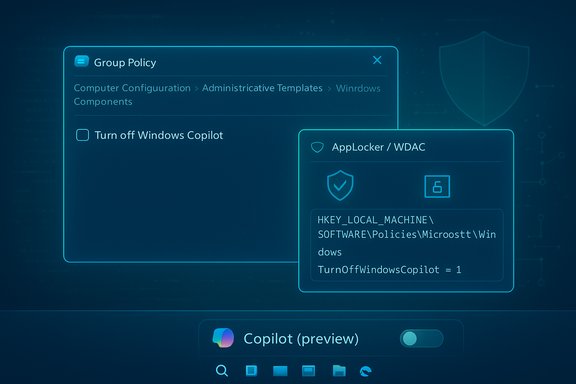
Blue UI showing Group Policy to turn off Windows Copilot and AppLocker/WDAC policy.Overview​

Copilot appears in Windows 11 as several distinct surfaces: a taskbar button/quick-chat UI, in-app AI toggles inside Office and built-in apps, File Explorer context‑menu actions (“Ask Copilot”), and as a separable Copilot app that can be installed or re‑installed by the system or by Microsoft 365 deployment channels. For everyday users the fastest fix is to hide the taskbar button; for power users and IT admins there are Group Policy, registry, AppLocker/Intune, and PowerShell methods that can block Copilot more thoroughly. Microsoft documents an official Group Policy/MDM policy named TurnOffWindowsCopilot and also provides guidance for removing the Copilot app and preventing its installation via AppLocker — but Microsoft also warns that Copilot’s delivery model is evolving, and some newer Copilot experiences may not be controlled by the legacy policy in all Insider or preview builds. The rest of this feature explains the how, the why, and the risks — step‑by‑step for casual users, power users, and administrators — and highlights where Microsoft’s ongoing changes make some methods brittle or temporary. Community experience and Microsoft’s own documentation were cross‑checked to ensure the instructions below reflect the practical options that work today.

Background​

Why Copilot ended up everywhere​

Microsoft has shifted Copilot from an optional, web‑based helper into a platform-level assistant that surfaces in many places across Windows and Microsoft 365. That makes Copilot convenient for users who want AI assistance, but it also raises friction for those who don’t want an always‑present assistant. The result: Microsoft has published administrative controls, but the company also ships Copilot in multiple packaging models (embedded, Store app, and Microsoft 365 app) which complicates universal removal.

Two important policy notes you must know​

  • Microsoft’s supported policy for disabling Copilot is the TurnOffWindowsCopilot policy (Group Policy / MDM mapping) which creates the registry policy under SOFTWARE\Policies\Microsoft\Windows\WindowsCopilot and sets TurnOffWindowsCopilot = 1 (DWORD). That policy is documented by Microsoft and maps to the Group Policy editor path: User Configuration → Administrative Templates → Windows Components → Windows Copilot.
  • Microsoft cautions that some “new Copilot experiences” delivered in Insider previews or next‑gen integrations may not be fully covered by the older TurnOffWindowsCopilot policy. For those new delivery experiments, AppLocker or App Control approaches and tenant‑level deployment settings may be required for reliable enforcement. Test on the exact Windows build you run.

Quick fix: hide Copilot from the taskbar (fast, reversible)​

If you only want the Copilot icon out of sight (and you don’t need to block the feature completely), the Settings toggle is the safest first step.
Steps:
  • Open Settings (Windows key + I).
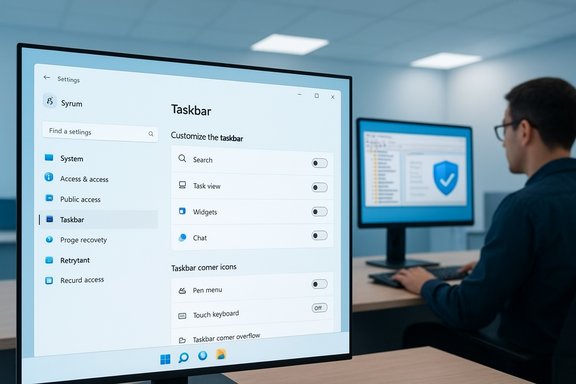
  • Go to Personalization → Taskbar.
  • Under Taskbar items (or “Taskbar items”), toggle Copilot (preview) off.
Right‑clicking the taskbar and choosing Taskbar settings also exposes the same toggle. This removes the visible button immediately and is reversible. Note: hiding the icon does not necessarily prevent launching Copilot via keyboard shortcuts, deep links, or other app integrations.

Stronger enforcement: Group Policy (Pro / Enterprise / Education)​

For managed PCs, Group Policy is the recommended and supported method to prevent Copilot from being used by end users.
  • Press Win + R, type gpedit.msc and press Enter.
  • Navigate to: User Configuration → Administrative Templates → Windows Components → Windows Copilot.
  • Double‑click Turn off Windows Copilot.
  • Select Enabled → Apply → OK.
  • Run gpupdate /force or reboot.
Effect: the policy removes the taskbar affordance and blocks the usual launch paths for Copilot on supported builds. For enterprises, this can be rolled out via Active Directory Group Policy or via MDM/Intune profiles mapped to the same setting. Test before broad rollout because behavior may vary across Windows servicing channels.

Registry edits (Home users or scripted deployments)​

If you don’t have Group Policy (Windows 11 Home), the registry equivalent implements the same policy. You must be cautious and back up the registry first.
  • Per‑user (affects the signed‑in user):
  • Path: HKEY_CURRENT_USER\Software\Policies\Microsoft\Windows\WindowsCopilot
  • Value: TurnOffWindowsCopilot (DWORD 32‑bit) = 1
  • Machine‑wide (system admin; affects all users):
  • Path: HKEY_LOCAL_MACHINE\SOFTWARE\Policies\Microsoft\Windows\WindowsCopilot
  • Value: TurnOffWindowsCopilot (DWORD 32‑bit) = 1
After creating the key/value, restart or run gpupdate /force. Community troubleshooting and Microsoft documentation both reference these keys as the registry representation of the Group Policy. Back up the registry or create a system restore point before editing.

Uninstalling the Copilot app (when present)​

In many Windows builds Copilot is packaged as an app that can be uninstalled like any other app. Where the Uninstall option is active, this is the cleanest local removal.
GUI uninstall:
  • Settings → Apps → Installed apps.
  • Search “Copilot”.
  • Click the three‑dot menu next to the Copilot entry and choose Uninstall.
  • Reboot and verify.
PowerShell uninstall (advanced):
  • Get the package full name and remove it. Community and Microsoft guidance vary on the exact package name; use the Get‑AppxPackage listing to confirm what’s installed on your PC before removing.
Example commands that have worked for many users and are documented in Microsoft guidance:
  • (User context)
  • $pkg = Get-AppxPackage -Name "Microsoft.Copilot"
  • Remove-AppxPackage -Package $pkg.PackageFullName
  • (System / all users — often required when package is provisioned for multiple users)
  • Get-AppxPackage -AllUsers -Name "Microsoft.Copilot" | Remove-AppxPackage -AllUsers
Microsoft’s documentation and community scripts also show the package family name used in AppLocker rules as MICROSOFT.COPILOT, which helps when creating blocking policies. Be aware: on some systems the exact package name can be Microsoft.Copilot, Microsoft.Windows.Copilot or a similar variant, depending on build and how Microsoft distributed the component; confirm the package name on your PC before running removal commands. Caveat: Uninstalling locally may be temporary. Windows updates or tenant‑level deployment settings (Microsoft 365 Apps admin center) may reinstall or re‑provision Copilot unless you block it at the deployment layer.

Blocking installation and execution (enterprise-grade)​

If you need Copilot to stay off a fleet of machines, pair uninstallation or policies with one of these options:
  • AppLocker or WDAC (Windows Defender Application Control): Create AppLocker rules that block the Copilot package by publisher and package name (for example: Publisher = CN=MICROSOFT CORPORATION; Package name = MICROSOFT.COPILOT; Package version = *). AppLocker must be configured correctly and thoroughly tested because misconfigured rules can block legitimate software. Microsoft lists AppLocker as the recommended method to prevent the Copilot app from being installed by updates.
  • Microsoft 365 Apps admin center: For environments using Microsoft 365, admins can disable the automatic installation of the Microsoft 365 Copilot app via Customization → Device Configuration → Modern App Settings (or equivalent controls). This prevents tenant-driven reinstallation on devices that have Microsoft 365 clients.
  • Intune (MDM): Deploy the TurnOffWindowsCopilot policy or AppLocker profiles via Intune configuration profiles to enforce the block centrally.
  • Firewall / hosts redirection (nuclear, not normally recommended): Some administrators have blocked Copilot network endpoints to break cloud‑dependent capabilities, but this is brittle and can cause collateral disruption; only use as a last resort and after understanding the endpoints you’re blocking.

Remove “Ask Copilot” from the File Explorer context menu (safe tweak)​

If the Copilot right‑click menu item bothers you, there’s a safe, reversible registry trick widely used by power users:
  • Open Regedit.
  • Create (or edit) the Blocked shell extensions key:
  • System‑wide: HKEY_LOCAL_MACHINE\SOFTWARE\Microsoft\Windows\CurrentVersion\Shell Extensions\Blocked
  • Per‑user: HKEY_CURRENT_USER\Software\Microsoft\Windows\CurrentVersion\Shell Extensions\Blocked
  • Add a new String Value named {CB3B0003-8088-4EDE-8769-8B354AB2FF8C} and give it a friendly value (for example, "Ask Copilot").
Restart Explorer (Task Manager → Windows Explorer → Restart) or reboot. The right‑click “Ask Copilot” entry should disappear for the scope you modified. This approach blocks the shell extension by CLSID rather than uninstalling the package and is safer than editing PackagedCom entries. Community investigations and registry walkthroughs converge on the same GUID and blocked‑key method, although the exact keys can vary slightly between builds. Always export the key before editing so you can restore it.

Preventing reinstallation and long‑term maintenance​

Even after you remove Copilot locally, it can reappear if Microsoft changes distribution or if tenant settings allow automatic installation. To minimize future surprises:
  • For single PCs: use Group Policy/registry alongside AppLocker (if available) to prevent reinstall.
  • For managed fleets: combine the TurnOffWindowsCopilot policy with AppLocker/WDAC rules and disable automatic Copilot installs in the Microsoft 365 Apps admin center.
  • Monitor update behavior: after major cumulative updates or feature updates re‑test enforcement because Microsoft occasionally changes packaging and provisioning behavior (community reports and Microsoft’s own update notes show instances where Copilot was uninstalled accidentally and later reinstalled by fixes).

Safety, privacy, and compatibility tradeoffs​

Strengths of disabling Copilot​

  • Cleaner UI and fewer distractions for productivity-focused users.
  • Reduced background activity: removing or blocking the app can slightly reduce CPU, memory, and network use.
  • Privacy control: less chance of accidental uploads or AI‑driven suggestions, important for high‑sensitivity workflows.

Risks and tradeoffs​

  • Feature loss: some Office and Windows features rely on Copilot integration (smart suggestions, Designer, contextual actions); disabling Copilot removes those benefits.
  • Update reversion: Microsoft updates can re‑introduce Copilot or change how it’s delivered, requiring repeated enforcement.
  • Support and warranty: advanced removal (PowerShell removal of system packages, direct PackagedCom edits) can be brittle and, if done incorrectly, may break OS components or future updates.
  • Tenant complexity: in enterprise settings, incomplete blocking could leave certain users able to use Copilot via other apps or web access paths; thorough testing is required.

Practical guidance​

  • Start with non‑destructive steps (taskbar toggle) then escalate to Group Policy/registry and AppLocker only when stronger enforcement is necessary.
  • For administrators, test on a pilot group and maintain a short playbook to reapply controls after major feature updates.
  • When you run PowerShell removal commands or edit the registry, always back up the registry and have recovery media or restore points ready.

Step‑by‑step quick checklists​

Home user: hide only (fastest)​

  • Settings → Personalization → Taskbar → toggle Copilot off.
  • If Copilot still appears after updates, check Settings → Apps and uninstall the Copilot entry if present.

Power user: remove locally​

  • Back up registry and create a system restore point.
  • Settings → Apps → Installed apps → Uninstall Copilot (if present).
  • Open PowerShell (Admin):
  • Confirm package name: Get-AppxPackage | Where-Object { $_.Name -like "copilot" }
  • Remove with caution: Get-AppxPackage -AllUsers -Name "Microsoft.Copilot" | Remove-AppxPackage -AllUsers
  • Remove the context menu entry (optional): add the CLSID to Shell Extensions\Blocked (HKLM or HKCU).

IT admin: fleet enforcement (recommended)​

  • Configure Group Policy: User Configuration → Administrative Templates → Windows Components → Windows Copilot → Turn off Windows Copilot = Enabled.
  • Deploy registry as needed to Home or unmanaged devices.
  • Create AppLocker rules that block package family MICROSOFT.COPILOT by publisher and package name.
  • In Microsoft 365 admin center, turn off automatic Microsoft 365 Copilot installs for your tenant.
  • Monitor updates and re‑verify enforcement after each major Windows feature update.

Final analysis: is it worth removing Copilot?​

For users with privacy concerns or those who prefer an uncluttered workspace, removing or blocking Copilot is a legitimate and achievable choice — but it is rarely a one‑and‑done exercise. Microsoft has provided documented policies and blocking mechanisms (Group Policy / registry / AppLocker), and the Copilot app itself can often be uninstalled, but delivery changes and re‑provisioning channels mean admins should pair local removal with tenant‑level or AppLocker enforcement if they want durable results. Where possible, prefer supported policies (TurnOffWindowsCopilot, AppLocker) over brittle hacks; when hacks are required (direct registry edits or Remove‑AppxPackage), document and automate recovery and retest after updates. Where Microsoft’s official policy doesn’t cover the newest Copilot delivery experiments, caution is warranted: block/disable strategies that worked in one build may fail in the next. Administrators should maintain a test machine that receives the same updates as their fleet so they can catch reintroductions early.

Conclusion​

Removing Copilot from Windows 11 ranges from a one‑click cosmetic change (taskbar toggle) to a multi‑layer enforcement strategy (Group Policy + AppLocker + tenant controls). Microsoft documents an official TurnOffWindowsCopilot policy and provides guidance for uninstalling or blocking the Copilot app, and community experience fills in practical PowerShell and registry techniques used by power users and admins. Because Copilot’s packaging and delivery are evolving, any method you choose should be paired with monitoring and a simple playbook to reapply controls after major updates. For most users, follow the “start small, escalate only as needed” approach: hide the UI first, then use policy and blocking tools for durable enforcement.
Source: bgr.com How To Get Rid Of Microsoft Copilot On Windows 11 - BGR
 

Microsoft’s push to make “every Windows 11 PC an AI PC” has put Copilot at the center of the desktop experience — but for many users and administrators the companion is more intrusive than helpful, and there are now multiple, documented ways to hide, disable, or remove Copilot depending on your needs and Windows edition.

Person at a desk customizing the Windows Taskbar on a monitor.Background​

Microsoft has steadily folded Copilot into Windows 11, surfacing it as a taskbar button, a keyboard shortcut, context‑menu entries (Ask Copilot), and embedding Copilot functionality across Microsoft 365 apps. That breadth of integration makes Copilot discoverable and convenient — but also harder to opt out of if you prefer not to use it. The company supplies administrative controls (Group Policy / registry equivalents) while community guides and enterprise playbooks show how to pair those controls with app removal and application‑control rules for longer‑term enforcement. Windows updates and Microsoft’s delivery choices complicate matters: Copilot has been removed unintentionally by Windows updates in the past and later restored, and Microsoft has shifted Copilot distribution models (sometimes shipping it as a separable app, other times provisioning it via Microsoft 365 channels), so administrators must account for reinstall or reprovision behaviors.

What “Getting Rid of Copilot” really means​

Not all removal methods are equivalent. It helps to pick the correct goal before acting:
  • Cosmetic hide: Remove the taskbar button and context‑menu entries so the assistant isn’t visible or irritating during normal use. This is easy and reversible.
  • Local disable: Prevent Copilot from launching for the signed‑in user (Group Policy or registry). This blocks most user‑level invocation paths but may not stop app installs or tenant‑driven provisioning.
  • Uninstall app: Remove the Copilot package where Windows exposes it as an uninstallable app. Works where available but can be reintroduced by updates or tenant policies.
  • Enforced block at scale: Use AppLocker/WDAC, Intune/MDM, and tenant controls (Microsoft 365 Apps admin center) to prevent installation and execution across a fleet — the most robust but administratively heavier approach.
Each approach has tradeoffs for convenience, permanence, and risk; the rest of this feature walks through options from simplest to most hardened, with practical commands and cautions.

Quick, safe steps for everyday users​

Hide the Copilot button (fastest, reversible)​

The simplest way to make Copilot go away visually is to hide the taskbar control:
  • Right‑click an empty area of the taskbar → Taskbar settings → under Taskbar items toggle Copilot (preview) off.
  • Or go to Settings → Personalization → Taskbar and flip the Copilot toggle.
This is the least invasive option and perfect if you only want a cleaner UI. Note: hiding the icon does not always prevent Copilot from launching via Win+C, Search, or deep links in some builds.

Disable the Win+C Copilot keyboard shortcut​

To avoid accidental launches:
  • Settings → Personalization → Taskbar → Taskbar behaviors → disable the keyboard shortcut for Copilot (if present on your build).
This reduces accidental starts without registry edits.

The supported administrative controls (recommended)​

For users on Windows 11 Pro, Enterprise, or Education, Microsoft provides a Group Policy setting that is the intended management path.

Group Policy — “Turn off Windows Copilot”​

  • Press Win + R, type gpedit.msc and press Enter.
  • Navigate to: User Configuration → Administrative Templates → Windows Components → Windows Copilot.
  • Open Turn off Windows Copilot, set it to Enabled, then Apply → OK.
  • Run gpupdate /force or restart.
This policy maps to documented registry keys and is the recommended method for managed environments; for targeted rollouts use Active Directory, Group Policy Objects, or Intune MDM profiles. Test on a pilot group: Microsoft and community reports show that new Copilot delivery experiments in Insider channels can behave differently, so verify on the exact Windows build you run.

Registry equivalent (Home or scripted deployments)​

If you don’t have gpedit.msc (Windows Home), use the registry equivalent. Back up the registry and create a restore point before editing.
  • Per‑user (current user):
  • Path: HKEY_CURRENT_USER\Software\Policies\Microsoft\Windows\WindowsCopilot
  • Value: TurnOffWindowsCopilot (DWORD 32‑bit) = 1
  • Machine‑wide (all users):
  • Path: HKEY_LOCAL_MACHINE\SOFTWARE\Policies\Microsoft\Windows\WindowsCopilot
  • Value: TurnOffWindowsCopilot (DWORD 32‑bit) = 1
After creating the key/value, restart or run gpupdate /force. This is widely used and mirrors the Group Policy behavior, but be aware of build‑specific nuances.

Uninstalling Copilot locally​

When Copilot is provided as a separable app, you can remove it like other store apps.

GUI uninstall​

  • Settings → Apps → Installed apps (or Apps & features) → search “Copilot” → click the meatball menu → Uninstall.
If Uninstall is present and succeeds, this is cleanest for a single machine. However, some users report the option being greyed‑out in certain builds or Copilot being re‑provisioned by updates.

PowerShell uninstall (advanced)​

  • Open PowerShell (Admin) to remove for the current user:
  • $pkg = Get‑AppxPackage -Name "Copilot"
  • Remove‑AppxPackage -Package $pkg.PackageFullName
  • To remove for all users (when provisioned):
  • Get‑AppxPackage -AllUsers -Name "Copilot" | Remove‑AppxPackage -AllUsers
Confirm package names with Get‑AppxPackage | Where‑Object { $_.Name -like "Copilot" } first; package names can vary (Microsoft.Copilot, Microsoft.Windows.Copilot, etc.. Use caution: removing system or provisioned packages incorrectly can be disruptive.

Removing Copilot context‑menu entries and shell integrations​

If the “Ask Copilot” right‑click menu is the main annoyance, you can block the shell extension rather than remove the app.

Block the Copilot shell extension (safer)​

  • Add the Copilot CLSID to the Shell Extensions\Blocked key:
  • System‑wide (requires admin):
    HKEY_LOCAL_MACHINE\SOFTWARE\Microsoft\Windows\CurrentVersion\Shell Extensions\Blocked
    Add a new String Value: {CB3B0003-8088-4EDE-8769-8B354AB2FF8C} = "Ask Copilot"
  • Per‑user: the same under HKEY_CURRENT_USER\Software\Microsoft\Windows\CurrentVersion\Shell Extensions\Blocked
  • Restart Explorer or reboot.
Blocking by CLSID prevents Explorer from loading the extension and is reversible. The community has converged on the same GUID for the Copilot context‑menu shell extension; still, test across builds.

Making the removal stick in managed fleets (enterprise-grade)​

For organizations that must keep Copilot off managed endpoints, pair the policy/registry steps with tenant‑level and application control mechanisms.

Microsoft 365 Apps admin center​

Microsoft allows admins to opt out of automatic Microsoft 365 Copilot app installs via the Microsoft 365 Apps admin center (Customization / Modern App Settings). If your environment runs Microsoft 365 Desktop Apps, check this setting to prevent tenant‑driven reprovisioning.

AppLocker / WDAC​

Create AppLocker or Windows Defender Application Control (WDAC) rules to block execution/install of Copilot packages by publisher and package family name (for example publisher CN=MICROSOFT CORPORATION; package family MICROSOFT.COPILOT). AppLocker is robust but requires careful testing — a misconfigured rule can block legitimate software. Use this for durable enforcement across updates.

Intune / MDM profiles​

Deploy the Turn off Windows Copilot policy via Intune configuration profiles or push the registry key for Home devices. Combine with AppLocker profiles for the strongest effect in MDM‑managed fleets. Always pilot and validate behavior after Windows feature updates.

Common pitfalls and gotchas​

  • Build and channel differences: Policies and uninstall behavior have changed across Windows feature updates and Insider builds. Never assume a single tweak will behave the same across all builds; test against the exact Windows build and servicing channel.
  • Reprovisioning via tenant policies: Organizations using Microsoft 365 may see Copilot reappear if the tenant settings allow automatic installs — admins must clear that path in the Microsoft 365 Apps admin center.
  • Partial coverage by policy: In some reported cases the Turn off Windows Copilot policy only removed the taskbar affordance while other access paths remained available. For strict enforcement combine policy, AppLocker, and tenant controls.
  • Registry risk: Editing HKLM/HKCU requires caution. Always export affected keys and create a restore point. Mistakes in the registry can cause system instability.
  • Updates that removed Copilot accidentally: Microsoft has previously shipped updates that unintentionally uninstalled Copilot for some users and later restored it; that incident demonstrates how update behavior can sometimes help or hinder your preferred state. Rely on management controls rather than hoping for accidental removals.

Step‑by‑step quick checklists​

For a home user who just wants it gone from the taskbar​

  • Settings → Personalization → Taskbar → toggle Copilot (preview) off.
  • Settings → Personalization → Taskbar → Taskbar behaviors → turn off Copilot keyboard shortcut.
  • If Copilot appears in Startup, open Task Manager → Startup and disable Copilot entries.
  • If you want the app removed and Uninstall is available: Settings → Apps → Installed apps → Uninstall Copilot.

For a power user who wants to disable forever on a single PC​

  • Back up registry and create a restore point.
  • Add registry key: HKLM\SOFTWARE\Policies\Microsoft\Windows\WindowsCopilot\TurnOffWindowsCopilot = 1 (DWORD). Reboot.
  • If Copilot package appears in Apps, optionally remove with PowerShell after confirming package name.
  • Block the Copilot shell extension CLSID under Shell Extensions\Blocked if context menu remains.

For IT admins managing fleets​

  • Use Group Policy: User Configuration → Administrative Templates → Windows Components → Windows Copilot → Turn off Windows Copilot = Enabled.
  • In Microsoft 365 Apps admin center disable automatic Copilot installs for your tenant.
  • Deploy AppLocker/WDAC rules to block MICROSOFT.COPILOT package family name and publisher.
  • Use Intune to push registry settings to unmanaged devices and to enforce AppLocker policies.
  • Maintain a short playbook to reapply or verify settings after major Windows feature updates.

Security, privacy, and UX tradeoffs​

  • Privacy and control: Removing Copilot reduces the surface area for unintended uploads or vision scans and can be a sensible default for privacy‑sensitive workflows. However, Copilot controls inside apps (Vision, file access) offer a more granular approach if you only want to guard certain behaviors.
  • Feature loss: Disabling Copilot removes convenience features across Office and Windows (contextual drafting, Designer features, quick actions). Evaluate whether those productivity upsides outweigh your concerns.
  • Operational cost: Persistent blocking across a fleet has administrative overhead (AppLocker rule sets, tenant controls, testing for update regressions). Weigh that cost against compliance requirements and user productivity.

Final analysis and practical recommendations​

Microsoft has provided documented controls to hide or disable Copilot, and the broader community has developed reliable patterns for removing UI elements, uninstalling packages, and blocking shell extensions. For single users, start with the non‑destructive methods (taskbar toggle, shortcut disable, Task Manager startup controls), then escalate to registry edits or app removal if needed. For enterprises, use the Group Policy and Intune paths and prevent tenant‑driven auto installs via the Microsoft 365 Apps admin center; pair these with AppLocker/WDAC for robust enforcement. Be pragmatic: because Microsoft occasionally changes packaging and delivery paths, consider the removal an operational stance rather than a one‑time action. Maintain a short, tested playbook for reapplying controls after major Windows updates, and always test on representative devices before broad rollouts. When in doubt, prefer supported administrative controls over brittle one‑liner removal scripts.

This is a pragmatic guide to clearing Copilot from your Windows 11 experience — from hiding a single taskbar button to enforcing tenant‑wide blocks. Choose the method that matches your technical comfort and long‑term maintenance plan, and document the steps you take so you can reproduce or roll them back when Microsoft’s delivery model evolves.

Source: bgr.com How To Get Rid Of Microsoft Copilot On Windows 11 - BGR
 

Back
Top