

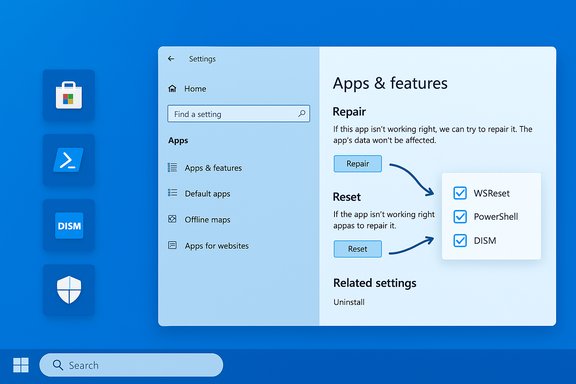
Resetting an app in Windows 10 is a blunt-but-effective way to fix crashes, corrupted settings, failed updates and startup errors — and it’s one of the fastest tools in the Windows troubleshooting toolbox. This guide explains the when, why and how of resetting apps on Windows 10, walks through safer alternatives (Repair, WSReset, re‑registering packages), and lays out an escalation path — from quick fixes to advanced recovery — that keeps data loss and surprises to a minimum. Practical commands, step‑by‑step instructions, and platform‑level safeguards are included so you can fix a misbehaving app with confidence.
Background / Overview
Modern Windows apps (Microsoft Store apps and many inbox AppX/MSIX packages) run in a layered environment: the app package itself, the Store and its cache, the Windows component store (WinSxS), and runtime frameworks (Visual C++ redistributables, .NET, Windows App Runtime). When an app fails to open, crashes, or loses features, the root cause is usually one of these layers — a corrupted app package, bad local data, a broken Store cache, or damaged system files. The right fix depends on which layer is at fault.Microsoft exposes two user‑level controls for package‑level problems in Settings: Repair (non‑destructive) and Reset (destructive to app data). For deeper system issues, Windows provides DISM and SFC to repair the component store and protected system files. This guide follows a risk‑aware escalation order: start small (Restart → Repair), then move to Reset and Store cache fixes (WSReset), then re‑register or reinstall, and finally use system repairs (DISM + SFC) or an in‑place Windows repair if needed.
Why reset an app — and what it actually does
Resetting an app from Settings wipes the app’s local data and restores the app to factory defaults for that user account. It deletes cached files, configuration entries stored in your profile, and local state that may be corrupted. Reset is effective when an app’s UI starts blank or it repeatedly crashes because local configuration or caches are damaged. Use Repair first if you want to preserve user data. Microsoft’s app reset flow and MSIX documentation both confirm that Reset removes local data and reinstalls the package state for the user. Important caution: Reset is destructive to local app data. If the app stores important work offline (project files, local databases, or unsynced caches), export or back up that data before resetting. Cloud‑synced accounts typically survive the reset (you’ll often need to sign back in), but unsynced local content can be lost.Quick checklist — what to try first (safe, fast)
- Restart Windows (reboots often clear transient locks).
- Try Repair (Settings → Apps → Apps & features → app → Advanced options → Repair). This preserves your data.
- If Repair fails, use Reset (same Advanced options screen) after backing up local app files.
- If the app comes from the Microsoft Store, clear the Store cache with WSReset before reinstalling.
1) Reset an app from Settings (the standard GUI method)
This is the first stop for most users because it’s built into Windows 10 and quick to perform.- Open Start → Settings (or press Windows + I).
- Choose Apps → Apps & features.
- Find the app in the list, click it, and choose Advanced options.
- Click Repair first (if available). If the problem persists, click Reset and confirm.
2) Repair an app before resetting it (recommended order)
Repair attempts to fix missing or corrupted app files while keeping your data intact. Always choose Repair when it’s available — it fixes many problems without forcing you to reconfigure or sign back in.- Open Settings → Apps → Apps & features → Select app → Advanced options → Repair. Wait for the operation to finish and test the app.
3) Run WSReset to fix Microsoft Store cache problems
Store apps often fail because the Microsoft Store cache is corrupted. WSReset clears and rebuilds the Store cache without deleting installed apps.- Press Windows + R, type wsreset.exe, press Enter. A blank Command Prompt window appears while the cache is cleared; it closes automatically when finished and the Store should open.
4) Re‑register Store apps with PowerShell (when registrations are corrupted)
When apps refuse to open or appear blank, broken AppX/MSIX registration entries are often the cause. Re‑registering rebuilds those registrations.- Open Windows PowerShell as Administrator and run:
Get-AppxPackage -AllUsers | ForEach-Object { Add-AppxPackage -DisableDevelopmentMode -Register "$($_.InstallLocation)\AppxManifest.xml" }
Why this works: Re‑registration rewrites the package manifests the system uses to find and launch Store apps, fixing cases where the shell or Store shows blank tiles or fails to launch apps. Use this method only when GUI fixes and WSReset don’t work.
5) Remove and reinstall a broken Store package using PowerShell / Command Prompt
When Settings won’t uninstall or Reset won’t complete, remove the broken package manually and reinstall.- Open PowerShell (Admin) or an elevated Command Prompt.
- Locate the package:
Get-AppxPackage appname (replace appname with part of the package name) - Remove it:
Get-AppxPackage PackageFullName | Remove-AppxPackage - Reinstall from the Microsoft Store or re‑register the package manifest as shown above.
6) Use the Windows Store Apps troubleshooter (automatic, low risk)
Windows 10 includes a dedicated troubleshooter for Store app problems that can automatically apply fixes for account, licensing, and update issues.- Settings → Update & Security → Troubleshoot → Additional troubleshooters → Windows Store Apps → Run the troubleshooter. Accept recommended fixes.
7) Manually delete leftover app files (advanced cleanup)
Sometimes a “clean” reinstall needs leftover configuration files removed from the profile.- Open File Explorer and paste: %localappdata% and delete the app’s folder.
- Then open %appdata% and remove additional remnants.
- Reinstall the app from the Store.
8) Advanced escalation: DISM and SFC (system‑level repair)
If multiple apps or system features fail, system‑level corruption may be the root cause. Repair the component store and protected system files using DISM and SFC (recommended order: DISM → SFC).- Open Command Prompt or Windows Terminal as Administrator.
- Run:
DISM /Online /Cleanup-Image /RestoreHealth
Wait — this can take many minutes. If DISM can’t fetch replacement files from Windows Update, supply a local source (matching Windows ISO) with the /Source option. - After DISM completes, run:
sfc /scannow
9) Clean Boot and runtime checks (isolate third‑party interference)
If an app only fails while third‑party services or startup items are active, a Clean Boot helps isolate the culprit.- Run msconfig and choose Selective startup → Hide Microsoft services → Disable all non‑Microsoft services → Apply.
- Open Task Manager → Startup and disable all startup apps.
- Reboot and test the app.
10) When to do an in‑place repair or Reset this PC
If DISM, SFC, and app‑level fixes won’t restore functionality and multiple apps or system behaviors are broken, escalate to:- In‑place repair (repair install from a matching Windows ISO — “Keep personal files and apps”). This reinstalls Windows system files while preserving installed apps in many cases.
- Reset this PC (Settings → Update & Security → Recovery → Reset this PC) — choose Keep my files to preserve personal data but expect apps and drivers to be removed.
Practical examples — real problems and fixes
- Store updates stuck at “Pending”: Run WSReset, repair/reset Microsoft Store, then re‑register Store packages via PowerShell if needed. This sequence usually restores update/install functionality.
- App refuses to open or shows blank tile: Repair first; if that fails, Reset. If Reset is blocked or the app still fails, re‑register AppX packages with the PowerShell command described earlier.
- SFC reports it can’t replace protected files: Run DISM /RestoreHealth first; then rerun SFC. That order repairs the component store SFC needs to retrieve clean files. Microsoft explicitly documents DISM + SFC as the proper pair for robust system repair.
Safety, risks, and what to back up first
- Resetting an app will usually delete its local caches and settings — back up any unsynced files. Cloud‑synced profiles typically survive but require sign‑in afterward.
- DISM with a mismatched ISO source can fail. If you supply a local install.wim or install.esd for DISM, ensure it matches your exact Windows edition and build.
- Third‑party security software can block repairs. Temporarily pause AV or endpoint protection while running powerful repair tools, then re‑enable them.
- Re‑registering packages with PowerShell is powerful and can display red errors for in‑use system packages; that noise is expected. If in doubt, re‑start and re‑try the re‑registration.
Recommended timeline — what to try, in order
- Restart Windows.
- Repair the app from Settings.
- If Store app, run WSReset and then Repair/Reset the Store.
- Reset the app (after backing up local data).
- Run the Windows Store Apps troubleshooter (Windows 10).
- Re‑register packages via PowerShell (Admin).
- If multiple apps or system symptoms persist: DISM /Online /Cleanup-Image /RestoreHealth → sfc /scannow.
- Clean Boot and runtime checks (Visual C++/.NET/Windows App Runtime).
- In‑place repair or Reset this PC as last resort.
Troubleshooting tips and common pitfalls
- If WSReset shows nothing or the Store still behaves badly, try signing out of the Store and signing back in, and check your system date/time (Store authentication can fail with incorrect system time).
- If DISM errors with 0x800f081f (source files not found), either allow DISM to fetch files from Windows Update or provide a matching ISO with the correct /Source parameter. Microsoft community threads document that this is a common cause for DISM failures.
- If an app still refuses to reinstall because the Store shows “Open” instead of “Install,” a leftover package registration may be partially present — use PowerShell to remove any remnants before attempting an install.
- Avoid third‑party “fixers” that claim to repair the Store automatically; they can remove system packages and make matters worse. Stick to built‑in tools and well‑documented manual commands.
Short FAQ (quick answers)
- Does Reset delete my files?
Reset for an app deletes the app’s local data and settings for that user; your general Windows personal files remain unaffected. Back up unsynced content first. - Should I run Repair or Reset first?
Always run Repair first — it’s non‑destructive and solves many issues. Use Reset only if Repair fails. - What if PowerShell re‑register returns red errors?
Those errors are usually noise from in‑use system components; look for success at the end of the command output and then reboot. If problems persist, escalate to DISM/SFC. - Can I recover data after Reset?
Not reliably — Reset is intended to delete local app data. Always back up before resetting an app with important local data.
Final analysis — strengths and risks of Windows 10’s reset ecosystem
Strengths- Windows 10’s layered approach — Repair → Reset → WSReset → Re‑register → DISM/SFC — covers the entire failure surface for apps without forcing a full system reinstall in most cases. It’s a practical escalation model that balances safety and effectiveness.
- Built‑in tools are accessible to most users and are well‑documented; the Settings UI makes Repair/Reset easy, while PowerShell provides advanced recovery when GUI options fail.
- Data loss: Reset deletes local app data — back up first.
- DISM complexity: DISM may require a matching source to restore health; supplying the wrong ISO or a mismatched image can block repair.
- Third‑party interference: Antivirus or endpoint tools can block repairs and re‑registration; temporarily pausing them is sometimes necessary but must be done carefully.
Resetting an app in Windows 10 is a powerful fix when used correctly: start with the least invasive options (Repair and WSReset), back up unsynced data, and escalate methodically. The combination of Settings‑based Repair/Reset and the system‑level tools (PowerShell re‑register, DISM, SFC) solves the majority of real‑world app failures while giving you control over risk and recovery. Follow the order in this guide, keep a recent backup, and you’ll be able to take a misbehaving app from “won’t open” to “fully functional” with minimal disruption.
Source: Windows Report How to Reset an App in Windows 10?
