

Windows 11 makes keeping your system clock accurate easy: enable a single toggle in Settings and Windows will sync with internet time servers, automatically handle daylight‑saving adjustments, and—when necessary—let you force an immediate sync or change the time zone manually. The short how‑to in the supplied Windows Report tutorial walks readers through the essential steps (Settings → Time & Language → Date & Time → Set time automatically), offers optional troubleshooting (Sync now, restart, check internet connection), and lists deeper fixes such as switching NTP servers, restarting the Windows Time service, and running system repairs.
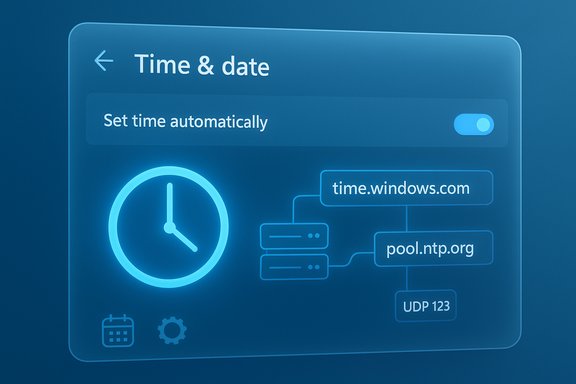
Windows keeps time two ways: the user-facing Settings controls (the toggles you flip in Date & Time) and a system-level synchronization engine, the Windows Time service (W32Time), which communicates with Network Time Protocol (NTP) servers over UDP port 123 to keep clocks in sync. The Settings toggles simply control whether Windows uses the internet to update the system clock and whether it should attempt to detect your time zone automatically; the actual network synchronization and enterprise behaviors are governed by the Windows Time service and related configuration. Why this matters outside of convenience: accurate system time is a security and reliability foundation. Kerberos authentication, certificate validity checks, scheduled tasks, backups, file timestamps, and many cloud services assume a correctly synchronized clock; skewed time can break logins, cause certificate errors, and disrupt scheduled jobs.
Fixes:
Risk: Opening ports or changing firewall rules in an enterprise environment should be coordinated with IT to avoid policy violations.
Fixes:
Risk: Do not point clients to untrusted or internal servers unless you understand the trust and security implications—time spoofing can be used to disrupt authentication or logging.
Fixes:
Risk: Some fixes (editing service accounts, registry changes) require administrative privileges and, in enterprise setups, coordination with IT. Running repair tools is safe but may require a reboot and time.
Verification and fix: Microsoft released optional update KB5050094 (preview on January 28, 2025) that included a fix permitting non‑admin users to change the time zone again through Settings; the fix was rolled into the regular Patch Tuesday release schedule afterward. Users who hadn’t received the patch could still use timedate.cpl as a workaround. This behavior and the KB release are documented in Microsoft’s KB entry and corroborated by community reports. Risk/notes: Preview updates can introduce regressions; community reports around KB5050094 also mentioned other side effects for some users. If you’re managing a fleet, test preview or optional updates in a controlled group before broad deployment.
Fixes:
Risk: Editing registry keys like RealTimeIsUniversal or changing the OS expectation of RTC format can have side effects; document changes and know how to revert them.
When problems persist, use a structured approach: confirm network paths (UDP/123), check service state and logs, inspect BIOS/RTC, and only then apply system repairs or third‑party tools—after verifying those tools with independent sources. Optional Microsoft preview updates can fix notable bugs (for example KB5050094 addressed a specific time‑zone control issue), but they should be tested before wide deployment. Follow the verified steps above, keep Windows up to date, and treat timekeeping as a core system dependency rather than a cosmetic detail—accurate time protects authentication, certificates, scheduled tasks, and the integrity of system logs.
Source: Windows Report Sync Time Automatically in Windows 11: A Complete Guide
 Background
Windows keeps time two ways: the user-facing Settings controls (the toggles you flip in Date & Time) and a system-level synchronization engine, the Windows Time service (W32Time), which communicates with Network Time Protocol (NTP) servers over UDP port 123 to keep clocks in sync. The Settings toggles simply control whether Windows uses the internet to update the system clock and whether it should attempt to detect your time zone automatically; the actual network synchronization and enterprise behaviors are governed by the Windows Time service and related configuration. Why this matters outside of convenience: accurate system time is a security and reliability foundation. Kerberos authentication, certificate validity checks, scheduled tasks, backups, file timestamps, and many cloud services assume a correctly synchronized clock; skewed time can break logins, cause certificate errors, and disrupt scheduled jobs. Quick summary of the Windows Report guide (what the tutorial covers)
- How to open Settings and navigate to Time & Language → Date & Time and enable Set time automatically and (optionally) Set time zone automatically for location‑based time zone detection.
- How to use Sync now to force an immediate NTP synchronization and when a restart may resolve remaining issues.
- Troubleshooting categories: connection-related (internet/network restrictions), server-related (switching time servers like time.windows.com or pool.ntp.org), and system-related (Windows updates, Windows Troubleshooter, Windows Time service).
- A visible third‑party ad recommending a repair tool appeared in the article; the guide itself focuses on built‑in settings and standard troubleshooting. Exercise caution with third‑party system repair claims and verify independent reviews before installing.
How to set Windows 11 to sync time automatically — step‑by‑step (verified)
- Open Settings (Press Windows key + I).
- Choose Time & Language then Date & Time.
- Toggle Set time automatically to On. If you want Windows to pick your zone based on location, enable Set time zone automatically.
- (Optional) Click Sync now under Synchronize your clock to force an immediate update.
Command‑line alternatives (power‑user and admin tools)
- Use tzutil to inspect or set the time zone:
- View current zone: tzutil /g
- List zones: tzutil /l
- Set a zone: tzutil /s "Pacific Standard Time"
The tzutil tool is maintained by Microsoft and works on Windows 11 as documented. - PowerShell:
- View: Get‑TimeZone
- List: Get‑TimeZone -ListAvailable
- Set: Set‑TimeZone -Id "Central European Standard Time"
PowerShell cmdlets are the modern, scriptable route for administrators and are supported by Microsoft documentation. - For service‑level troubleshooting, the w32tm utility configures and diagnoses the Windows Time service and is appropriate when you need to alter NTP peers or view detailed status.
Under the hood: how Windows syncs time
Windows clients that are not domain‑joined will, by default, use the configured internet time servers (often time.windows.com or a public NTP pool) to retrieve Coordinated Universal Time (UTC) and convert that to local time using the system time zone. Domain‑joined machines typically follow the domain hierarchy and synchronize time via the domain controllers; accurate time is particularly critical for Active Directory and Kerberos authentication. The Windows Time service (W32Time) implements the synchronization logic and provides tools (w32tm) for configuration and diagnostics. Microsoft documents these behaviors and the requirement that NTP uses UDP port 123. Key technical notes verified against Microsoft documentation:- W32Time uses NTP (and can also support SNTP compatibility) and relies on UDP/123.
- tzutil and PowerShell cmdlets are official options to set zones and are supported on Windows 11.
Troubleshooting: practical fixes, why they work, and risks
The Windows Report article gives sensible first steps; here’s an expanded, validated troubleshooting checklist arranged by cause, with why each step helps and what to watch out for.1) Connection-related issues
Symptoms: Sync fails with “couldn’t synchronize” or no change after toggling automatic time.Fixes:
- Verify internet connectivity (simple but essential).
- Confirm network filters/firewalls permit UDP traffic to NTP servers (UDP port 123). If a corporate firewall or router blocks NTP, automatic sync will fail.
Risk: Opening ports or changing firewall rules in an enterprise environment should be coordinated with IT to avoid policy violations.
2) Server‑related issues (NTP server problems)
Symptoms: Sync repeatedly fails or returns an obviously wrong time.Fixes:
- Try a different public NTP server such as pool.ntp.org or time.windows.com. Set this either through Control Panel → Internet Time (timedate.cpl) or via w32tm/w32tm /config to set a manual peer list.
Risk: Do not point clients to untrusted or internal servers unless you understand the trust and security implications—time spoofing can be used to disrupt authentication or logging.
3) System‑related issues (service, OS corruption, BIOS)
Symptoms: Settings UI won’t change the zone, Sync now has no effect, or time keeps reverting after reboot.Fixes:
- Restart the Windows Time service (Services MMC or sc /net start w32time) and force a resync (w32tm /resync). Microsoft documents restarting and using w32tm for diagnosis.
- Run the Windows Troubleshooter for time problems (Settings → System → Troubleshoot → Other troubleshooters → Windows Time) as the article recommends for persistent issues.
- Repair corrupted system files: run sfc /scannow and DISM /Online /Cleanup‑Image /RestoreHealth then repeat SFC. This fixes corrupted OS components that could affect Settings or services.
Risk: Some fixes (editing service accounts, registry changes) require administrative privileges and, in enterprise setups, coordination with IT. Running repair tools is safe but may require a reboot and time.
4) The “time zone change is greyed out” bug and how it was fixed
Issue: In Windows 11 24H2 some users reported the Date & Time page’s time zone control was unclickable for non‑admin users. The Windows Report notes this behavior and presents Control Panel (timedate.cpl) as a fallback.Verification and fix: Microsoft released optional update KB5050094 (preview on January 28, 2025) that included a fix permitting non‑admin users to change the time zone again through Settings; the fix was rolled into the regular Patch Tuesday release schedule afterward. Users who hadn’t received the patch could still use timedate.cpl as a workaround. This behavior and the KB release are documented in Microsoft’s KB entry and corroborated by community reports. Risk/notes: Preview updates can introduce regressions; community reports around KB5050094 also mentioned other side effects for some users. If you’re managing a fleet, test preview or optional updates in a controlled group before broad deployment.
5) BIOS/Real‑time clock and dual‑boot considerations
Symptoms: Time is wrong immediately on cold boot but corrects after login, or time drifts persist across OSes.Fixes:
- Check the motherboard/UEFI/BIOS hardware clock. If BIOS time is wrong, correct it there. On dual‑boot systems (Windows + Linux), consider the RealTimeIsUniversal registry tweak or aligning OS expectations about the hardware clock being UTC vs. local time. Community troubleshooting frequently points to BIOS clock or RealTimeIsUniversal as the root cause for persistent mis‑syncs.
Risk: Editing registry keys like RealTimeIsUniversal or changing the OS expectation of RTC format can have side effects; document changes and know how to revert them.
Best practices and recommendations
- For most users, leave Set time automatically on and Set time zone automatically off unless you travel frequently and rely on automatic detection. If you enable automatic zone detection, ensure Location Services are permitted—Windows may use IP/Wi‑Fi signals to infer zone.
- In corporate or server environments, configure a reliable internal time hierarchy (domain controllers synchronized to an authoritative external source) and ensure UDP/123 is allowed where needed. Microsoft documents domain time hierarchy best practices.
- Use Sync now when diagnosing, but avoid frequent manual forcing; w32time will keep the clock within acceptable drift margins. Over‑manipulation is rarely necessary for consumer devices.
- When troubleshooting, collect facts before changing settings: note whether the device is domain‑joined, whether a VPN is active (VPNs can skew auto-detection), whether you’re on a corporate network, and whether recent updates were applied. This helps avoid mistaken assumptions and preserves logs for escalation.
When to be cautious: third‑party “repair” tools and optional updates
The Windows Report article included an advertisement for a third‑party repair utility. While reputable system utilities can help in narrow scenarios, they introduce risk:- System repair tools that claim to “fix everything” are often overbroad; they may change system settings, remove drivers, or alter services in ways that mask root causes.
- Always vet tools with independent reviews, check for a clear privacy policy, and prefer vendor‑provided or Microsoft‑documented methods for critical fixes (e.g., Windows Update, w32tm, SFC/DISM). The Windows Report guide’s main steps rely on built‑in tools and Microsoft guidance, which is the safer path for most users.
Advanced fixes for administrators
- Confirm W32Time status and force a resync:
- sc query w32time
- net stop w32time && net start w32time
- w32tm /resync
- Reconfigure NTP peers (example):
- w32tm /config /manualpeerlist:"0.pool.ntp.org 1.pool.ntp.org" /syncfromflags:manual /update
- w32tm /resync
- Use Group Policy to centrally manage time settings for domain clients:
- Configure time provider and NTP settings via GPO for consistent enterprise behavior. Microsoft’s Windows Time service documentation details domain practices and authoritative server configuration.
- Scripting for large fleets:
- Use PowerShell (Set‑TimeZone) and WMI/PSRemoting to standardize time zone settings and enforce expected behavior across devices.
Conclusion
Setting Windows 11 to sync time automatically is straightforward and, for the majority of users, the correct and safe choice. The Windows Report guide supplies a reliable, user‑level how‑to and practical troubleshooting steps; the built‑in controls map directly to documented Microsoft mechanisms (Settings toggles → NTP sync via W32Time). For administrators and advanced users, command‑line tools (tzutil, w32tm, PowerShell) and Microsoft’s Windows Time service documentation provide robust, scriptable control and diagnostics.When problems persist, use a structured approach: confirm network paths (UDP/123), check service state and logs, inspect BIOS/RTC, and only then apply system repairs or third‑party tools—after verifying those tools with independent sources. Optional Microsoft preview updates can fix notable bugs (for example KB5050094 addressed a specific time‑zone control issue), but they should be tested before wide deployment. Follow the verified steps above, keep Windows up to date, and treat timekeeping as a core system dependency rather than a cosmetic detail—accurate time protects authentication, certificates, scheduled tasks, and the integrity of system logs.
Source: Windows Report Sync Time Automatically in Windows 11: A Complete Guide
