

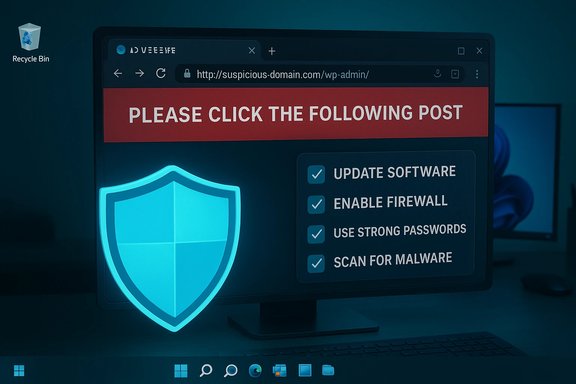
A short, suspicious instruction — “How To Fix Windows 11 Update Error Please Click The Following Post (rZNeVvHpL2) — Leaders.com.tn” — paired with a buried FCKeditor connector URL that points at n1.trustgo.top is not the sort of thing any Windows user should click without stopping to inspect it. What appears to be a routine help post is a textbook example of how legacy web components and cheaply-registered domains can combine to deliver redirects, malware, or credential-harvesting flows. This feature unpacks what that exact pattern means technically, why it matters to Windows 11 users and site owners, how to remediate a suspected infection or update failure safely, and how to harden systems against the same vector in future.
The fragment you pasted — a filemanager browser.html path inside an FCKeditor installation with a Connector parameter pointing at an external host — matches a long history of exploits and misuse tied to FCKeditor’s file manager component. FCKeditor’s filemanager/browser/default/browser.html is known in the vulnerability record as a recurring attack surface: it’s the very file referenced by multiple old CVEs that detail arbitrary file upload and directory traversal flaws. These vulnerabilities permit remote attackers to upload executable code or otherwise misuse the file manager to host malicious payloads that can be executed or linked to from otherwise legitimate web pages. At the same time, the target host in the connector parameter — a .top domain (n1.trustgo.top) — sits in a TLD that has been repeatedly flagged for heavy abuse, and which was the subject of an ICANN notice of breach in 2024 due to repeated DNS-abuse complaints. The combination of legacy, exploitable web components on reputable-looking sites and a cheaply managed, abuse-prone TLD is exactly how many drive-by, phishing and malware campaigns are staged. For readers who landed here after seeing a message that asked them to “click the following post” or that referenced a strange VID parameter, the short version is: treat it like a red flag. Do not click. Treat it as that first observable sign of either a compromised website or an active redirect campaign designed to bootstrap malware or social‑engineering pages.
Short emergency checklist (copy/save)
Source: Leaders.com.tn FCKeditor - Resources Browser
 Background / Overview
The fragment you pasted — a filemanager browser.html path inside an FCKeditor installation with a Connector parameter pointing at an external host — matches a long history of exploits and misuse tied to FCKeditor’s file manager component. FCKeditor’s filemanager/browser/default/browser.html is known in the vulnerability record as a recurring attack surface: it’s the very file referenced by multiple old CVEs that detail arbitrary file upload and directory traversal flaws. These vulnerabilities permit remote attackers to upload executable code or otherwise misuse the file manager to host malicious payloads that can be executed or linked to from otherwise legitimate web pages. At the same time, the target host in the connector parameter — a .top domain (n1.trustgo.top) — sits in a TLD that has been repeatedly flagged for heavy abuse, and which was the subject of an ICANN notice of breach in 2024 due to repeated DNS-abuse complaints. The combination of legacy, exploitable web components on reputable-looking sites and a cheaply managed, abuse-prone TLD is exactly how many drive-by, phishing and malware campaigns are staged. For readers who landed here after seeing a message that asked them to “click the following post” or that referenced a strange VID parameter, the short version is: treat it like a red flag. Do not click. Treat it as that first observable sign of either a compromised website or an active redirect campaign designed to bootstrap malware or social‑engineering pages.Why this pattern is dangerous: the technical chain
Legacy web editors + open connectors = a vector
- FCKeditor (the predecessor to CKEditor) shipped an integrated file manager with an externally addressable connector component. Historically, the connector could be configured to accept remote endpoints, or be patched to allow uploads. Several CVEs document exactly these attack vectors: unrestricted file uploads, absolute path traversal, and similar issues tied to the browser.html + connector endpoints. An attacker who can upload a script or control the connector can serve malicious content to visitors of the host site.
- In practice, the browser.html?Connector=... pattern allows the filemanager UI to talk to the connector back-end. If that connector parameter points to a domain the operator controls, the browser may be directed to that remote service for file operations or resource loading — which can be abused to inject malicious HTML/JavaScript or to harvest session information.
Malicious domains and easy abuse
- The .top TLD has been disproportionately used for scams, smishing and phishing — the registry itself received enforcement attention from ICANN in 2024 and only later implemented remediation steps. Attackers gravitate to such registries because domain registration is cheap and abuse takedowns are slower. That doesn’t mean every .top domain is malicious, but it elevates risk when a trusted site links to a .top host.
Real-world outcomes
- Clicking such a link can cause:
- a redirect to a phishing landing page that mimics Microsoft or a third-party updater
- a drive-by download of a fake "update" executable (malware masquerading as a patch)
- further JavaScript that launches credential prompts or social‑engineering dialogs
- insertion of tracking/advertising scripts or browser hijackers that persist across sessions
Immediate safety steps (if you encountered the message or clicked)
- Stop interacting with the page. Close that browser tab immediately.
- If you clicked the link but didn’t download or run anything, don’t panic — many of these pages try to trick you into running an installer. Be cautious and scan first.
- Disconnect from the network temporarily if you see active downloads or persistent popups; this prevents further automatic traffic. If you’re on a home network, isolate the affected PC from others until it’s cleared.
- Run a full offline scan using Windows Defender Offline or a reputable second opinion scanner (e.g., Malwarebytes). An offline scan boots outside Windows and finds stealthy persistence. Microsoft documents the built-in troubleshooting and scanning approaches for Windows Update and system integrity — they recommend built‑in tools like Windows Update Troubleshooter as the first step for update issues.
- Change any passwords used in that browsing session after you confirm the machine is clean, and enable MFA where available.
How to fix Windows Update errors safely — official, step‑by‑step methods
If you’re seeing a Windows 11 update error that references “click this post” or otherwise came alongside the suspicious URL, use official Microsoft recovery paths. Do not run executables or follow random web “fix” instructions.Quick checks (first 10–30 minutes)
- Reboot your PC and try Windows Update again — a simple restart clears many transient states.
- Ensure you have enough free disk space: Windows feature updates commonly need 20–30 GB free. Microsoft documents the free‑space thresholds in their upgrade guidance.
- Temporarily disable third‑party antivirus only if you plan to run an official Microsoft update or troubleshooting step that the AV falsely blocks; re-enable it after.
Run the built‑in Windows Update Troubleshooter
- Settings → System → Troubleshoot → Other troubleshooters → Windows Update → Run.
- Follow its recommendations and restart when prompted. Microsoft’s support pages recommend this as the first automated tool for update errors.
Clear and reset Windows Update components
Run an elevated Command Prompt (Admin) and paste these commands in sequence (they stop update services and rename the cache folders so Windows fetches fresh payloads):- net stop wuauserv
- net stop bits
- net stop cryptSvc
- net stop trustedinstaller
- ren %windir%\SoftwareDistribution SoftwareDistribution.old
- ren %windir%\System32\catroot2 catroot2.old
- net start wuauserv
- net start bits
- net start cryptSvc
- net start trustedinstaller
Repair system files (DISM + SFC)
Run an elevated terminal and execute:- DISM /Online /Cleanup-Image /CheckHealth
- DISM /Online /Cleanup-Image /ScanHealth
- DISM /Online /Cleanup-Image /RestoreHealth
- sfc /scannow
Install updates manually (safe alternatives)
- Use Microsoft’s official Download Windows 11 page for the Media Creation Tool or Installation Assistant. These official tools produce ISO or installer packages from Microsoft servers, bypassing a problematic Windows Update client state.
- For individual KB packages, use the Microsoft Update Catalog and download the exact KB for your build, then install as an administrator.
When to use DISM to add packages
For “post‑checkpoint” or servicing-state issues, experienced admins sometimes download checkpoint cumulative updates and apply them in order via DISM /Add-Package. That approach is advanced and should only be used if simpler methods fail and you understand servicing dependencies. Community runbooks and forum archives show DISM /Add-Package is often employed when the normal .msu installer “operation is not supported” error appears.Last resort: in‑place upgrade or clean install
- If updates still fail after software repairs, perform an in‑place upgrade using the Media Creation Tool (keeps files and apps) or a clean install (wipes system). Back up important data first. Microsoft’s download pages and docs describe the options and prerequisites.
If the suspicious page was on a site you manage (site‑owner guidance)
If you administer a site (for example leaders.com.tn or any other) and you discover one of your pages is exposing an FCKeditor filemanager path that includes external connectors, treat it as a priority incident:- Remove or disable the legacy FCKeditor installation immediately. FCKeditor is obsolete and replaced by CKEditor; remove unused upload endpoints. The filemanager/browser/default/browser.html path in particular should be removed or restricted.
- Audit all filemanager connector configurations. Ensure connectors are server‑side scripts you control and accept only authenticated, validated uploads with strict content-type checks.
- Inspect web server access logs for suspicious uploads or requests to editor/filemanager paths and for unusual POSTs to connector endpoints.
- Verify file system contents of any upload directories for unauthorized scripts (.php, .aspx, .jsp, etc. and remove and quarantine suspicious files.
- Rotate secrets and review admin accounts, plugins, and server software versions. Apply patches and update to supported editor versions.
- If you find code or backdoors, engage forensic analysis, rotate credentials, and notify users if there was a confirmed incident.
Detection and cleanup checklist for end users and admins
- For end users:
- Clear the browser cache and reset the browser to defaults (Chrome/Edge/Firefox).
- Check extensions and remove unknown or recently added ones.
- Inspect the hosts file (%windir%\system32\drivers\etc\hosts) for unauthorized redirects.
- Run a Windows Defender Offline scan and a second-opinion scanner like Malwarebytes.
- Change passwords and enable MFA if your machine showed signs of credential capture.
- For system administrators:
- Pull webserver logs and WAF (web application firewall) logs for requests matching fckeditor paths and connector parameters.
- Run integrity checks on web folders and search for newly modified files, particularly in upload directories.
- Use Autoruns or an EDR to find unfamiliar persistence (scheduled tasks, services, Run keys).
- If compromise is confirmed and persistence is deep, reimage the host from a known-good backup after capturing forensic artifacts.
Critical analysis: strengths and risks of the recommended approach
Strengths
- The remedies described above prioritize official sources and Microsoft‑supported tooling (Windows Update Troubleshooter, DISM, SFC, Media Creation Tool). Using official channels reduces the chance of introducing further malware or corruption.
- The layered approach — detect, isolate, remediate, and harden — reflects best practice for both end users and administrators. Short, actionable items (clear caches, run Defender offline, reset update components) are effective at resolving the majority of update-related failures.
Risks and caveats
- Running repair commands like DISM /RestoreHealth will attempt to fetch health payloads from Windows Update; if the machine is still compromised or blocked by an on‑host tamper (malicious driver, kernel‑level rootkit), those downloads or fixes may fail or be intercepted. In those cases, an offline remediation or reimage is safer.
- Applying “DIY” fixes copied from random webpages can be risky. Never run downloaded executables or scripts from ambiguous domains — always pull tools and ISOs from Microsoft’s official download center. Fake “update helpers” are a common malware delivery route. Recent reporting shows fake upgrade tools and malicious sites mimicking official installers are actively in circulation.
- Site owners who simply delete a malicious file without fully auditing for backdoors or database web shells may leave a second-stage implant behind. Comprehensive log analysis and file integrity checks matter.
Practical, prioritized checklist (what to do now)
- If you saw the message but didn’t click: mark the incident, but no further action required aside from vigilance.
- If you clicked but did not download/run anything: close the tab, run Windows Defender Offline, then run Malwarebytes for a second opinion.
- If you downloaded or ran anything from the suspicious page: disconnect, boot to offline rescue media, and perform a full offline scan; consider reimaging if malware is confirmed.
- For update errors unrelated to web compromise: run Windows Update Troubleshooter → reset Update components → run DISM/SFC → use Media Creation Tool for repair/in‑place upgrade.
- If you manage the site that appears in the post: take the web host offline if necessary, remove the legacy file manager, audit logs, rotate credentials, and restore from a known good backup after cleaning.
Closing assessment and recommendations
The “Please Click The Following Post (rZNeVvHpL2) — Leaders.com.tn” pattern, especially when coupled with an FCKeditor browser.html connector parameter pointing at an external .top host, should be treated as a high‑probability indicator of compromise or of an active redirection-based scam. Historical vulnerability records make the FCKeditor filemanager path a well‑known attack surface, and the .top TLD has been repeatedly implicated in abuse campaigns; both conditions multiply risk. For Windows users: do not rely on unknown web posts to “fix” update errors. Use Microsoft’s tools and guidance first, and only resort to community runbooks after verifying the commands and the source. If you suspect you clicked a malicious link, prioritize an offline Defender scan and password changes once the machine is clean. For site owners and web admins: remove legacy editors, restrict file upload endpoints tightly (authentication + server-side validation), monitor logs for filemanager access, and patch or replace vulnerable web components. A modern content editor and a properly configured WAF will eliminate most of the attack surface associated with connector‑style file managers. CVEs against FCKeditor’s filemanager are numerous and well-documented, demonstrating the systemic risk of leaving legacy web components in place. Finally, treat every unsolicited “click here to fix” instruction — particularly those surfaced inside update dialogues or social posts — as suspect. Legitimate OS updates are delivered via your Windows Update client, Microsoft’s own tools, or the Microsoft Update Catalog, and those are the only safe routes for installing platform patches. Keep backups, run scans, and patch both endpoints and websites — prevention stops most of these schemes before they start.Short emergency checklist (copy/save)
- Do not click suspicious links.
- Close the tab; run Windows Defender Offline.
- Run Malwarebytes (or another reputable scanner).
- Reset browser, check extensions, and inspect hosts file.
- Run Windows Update Troubleshooter, then DISM + SFC.
- If you manage the affected website: remove legacy FCKeditor, audit uploads, rotate credentials.
- If compromise is confirmed and deep: reimage from a trusted backup.
Source: Leaders.com.tn FCKeditor - Resources Browser
