

A built-in Windows tool that many users overlook can reveal slowdowns far more clearly than Task Manager ever will. Reliability Monitor surfaces a day-by-day stability timeline that makes crashes, failed updates, and repeated driver faults easier to spot, and Microsoft documents that it launches directly with
Windows users tend to begin troubleshooting the same way: open Task Manager, look for a CPU hog, and assume the cause of lag will be obvious. That works for obvious spikes, but it misses a large class of problems that happen in the background, recover quietly, and still drag the system down over time. Reliability Monitor exists precisely for that gap, because it translates event history into a visual stability record instead of a wall of raw logs.
Microsoft’s own documentation positions the tool as part of the Windows Reliability and Performance Monitor stack, and the
That historical framing matters because slow PCs are often the result of accumulation rather than a single dramatic incident. A crash that restarts automatically, a failed update that retries several times, or a driver issue that logs and recovers can all leave a machine feeling worse without making the problem obvious in the moment. Microsoft’s reliability graph is designed to show exactly those patterns, especially when the trouble begins on a specific date and then keeps repeating.
The reason this tool still feels “hidden” is simple: it is not front-and-center in the Windows 11 UI, and it is not part of the everyday consumer workflow the way Task Manager or Settings are. Yet it has been part of the platform lineage for years, and the same command-line entry point still exists in current Windows documentation. That longevity makes Reliability Monitor feel less like a niche utility and more like a forgotten diagnostic lens that never really left.
That design is what makes the tool feel more actionable than Event Viewer to many users. Event Viewer remains indispensable, but it is often a forensic tool for experienced troubleshooters rather than a quick diagnosis screen for ordinary users. Reliability Monitor gives the same story a visual narrative, and that narrative makes it much easier to ask the right question: what changed on the day my system became unstable?
The reliability timeline also exposes an important distinction that people often miss: not every issue is equally useful. A one-off informational event may be normal, while a repeat crash or recurring warning often points to the actual cause of the slowdown. In other words, the tool is most valuable when it helps separate noise from pattern, not when it merely confirms that Windows has been busy.
The MakeUseOf example is compelling because it shows how a machine can feel sluggish even when Task Manager looks unremarkable. A background app may crash and restart repeatedly, updates may fail without fully breaking the system, and a driver fault may leave traces in the log while the desktop remains usable. That is exactly the kind of situation where a history-based tool beats a live snapshot.
It also gives the user a concrete starting point for deeper work. Instead of searching through weeks of Event Viewer noise, you can click the day where the line fell and immediately inspect the associated failures and warnings. That reduces the chance of chasing symptoms that appeared later but were not actually the root cause.
There is a subtle benefit to having a command-based entry point: it makes the tool feel like part of a troubleshooting routine rather than a buried menu item. For power users, that matters because the best diagnostics workflows are the ones you can repeat quickly when the machine is under stress. A one-command launch lowers the friction of checking whether a slowdown is already showing up in history.
What makes the graph smart is that it is keyed to time. If the score drops on a Tuesday and continues falling through the week, the machine is probably not just “slow”; it is reacting to a recurring issue that started on Tuesday. That historical logic is a major step up from live resource charts, which may tell you the system is busy but not why it became busy in the first place.
That detail is where the tool starts to feel genuinely diagnostic. A crash entry can point to a specific application; a system failure can hint at boot or kernel problems; and a repeated warning can indicate an update or configuration process that never completed cleanly. Even when the tool does not hand you the exact fix, it often narrows the field enough to make the next step obvious.
This distinction matters because many performance issues are not dramatic enough to leave a simple footprint. A process may crash, relaunch, and continue consuming cycles in a loop; a driver may fail and recover; or an update may keep retrying in the background. To the user, the machine feels “off,” but Task Manager may only show an ordinary desktop with no apparent villain.
Driver faults are another high-value category. If a faulting module ends in
If an app keeps failing, the logical first move is to update or reinstall it. If Windows update warnings recur, the best next step is to troubleshoot the update pipeline rather than restarting randomly and hoping for the best. If the issue is tied to a
For enterprise users, the implications are broader. A reliability graph can help support teams correlate helpdesk complaints with a patch rollout, a driver deployment, or a bad application update. Even though enterprises have richer telemetry stacks, a local tool that clearly shows when instability began can still speed up first-line triage and reduce the distance between an end-user complaint and a remedial action.
As Windows continues to evolve, tools like this may matter even more because many modern issues are intermittent, update-driven, and recoverable. Those are exactly the kinds of problems that leave traces in history rather than on the screen in real time. The more complex the ecosystem becomes, the more valuable a simple, readable record of what changed becomes.
Source: MakeUseOf I found a Windows 11 log that shows exactly what's making my PC slow — and most people don't know it exists
perfmon /rel.
 Background
Windows users tend to begin troubleshooting the same way: open Task Manager, look for a CPU hog, and assume the cause of lag will be obvious. That works for obvious spikes, but it misses a large class of problems that happen in the background, recover quietly, and still drag the system down over time. Reliability Monitor exists precisely for that gap, because it translates event history into a visual stability record instead of a wall of raw logs.Microsoft’s own documentation positions the tool as part of the Windows Reliability and Performance Monitor stack, and the
/rel switch opens that standalone reliability view directly. The key value is not that it replaces Event Viewer, but that it reorganizes the same kind of failure information into a historical graph with a stability index. In practical terms, that means a user can identify the day a system started going wrong rather than guessing from whatever symptom happened to appear last.That historical framing matters because slow PCs are often the result of accumulation rather than a single dramatic incident. A crash that restarts automatically, a failed update that retries several times, or a driver issue that logs and recovers can all leave a machine feeling worse without making the problem obvious in the moment. Microsoft’s reliability graph is designed to show exactly those patterns, especially when the trouble begins on a specific date and then keeps repeating.
The reason this tool still feels “hidden” is simple: it is not front-and-center in the Windows 11 UI, and it is not part of the everyday consumer workflow the way Task Manager or Settings are. Yet it has been part of the platform lineage for years, and the same command-line entry point still exists in current Windows documentation. That longevity makes Reliability Monitor feel less like a niche utility and more like a forgotten diagnostic lens that never really left.
Overview
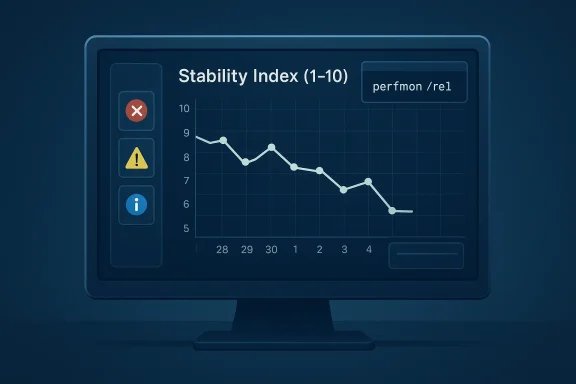
The core idea behind Reliability Monitor is elegantly simple. Instead of dumping logs in chronological order and forcing the user to infer meaning from scattered entries, it displays a stability index on a scale from 1 to 10 and plots problems by day. Sharp drops in the graph indicate that something meaningful happened, whether that was an application failure, a Windows failure, or a failed update.That design is what makes the tool feel more actionable than Event Viewer to many users. Event Viewer remains indispensable, but it is often a forensic tool for experienced troubleshooters rather than a quick diagnosis screen for ordinary users. Reliability Monitor gives the same story a visual narrative, and that narrative makes it much easier to ask the right question: what changed on the day my system became unstable?
The reliability timeline also exposes an important distinction that people often miss: not every issue is equally useful. A one-off informational event may be normal, while a repeat crash or recurring warning often points to the actual cause of the slowdown. In other words, the tool is most valuable when it helps separate noise from pattern, not when it merely confirms that Windows has been busy.
The MakeUseOf example is compelling because it shows how a machine can feel sluggish even when Task Manager looks unremarkable. A background app may crash and restart repeatedly, updates may fail without fully breaking the system, and a driver fault may leave traces in the log while the desktop remains usable. That is exactly the kind of situation where a history-based tool beats a live snapshot.
Why the graph matters
The graph is useful because it compresses complexity into a shape the human eye can scan quickly. A high stability score tells you the system was relatively calm, while a sudden decline tells you where to focus your investigation. This is a classic diagnostics principle: pattern recognition beats brute-force log hunting when the goal is finding the first meaningful deviation.It also gives the user a concrete starting point for deeper work. Instead of searching through weeks of Event Viewer noise, you can click the day where the line fell and immediately inspect the associated failures and warnings. That reduces the chance of chasing symptoms that appeared later but were not actually the root cause.
How to open it
The fastest route is the commandperfmon /rel, which opens Reliability Monitor directly. Microsoft documents /rel as the switch for launching the Reliability Monitor view from the Performance Monitor command family, and the same tool can also be reached by searching for “Reliability Monitor” in Start and opening the View reliability history applet.There is a subtle benefit to having a command-based entry point: it makes the tool feel like part of a troubleshooting routine rather than a buried menu item. For power users, that matters because the best diagnostics workflows are the ones you can repeat quickly when the machine is under stress. A one-command launch lowers the friction of checking whether a slowdown is already showing up in history.
Practical opening paths
- Use
perfmon /relfrom Run or Search. - Search Start for Reliability Monitor or View reliability history.
- Treat it as a first-pass history view before opening raw logs.
- Use it after a slowdown begins, not only after a crash.
What the stability index really tells you
The stability index is the heart of Reliability Monitor, and its usefulness comes from trend analysis rather than from the absolute number alone. A score near 10 suggests relative stability, while a lower score indicates a period where something went wrong often enough to dent the overall picture. Microsoft’s documentation and support material describe the stability index as a central feature of the view, and it is specifically intended to help identify when issues began.What makes the graph smart is that it is keyed to time. If the score drops on a Tuesday and continues falling through the week, the machine is probably not just “slow”; it is reacting to a recurring issue that started on Tuesday. That historical logic is a major step up from live resource charts, which may tell you the system is busy but not why it became busy in the first place.
Reading the icons
Reliability Monitor uses clear event symbols to classify issues. A red X represents a critical failure, a yellow warning triangle shows a non-critical problem, and a blue information icon marks events such as installs or updates. Those visual cues let users prioritize without reading every entry line by line, which is one reason the tool feels far less intimidating than traditional logs.Why historical context beats live monitoring
- It reveals when instability started.
- It shows repeat failures across multiple days.
- It connects slowdowns to updates, crashes, or drivers.
- It helps distinguish one-off noise from recurring faults.
- It gives a clearer “before and after” picture than Task Manager.
Interpreting the event timeline
Once you click a day in Reliability Monitor, the lower pane fills with specific entries. Microsoft’s documentation and related support material note categories such as application failures, Windows failures, warnings, and informational events. Each entry can include the source, a summary, the date, and in many cases a reference to the faulting module or error code.That detail is where the tool starts to feel genuinely diagnostic. A crash entry can point to a specific application; a system failure can hint at boot or kernel problems; and a repeated warning can indicate an update or configuration process that never completed cleanly. Even when the tool does not hand you the exact fix, it often narrows the field enough to make the next step obvious.
Event categories that matter most
- Application failures for repeated app crashes or freezes
- Windows failures for system-level crashes or boot issues
- Warnings for failed updates or incomplete operations
- Information events for installs, patches, and configuration changes
Why Task Manager missed the problem
Task Manager is excellent at showing what is consuming resources right now. It is not designed to explain what happened two days ago, or why a background process kept collapsing and restarting in a way that never left an obvious CPU spike behind. That is where Reliability Monitor can uncover the silent stuff that makes a PC feel inconsistent and sluggish.This distinction matters because many performance issues are not dramatic enough to leave a simple footprint. A process may crash, relaunch, and continue consuming cycles in a loop; a driver may fail and recover; or an update may keep retrying in the background. To the user, the machine feels “off,” but Task Manager may only show an ordinary desktop with no apparent villain.
Where live tools fall short
Live monitoring tools show symptoms, but history tools show causation clues. That difference is especially important when the machine has already recovered by the time you begin troubleshooting. Reliability Monitor preserves the evidence long after the visible failure has passed, which makes it a better starting point for delayed diagnostics.- Task Manager shows active load, not past instability.
- Event Viewer is rich but often too granular for quick triage.
- Reliability Monitor balances readability with useful detail.
- Background crashes can degrade performance without obvious spikes.
What kinds of problems it exposes best
The strongest use cases are the ones where the system’s trouble is intermittent, recurring, or tied to a recent change. Failed updates are a classic example, because they may not stop the computer from working outright but can create enough repeated background activity to affect responsiveness. Microsoft’s reliability and support materials specifically call out update-related and other event-based issues as the sort of history the tool surfaces well.Driver faults are another high-value category. If a faulting module ends in
.sys, that often points toward a driver or kernel-mode component rather than a normal app problem. Reliability Monitor may not spell out the exact hardware culprit, but it gives enough context for a reasoned first guess, which is often all you need to decide whether to update, roll back, or investigate further.Best-fit scenarios
- Repeated application crashes with no obvious visible cause
- Failed or partially installed Windows updates
- Driver-related instability that recurs across days
- Post-update slowdowns that begin on a specific date
- Machines that “recover” but never feel fully normal
Turning findings into fixes
Reliability Monitor does not fix anything by itself, and that is an important limitation. It is a triage tool, not a repair tool, so the user still needs to translate clues into actions. Still, because it often identifies the class of problem, the path forward becomes much shorter and less speculative.If an app keeps failing, the logical first move is to update or reinstall it. If Windows update warnings recur, the best next step is to troubleshoot the update pipeline rather than restarting randomly and hoping for the best. If the issue is tied to a
.sys fault, then driver update, rollback, or vendor-specific remediation becomes the obvious lane to explore.A simple response framework
- Identify the day when the stability score dropped.
- Open the detailed events for that date.
- Separate application issues from Windows or driver issues.
- Treat repeated entries as actionable; ignore isolated noise at first.
- Apply the least disruptive fix that matches the likely cause.
Enterprise and consumer impact
For consumers, the value is obvious: it is a free, built-in way to figure out why a PC suddenly feels worse. It is especially helpful on family machines and older systems where a single recurring fault can masquerade as “Windows being Windows.” In a home context, the tool can save time, avoid unnecessary software installs, and prevent blind trial-and-error fixes.For enterprise users, the implications are broader. A reliability graph can help support teams correlate helpdesk complaints with a patch rollout, a driver deployment, or a bad application update. Even though enterprises have richer telemetry stacks, a local tool that clearly shows when instability began can still speed up first-line triage and reduce the distance between an end-user complaint and a remedial action.
Different audiences, different gains
- Consumers get a readable explanation for “mystery slowdowns.”
- IT pros get a quick correlation aid for incident timelines.
- Support teams get another way to validate user-reported symptoms.
- Power users get a history view that complements raw logging.
Strengths and Opportunities
Reliability Monitor’s main strength is that it reduces ambiguity. Instead of forcing users to piece together failure clues from multiple tools, it compresses instability into a timeline that is easy to scan and easy to explain. That makes it a very strong first response for slowdowns that seem real but not obviously tied to one active process.- Fast visual triage for days when instability began
- Clear separation between crashes, warnings, and information events
- Useful historical context that survives after the live symptom ends
- Low-friction access through
perfmon /relor Start search - Better pattern detection than Task Manager alone
- Helpful for recurring update and driver issues
- A good bridge between consumer troubleshooting and IT analysis
Risks and Concerns
The biggest risk is overconfidence. Reliability Monitor can show that something failed repeatedly, but it does not always tell you why, and it cannot measure CPU spikes or memory pressure directly. Users who treat it as a complete diagnostic suite may miss other evidence that matters just as much.- It does not track live resource spikes the way Task Manager does
- It may show symptoms without naming the root cause
- Single isolated events can be misleading if read too literally
- Driver clues may require additional investigation outside the tool
- Older or odd configurations may have limited history if logging is interrupted
- Users may overreact to harmless warnings instead of looking for patterns
- It is easy to overlook if you only use modern Settings menus
Looking Ahead
Reliability Monitor will probably never become the flashy centerpiece of Windows troubleshooting, and that is fine. Its strength lies in being the kind of utility that quietly proves its worth when the usual suspects fail to explain a problem. For slow PCs in particular, that kind of historical evidence is often the difference between guesswork and a real diagnosis.As Windows continues to evolve, tools like this may matter even more because many modern issues are intermittent, update-driven, and recoverable. Those are exactly the kinds of problems that leave traces in history rather than on the screen in real time. The more complex the ecosystem becomes, the more valuable a simple, readable record of what changed becomes.
What to watch next
- Whether Microsoft surfaces Reliability Monitor more prominently in Windows 11
- How often update-related issues continue to show up in user troubleshooting
- Whether more users adopt the tool as a first-step diagnostic habit
- Whether IT teams use it more formally in support escalations
- Whether future Windows tooling preserves the same historical clarity
Source: MakeUseOf I found a Windows 11 log that shows exactly what's making my PC slow — and most people don't know it exists
Last edited:
