

Windows ships with a tidy, low‑noise instrument for spotting the kinds of crashes and driver problems that quietly erode a PC’s day‑to‑day reliability: the built‑in Reliability Monitor. It runs without fanfare, produces a simple 1–10 stability score, and surfaces application crashes, Windows failures, installation events and other markers you can act on — often faster and less painfully than digging through raw Event Viewer logs. This piece examines what Reliability Monitor actually does, how it works under the hood, its practical strengths and blind spots, and how to use it responsibly as part of a modern Windows troubleshooting workflow.
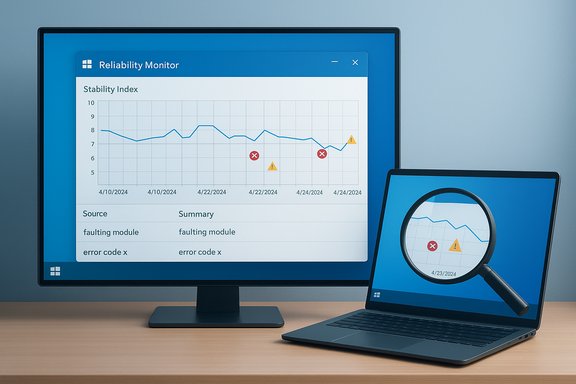
Reliability Monitor is an MMC snap‑in (you can open it with perfmon /rel) that creates a rolling System Stability Chart and logs specific reliability events such as application failures, Windows failures, miscellaneous failures, warnings and informational installation events. The chart visualizes a Stability Index on a 1–10 scale, where 10 is the best score and lower numbers indicate a history of recent failures; recent failures are weighted more heavily than older ones. The tool is powered by a small Windows component (the Reliability Analysis Component, often surfaced through the scheduled RacTask/RACAgent task) that gathers data from Windows’ own reporting channels and packages it into the human‑readable timeline you see in the GUI. If that scheduled task is disabled, Reliability Monitor will show no up‑to‑date data. Reliability Monitor is present across modern Windows releases (Windows 7, Windows 8/8.1, Windows 10 and Windows 11) and is easy to launch from multiple places: Start menu search (type “reliability”), Control Panel → System and Security → Security and Maintenance → View reliability history, or the Run box / command line using perfmon /rel.
When used with realistic expectations — as a quick triage dashboard and pattern detector rather than an exhaustive forensic recorder — Reliability Monitor saves time and clarifies what to investigate next. The only caveats are that its retention and implementation details can vary by Windows build and OEM image, and that it offers limited visibility into hardware failure mechanics. Check the RAC task and Event Viewer when you need more data, and pair Reliability Monitor with the right specialist tools for a full diagnosis.
Reliability Monitor’s quiet, built‑in nature is its superpower: easy to access, low overhead, and often enough to tip you off to the real problem before you spend time chasing red herrings. Use it early, use it paired with Event Viewer for evidence, and treat the Stability Index as a helpful trendline rather than an absolute judgement.
Source: XDA You don't know it, but this underrated built-in Windows tool perfectly reports your PC's stability
 Background / Overview
Reliability Monitor is an MMC snap‑in (you can open it with perfmon /rel) that creates a rolling System Stability Chart and logs specific reliability events such as application failures, Windows failures, miscellaneous failures, warnings and informational installation events. The chart visualizes a Stability Index on a 1–10 scale, where 10 is the best score and lower numbers indicate a history of recent failures; recent failures are weighted more heavily than older ones. The tool is powered by a small Windows component (the Reliability Analysis Component, often surfaced through the scheduled RacTask/RACAgent task) that gathers data from Windows’ own reporting channels and packages it into the human‑readable timeline you see in the GUI. If that scheduled task is disabled, Reliability Monitor will show no up‑to‑date data. Reliability Monitor is present across modern Windows releases (Windows 7, Windows 8/8.1, Windows 10 and Windows 11) and is easy to launch from multiple places: Start menu search (type “reliability”), Control Panel → System and Security → Security and Maintenance → View reliability history, or the Run box / command line using perfmon /rel. How Reliability Monitor Works
The data model — what gets recorded
Reliability Monitor does not invent new telemetry; it synthesizes the operating system’s problem reports and selected Event Log entries into five event rows:- Application failures — crashes and forced terminations from userland programs.
- Windows failures — kernel or OS‑level faults and device driver crashes.
- Miscellaneous failures — peripheral or other failures that don’t fit neatly into the first two categories.
- Warnings — incomplete updates or other non‑fatal issues.
- Information — successful installations and routine system events (for example, Windows Update installs).
The Stability Index (1–10)
The Stability Index is a derived, weighted score. Conceptually it’s a rolling calculation where recent failures reduce the score more than older ones, letting a system recover its score after fixes are applied. The index’s scale is 1 (least stable) to 10 (most stable). Use it as a trend indicator rather than a precise health meter.Behind the scenes: RacTask / RACAgent and Windows Error Reporting
Reliability Monitor’s inputs are collected by the Reliability Analysis Component. Historically this was surfaced through scheduled tasks called RacTask or RACAgent; these tasks harvest event log entries and package the data for the GUI. If the RAC task is disabled the monitor will warn you that it lacks up‑to‑date data. This background collection is why Reliability Monitor can begin displaying a stability score roughly 24 hours after installation and why it usually has continuous coverage once the machine has been running. Reliability Monitor also leverages Windows Error Reporting (WER) for many application crash reports; that’s why some entries include Microsoft’s “bucket” error IDs and why Windows may automatically upload a report to Microsoft when a crash occurs. The automatic reporting is convenient for passive diagnostics, but the aggregated data shown in the GUI is local and accessible to you immediately.Where Reliability Monitor shines
- Low friction triage: It’s one of the fastest ways to get a readable timeline of crashes and significant warnings without having to filter Event Viewer or run diagnostics. The graph + event list makes pattern recognition simple (did a driver fail every morning after an update?.
- Actionable pointers: Events usually include a faulting module or error code. That gives you a direct starting point — e.g., a repeated fault in a GPU driver (.sys) points to driver rollback/update, while a third‑party DLL fault points at a specific app.
- No installation needed: The tool is built into Windows and runs in the background; no third‑party agent is required. That makes it ideal for casual users and for remote tech support scenarios where installing tools is impractical.
- Human‑friendly history view: The daily timeline and icons (red X, yellow triangle, blue info) make it much more accessible than raw log lines for non‑technical readers. Communities and support staff often recommend starting here for fast triage.
Practical limitations and caveats
1) Retention and “how far back” you can see
Some writeups have suggested a short retention window; however, practical documentation and multiple guides indicate Reliability Monitor typically maintains up to one year of events and a rolling graph that you can scroll through, not just a 28‑day window. If more than 30 days are available, the control offers a scrollbar to navigate older dates. Treat any single‑site claim of a strict 28‑day limit with caution: the available history varies with OS version and system configuration, and authoritative community documentation reports up to a year of retained history on modern Windows installs. (If your device shows only a short window, check that the RAC task is enabled and that system diagnostics and reporting haven’t been disabled by a privacy policy, group policy or endpoint management profile.2) Not a replacement for Event Viewer or dedicated tools
- Granularity: Reliability Monitor surfaces summary events; it does not give the same timestamp fidelity, detailed stack traces, or low‑level kernel information that Event Viewer, dump analysis tools, or Process Monitor provide. When you need timestamps, event IDs, or forensic detail, export the event to Event Viewer or collect minidumps.
- Not a hardware tester: Hardware problems may appear as Windows failures or WHEA‑Logger entries, but Reliability Monitor’s descriptions can be terse. Confirm suspected hardware faults with targeted diagnostics (Memory Diagnostic / MemTest86, SMART tests and dedicated SSD/HDD utilities, PSU stress tests).
- Sampling bias: Normal graceful exits are usually not recorded. Reliability Monitor captures crashes, hangs and problem reports — not everyday app closes — so it’s a tool for problem detection rather than full activity auditing.
3) Privacy & telemetry considerations
Reliability Monitor consumes local event data and may trigger Windows Error Reporting uploads if WER is enabled. Automated uploads can be disabled enterprise‑wide via policy. Treat exported logs as potentially sensitive (they sometimes contain file paths, usernames and module names) and sanitize or encrypt them before sharing with third‑party support.4) Dependence on scheduled agent (RAC) and platform changes
Windows’ internal implementation has evolved (RACAgent, RacTask, and changes across Windows versions). If Microsoft changes how problem reporting is gathered, that could alter Reliability Monitor’s behavior; community posts show occasional bugs or missing RAC entries on some systems requiring manual re‑enablement of the scheduled RAC task. If you see no data, check Task Scheduler → Microsoft → Windows → RAC and enable the task if needed.How to use Reliability Monitor effectively — a technician’s workflow
- Open Reliability Monitor:
- Press Win and type “reliability” → select View reliability history, or
- Press Win+R, type perfmon /rel and press Enter.
- Inspect the Stability Index and scan for red X / yellow triangles on dates that match reported problems. Click a date to see problem reports below the chart.
- For any suspect event, click View technical details (or the link in the lower pane) to capture the Faulting Application, Faulting Module and Exception code. Note the module name and timestamp. These are your primary clues.
- Cross‑reference the event with Event Viewer:
- Open Event Viewer and filter the Application/System logs for the event time and provider.
- Look for matching Event IDs such as Application Error 1000, Application Hang 1002, Kernel‑Power 41, or WHEA‑Logger events for hardware errors.
- Decide the next diagnostic step:
- If a driver file (.sys) appears, roll back or reinstall the vendor driver and test.
- If a third‑party process or DLL is implicated, check for app updates or reinstall the application.
- If hardware errors appear, run memory and drive diagnostics and capture minidumps if available.
- Save the reliability history for offline review or sharing: Reliability Monitor has a Save reliability history option that exports the timeline as XML. Use this when escalating to vendor support.
- If you need longer retention or scriptable exports, move to Event Viewer / PowerShell (Get‑WinEvent) or a logging agent. Reliability Monitor is excellent for fast human triage but is not a long‑term archival solution for forensic analysis.
Comparing Reliability Monitor to third‑party tools
- Reliability Monitor: quick, built‑in, low overhead, and great for spotting patterns and linking to technical details. Not designed for live tracing, high‑frequency capture, or continuous forensic logging.
- Event Viewer + PowerShell: more granular, scriptable, and exportable. Use when you need timestamps, Event IDs, and automation.
- Process Monitor (Sysinternals): real‑time syscall/registry/IO tracing — indispensable for reproducing and tracing tricky app crashes, but generates huge traces and requires filtering and care.
- Latency/driver tools (LatencyMon, HWInfo, MemTest86): specialized hardware/driver checks that Reliability Monitor cannot perform. Use these for audio stutter, DPC, memory or CPU stability problems.
A critical assessment: strengths, risks, and what Microsoft could improve
Notable strengths
- Accessibility: For many users the simplest route to discover that “something” has been failing without digging through cryptic logs.
- Actionability: Most entries provide the specific module or process name you need to Google or search vendor KBs.
- No extra installs: It’s built into Windows and works immediately unless intentionally disabled.
Real risks and missing capabilities
- Overinterpretation risk: The Stability Index is a heuristic; a single installation or a false positive crash can dramatically lower the score. Treat it as a directional signal, not an absolute health certificate.
- Incomplete for hardware triage: When Reliability Monitor logs a generic hardware error, it often lacks the deeper telemetry (sensor readings, power‑rail levels, SMART counters) needed to confirm a failing component. Dedicated diagnostics are still required.
- Enterprise edge cases: On managed devices group policy or telemetry settings may suppress reporting; administrators should document these effects so reliability data remains interpretable.
- Platform drift vulnerability: Because Microsoft has modified task names and collection mechanics over the years, occasional behavior differences between Windows versions or OEM images can confuse users (missing RacTask, empty RAC folder, etc.. Diagnostics and documentation could be more obvious in Settings.
Practical recommendations and best practices
- Check Reliability Monitor as your first step when you notice instability. It’s fast, safe, and often points at a single culprit.
- If Reliability Monitor returns only terse or insufficient details, export the event and inspect Event Viewer and dump files next.
- Keep an eye on the RAC scheduled task in Task Scheduler if you see no data; enable RacTask/RACAgent if necessary.
- Export the reliability history via the built‑in Save option before clearing logs if you plan to escalate the issue to vendor or support.
- Combine Reliability Monitor with one or two specialist tools (MemTest86 for RAM, vendor SSD utilities for storage health, LatencyMon for audio/DPC issues) depending on the symptom profile.
Final verdict
Reliability Monitor is an underrated built‑in tool that belongs in the everyday troubleshooting toolkit for both casual users and technicians. It lowers the barrier to seeing meaningful crash patterns and provides immediate, actionable pointers about faulting modules and error codes. It is not a silver bullet: it should be used as the first stop in a layered diagnostic process that includes Event Viewer, targeted hardware diagnostics, and the right third‑party tools for deep tracing.When used with realistic expectations — as a quick triage dashboard and pattern detector rather than an exhaustive forensic recorder — Reliability Monitor saves time and clarifies what to investigate next. The only caveats are that its retention and implementation details can vary by Windows build and OEM image, and that it offers limited visibility into hardware failure mechanics. Check the RAC task and Event Viewer when you need more data, and pair Reliability Monitor with the right specialist tools for a full diagnosis.
Reliability Monitor’s quiet, built‑in nature is its superpower: easy to access, low overhead, and often enough to tip you off to the real problem before you spend time chasing red herrings. Use it early, use it paired with Event Viewer for evidence, and treat the Stability Index as a helpful trendline rather than an absolute judgement.
Source: XDA You don't know it, but this underrated built-in Windows tool perfectly reports your PC's stability
