

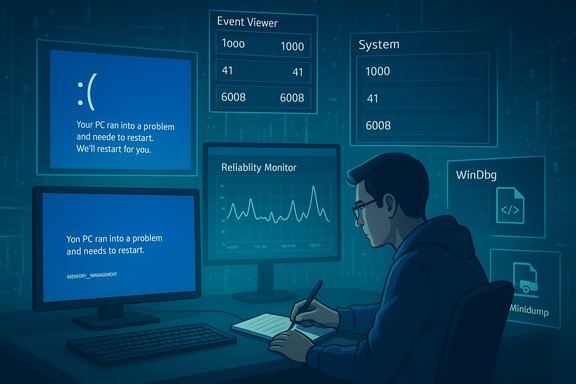
Every time Windows hits a fatal error and forces a restart, it leaves a trail — crash logs, event records, and memory dumps — that can tell you what went wrong and point to a fix. Whether you prefer a quick GUI check in Event Viewer, a visual timeline in Reliability Monitor, a command-line harvest with PowerShell or wevtutil, or deep analysis of minidump files with WinDbg or BlueScreenView, Windows stores the evidence you need. This guide walks through where those logs live, how to access and interpret them, practical triage workflows, and the risks to watch for when you start changing drivers, firmware, or system settings.
Background / Overview
Windows records crashes and unexpected shutdowns in multiple places: the centralized Event Log, the Reliability Monitor timeline, and on-disk memory dump files (minidumps and full dumps). These different artifacts serve different uses: Event Viewer gives quick human-readable context and event IDs; Reliability Monitor offers an at-a-glance history of stability; minidumps and MEMORY.DMP contain raw kernel and driver state for low-level debugging. Knowing which to consult first — and how to preserve evidence for analysis — saves time and prevents accidental data loss.Where Windows Stores Crash Data
Crash dump files (minidump and MEMORY.DMP)
- Default minidump folder: C:\Windows\Minidump — small per-crash dumps useful for driver-stack analysis.
- Full or kernel dumps: C:\Windows\MEMORY.DMP — larger files containing more memory state for deep debugging.
Event logs and Reliability Monitor
- Event Viewer (Windows Logs → System / Application) stores timestamped events from the OS, drivers, and apps. Kernel and hardware-level problems often appear in the System log; application crashes show in Application.
- Reliability Monitor (Reliability History / perfmon /rel) collects a user-friendly timeline of crashes, hangs, and updates that links back to the underlying events for faster triage.
Quick First Steps After a BSOD: Preserve Evidence
- Reboot only if you must. If the system is unstable, boot to Safe Mode to avoid writing new events that can obscure the original timeline.
- Note the stop code and any driver shown on the blue screen; take a photo if needed. That code often maps directly to a bugcheck that appears in the minidump.
- Export or copy event logs and minidumps before making major changes. Use Save All Events As… in Event Viewer for .evtx export or copy the C:\Windows\Minidump files to another drive for analysis.
Using Event Viewer — Step‑by‑Step (GUI)
Event Viewer is the single best first-stop for human-readable clues.- Open: Right‑click Start → Event Viewer, or Win+R → eventvwr.msc.
- Where to look: Expand Windows Logs → System for kernel/driver events; Windows Logs → Application for app crashes.
- Filter to the timeframe: Action → Create Custom View… or Filter Current Log… and choose Error/Critical, and add Event IDs of interest (1000, 1001, 41, 6008, 1074, etc.. This dramatically reduces noise and surfaces the events that correlate with your crash.
- Event ID 1000 — Application Error (faulting application / module).
- Event ID 1001 — Windows Error Reporting (additional bucket/fault metadata after an app crash).
- Event ID 41 (Kernel‑Power) — system rebooted without a clean shutdown; often appears when a crash or power loss occurred. Treat this as an indicator rather than a root-cause statement — Kernel‑Power can be caused by PSU, hardware, or driver failures.
Reliability Monitor: Visual History and Quick Details
Reliability Monitor gives a compact, visual timeline with clickable error entries.- Open: Type “Reliability History” in Start or run perfmon /rel. Click a day to reveal the list of critical events and select “View technical details” to see the underlying event log entries. This is particularly useful to spot patterns — e.g., repeated crashes after a driver update or during a particular app.
Command-line and PowerShell: Fast, Scriptable Audits
For automation, remote troubleshooting, or power users, the command line is indispensable.- wevtutil (text output): Example to read System events in text: wevtutil qe System /f:text /c:20 /q:"*[System[(EventID=1001)]" — this prints recent WER entries; change /c:20 to get more events.
- PowerShell Get‑WinEvent (preferred):
Get‑WinEvent -FilterHashtable @{LogName='System'; ID=41,1074,6005,6006,6008} -MaxEvents 50 | Format-Table TimeCreated, Id, LevelDisplayName, Message -Wrap -AutoSize
This returns a compact table of recent shutdown-related events and is ideal for automation.
Reading Minidumps: Tools and Guidance
Minidumps contain the kernel-mode stack and module list for the crash. For many BSODs, one of these approaches is fastest:- BlueScreenView (NirSoft) — a lightweight, portable viewer that scans C:\Windows\Minidump and lists crash files, bugcheck codes, and suspected drivers in a table. Great for quick triage when you want a readable summary. Note: driver attribution in stack analysis isn’t 100% certain; treat the “caused by driver” column as a lead, not definitive proof.
- WhoCrashed — a simpler analyzer that attempts to map dumps to drivers and common causes (useful for less technical users).
- WinDbg (Windows Debugger) — the Microsoft-supported tool for authoritative analysis. It requires symbol configuration (Microsoft public symbol server) and familiarity with !analyze -v and stack interpretation. Use WinDbg when BlueScreenView’s output is inconclusive or you need a precise call stack for vendor-level troubleshooting.
- Copy minidump files from C:\Windows\Minidump to a working folder.
- Open them in BlueScreenView for a quick summary; if the output points at a driver, attempt a driver rollback or update.
- If necessary, run WinDbg with Microsoft symbols and !analyze -v for deeper root-cause analysis.
Interpreting Common BSOD Stop Codes and Event Patterns
- DRIVER-related stop codes (e.g., DRIVER_IRQL_NOT_LESS_OR_EQUAL) almost always point to faulty or incompatible drivers; start with rolling back or updating GPU/network/storage drivers.
- MEMORY-related codes may indicate bad RAM or driver corruption; run Windows Memory Diagnostic or MemTest86 for deeper testing.
- Kernel‑Power 41 without a corresponding bugcheck often indicates sudden power loss, PSU issues, or hardware that causes the whole machine to drop out; additional device-level logs and hardware checks are required. Do not assume a single Event ID is the full answer.
Practical Triage Workflows (From Quick to Deep)
Quick triage (10–30 minutes)
- Check Event Viewer System/Application for Error/Critical events at the crash time. Filter for IDs 1000, 1001, 41, 6008.
- Launch Reliability Monitor to see whether crashes cluster around updates or app installs.
- Copy minidump files to a safe location and run BlueScreenView for a quick suspected-driver hint.
Mid-level troubleshooting (1–3 hours)
- Update or roll back suspect drivers (GPU, storage, network) directly from vendor websites. Avoid random “driver updaters.”
- Run SFC and DISM to repair corrupted system files: DISM /Online /Cleanup-Image /RestoreHealth then sfc /scannow. These recoveries often fix crashes caused by corrupted OS components.
- Run CHKDSK /f /r to find disk issues if the crash implicated disk controllers or in‑page errors.
Advanced diagnostics (several hours, use with caution)
- Driver Verifier: stress-tests drivers to force faulty ones to expose themselves in a controlled crash. Only run with a recovery plan (system image or recovery media) — Driver Verifier intentionally causes BSODs when a driver misbehaves. Reset verifier immediately (verifier /reset) if you can’t boot.
- Procmon traces: capture real-time file/registry/process activity for hard-to-reproduce bugs; keep strict filters because traces grow quickly.
- Full dump + WinDbg: collect a complete MEMORY.DMP and analyze with symbols when vendor or Microsoft support requests authoritative debug output.
Exporting, Sharing, and Forensics Best Practices
- Export Event Viewer logs to .evtx (right‑click → Save All Events As…) to preserve metadata for vendors or support staff. .evtx retains structured fields that plain text loses.
- When sharing minidumps or MEMORY.DMP, remember dumps can contain sensitive memory contents (passwords, personal data). Share only with trusted support channels and consider sanitizing or exporting only the minidump-level data needed for diagnosis.
Security, Privacy, and Operational Risks
- Dumps may contain Personally Identifiable Information (PII) from memory; avoid public posting of raw dumps. Share crash summaries or sanitized outputs when possible.
- Driver Verifier and some diagnostic steps (e.g., CHKDSK /r, firmware updates) can be disruptive and risk data loss if done without backups. Always have a verified backup before invasive steps.
- BlueScreenView and other portable tools are widely useful but occasionally flagged by AV solutions; verify checksums and use sanctioned downloads in managed environments. Do not treat third‑party suggestions as definitive without cross-checking with authoritative tools like WinDbg.
What Event IDs Mean in Plain English (Quick Reference)
- 1000: Application crashed — look for Faulting application and module.
- 1001: Windows Error Reporting — supplemental crash metadata and bucket IDs.
- 41: Kernel‑Power — unexpected shutdown or reboot without clean shutdown; investigate hardware/power/driver causes.
- 6008: Unexpected shutdown was logged — similar to 41 and helpful as a boot/shutdown marker.
- 1074: Shutdown initiated by process/user — useful to differentiate intentional restarts from crashes.
When to Escalate to Vendor or Microsoft Support
Escalate when:- Minidump/WinDbg analysis points to a vendor driver and rolling back/updating doesn’t fix it. Provide .evtx and minidumps for their analysis.
- Multiple machines show identical crashes after the same update — centralize logs (Event Forwarding / SIEM) and involve IT procurement or vendor channels.
- Hardware diagnostics (MemTest, SMART, CHKDSK) show failing components — preserve logs and pursue RMA with vendor.
Summary and Best-Practice Checklist
- Capture the crash: photograph the BSOD, note stop code and time.
- Check Event Viewer (System/Application) and Reliability Monitor for matching timestamps and context.
- Copy minidumps and analyze with BlueScreenView for a quick lead; use WinDbg for authoritative analysis when needed.
- Run non‑destructive checks (SFC, DISM, CHKDSK, Memory Diagnostic) before risky steps like firmware flashing or Driver Verifier.
- Export .evtx and preserve original dump files before making changes; share only with trusted support.
Windows leaves a well-structured trail after a crash — use the Event Log to find human-friendly context, Reliability Monitor to spot patterns, and minidumps for technical analysis. Start with non‑destructive diagnostics, copy and preserve evidence, and escalate to WinDbg or vendor support when required. Follow the checks and safeguards above and you’ll turn BSOD frustration into a methodical troubleshooting process that isolates the root cause rather than guessing at it.
Source: Guiding Tech How to Check Windows Crash or BSOD Logs
