

The Windows Event Viewer is the single built‑in tool that will almost always be the fastest route from “my PC crashed” to “here’s what failed,” and yet it’s one of the most overlooked utilities on a typical Windows machine. The Event Viewer acts like a flight recorder for Windows—capturing time‑stamped, structured records from the kernel, drivers, services, and applications—and when you learn how to read those records, troubleshooting goes from guesswork to evidence‑based diagnosis.
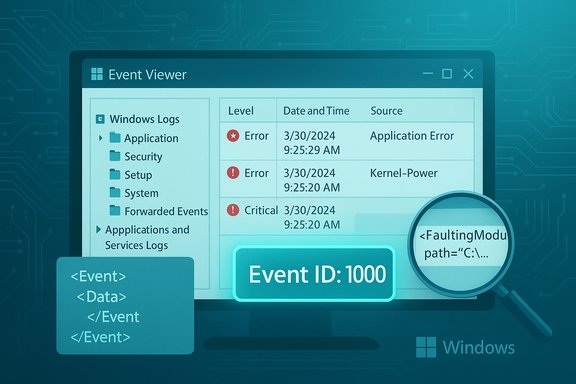
Windows generates a vast stream of diagnostic data as it runs: successful operations, warnings, errors, audit events, driver load results, and more. The Event Viewer — an MMC snap‑in you can run with eventvwr.msc — centralizes those records into a navigable hierarchy: Custom Views, Windows Logs (Application, Security, Setup, System, Forwarded Events), and Applications and Services Logs (component‑specific, ETW/trace providers). Those logs are stored in the structured .evtx format (XML under the hood), which gives each event a timestamp, source/provider, an Event ID, severity level, and a payload you can examine. Why that matters: the UI messages you see when an app crashes or a PC reboots are often generic; the Event Viewer frequently contains the exact module, driver, or Windows component that reported the failure. That turns an opaque problem into a concrete lead you can research and remediate.
Source: How-To Geek This is the most useful Windows troubleshooting tool you keep overlooking
 Background / Overview
Windows generates a vast stream of diagnostic data as it runs: successful operations, warnings, errors, audit events, driver load results, and more. The Event Viewer — an MMC snap‑in you can run with eventvwr.msc — centralizes those records into a navigable hierarchy: Custom Views, Windows Logs (Application, Security, Setup, System, Forwarded Events), and Applications and Services Logs (component‑specific, ETW/trace providers). Those logs are stored in the structured .evtx format (XML under the hood), which gives each event a timestamp, source/provider, an Event ID, severity level, and a payload you can examine. Why that matters: the UI messages you see when an app crashes or a PC reboots are often generic; the Event Viewer frequently contains the exact module, driver, or Windows component that reported the failure. That turns an opaque problem into a concrete lead you can research and remediate.Why Event Viewer matters for troubleshooting
Translate symptoms into facts
A frozen app, random reboot, or slow boot is a symptom. The Event Viewer supplies facts: which driver failed to initialize; which service timed out; whether Windows wrote a kernel error before a shutdown. These facts let you:- Move from “something is wrong” to “the NVIDIA display driver module nvlddmkm.dll reported X”
- Search vendor documentation or Microsoft support using an Event ID or faulting module
- Decide whether to update a driver, roll back a patch, or replace hardware
Event ID and severity are your troubleshooting anchors
Every event has an Event ID and a level (Information, Warning, Error, Critical, Audit Success/Failure). Event IDs are reusable numerical labels that often map to a well‑documented condition: a service timeout, a driver fault, an authentication failure, etc. That makes Event IDs portable for support: copy the ID, search documentation or community answers, and you’ll usually find targeted next steps. Note, however, that the set of possible Event IDs is not a single static master list—IDs can vary by product and provider—so treat searches as the start of investigation, not the final word.Use cases where Event Viewer is essential
- Diagnosing Blue Screen of Death (BSOD) and unexpected reboots: look in the System log for Critical and Error records timestamped at the crash. Often a driver or kernel error is recorded seconds before the shutdown.
- App crash analysis: the Application log usually contains the faulting module or DLL name and exception code. This rapidly narrows whether the problem is app‑specific or OS/driver related.
- Boot performance troubleshooting: the Diagnostics‑Performance log reports slow startup components and can name the specific driver or service causing the delay.
- Security audits and log‑on investigations: the Security log records successful and failed logon attempts and many other audit events useful for determining whether an access attempt is unauthorized. For curated security sets (what to ingest to SIEMs), Microsoft documents specific Event ID groups used for threat detection.
How to open and navigate Event Viewer (quick practical primer)
Getting comfortable with the interface is the first step to speed.- Open Event Viewer: Press Windows + R, type eventvwr.msc, and press Enter; or search for “Event Viewer” in the Start menu.
- The left pane shows the tree. Start with Windows Logs → System and Application. The right pane provides actions like “Filter Current Log,” “Create Custom View,” and “Attach Task To This Event.”
- Event levels appear as icons: Information (i), Warning (!, Error (x), Critical. Prioritize Error and Critical, then inspect repeated Warnings if they occur frequently.
Recommended first view: create a custom filter
A healthy machine can generate thousands of Informational events per hour. Use Custom Views to focus on the noise that matters:- Click Create Custom View.
- Choose a time window that brackets your incident (e.g., last hour).
- Select levels: Error and Critical (add Warnings if you suspect performance degradation).
- Choose logs: System + Application (add Diagnostics‑Performance or Security as needed).
- Save the view with a meaningful name (e.g., “Recent Errors — Crash Investigation”).
Concrete workflows: three common troubleshooting scenarios
1. After a BSOD or unexpected reboot
- Reboot into Windows and open Event Viewer.
- Go to Windows Logs → System. Sort by Date/Time or use a Custom View covering the minute of the crash.
- Look for Critical events and the last Error event before the timestamp. The Source (driver/service name) and Event ID are primary leads.
- If the Event Message references a driver (.sys) or module, note the filename and search vendor and Microsoft documentation for that Event ID or faulting file.
- If Event Viewer shows nothing obvious, check the Windows Logs → Application for app-level crashes and use DMLog or Memory Dump analysis as needed.
2. App crashes with no error dialog
- Open Application log and filter by the time of the crash.
- Look for Error events whose source is the crashing application or “Application Error.” The event will usually include the faulting module and exception code.
- Note the faulting module (DLL) and the originating process; search vendor support pages and community threads for that module + exception code.
- If it’s a third‑party module, try updating or reinstalling that application. If it’s a system DLL or driver, run system checks (SFC/DISM) and check for driver updates.
3. Slow boot or long shutdown
- Enable and open Applications and Services Logs → Microsoft → Windows → Diagnostics‑Performance → Operational (if present).
- Look for Event IDs in the 100–200 range that indicate boot/shutdown delays. Each entry names the culprit (app, service, or driver) and a time delta.
- Use the event details to disable the identified service/app from startup or update/reinstall the driver. Consider a clean boot to validate.
Advanced techniques power users and admins should use
Querying, exporting, and automating event collection
- For scripted and large‑scale troubleshooting, use wevtutil (command‑line) to enumerate logs, export, archive, and clear event files. Example: wevtutil epl System C:\backup\system.evtx exports System log to an EVTX file you can analyze or import elsewhere.
- PowerShell’s Get‑WinEvent provides programmatic filtering and remote collection, letting you build automated data‑gathering scripts across machines. This is essential for repeatable diagnostics in enterprise environments.
- Event subscriptions and forwarding: use Windows’ Event Collector and subscriptions to forward logs from endpoints to a central collection server for consolidated analysis. This is how you build a small SIEM‑style collection without third‑party agents.
Reading and understanding XML payloads
Events are stored in a structured XML format. The Event Viewer exposes an XML view for every event. When fields aren’t obvious in the friendly message, the XML reveals raw values and element names you can use in XPath queries for precise filtering and automation. This matters when dealing with vendor logs that use custom fields.Pair Event Viewer with other tools
- Use Process Monitor or Process Explorer (Sysinternals) alongside Event Viewer when an event references a file, handle, or registry key you need to inspect in real time. These tools reveal the runtime behavior leading up to an event.
- For driver or kernel issues, combine Event Viewer events with memory dump analysis (WinDbg) for deeper causation. Event Viewer points, WinDbg proves.
Practical best practices and hygiene
- Don’t assume every Error is catastrophic. Many drivers log harmless errors during startup; prioritize repeated or time‑correlated Errors that match user complaints. Use frequency and correlation, not a single isolated error, to decide action.
- Retain logs for investigations: export and archive logs before clearing them. Wevtutil and the Export function exist for this reason.
- Configure log size and retention policies for servers: a tiny log can roll over critical entries; increase the max size if you’re troubleshooting intermittent issues. This setting is editable from Event Viewer or via wevtutil.
- When investigating security incidents, apply the Microsoft guidance on which security Event IDs to collect and forward to your SIEM — the “minimal” and “custom” event sets are good starting points for threat detection.
Common pitfalls, scams, and privacy cautions
Don’t confuse verbose logs with infections
Event Viewer routinely records many benign errors during driver interactions, plugin loads, or update checks. Some tech‑support scammers use Event Viewer’s long list of warnings and errors to convince users their machine is critically broken. Treat the content and context of events as the deciding factor: repeated and correlated errors that match symptoms deserve attention; one obscure Warning often does not.Privacy and data control
Event logs can include usernames, IPs, process command lines, and other sensitive metadata. When exporting or sharing logs for help, scrub or redact personally identifiable information if you’re posting publicly. In corporate environments, ensure log sharing complies with privacy and compliance policies.Be careful when clearing logs
Clearing a log removes evidence. Always export or archive logs before running clear operations during an active investigation. Tools like wevtutil support archived backups during clear operations.Step‑by‑step troubleshooting checklist you can copy/paste
- Reproduce or determine the approximate time window of the problem (note the precise timestamp).
- Open Event Viewer (eventvwr.msc).
- Create a Custom View limited to the suspected time window and levels Error/Critical.
- Inspect System and Application logs first; check Diagnostics‑Performance and Security as relevant.
- Record the Event ID, Source, and any faulting module or file path.
- Export the event log (or single event) for backup and sharing: right‑click → Save All Events As… or use wevtutil epl.
- Search Event ID + Source online and check Microsoft Learn for known issues, hotfixes, or advisories. Remember Event IDs differ by product; verify context.
- Apply fixes based on the evidence (driver rollback/update, app reinstall, SFC/DISM if system files implicated). Repeat until the event no longer appears.
When Event Viewer won’t tell the whole story
Event Viewer is a requisite first stop, not a magic wand. It will tell you who complained (which module or service) and when, but sometimes the why requires complementary tests:- Hardware intermittent faults (failing RAM, flaky SATA controller) may produce low‑level errors that need memtest or SMART analysis. Event Viewer points you in that direction, but the hardware tools prove the failure.
- Race conditions and timing bugs can create sporadic events absent a single clear failing module. Use Process Monitor traces or reproduce under controlled conditions to capture the precursor behavior.
Final analysis: strengths, risks, and why you should start using it today
Event Viewer’s strengths are clear:- Evidence‑driven troubleshooting: it turns vague symptoms into concrete leads.
- Granularity and structure: timestamps, Event IDs, XML payloads, and provider names give actionable details.
- Scriptability and scale: wevtutil and PowerShell enable export, remote collection, and automation for enterprise investigations.
- False alarms and noise: abundant informational events can distract; use filtered views and correlation.
- Incomplete coverage: not all third‑party apps log useful events; absence in Event Viewer doesn’t mean absence of a problem. When Event Viewer is quiet, combine with Process Monitor, PerfMon, and vendor logs.
- Misinterpreting Event IDs: event IDs are useful but not always definitive; they can be product‑specific and require context. Cross‑check before action.
Quick reference: useful commands and PoC snippets
- Open Event Viewer: Windows + R → eventvwr.msc.
- Export System log (wevtutil): wevtutil epl System C:\backup\system.evtx.
- List all logs (PowerShell): Get‑WinEvent -ListLog * | Where‑Object { $_.RecordCount -gt 0 } (requires admin).
- Create a custom filtered view: Event Viewer → Create Custom View → set levels/time/logs → Save.
Source: How-To Geek This is the most useful Windows troubleshooting tool you keep overlooking
