

Windows Update may feel like a private background chore, but on many PCs it is also a shared-network activity. Microsoft’s Delivery Optimization can let your machine download update fragments from other PCs and upload pieces it already has to help those other machines finish their own updates faster. That design can save bandwidth in some homes and organizations, but it can also consume upload capacity, add background disk usage, and create the kind of “why is my connection sluggish?” mystery that fuels articles like the one from Tom’s Guide. Microsoft confirms the feature is on by default in many Windows configurations and can be tuned, limited, or disabled depending on how much sharing you want.
Delivery Optimization is one of those Windows components that is easy to overlook because it does not announce itself with pop-ups or obvious UI. It sits inside Windows Update plumbing, quietly deciding whether a package comes from Microsoft’s servers, a nearby PC, or another machine on the internet that already has the same files. Microsoft describes it as a downloader that can dynamically optimize bandwidth while retrieving Windows updates, Microsoft Store apps, and other Microsoft content.
That architecture is a classic trade-off: reduce repeated downloads from Microsoft’s servers, but allow endpoint-to-endpoint sharing in exchange. In a household with several Windows devices or a business fleet that is constantly patched, that can be a meaningful efficiency win. In a single-PC home office on a metered or upload-limited connection, it can feel less like efficiency and more like Windows borrowing bandwidth you thought you had reserved for work or play.
Microsoft’s own support materials make clear that the feature is not malicious and does not touch personal files or folders. It creates a local cache, stores downloaded update pieces there for a short period, and removes them automatically after a while or when space pressure rises. That means the Tom’s Guide framing is directionally fair about the impact on bandwidth and disk use, but the “Windows is using your internet to update other people’s PCs” line is really shorthand for a peer-assisted distribution system, not some covert data leak.
The key question is not whether Delivery Optimization exists, but whether the default behavior matches your network reality. For many people, it does. For others, especially gamers, remote workers, or anyone with a tight upstream cap, the feature can be a hidden source of frustration that is worth limiting or turning off.
That distinction matters because many users think “peer-to-peer” only applies to home LAN sharing. In reality, Windows can be configured to share with devices beyond your own network, which is what makes the feature more powerful and more controversial. Microsoft explicitly notes that you can choose local-network-only behavior or disable sharing entirely.
It also has practical upside in office environments. Microsoft says organizations can use it to reduce network bandwidth without deploying extra infrastructure, and it integrates with Windows Update, WSUS, Microsoft Intune, and Configuration Manager scenarios. That makes it more than a consumer convenience; it is part of Windows’ broader update-delivery strategy.
Still, the bandwidth cost is real. Even if the upload stream is modest, upstream bandwidth is often the scarcest resource on residential connections. A small amount of constant background upload can be enough to interfere with voice calls, cloud backups, multiplayer gaming, and livestreams.
That symptom profile explains why Delivery Optimization gets pulled into “performance tuning” conversations so often. People may blame their ISP, router, Wi‑Fi, or even their game servers, when the actual issue is a Windows feature that is behaving exactly as designed. The design is sensible in aggregate, but the local user feels the cost immediately.
Video calls have a similar problem, though for different reasons. Real-time communication needs stable upstream capacity for audio, video, and signaling. If the background upload queue is busy, the call may not fail outright, but it can degrade just enough to be irritating and hard to diagnose.
For many users, the disk issue is less severe than the bandwidth issue, but it can be a contributor to the general feeling that Windows is doing too much behind the scenes. In that sense, the cache is not a bug; it is part of the mechanism that lets Delivery Optimization do its job. The question is whether that job is worth the footprint on your machine.
If you want to keep the feature but avoid sharing with strangers on the internet, Microsoft offers a local-network-only option. That is the middle ground that fits many households, especially those with multiple Windows devices at home. It preserves the convenience of local peer assistance without using your internet connection to help remote devices you do not know.
Microsoft also warns that if a device is managed by an organization, some Delivery Optimization controls may be grayed out. In that case, an IT administrator may be enforcing a policy because they value patch efficiency at fleet scale more than one user’s local bandwidth preferences.
For enterprises, the calculation is different. Microsoft explicitly positions Delivery Optimization as a bandwidth-saving tool that helps keep many devices current without bolting on extra content-distribution infrastructure. In an environment with dozens or thousands of endpoints, the aggregate savings can be substantial, especially when updates roll out in waves.
This also explains the policy flexibility. Microsoft notes that managed devices can have settings locked by IT administrators, which is a reminder that the “best” configuration depends on whether the device belongs to one person or an entire organization. The same feature can be an annoyance at home and a cost-saving asset in a business.
For this group, local-network-only mode is often the sweet spot. It keeps the feature’s domestic efficiency while avoiding internet-wide sharing, which is usually where the resentment starts. That also means Microsoft’s default behavior is not necessarily wrong; it is simply optimized for a broader set of assumptions than many users have.
Still, the headline style matters because users often interpret unseen background network activity as a trust issue, not just a bandwidth issue. Once a feature feels hidden, people become less forgiving about its defaults. That is especially true in Windows, where many users already feel the operating system makes too many assumptions on their behalf.
That gap between documentation and discoverability is the real story behind the Tom’s Guide piece. Windows may be transparent on paper, but it is not always transparent in the way ordinary users experience it. If a feature affects bandwidth, storage, and update behavior, it should arguably be easier to find.
That tension is why the same feature can be described as a helpful optimization in one paragraph and an unwanted bandwidth drain in the next. Both descriptions are true. The difference lies in whether the user values convenience, efficiency, or control most highly.
The article also makes an important secondary point about local-network-only mode. That option is often the best recommendation for a multi-PC household because it preserves the useful part of the feature without sending traffic out to the broader internet. That is the least disruptive compromise for many users.
Another nuance is that bandwidth limits are not a magic shield. Microsoft says they apply in particular to automatic update downloads, which means users expecting perfect, all-purpose throttling may be surprised. A good consumer guide should make that limitation explicit so readers do not assume the setting solves every network problem.
Another point to watch is whether Microsoft refines the balance between consumer and enterprise defaults. The feature already serves both audiences, but those audiences do not have the same tolerance for background network use. The more Windows leans into always-on connectivity and cloud-assisted services, the more pressure it will face to make those services legible and granular.
For now, the best answer is not panic, but control. If Delivery Optimization fits your setup, it can quietly do useful work in the background. If it does not, Microsoft has finally made it clear enough to shut the door, trim the bandwidth, or keep the sharing inside your own home network.
Source: Tom's Guide https://www.tomsguide.com/computing...s-hidden-setting-to-speed-up-your-connection/
 Overview
Delivery Optimization is one of those Windows components that is easy to overlook because it does not announce itself with pop-ups or obvious UI. It sits inside Windows Update plumbing, quietly deciding whether a package comes from Microsoft’s servers, a nearby PC, or another machine on the internet that already has the same files. Microsoft describes it as a downloader that can dynamically optimize bandwidth while retrieving Windows updates, Microsoft Store apps, and other Microsoft content.That architecture is a classic trade-off: reduce repeated downloads from Microsoft’s servers, but allow endpoint-to-endpoint sharing in exchange. In a household with several Windows devices or a business fleet that is constantly patched, that can be a meaningful efficiency win. In a single-PC home office on a metered or upload-limited connection, it can feel less like efficiency and more like Windows borrowing bandwidth you thought you had reserved for work or play.
Microsoft’s own support materials make clear that the feature is not malicious and does not touch personal files or folders. It creates a local cache, stores downloaded update pieces there for a short period, and removes them automatically after a while or when space pressure rises. That means the Tom’s Guide framing is directionally fair about the impact on bandwidth and disk use, but the “Windows is using your internet to update other people’s PCs” line is really shorthand for a peer-assisted distribution system, not some covert data leak.
The key question is not whether Delivery Optimization exists, but whether the default behavior matches your network reality. For many people, it does. For others, especially gamers, remote workers, or anyone with a tight upstream cap, the feature can be a hidden source of frustration that is worth limiting or turning off.
What Delivery Optimization Actually Does
At its core, Delivery Optimization is a peer-assisted content distribution system. Windows breaks downloads into smaller pieces, looks for peers that already have those pieces, and then combines sources to complete the download. Microsoft says that devices can pull from local-network peers or, depending on settings, from peers on the internet as well.That distinction matters because many users think “peer-to-peer” only applies to home LAN sharing. In reality, Windows can be configured to share with devices beyond your own network, which is what makes the feature more powerful and more controversial. Microsoft explicitly notes that you can choose local-network-only behavior or disable sharing entirely.
Why Microsoft Built It
The main reason is scale. If millions of devices are downloading the same patch on the same day, forcing every one of them to hit Microsoft’s servers at full size is expensive and less resilient. Delivery Optimization spreads some of that load across devices, which can reduce bandwidth demands and improve reliability when internet access is slow or inconsistent.It also has practical upside in office environments. Microsoft says organizations can use it to reduce network bandwidth without deploying extra infrastructure, and it integrates with Windows Update, WSUS, Microsoft Intune, and Configuration Manager scenarios. That makes it more than a consumer convenience; it is part of Windows’ broader update-delivery strategy.
What It Shares — and What It Doesn’t
Microsoft is careful to say that Delivery Optimization does not access personal files or folders. The data being cached and shared is update and app content, not your documents, photos, or browser history. That is an important privacy distinction, especially when articles compress the feature into a scary-sounding headline.Still, the bandwidth cost is real. Even if the upload stream is modest, upstream bandwidth is often the scarcest resource on residential connections. A small amount of constant background upload can be enough to interfere with voice calls, cloud backups, multiplayer gaming, and livestreams.
- It caches update pieces locally.
- It can download from PCs on your LAN or on the internet.
- It can upload pieces to other PCs if enabled.
- It is aimed at Windows Update, Microsoft Store, and Microsoft content.
- It is not a personal-file sharing tool.
Why People Notice It Only When It Becomes a Problem
The feature is usually invisible until something else on the network starts acting weird. A game stutters, a video call gets choppy, or a file upload crawls, and suddenly the user is looking for the hidden background process that is quietly eating upstream capacity. Because upload bandwidth is usually much lower than download bandwidth, even a relatively small continuous background trickle can be noticeable.That symptom profile explains why Delivery Optimization gets pulled into “performance tuning” conversations so often. People may blame their ISP, router, Wi‑Fi, or even their game servers, when the actual issue is a Windows feature that is behaving exactly as designed. The design is sensible in aggregate, but the local user feels the cost immediately.
The Gaming and Video-Call Problem
Gaming is especially sensitive to background network activity because latency, jitter, and packet contention matter more than raw throughput. A feature that is “only using a bit of bandwidth” can still create enough contention to hurt the experience, particularly if the user is on a modest upload plan or an overloaded home network. That is why Tom’s Guide and similar consumer outlets keep revisiting Delivery Optimization as a “hidden” setting worth checking.Video calls have a similar problem, though for different reasons. Real-time communication needs stable upstream capacity for audio, video, and signaling. If the background upload queue is busy, the call may not fail outright, but it can degrade just enough to be irritating and hard to diagnose.
The Disk Space Angle
The second complaint is storage, not networking. Delivery Optimization uses a cache, and Microsoft says those files are removed automatically after a short time or when the cache grows too large. That still means the cache can temporarily occupy meaningful disk space, which matters on smaller SSDs and laptops where every gigabyte counts.For many users, the disk issue is less severe than the bandwidth issue, but it can be a contributor to the general feeling that Windows is doing too much behind the scenes. In that sense, the cache is not a bug; it is part of the mechanism that lets Delivery Optimization do its job. The question is whether that job is worth the footprint on your machine.
- Upload contention is usually the first symptom.
- Gaming and calls are more sensitive than web browsing.
- The cache can occupy nontrivial disk space temporarily.
- Small SSDs and capped plans feel the pain sooner.
How Microsoft Says You Can Control It
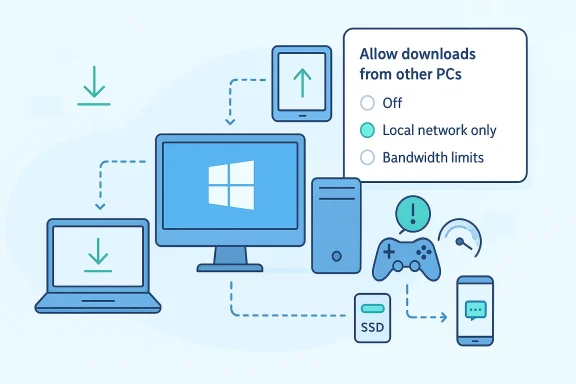
Microsoft’s documented controls are straightforward: turn off sharing, limit it to the local network, or cap bandwidth and monthly upload volume. The core toggle is labeled Allow downloads from other PCs, and disabling it stops your PC from downloading from or uploading to other PCs. Microsoft says you will still get updates directly from Windows Update and the Microsoft Store.If you want to keep the feature but avoid sharing with strangers on the internet, Microsoft offers a local-network-only option. That is the middle ground that fits many households, especially those with multiple Windows devices at home. It preserves the convenience of local peer assistance without using your internet connection to help remote devices you do not know.
A Practical Decision Tree
- Turn it off completely if you care most about preserving upload bandwidth or minimizing background activity.
- Limit it to local network only if you want device-to-device sharing at home but not internet-wide participation.
- Keep it on but cap bandwidth if you are comfortable with sharing but want tighter control over performance impact.
The Hidden Catch in Bandwidth Limits
There is one nuance worth noting: Microsoft says some bandwidth limits apply to automatic update downloads, and manual downloads may not obey the same limits. That means the settings are useful, but they are not a universal throttle for every Microsoft update path. In practice, that is fine for most users, but it is an important detail for anyone expecting perfect traffic shaping.Microsoft also warns that if a device is managed by an organization, some Delivery Optimization controls may be grayed out. In that case, an IT administrator may be enforcing a policy because they value patch efficiency at fleet scale more than one user’s local bandwidth preferences.
- Off means no peer sharing.
- Local network only limits exposure to your own devices.
- Bandwidth caps reduce disruption without disabling the feature.
- Managed devices may not let users change the settings freely.
Consumer Impact Versus Enterprise Reality
For consumers, Delivery Optimization is mostly a convenience-versus-control issue. One household usually does not need peer distribution across the internet to keep a single laptop updated, and the upside can be hard to notice unless there are several PCs in the same home. That is why many consumers read about the feature and immediately decide it is not worth the background traffic.For enterprises, the calculation is different. Microsoft explicitly positions Delivery Optimization as a bandwidth-saving tool that helps keep many devices current without bolting on extra content-distribution infrastructure. In an environment with dozens or thousands of endpoints, the aggregate savings can be substantial, especially when updates roll out in waves.
Why Businesses Keep It On
Enterprises care less about a single user’s upload complaint and more about broad operational efficiency. If peer-assisted transfer trims patch-day congestion, reduces WAN use, and shortens update windows, it becomes a useful part of the Windows servicing toolkit. That is why Microsoft integrates it with management products and update policy controls rather than treating it as a consumer-only curiosity.This also explains the policy flexibility. Microsoft notes that managed devices can have settings locked by IT administrators, which is a reminder that the “best” configuration depends on whether the device belongs to one person or an entire organization. The same feature can be an annoyance at home and a cost-saving asset in a business.
The Home-Small-Business Middle Ground
The tricky segment is the home office and small business. These users are often running a few Windows machines, maybe a printer, a cloud backup solution, and a video meeting platform, all on modest broadband. That is exactly the setting where an upload-heavy background service can be least welcome.For this group, local-network-only mode is often the sweet spot. It keeps the feature’s domestic efficiency while avoiding internet-wide sharing, which is usually where the resentment starts. That also means Microsoft’s default behavior is not necessarily wrong; it is simply optimized for a broader set of assumptions than many users have.
- Consumers often want simplicity and predictability.
- Enterprises want lower WAN cost and faster patching.
- Home offices sit awkwardly between those two goals.
- Policy control matters more as device counts rise.
Privacy, Trust, and the Language Problem
The phrase “your Windows PC is uploading update files to other people’s PCs” is catchy, but it can also distort what the feature actually does. Microsoft says Delivery Optimization does not access personal files, and the content being shared is update or app payloads, not user data. That makes it a network-sharing problem, not a privacy breach in the conventional sense.Still, the headline style matters because users often interpret unseen background network activity as a trust issue, not just a bandwidth issue. Once a feature feels hidden, people become less forgiving about its defaults. That is especially true in Windows, where many users already feel the operating system makes too many assumptions on their behalf.
Why “Hidden Setting” Resonates
Calling Delivery Optimization hidden is not entirely unfair. It lives several clicks deep in Settings, and many users will never explore Windows Update’s advanced options unless something goes wrong. Features that are technically documented but practically obscure often acquire an aura of secrecy, even when they are fully legitimate.That gap between documentation and discoverability is the real story behind the Tom’s Guide piece. Windows may be transparent on paper, but it is not always transparent in the way ordinary users experience it. If a feature affects bandwidth, storage, and update behavior, it should arguably be easier to find.
The Trust Trade-Off
There is also a broader platform trust question. Microsoft wants Windows to feel intelligent and self-managing, which means more automation, more background coordination, and more heuristics about when to use network resources. Users, meanwhile, increasingly want visible controls and predictable behavior. Those goals are not incompatible, but they are in tension.That tension is why the same feature can be described as a helpful optimization in one paragraph and an unwanted bandwidth drain in the next. Both descriptions are true. The difference lies in whether the user values convenience, efficiency, or control most highly.
- It is sharing update content, not personal files.
- It is legitimate, but not always welcome.
- Its settings are documented but easy to miss.
- Visibility is part of trust.
Where the Tom’s Guide Advice Is Solid
The advice to disable or limit Delivery Optimization is broadly sensible for a lot of home users. If you are on a metered plan, have slow upload speeds, or care deeply about preserving responsiveness during gaming and calls, reducing background sharing is pragmatic. Microsoft’s own documentation supports those use cases by giving you explicit ways to turn off peer sharing or cap bandwidth.The article also makes an important secondary point about local-network-only mode. That option is often the best recommendation for a multi-PC household because it preserves the useful part of the feature without sending traffic out to the broader internet. That is the least disruptive compromise for many users.
Where It Needs Nuance
The strongest caveat is that “disable it” should not be presented as a universal best practice. On systems that are managed by an organization, Delivery Optimization may be intentionally enforced for patch efficiency. On some home setups with several PCs, it may actually reduce overall download pressure and speed up update delivery.Another nuance is that bandwidth limits are not a magic shield. Microsoft says they apply in particular to automatic update downloads, which means users expecting perfect, all-purpose throttling may be surprised. A good consumer guide should make that limitation explicit so readers do not assume the setting solves every network problem.
The Better Editorial Framing
A more precise framing would be: Delivery Optimization is useful infrastructure, but its defaults are not ideal for every user. That is a much stronger piece of consumer advice than simply calling it hidden or sinister. It captures both the benefits and the reason people choose to turn it off.- Disabling it can be smart on constrained connections.
- Local-network-only is a strong compromise.
- Enterprise-managed systems are a different case.
- Bandwidth limits help, but they are not universal.
Strengths and Opportunities
The best thing about Delivery Optimization is that it gives Windows a flexible, modern delivery system that can scale from one laptop to many managed endpoints. When it is configured well, it can save bandwidth, improve reliability, and keep updates moving even when Microsoft’s own servers are under pressure. It is also one of the few Windows background systems that offers a meaningful set of user-facing controls rather than hiding everything behind policy or registry edits.- Reduces repeated internet downloads for common updates.
- Can speed up patching in homes with multiple PCs.
- Useful for organizations with many managed devices.
- Offers local-network-only and off modes.
- Allows upload and download limits.
- Creates resilience when internet access is unreliable.
- Works across Windows Update, Microsoft Store, and related Microsoft content.
Risks and Concerns
The downside is that the default behavior can feel intrusive, especially for users with slow upload speeds, metered service, or limited SSD space. Because the feature is tucked inside Windows Update settings, many people only discover it after noticing unexplained network activity or storage consumption. That creates the sense of a hidden cost, even when the feature is behaving exactly as designed.- Can consume valuable upload bandwidth in the background.
- May interfere with gaming, streaming, or video calls.
- Uses cache space that some users would rather preserve.
- Is easy to miss in the Settings app.
- Can be locked down by organizational policy.
- Does not fit every internet plan or household.
- Can be misunderstood as a privacy issue when it is mainly a bandwidth issue.
What to Watch Next
The most important thing to watch is whether Microsoft continues to make Delivery Optimization easier to understand and control. As Windows keeps pushing more update logic into the background, clearer labels and better defaults become more important, not less. Consumers are increasingly willing to accept automation only when they can see what it is doing and adjust it without hunting through nested menus.Another point to watch is whether Microsoft refines the balance between consumer and enterprise defaults. The feature already serves both audiences, but those audiences do not have the same tolerance for background network use. The more Windows leans into always-on connectivity and cloud-assisted services, the more pressure it will face to make those services legible and granular.
Practical Takeaways
- Check whether you want local-network-only sharing.
- Turn it off if upload bandwidth is scarce.
- Use bandwidth caps if you want a middle ground.
- Clear the cache if disk space is tight.
- Expect enterprise-managed machines to behave differently.
For now, the best answer is not panic, but control. If Delivery Optimization fits your setup, it can quietly do useful work in the background. If it does not, Microsoft has finally made it clear enough to shut the door, trim the bandwidth, or keep the sharing inside your own home network.
Source: Tom's Guide https://www.tomsguide.com/computing...s-hidden-setting-to-speed-up-your-connection/
Last edited:
