

A slow HP OmniBook 5 14 running Windows on Arm should first be triaged by scope: if one app is sluggish, check whether it is emulated or poorly optimized; if the whole PC is slow, check startup apps, storage pressure, Windows Update, drivers, HP Support Assistant, and BIOS updates. That fork matters because Windows on Arm is not just “Windows, but thinner.” It is Windows with a compatibility layer, a still-maturing driver ecosystem, and a performance profile that punishes lazy troubleshooting. Reinstalling Windows should be the last move, not the opening ritual.
The fastest way to waste an afternoon on an HP OmniBook 5 14 is to treat every slowdown as the same problem. A browser tab that crawls, a printer utility that hangs, and a laptop that takes minutes to feel responsive after sign-in are not the same failure wearing different clothes.
On Windows on Arm, the first diagnostic question is brutally simple: Is the slowdown inside one app, or is the whole machine slow? If it is one app, the likely culprit is app architecture, emulation, plug-ins, background helpers, or poor optimization. If everything feels heavy — Start menu, Settings, Explorer, task switching, login, sleep resume — the better suspects are startup load, storage pressure, firmware, drivers, thermals, or Windows Update doing work in the background.
That distinction is especially important on Arm PCs because Microsoft’s compatibility story is real but not magical. Windows 11 can run many x86 and x64 apps on Arm through emulation, and that is a huge reason these laptops are usable as everyday Windows machines. But Microsoft still says the best performance path is native Arm64, and it also warns that some x64 apps may be incompatible in certain Windows on Arm scenarios.
So the OmniBook 5 14 troubleshooting path should not begin with “reset this PC.” It should begin with classification.
Open Task Manager with Ctrl+Shift+Esc, select Processes, and watch the sluggish app while you reproduce the problem. If the app spikes CPU while the rest of the system remains smooth, the hardware is probably not the core issue. It is the app, the workload, or the compatibility layer.
Then go deeper. In Task Manager, open the Details tab, right-click the column headers, choose Select columns, and look for platform or architecture-related fields if available on your build. Windows has varied in how visibly it exposes architecture information across releases, so the practical fallback is to check the app vendor’s download page or Microsoft Store listing for an Arm64 version. If the vendor offers a native Arm build, install that before you do anything more dramatic.
This is where a lot of generic Windows advice becomes actively misleading. “Update the app” is fine, but on Windows on Arm the better instruction is “update to the right architecture.” A current x64 build may still be a compromise if a native Arm64 build exists.
The pattern is easy to miss because emulation can be good enough to disappear during light use. A utility may open quickly, sit quietly, and then fall apart only when asked to scan files, render a project, sync a large library, manage a device, or load an old plug-in. That creates the illusion of a system problem when the machine is mostly waiting for one compatibility-heavy process to finish chewing.
For WindowsForum readers already comparing notes on sluggish OmniBook behavior, the useful observation is not merely that “Arm-native apps are faster.” It is that a single bad actor can make a new Arm laptop feel defective, even when the rest of the platform is behaving normally.
But the transition is not invisible for every workload. Microsoft says Windows 11 supports x64 emulation on Arm to broaden app compatibility, while also making clear that native Arm64 remains the best-performance path. Those two statements are not contradictory; they are the operating rulebook.
For consumers, that means a slow app may simply need a better build. For IT pros, it means Windows on Arm readiness is not a checkbox that can be satisfied by “the installer runs.” The sharper question is whether the app, its plug-ins, its shell extensions, its drivers, its background services, and its update agent behave acceptably on Arm hardware.
This is where the OmniBook becomes a test case for a fleet problem. A line-of-business app may launch under emulation and still fail the user experience test because one workflow is too slow. A VPN, scanner package, endpoint tool, or peripheral utility may install cleanly and still introduce drag. The app is technically compatible, but operationally expensive.
That distinction matters because users describe both states with the same word: slow. The decision tree separates “this app needs replacement, an Arm build, or a vendor escalation” from “this laptop needs system maintenance.”
Start at Settings > Apps > Startup. Disable nonessential startup apps, especially vendor updaters, chat clients, launchers, game stores, sync tools, and utilities you do not need at sign-in. Then reboot and judge the machine only after it has had a minute to settle.
Next, open Task Manager > Startup apps and sort by startup impact. Windows’ impact rating is not perfect, but it is good enough to expose the obvious freeloaders. The point is not to turn a modern laptop into a stripped-down kiosk; it is to stop five convenience apps from all demanding first rights to CPU, disk, and network at boot.
Then check Settings > System > Storage. If storage is tight, use Temporary files and Cleanup recommendations before you reach for third-party cleaners. Windows laptops slow down in boring ways when they are short on working space, and Arm laptops are not exempt from that law.
Finally, open Settings > Windows Update and let the update state become boring. Install available updates, check Advanced options > Optional updates for drivers, and restart when prompted. Microsoft’s own support guidance says Windows Update can automatically install recommended drivers, while manufacturer sites should be checked if Windows Update cannot find the right driver.
That makes HP Support Assistant part of the serious troubleshooting path, not decorative bloat. Open it, let it detect the device, and check for available updates. If a BIOS update appears, read the prompts carefully, plug in the charger, and do not interrupt the process.
The reason this matters is not that every slow OmniBook is secretly one BIOS revision away from greatness. It is that firmware governs the low-level behavior users experience as performance: power states, device initialization, thermal behavior, sleep and resume stability, and how smoothly the platform cooperates with Windows.
A clean Windows reinstall that lands on the same old firmware and the same problematic driver stack may change very little. Worse, it may temporarily feel faster only because startup apps and cached junk have been cleared, leaving the root cause intact.
The practical order should be Windows Update first, HP Support Assistant second, and manual manufacturer-driver hunting only when the first two cannot solve a specific device problem. That keeps the system closer to supported paths and avoids the classic enthusiast mistake of installing random driver packages because a forum post said they felt faster.
If the OmniBook feels slow only when docked, printing, scanning, syncing to an external drive, or using a particular accessory, the accessory path is part of the diagnosis. Disconnect nonessential peripherals, reboot, and test the machine in its simplest state. Then reconnect devices one at a time.
This is not glamorous advice, but it is how you catch a driver or service that wakes constantly, retries in the background, or drags a compatibility layer into daily use. A laptop that feels fine undocked and sluggish when attached to a hub is not asking for a reinstall. It is asking you to isolate the hub, display path, storage device, or companion software.
Microsoft’s driver guidance is conservative for a reason. Let Windows Update try first. If it cannot find the right driver, then go to the hardware maker. On an Arm Windows laptop, that second step should include the uncomfortable question: does the vendor actually support Windows on Arm, or is this just an old x64 package hoping nobody notices?
Thermals matter too, even when the laptop is not obviously overheating. A machine buried in bedding, used on a soft surface, or updating in a warm room may throttle before the user thinks “heat problem.” The symptom is not always a dramatic fan roar; sometimes it is just a system that feels syrupy after several minutes of sustained activity.
This is another place where the one-app-versus-whole-system fork pays off. If one app slows down under sustained load while the rest of Windows remains responsive, the app may be hitting emulation or optimization limits. If the whole shell gets sluggish after load or heat builds, platform behavior deserves more attention.
Users often want a switch called “make it fast.” Windows gives them a cluster of levers instead: startup load, power mode, update state, storage headroom, firmware, and driver health. The trick is pulling them in the right order.
The danger is that reinstalling can erase evidence. Startup entries, problematic utilities, update history, device behavior, and the exact app that triggered the complaint all get blurred. If the same user then reinstalls the same apps and reconnects the same peripherals, the slowdown may return wearing a fresh installation date.
A better pre-reset path is straightforward. Test the machine after a clean reboot. Test with startup apps disabled. Test the suspected app against a native Arm alternative if one exists. Test with peripherals disconnected. Apply Windows Update. Apply HP Support Assistant updates. Check storage and power settings. Only then decide whether the operating system itself is damaged enough to justify reset.
This is not slower than reinstalling. It only feels slower because reinstalling is one dramatic action while diagnosis is several small ones. In practice, the small actions are usually faster and leave you knowing what changed.
For small deployments, the decision tree can become a help desk script. If one app is slow, identify the app architecture and vendor support posture. If everything is slow, inspect startup, updates, drivers, firmware, storage, and peripherals. If the issue appears only with a dock, printer, VPN, or endpoint agent, treat that device or service as a suspect.
For larger environments, the same logic becomes a migration framework. Arm readiness should include native app availability, driver support, peripheral compatibility, update delivery, and acceptable performance under real workloads. “It launches” is not enough.
That is the gap most generic performance guides miss. They are written for Windows as a single hardware monoculture. The OmniBook 5 14 belongs to a Windows world where architecture is once again operationally relevant.
First, identify scope. Open the slow app, reproduce the problem, and watch Task Manager. If one app is consuming resources while Windows remains responsive, find an Arm-native build, update the app, remove unnecessary plug-ins, or replace the app with a better-supported alternative.
Second, if the whole system is sluggish, clean the boot path. Go to Settings > Apps > Startup, disable nonessential startup apps, reboot, and retest. Then use Task Manager > Startup apps to catch anything you missed.
Third, check storage and updates. Use Settings > System > Storage to clear temporary files and review cleanup recommendations. Then use Settings > Windows Update to install updates, check Advanced options > Optional updates for drivers, and restart.
Fourth, use HP’s own tooling. Open HP Support Assistant, check for updates, and install relevant packages, including BIOS updates when offered. Treat BIOS updates carefully: plug in power, follow HP’s prompts, and do not interrupt the process.
Fifth, isolate accessories. If performance changes when a dock, printer, scanner, external drive, or audio device is connected, disconnect everything nonessential and reconnect one item at a time. A peripheral path that behaves badly on Windows on Arm can masquerade as a slow laptop.
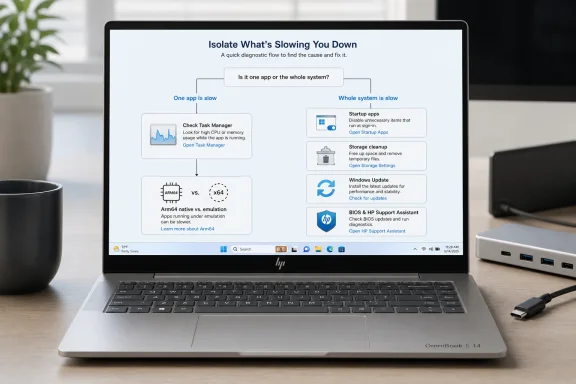 The Fix Starts With One Fork in the Road
The fastest way to waste an afternoon on an HP OmniBook 5 14 is to treat every slowdown as the same problem. A browser tab that crawls, a printer utility that hangs, and a laptop that takes minutes to feel responsive after sign-in are not the same failure wearing different clothes.On Windows on Arm, the first diagnostic question is brutally simple: Is the slowdown inside one app, or is the whole machine slow? If it is one app, the likely culprit is app architecture, emulation, plug-ins, background helpers, or poor optimization. If everything feels heavy — Start menu, Settings, Explorer, task switching, login, sleep resume — the better suspects are startup load, storage pressure, firmware, drivers, thermals, or Windows Update doing work in the background.
That distinction is especially important on Arm PCs because Microsoft’s compatibility story is real but not magical. Windows 11 can run many x86 and x64 apps on Arm through emulation, and that is a huge reason these laptops are usable as everyday Windows machines. But Microsoft still says the best performance path is native Arm64, and it also warns that some x64 apps may be incompatible in certain Windows on Arm scenarios.
So the OmniBook 5 14 troubleshooting path should not begin with “reset this PC.” It should begin with classification.
If One App Is Slow, Assume the App Is on Trial
When a single app is the problem, do not start by blaming the laptop. Start by identifying whether the app is native Arm64, emulated x64, or dragging along a helper component that was never built with Arm in mind.Open Task Manager with Ctrl+Shift+Esc, select Processes, and watch the sluggish app while you reproduce the problem. If the app spikes CPU while the rest of the system remains smooth, the hardware is probably not the core issue. It is the app, the workload, or the compatibility layer.
Then go deeper. In Task Manager, open the Details tab, right-click the column headers, choose Select columns, and look for platform or architecture-related fields if available on your build. Windows has varied in how visibly it exposes architecture information across releases, so the practical fallback is to check the app vendor’s download page or Microsoft Store listing for an Arm64 version. If the vendor offers a native Arm build, install that before you do anything more dramatic.
This is where a lot of generic Windows advice becomes actively misleading. “Update the app” is fine, but on Windows on Arm the better instruction is “update to the right architecture.” A current x64 build may still be a compromise if a native Arm64 build exists.
The pattern is easy to miss because emulation can be good enough to disappear during light use. A utility may open quickly, sit quietly, and then fall apart only when asked to scan files, render a project, sync a large library, manage a device, or load an old plug-in. That creates the illusion of a system problem when the machine is mostly waiting for one compatibility-heavy process to finish chewing.
For WindowsForum readers already comparing notes on sluggish OmniBook behavior, the useful observation is not merely that “Arm-native apps are faster.” It is that a single bad actor can make a new Arm laptop feel defective, even when the rest of the platform is behaving normally.
The App Test Is a Migration Test in Disguise
The HP OmniBook 5 14 sits in the middle of a larger Windows transition that Microsoft would prefer users experience as boring compatibility. That is the right aspiration. Nobody wants to buy a laptop and become an instruction-set archaeologist.But the transition is not invisible for every workload. Microsoft says Windows 11 supports x64 emulation on Arm to broaden app compatibility, while also making clear that native Arm64 remains the best-performance path. Those two statements are not contradictory; they are the operating rulebook.
For consumers, that means a slow app may simply need a better build. For IT pros, it means Windows on Arm readiness is not a checkbox that can be satisfied by “the installer runs.” The sharper question is whether the app, its plug-ins, its shell extensions, its drivers, its background services, and its update agent behave acceptably on Arm hardware.
This is where the OmniBook becomes a test case for a fleet problem. A line-of-business app may launch under emulation and still fail the user experience test because one workflow is too slow. A VPN, scanner package, endpoint tool, or peripheral utility may install cleanly and still introduce drag. The app is technically compatible, but operationally expensive.
That distinction matters because users describe both states with the same word: slow. The decision tree separates “this app needs replacement, an Arm build, or a vendor escalation” from “this laptop needs system maintenance.”
If the Whole System Is Slow, Stop Hunting for One Magic Process
A whole-system slowdown has a different smell. The desktop takes too long to settle after login. File Explorer hesitates. Settings opens slowly. The fan curve or chassis warmth suggests sustained background work. Even lightweight apps feel delayed because the machine is busy before the user asks it to do anything.Start at Settings > Apps > Startup. Disable nonessential startup apps, especially vendor updaters, chat clients, launchers, game stores, sync tools, and utilities you do not need at sign-in. Then reboot and judge the machine only after it has had a minute to settle.
Next, open Task Manager > Startup apps and sort by startup impact. Windows’ impact rating is not perfect, but it is good enough to expose the obvious freeloaders. The point is not to turn a modern laptop into a stripped-down kiosk; it is to stop five convenience apps from all demanding first rights to CPU, disk, and network at boot.
Then check Settings > System > Storage. If storage is tight, use Temporary files and Cleanup recommendations before you reach for third-party cleaners. Windows laptops slow down in boring ways when they are short on working space, and Arm laptops are not exempt from that law.
Finally, open Settings > Windows Update and let the update state become boring. Install available updates, check Advanced options > Optional updates for drivers, and restart when prompted. Microsoft’s own support guidance says Windows Update can automatically install recommended drivers, while manufacturer sites should be checked if Windows Update cannot find the right driver.
HP’s Update Stack Matters More Than Usual on a New Arm Laptop
On an HP OmniBook 5 14, the Windows Update path is necessary but not always sufficient. HP recommends using HP Support Assistant to find and install updates, including BIOS updates, and says BIOS updates can improve computer performance.That makes HP Support Assistant part of the serious troubleshooting path, not decorative bloat. Open it, let it detect the device, and check for available updates. If a BIOS update appears, read the prompts carefully, plug in the charger, and do not interrupt the process.
The reason this matters is not that every slow OmniBook is secretly one BIOS revision away from greatness. It is that firmware governs the low-level behavior users experience as performance: power states, device initialization, thermal behavior, sleep and resume stability, and how smoothly the platform cooperates with Windows.
A clean Windows reinstall that lands on the same old firmware and the same problematic driver stack may change very little. Worse, it may temporarily feel faster only because startup apps and cached junk have been cleared, leaving the root cause intact.
The practical order should be Windows Update first, HP Support Assistant second, and manual manufacturer-driver hunting only when the first two cannot solve a specific device problem. That keeps the system closer to supported paths and avoids the classic enthusiast mistake of installing random driver packages because a forum post said they felt faster.
Peripheral Drivers Can Make an Arm PC Feel Worse Than It Is
Windows on Arm troubleshooting needs a peripheral chapter because the ecosystem edge still matters. Printers, docks, audio devices, scanners, capture hardware, VPN adapters, and older utilities can all bring driver or background-service baggage.If the OmniBook feels slow only when docked, printing, scanning, syncing to an external drive, or using a particular accessory, the accessory path is part of the diagnosis. Disconnect nonessential peripherals, reboot, and test the machine in its simplest state. Then reconnect devices one at a time.
This is not glamorous advice, but it is how you catch a driver or service that wakes constantly, retries in the background, or drags a compatibility layer into daily use. A laptop that feels fine undocked and sluggish when attached to a hub is not asking for a reinstall. It is asking you to isolate the hub, display path, storage device, or companion software.
Microsoft’s driver guidance is conservative for a reason. Let Windows Update try first. If it cannot find the right driver, then go to the hardware maker. On an Arm Windows laptop, that second step should include the uncomfortable question: does the vendor actually support Windows on Arm, or is this just an old x64 package hoping nobody notices?
Power and Thermals Are Not Separate From Performance
The OmniBook 5 14 should also be checked for the mundane laptop behaviors that make new machines feel inexplicably inconsistent. Open Settings > System > Power & battery and review the active power mode. If the machine is plugged in and being used for setup, updates, or heavier work, a more performance-oriented mode may help. If it is on battery, expect Windows to make different choices.Thermals matter too, even when the laptop is not obviously overheating. A machine buried in bedding, used on a soft surface, or updating in a warm room may throttle before the user thinks “heat problem.” The symptom is not always a dramatic fan roar; sometimes it is just a system that feels syrupy after several minutes of sustained activity.
This is another place where the one-app-versus-whole-system fork pays off. If one app slows down under sustained load while the rest of Windows remains responsive, the app may be hitting emulation or optimization limits. If the whole shell gets sluggish after load or heat builds, platform behavior deserves more attention.
Users often want a switch called “make it fast.” Windows gives them a cluster of levers instead: startup load, power mode, update state, storage headroom, firmware, and driver health. The trick is pulling them in the right order.
Reinstalling Windows Is a Reset, Not a Diagnosis
There are times when resetting Windows is reasonable. A machine that has been through failed driver experiments, security software conflicts, botched debloat scripts, and months of accumulated junk may deserve a clean start. But for a new or lightly used HP OmniBook 5 14, reinstalling Windows before triage is usually a confession that the investigation never happened.The danger is that reinstalling can erase evidence. Startup entries, problematic utilities, update history, device behavior, and the exact app that triggered the complaint all get blurred. If the same user then reinstalls the same apps and reconnects the same peripherals, the slowdown may return wearing a fresh installation date.
A better pre-reset path is straightforward. Test the machine after a clean reboot. Test with startup apps disabled. Test the suspected app against a native Arm alternative if one exists. Test with peripherals disconnected. Apply Windows Update. Apply HP Support Assistant updates. Check storage and power settings. Only then decide whether the operating system itself is damaged enough to justify reset.
This is not slower than reinstalling. It only feels slower because reinstalling is one dramatic action while diagnosis is several small ones. In practice, the small actions are usually faster and leave you knowing what changed.
The OmniBook Is a Consumer Laptop With Enterprise Lessons
The HP OmniBook branding may sound consumer-friendly, but the troubleshooting lesson is enterprise-grade. Windows on Arm is no longer a curiosity, and that means IT teams need a repeatable way to distinguish app compatibility issues from platform health issues.For small deployments, the decision tree can become a help desk script. If one app is slow, identify the app architecture and vendor support posture. If everything is slow, inspect startup, updates, drivers, firmware, storage, and peripherals. If the issue appears only with a dock, printer, VPN, or endpoint agent, treat that device or service as a suspect.
For larger environments, the same logic becomes a migration framework. Arm readiness should include native app availability, driver support, peripheral compatibility, update delivery, and acceptable performance under real workloads. “It launches” is not enough.
That is the gap most generic performance guides miss. They are written for Windows as a single hardware monoculture. The OmniBook 5 14 belongs to a Windows world where architecture is once again operationally relevant.
The Practical Fix Is Smaller Than the Panic
The concrete repair path for a sluggish HP OmniBook 5 14 is not exotic. It is just more disciplined than the usual checklist.First, identify scope. Open the slow app, reproduce the problem, and watch Task Manager. If one app is consuming resources while Windows remains responsive, find an Arm-native build, update the app, remove unnecessary plug-ins, or replace the app with a better-supported alternative.
Second, if the whole system is sluggish, clean the boot path. Go to Settings > Apps > Startup, disable nonessential startup apps, reboot, and retest. Then use Task Manager > Startup apps to catch anything you missed.
Third, check storage and updates. Use Settings > System > Storage to clear temporary files and review cleanup recommendations. Then use Settings > Windows Update to install updates, check Advanced options > Optional updates for drivers, and restart.
Fourth, use HP’s own tooling. Open HP Support Assistant, check for updates, and install relevant packages, including BIOS updates when offered. Treat BIOS updates carefully: plug in power, follow HP’s prompts, and do not interrupt the process.
Fifth, isolate accessories. If performance changes when a dock, printer, scanner, external drive, or audio device is connected, disconnect everything nonessential and reconnect one item at a time. A peripheral path that behaves badly on Windows on Arm can masquerade as a slow laptop.
The Short Version Belongs on the Help Desk Wall
Most OmniBook slowdowns can be handled without drama if the first five minutes are spent sorting symptoms instead of performing rituals. The machine is either being dragged down by one workload, or the whole platform is under pressure.- If only one app is slow, look first for an Arm-native version or a better-supported alternative before changing system settings.
- If the whole laptop is slow after sign-in, disable nonessential startup apps and reboot before assuming Windows is broken.
- If storage is tight, use Windows’ built-in Storage cleanup tools rather than third-party cleaners.
- If drivers may be involved, use Windows Update and optional driver updates first, then HP Support Assistant, then the device maker only when needed.
- If HP Support Assistant offers a BIOS update, treat it as a legitimate performance and stability maintenance step, not an optional curiosity.
- If the slowdown appears only with a dock, printer, scanner, external drive, VPN, or utility installed, troubleshoot that accessory path before resetting Windows.
References
- Primary source: learn.microsoft.com
Windows on Arm documentation | Microsoft Learn
Learn more about running Windows on PCs powered by Arm processors. Find guidance on how to build Windows apps for Arm64 devices or iteratively update your existing Windows app to take advantage of Arm64 native capabilities.learn.microsoft.com - Independent coverage: support.microsoft.com
Preguntas más frecuentes sobre equipos con Windows basados en ARM | Microsoft Support
Obtén información sobre el uso de un PC basado en Arm con Windows y obtén respuestas a preguntas comunes sobre los PC basados en Arm.support.microsoft.com - Primary source: WindowsForum
Fix a Sluggish HP OmniBook 5 14 on Windows on Arm (Quick ARM-Specific Steps) | Windows Forum
A sluggish HP OmniBook 5 14 is usually fixable, but the reason matters: on a modern Windows on Arm laptop, performance bottlenecks can come from startup...windowsforum.com
